
Video Gallery Widget
Introduction
The Video Gallery Widget allows you to display videos in an organized and visually appealing gallery anywhere on your eDirectory website.
Whether you want to showcase promotional videos, customer testimonials, tutorials, destination highlights, or any other video content, the Video Gallery Widget provides a flexible way to create engaging sections throughout your website.
The widget can be added to any page using the Page Editor and includes several customization options to match your website's design.
This guide will show you how to add, configure, and customize the Video Gallery Widget.
Before You Begin
Before adding the Video Gallery Widget, make sure you have:
- Access to the Site Manager area of eDirectory.
- At least one page where you want to display videos.
- The video URLs or content you want to showcase.
Step 1: Add the Video Gallery Widget
1.1. Open the Page Editor
From your Site Manager, navigate to Design → Page Editor. Locate the page where you want to display the Video Gallery and click the Edit button.
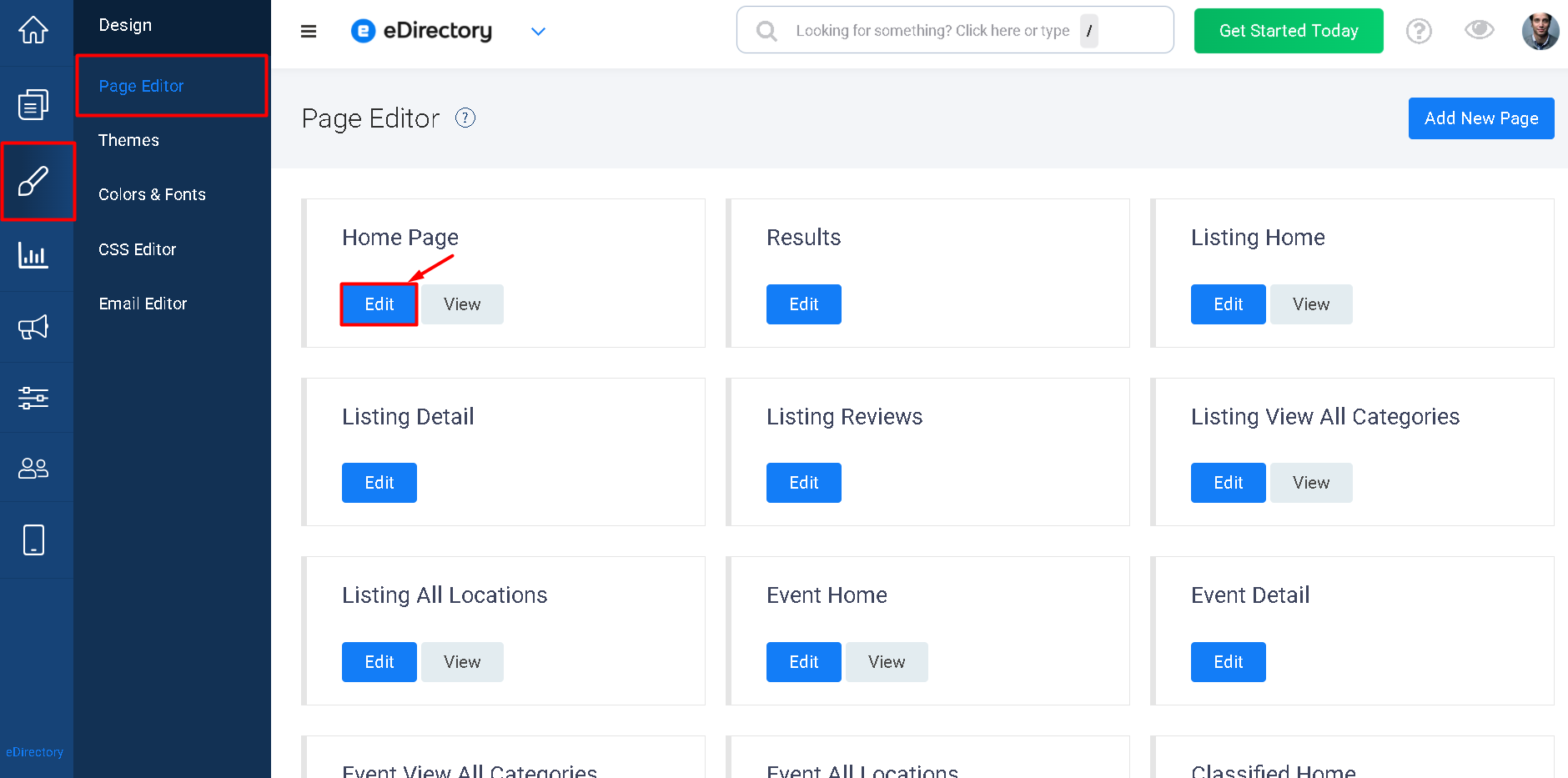
This will open the Page Editor, where you can customize the page by adding and configuring widgets.
1.2. Add the Widget
Once inside the Page Editor, click Add a Widget.
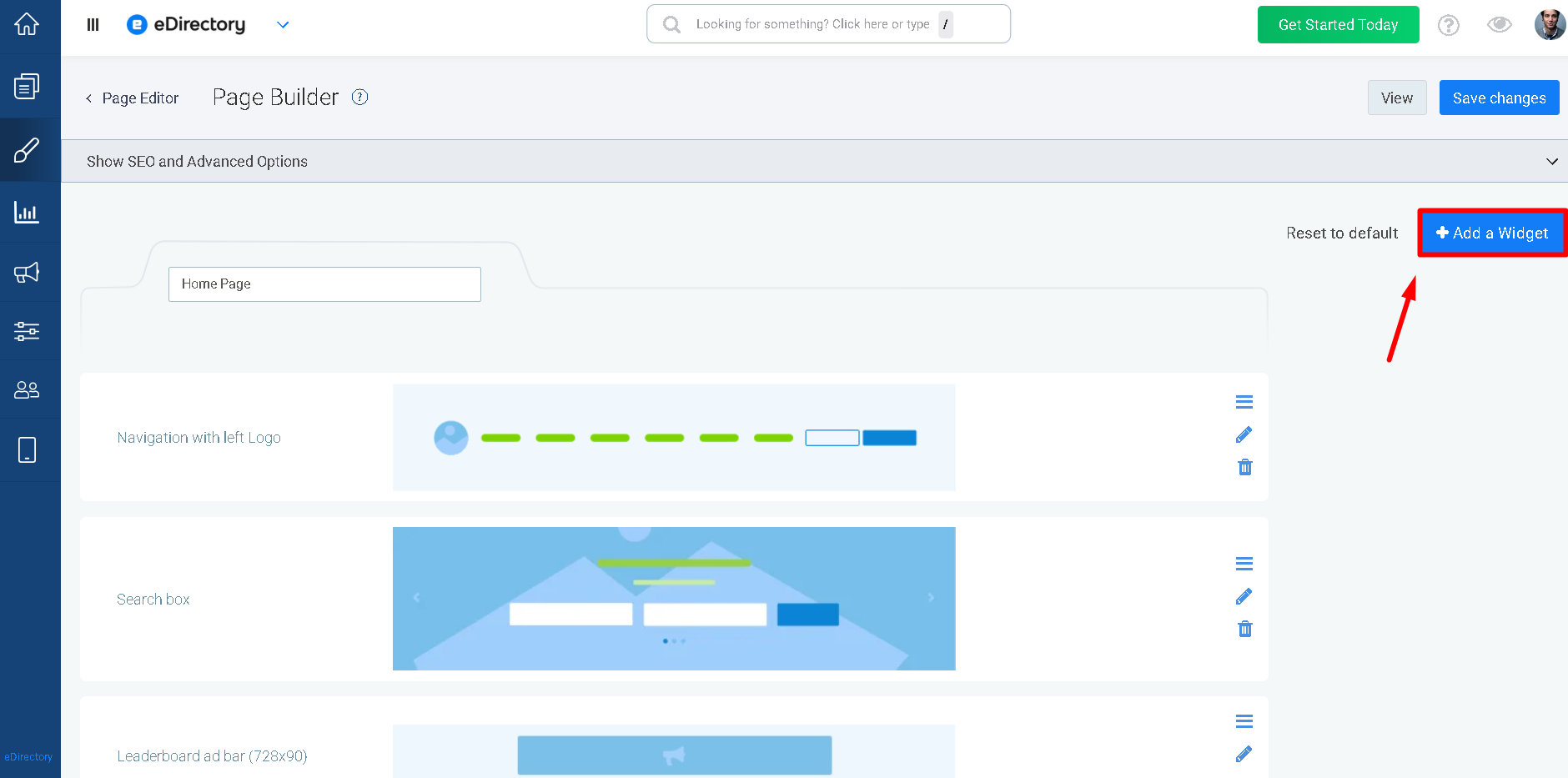
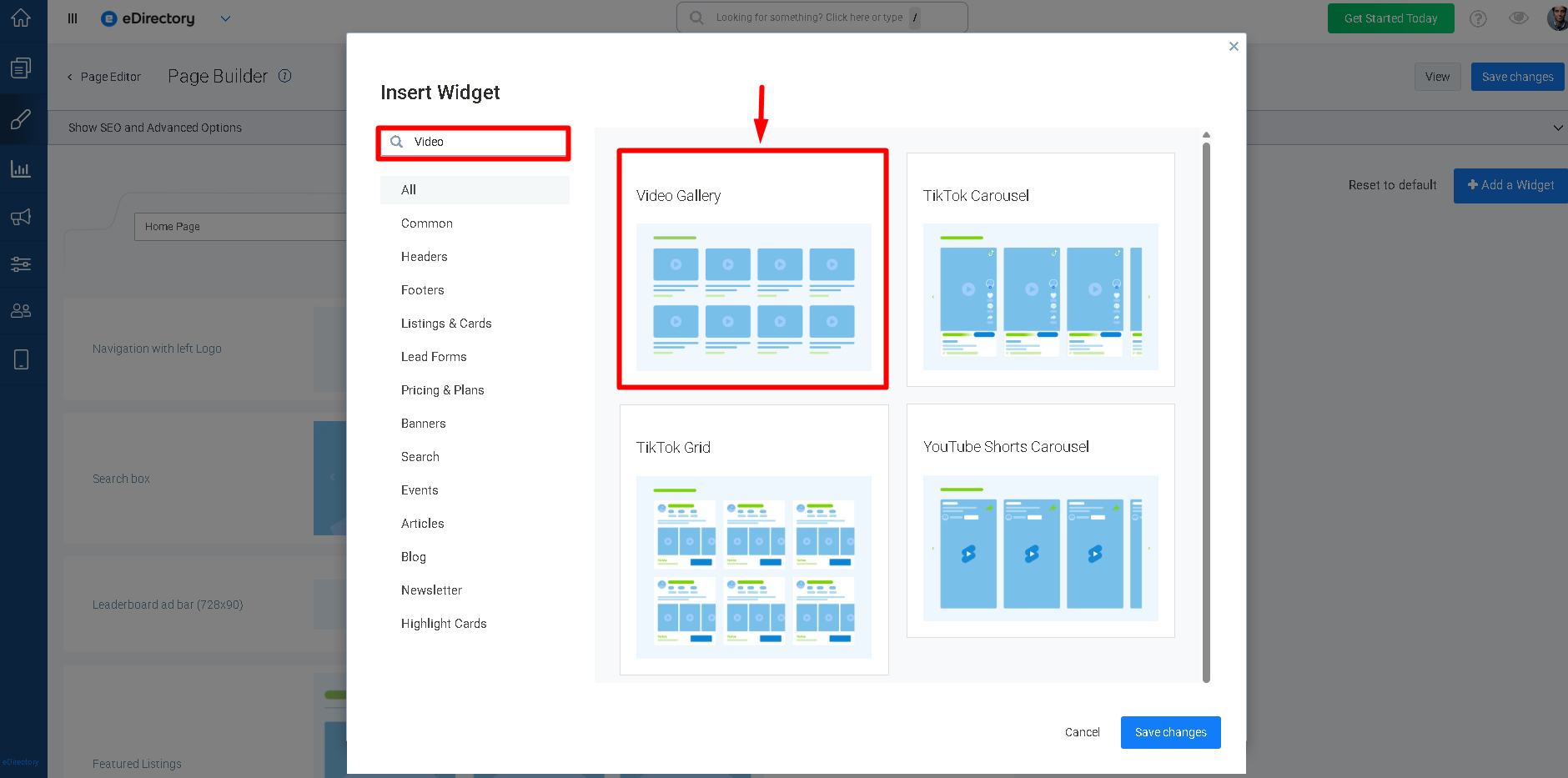
A panel displaying all available widgets will appear. Use the search field and type Video to quickly locate the Video Gallery widget. Click the widget to add it to the page.
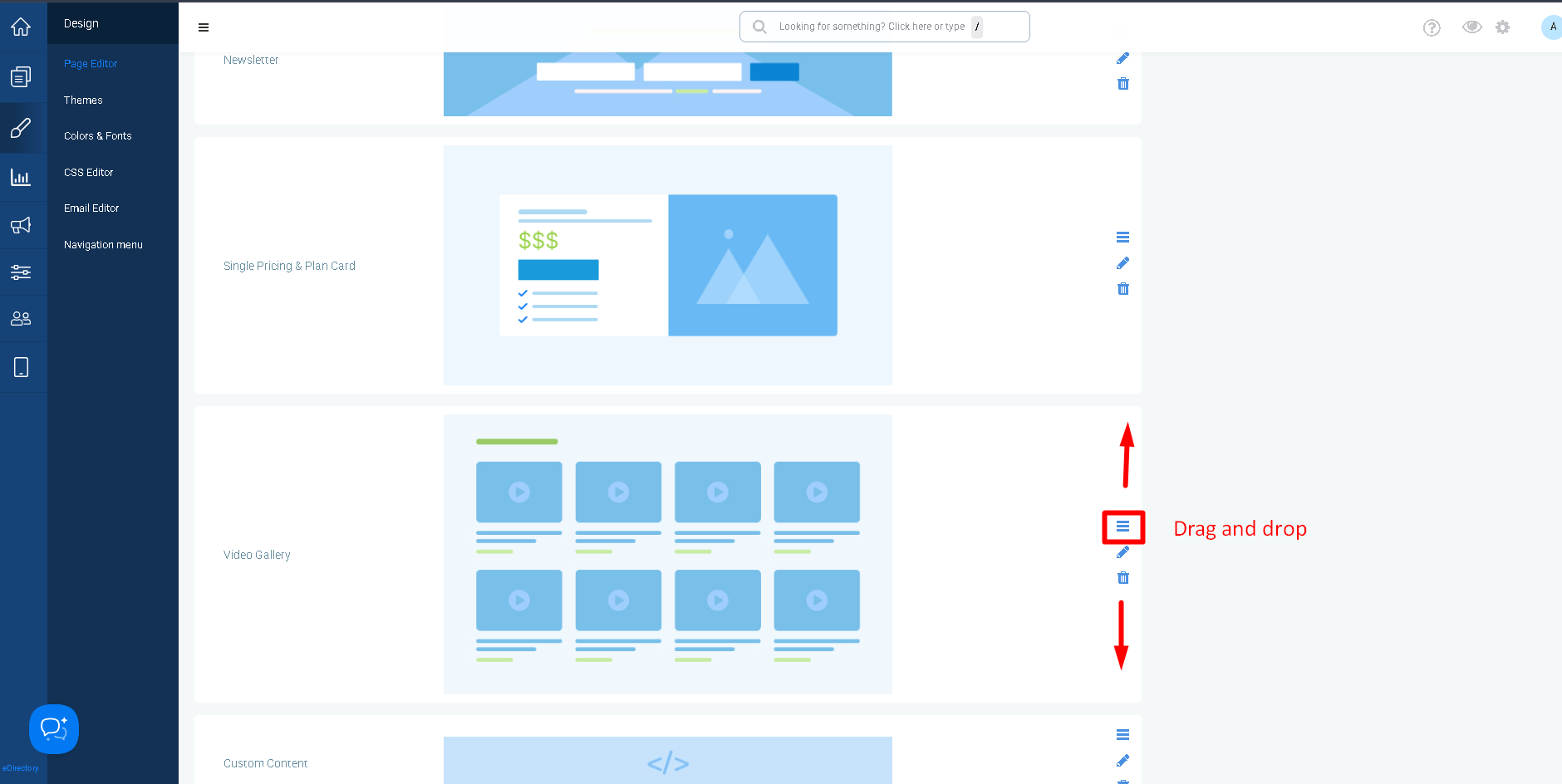
After adding it, you can drag and reposition the widget anywhere on the page to determine where it will appear to your visitors.
Step 2: Add Videos to the Widget
After adding the widget to the page, you'll need to configure it and add your videos.
2.1. Open the Widget Settings
Hover over the Video Gallery Widget and click the Pencil (Edit) icon.
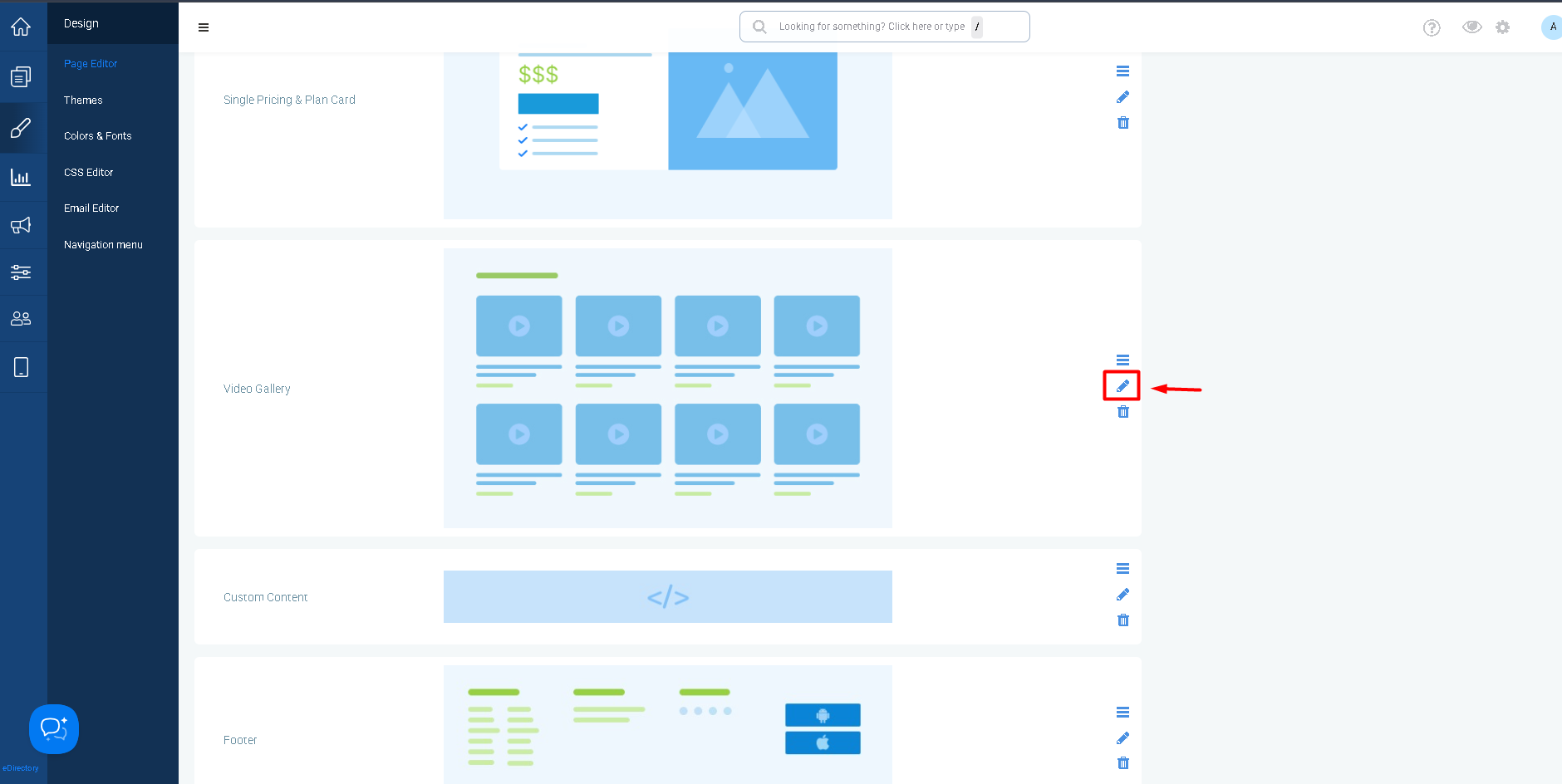
This will open the widget configuration window.
2.2. Enter the Gallery Title
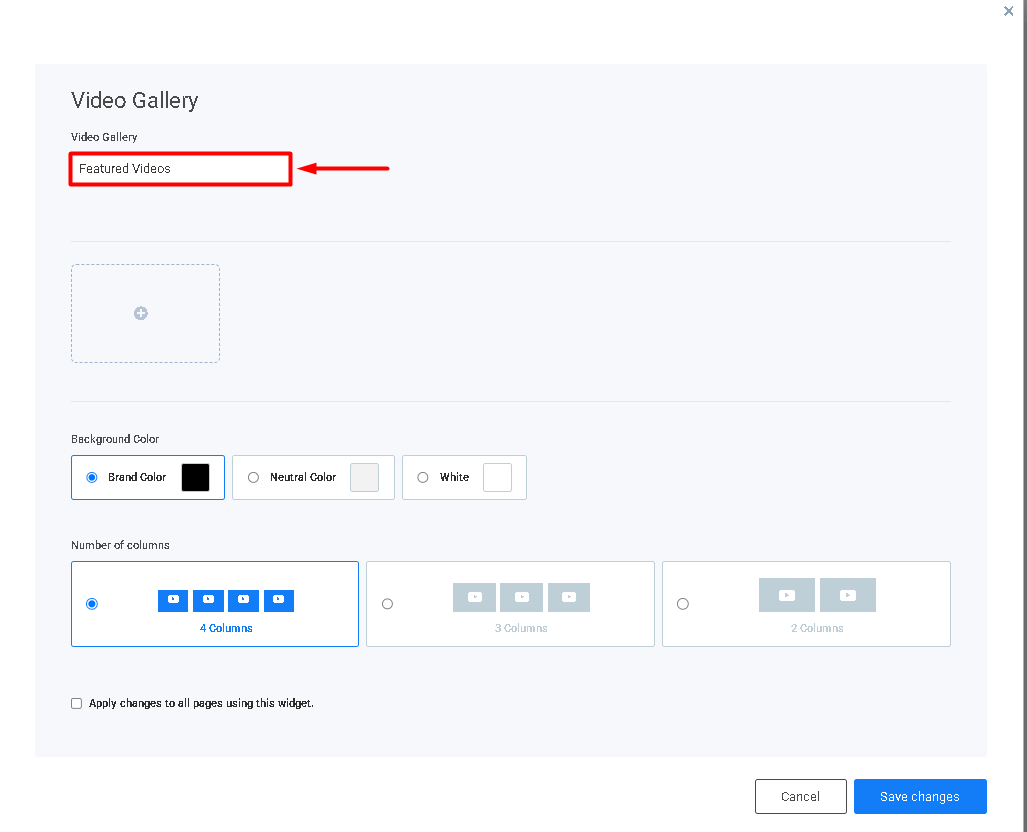
In the Video Gallery field, enter the title you would like to display above your video gallery.
For example:
- Featured Videos
- Travel Guides
- Customer Testimonials
- Product Demonstrations
2.3. Add a Video
Click the + button to add a new video.
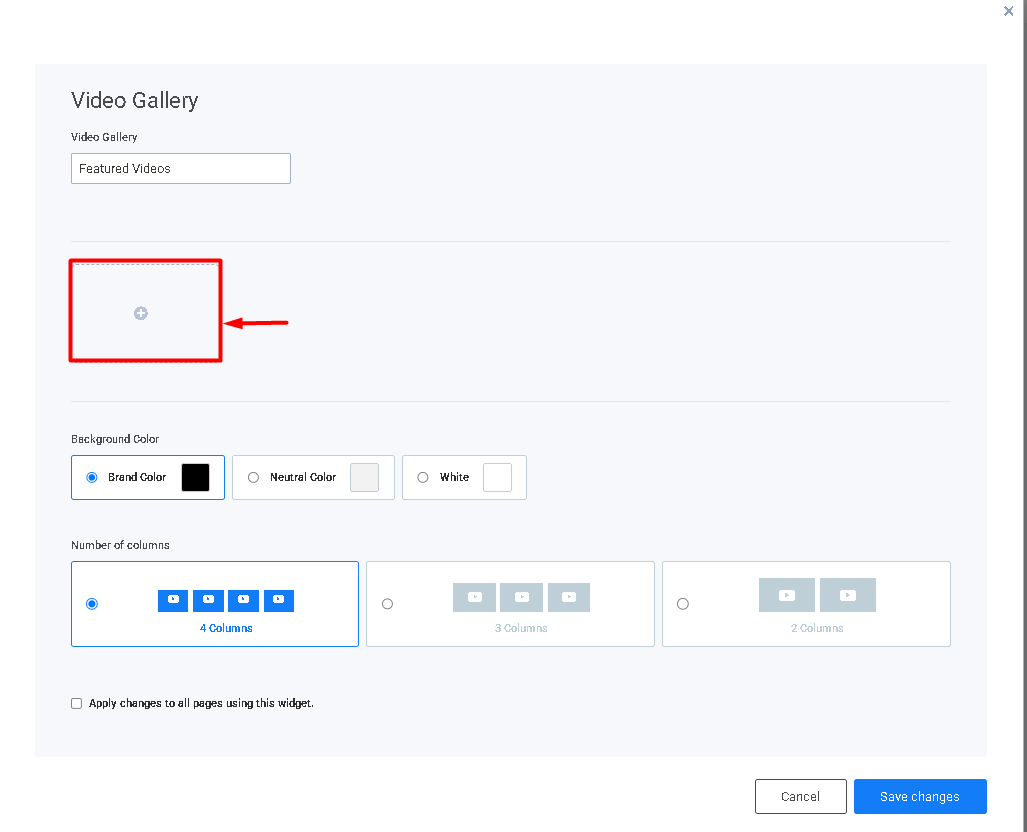
A new video entry will be created.
2.4. Enter the Video URL
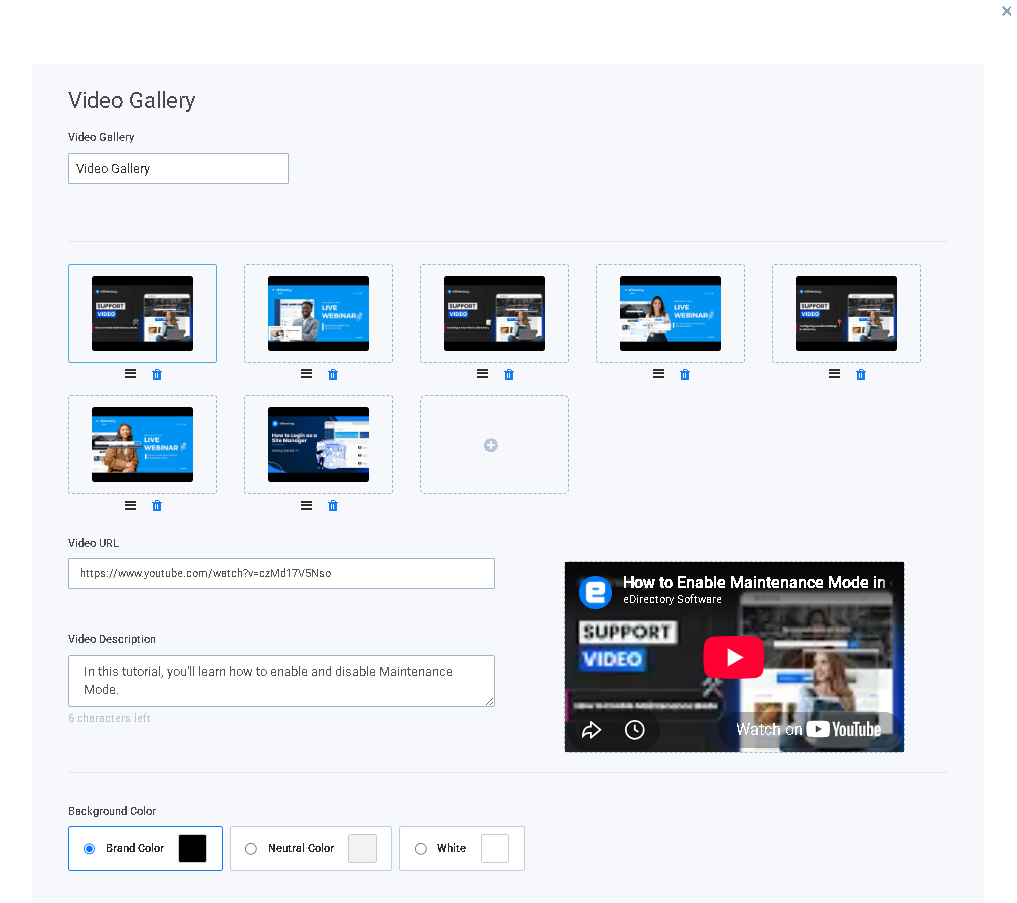
In the Video URL field, paste the link to your YouTube or Vimeo video.
Supported platforms include:
- YouTube
- Vimeo
Examples:
https://www.youtube.com/watch?v=XXXXXXXXhttps://vimeo.com/XXXXXXXX
As soon as you paste a valid video URL, the widget will automatically load and display the video's thumbnail.
Important Note: The Video Gallery Widget only supports videos hosted on YouTube and Vimeo. It does not support uploading video files directly from your computer. If your video is stored locally, upload it to one of these platforms first, then paste its URL into the widget.
2.5. Enter the Video Description
In the Description field, enter a brief description for the video.
This description will be displayed with the video and can be used to provide additional information or encourage visitors to watch it.
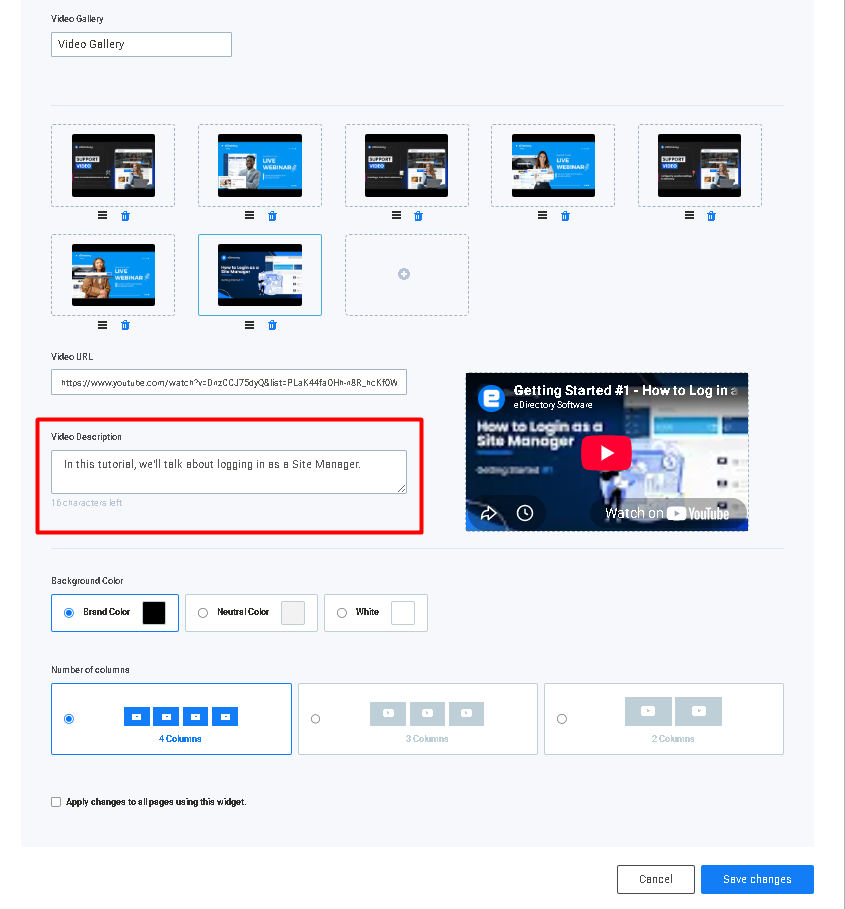
Repeat the previous steps for each additional video you would like to include in the gallery.
Step 3: Customize the Widget
Once your videos have been added, you can customize how the gallery is displayed.
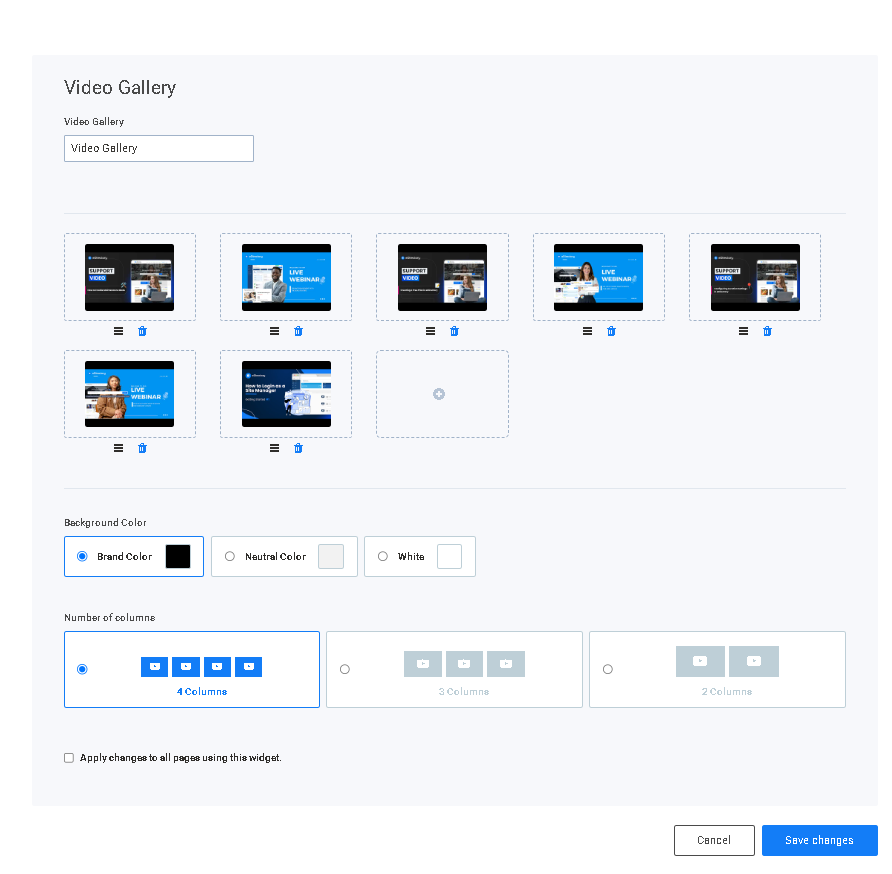
3.1. Background Color
Select a background color that complements your website's design.
This allows the Video Gallery to blend seamlessly with the rest of your page.
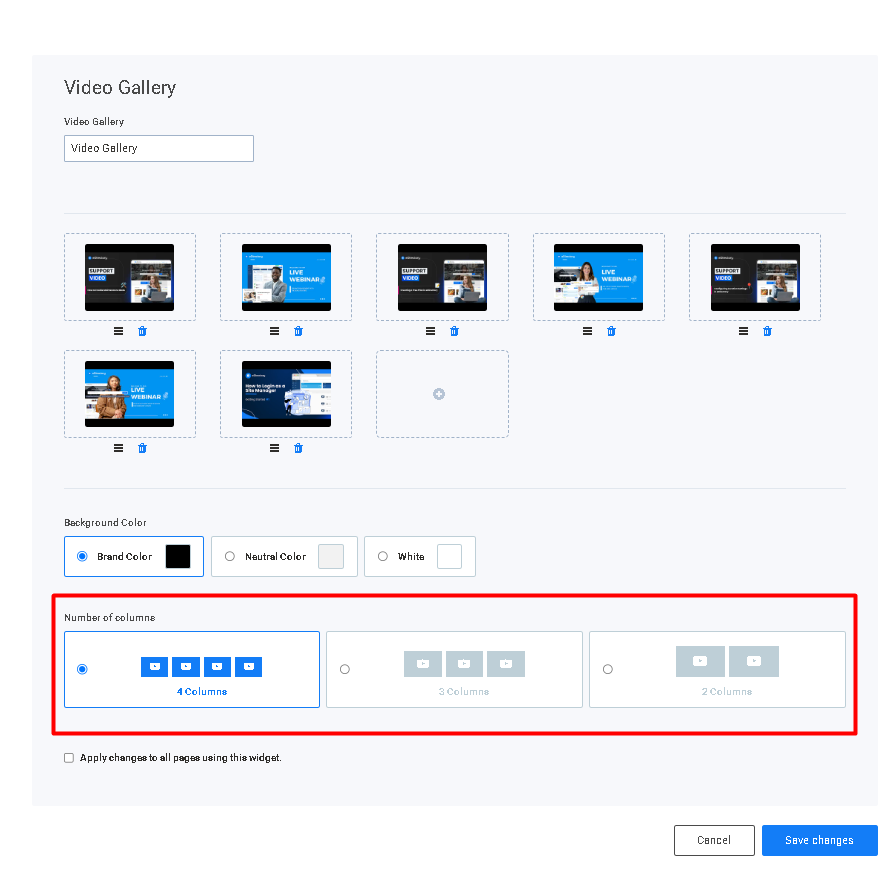
3.2. Number of Columns
Choose how many columns you would like the gallery to display.
Increasing or decreasing the number of columns changes how many videos appear in each row.
3.3. Save Your Changes
After configuring the widget, click Save Changes.
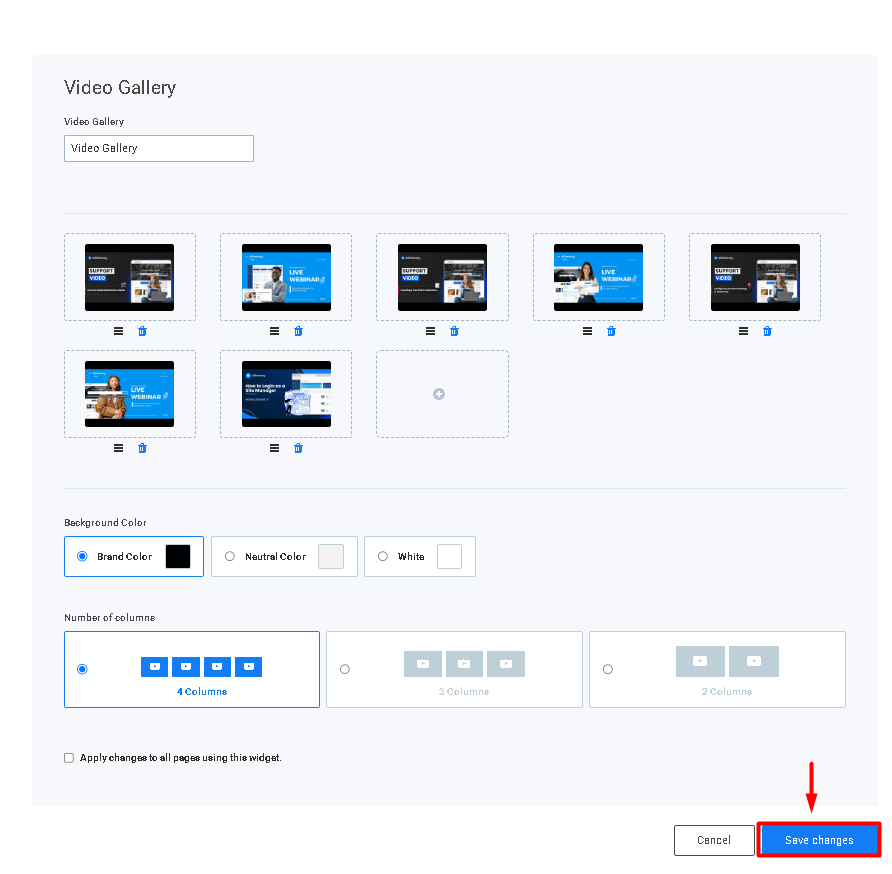
Your Video Gallery is now ready to be displayed on your website.
Verifying the Widget
After saving your changes, visit the page where the Video Gallery Widget was added.
Verify that:
- The Video Gallery is displayed correctly.
- The gallery title appears as expected.
- All video thumbnails are displayed.
- Videos play correctly when clicked.
- The descriptions appear beneath each video.
- The selected background color has been applied.
- The number of columns matches your configuration.
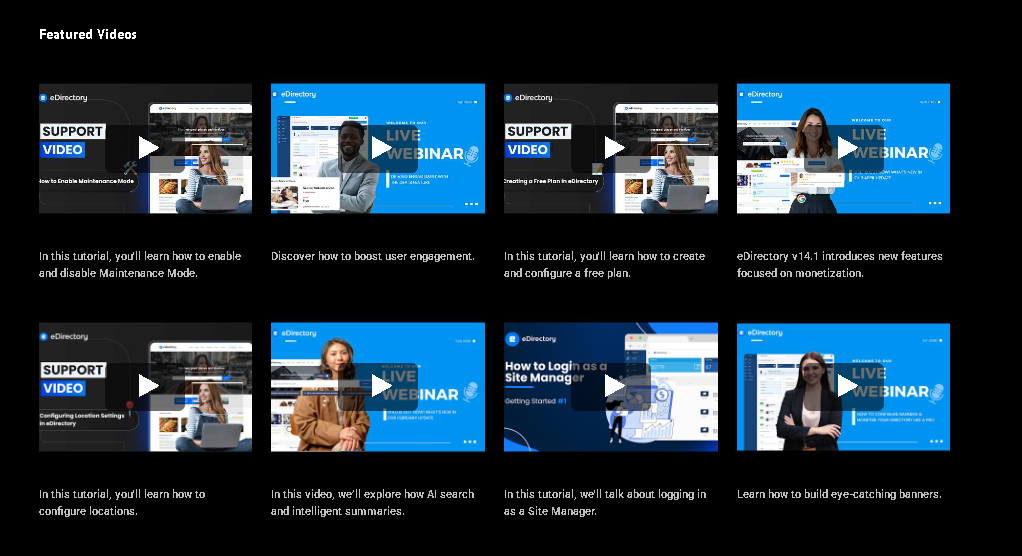
If everything appears correctly, the Video Gallery Widget has been successfully configured.
Benefits of the Video Gallery Widget
The Video Gallery Widget allows you to:
- Showcase promotional videos.
- Display customer testimonials.
- Share tutorials and educational content.
- Highlight destinations, products, or services.
- Increase visitor engagement with rich media.
- Improve the visual appearance of your pages.
- Organize multiple videos into a clean and responsive gallery.
Troubleshooting
I can't find the Video Gallery Widget.
Verify that:
- You are editing the page through Design → Page Editor.
- You clicked Add a Widget.
- You searched for Video in the widget search box.
My video thumbnail doesn't appear.
Verify that:
- The video URL is correct.
- The video is hosted on YouTube or Vimeo.
- The video is publicly accessible.
The thumbnail will only appear after a valid YouTube or Vimeo URL has been entered.
I can't upload a video from my computer.
This is expected behavior.
The Video Gallery Widget does not support uploading video files directly from your computer.
Instead, upload your video to YouTube or Vimeo, then paste the video's URL into the Video URL field.
The Video Gallery doesn't appear on my page.
Verify that:
- The widget has been added to the page.
- You clicked Save Changes after configuring the widget.
- Your browser cache has been cleared.
Conclusion
Congratulations!
You have successfully added and configured the Video Gallery Widget on your eDirectory website.
This widget provides an engaging way to showcase videos, improve the visual appearance of your pages, and offer visitors a richer browsing experience.
Whether you're highlighting customer testimonials, promotional videos, tutorials, or destination guides, the Video Gallery Widget makes it easy to organize and present your video content professionally.
If you need any assistance, please contact our support team at support@edirectory.com