
How to Integrate Chat GPT with eDirectory 14.0+
Introduction
ChatGPT, powered by OpenAI, provides a powerful content generation tool that can significantly enhance your eDirectory platform. By integrating ChatGPT, you can streamline the process of creating listings and generate compelling descriptions for multiple content types, including listings, events, classifieds, articles, and deals.
This integration improves user experience and engagement by making content creation faster, easier, and more consistent—helping your directory look more professional and attractive to users.
This article explains how to integrate ChatGPT with eDirectory version 14.0 and above, highlighting the updated location of the ChatGPT API key settings introduced in the latest release.
Getting Started
1. Create a Developer Account at OpenAI
To begin, you need an OpenAI developer account.
- Sign up at: https://platform.openai.com/signup
- Important: A valid credit card is required to use the OpenAI API services.
2. Generate Your OpenAI API Key
Once your account is ready, generate the API key that will connect eDirectory to OpenAI.
- Go to API Keys in your OpenAI dashboard
- Click Create new secret key
- Copy and store the key securely immediately — you won’t be able to see it again
- Direct link: https://platform.openai.com/account/api-keys
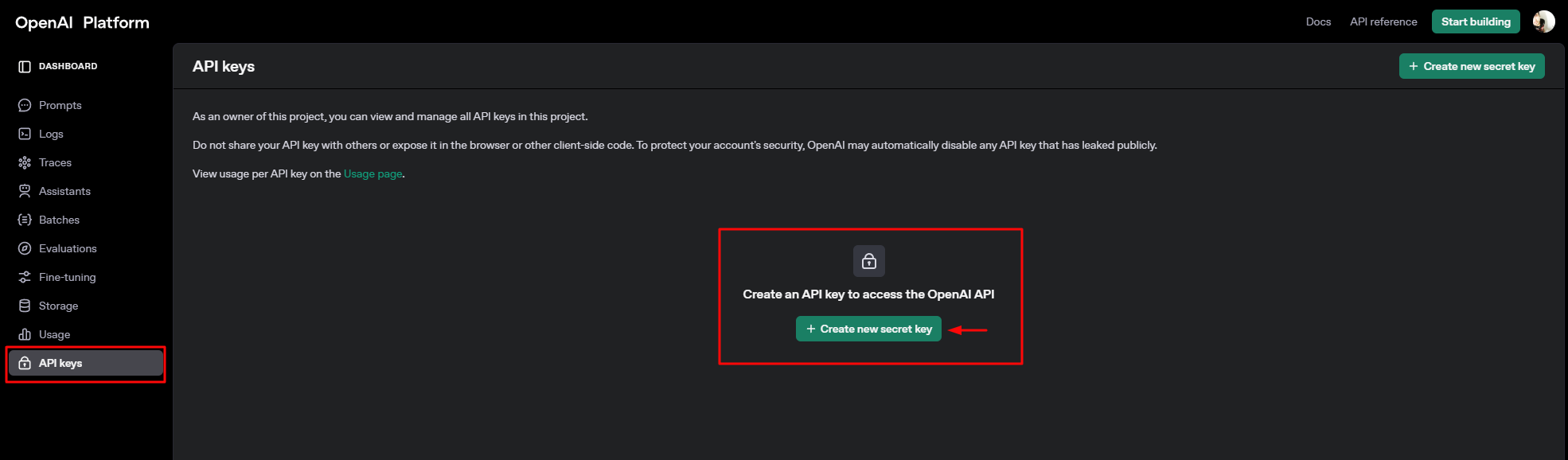
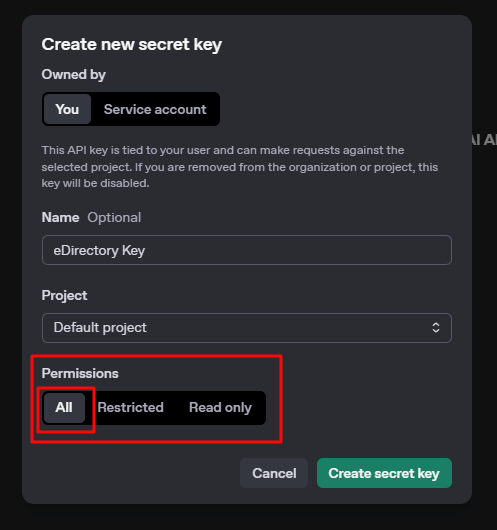
🔐 Security note: Treat your API key as a secret. Never share it publicly or include it in screenshots or public documentation.
3. Set Usage Limits (Highly Recommended)
To prevent unexpected charges, configuring billing and usage limits is strongly recommended.
- Go to https://platform.openai.com/settings/organization/billing/overview
- Add your payment details
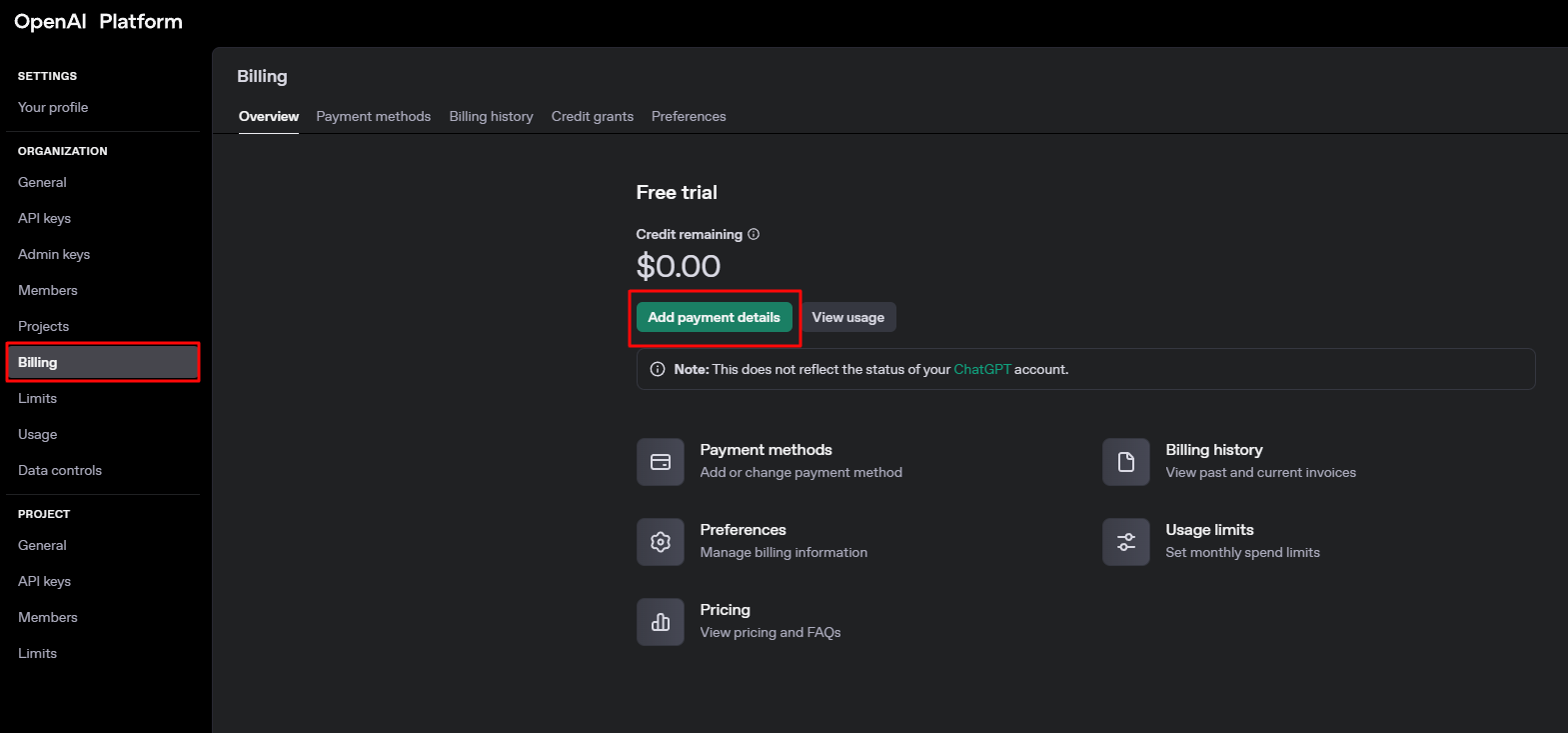
- Navigate to Billing → Usage limits
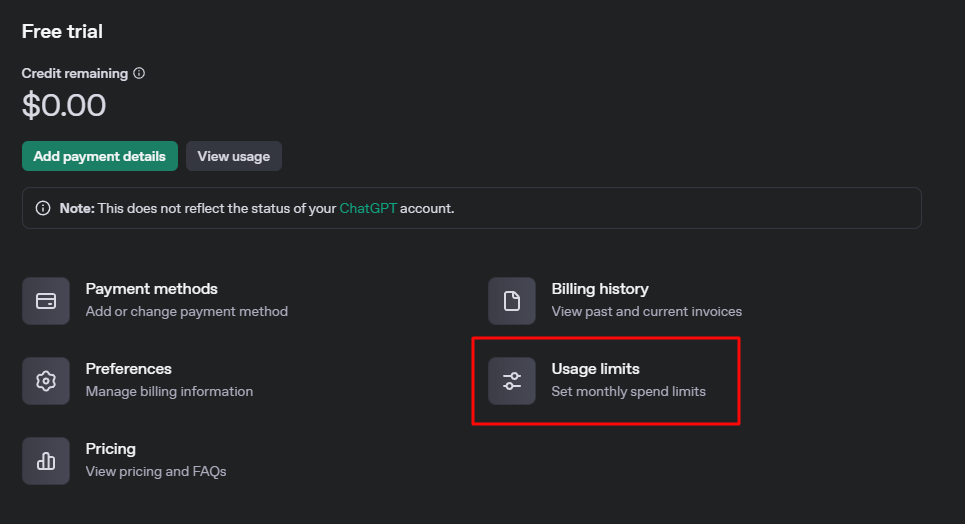
- Set both a hard limit and a soft limit. For example, you might set a hard limit of $20/month. This ensures you stay within your desired spending boundaries.
This ensures cost control while using AI features.
4. Add the OpenAI API Key to eDirectory
With your OpenAI API key generated and usage limits set, the final step is to integrate it into your eDirectory platform.
- Log in to your eDirectory Site Manager
- Navigate to Settings → AI Settings → AI Integrations
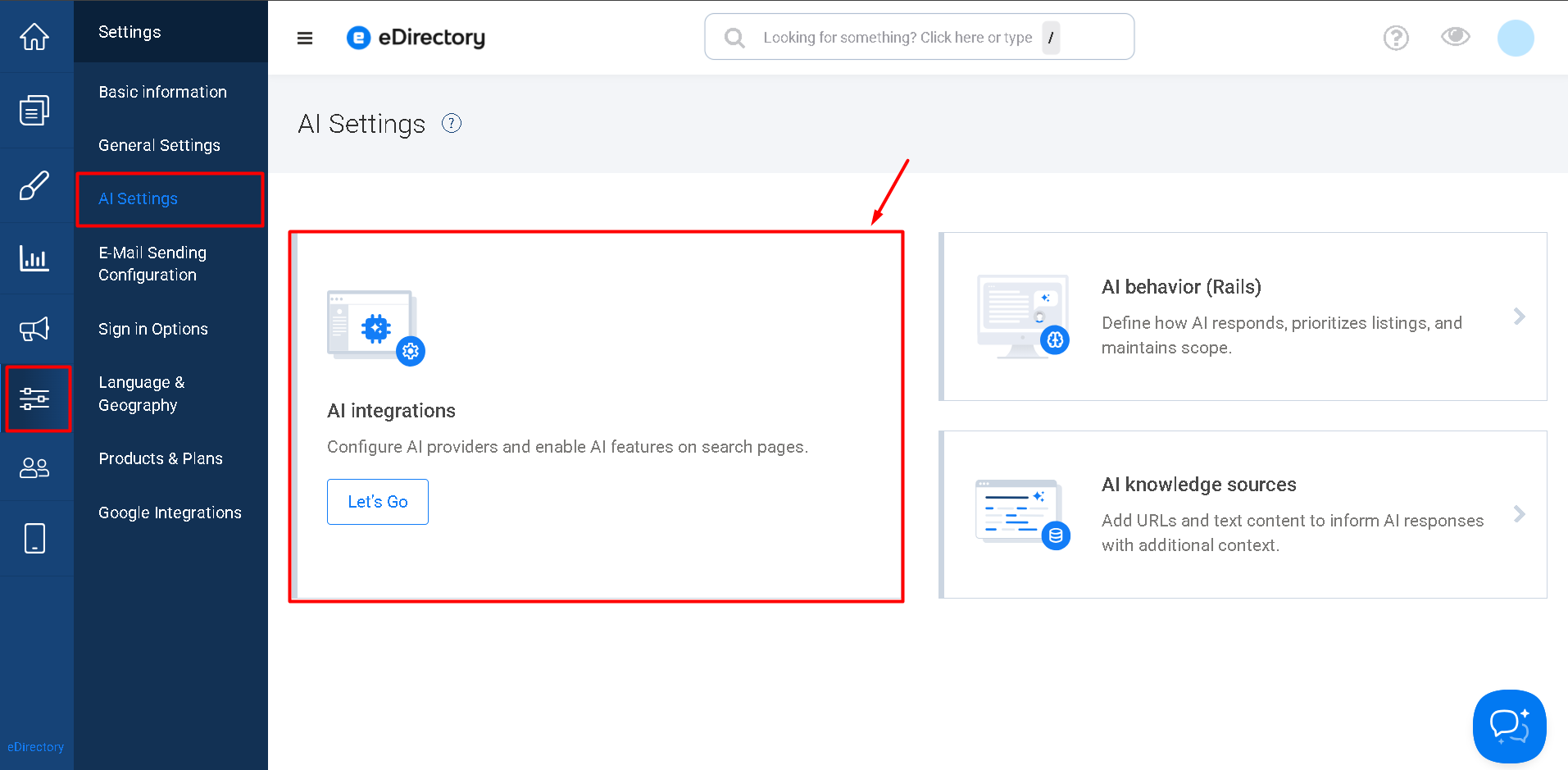
- On the AI Integrations page, locate:
- OpenAI API Key → Paste your API key here

- Save your changes
✅ That’s it — the integration is now active.
⚠️ If you are following these instructions and cannot find the “AI Settings” option, your site is likely running a version below 14.0.
In that case, please follow the ChatGPT integration instructions outlined in the article How to Integrate ChatGPT with eDirectory, as the settings location is different in earlier versions.
5. Enable AI Auto Suggest for Content Types
To allow AI-generated content suggestions:
- Go to Settings → Products & Plans → Manage Products → AI Auto Suggest
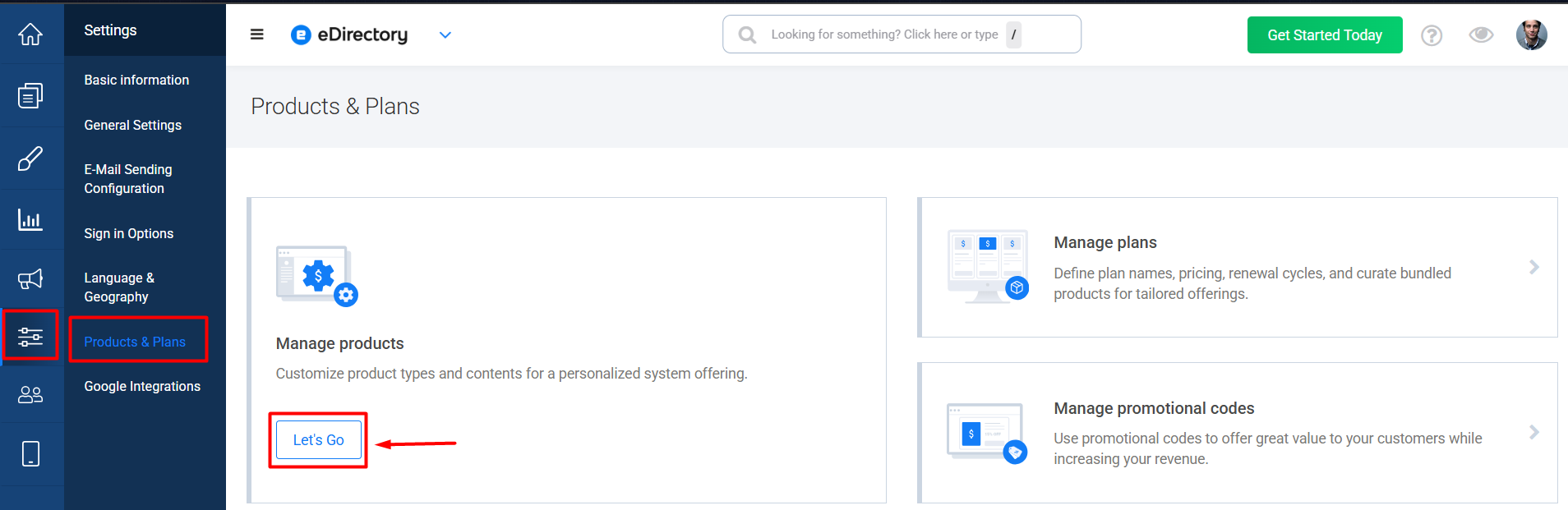
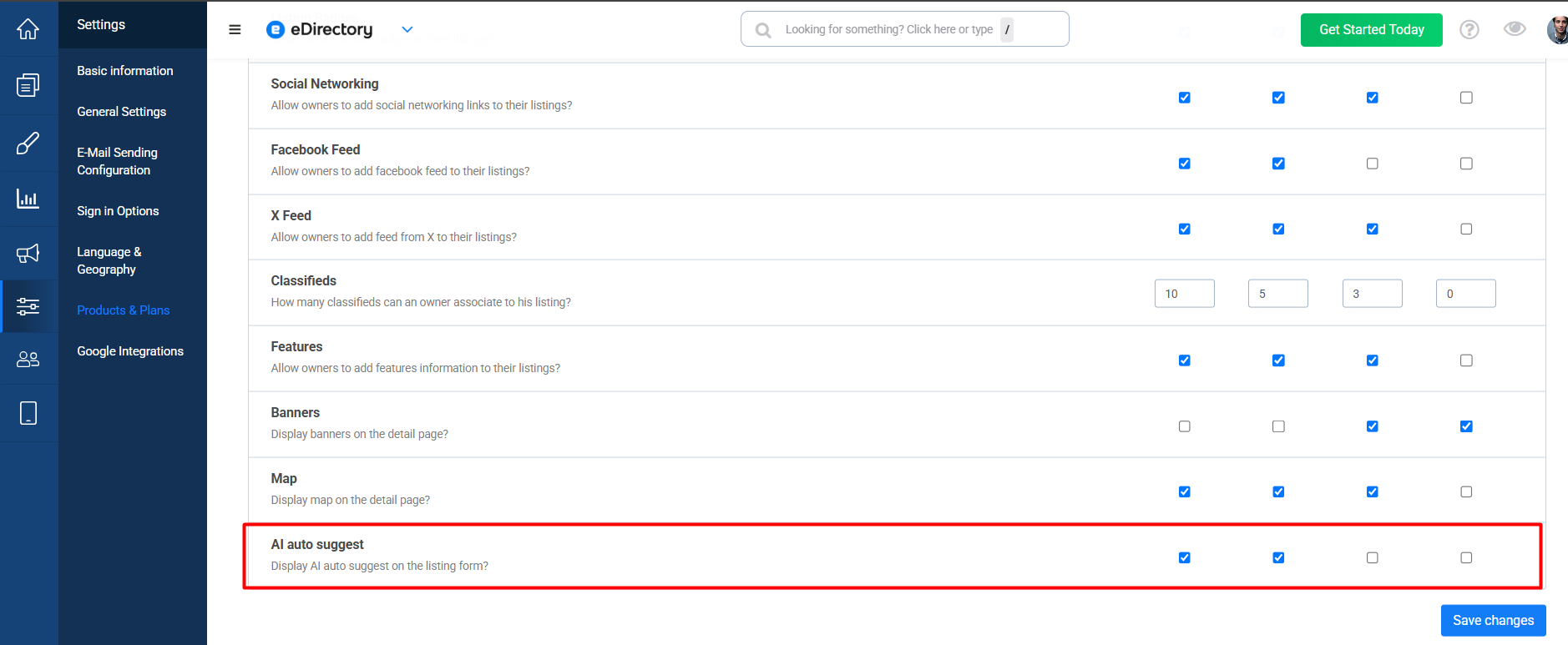
- Enable AI Auto Suggest for the desired content types:
- Listings
- Events
- Classifieds
📌 Note: Articles and Deals are enabled by default.
Conclusion
Integrating ChatGPT with eDirectory allows you to dramatically enhance content creation across your platform. With AI-powered suggestions, users can generate high-quality descriptions quickly, improving engagement, professionalism, and conversion rates.
If you have any questions or need troubleshooting assistance, our support team is always available to help ensure a smooth and productive experience.