
Email Verification Status for Visitor and Sponsor Accounts (v14.0)
Introduction
Starting with version 14.0, the platform includes an updated Email Verification status for Visitor and Sponsor accounts. This feature allows Site Managers to quickly identify whether a user has verified the email address used during registration. The status is displayed directly in the account list for both Visitor and Sponsor accounts.
Email verification is designed to ensure users receive important notifications and to confirm the authenticity of the email provided during registration.
How Email Verification Works
The email verification process is automatic and entirely user-driven. Here’s how it works:
- User Registration: users can sign up either as a Visitor or a Sponsor.
- Automatic Email Sent: once a user registers, the system sends a verification email to the address provided. The email typically looks like this:
Subject: Activate your Demodirectory Account
Body:
Dear customer,
Thank you for creating your profile in Demodirectory.
Click on the link below to activate your account: https://yoursite.com/profile/login.php?activation
Thank you for being a member of the Directory.
Regards,
- User Clicks the Verification Link: the user must click the link in the email to verify their account.
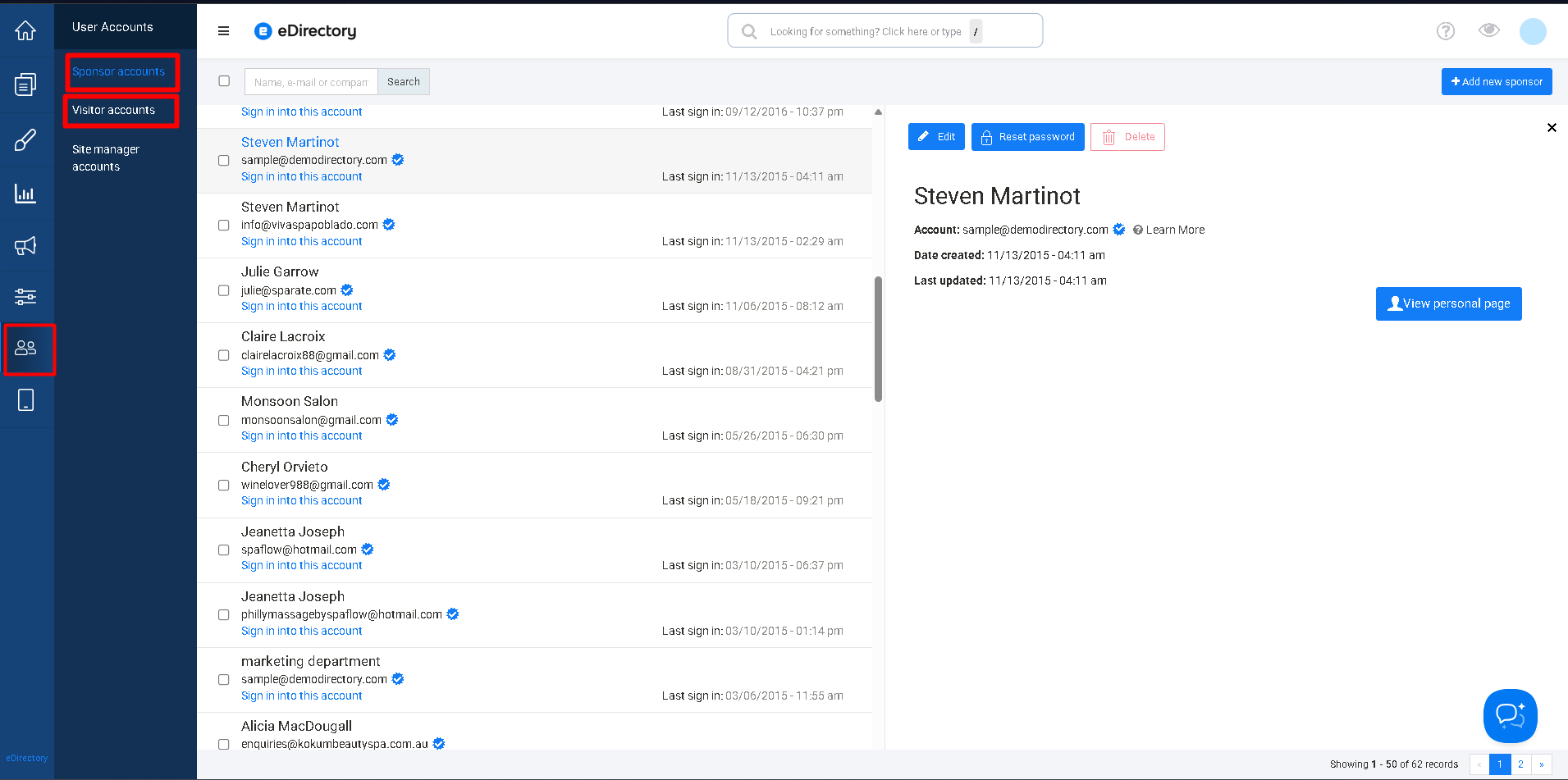
- Verification Status Updated in Site Manager: after clicking the link, Site Managers can see that the user’s account is verified:
- Navigate to User Accounts > Visitor/Sponsor Accounts
- Verified users will have a Verified Badge beside their email address
What the “Email Verified” Status Means
In the Site Manager interface, each Visitor and Sponsor account displays the Email Verified status. This indicates whether the user has successfully verified the email address used during registration.
Accounts that are unverified may indicate one of the following:
- The email address was entered incorrectly during registration
- The user has not opened or clicked the verification email
- The account was created automatically (e.g., by a bot)
Benefits of Email Verification
- Helps Site Managers track user registration activity
- Ensures users receive important notifications and platform updates
- Protects against fake or mistyped email accounts
Important Notes
- Email verification is not manual: Site Managers do not need to approve accounts or emails.
- Unverified accounts remain active: Users can still access and use the platform even if their email is unverified.
- Only the user can verify the email: The status changes only when the user clicks the verification link sent to them.
- Site Managers cannot change the status manually: There is no option to mark an account as verified in the interface.
Is it possible to edit the email and change the wording of the emails that are sent to the users?
Yes! You can customize the email content for both Visitor and Sponsor account verification. To do this:
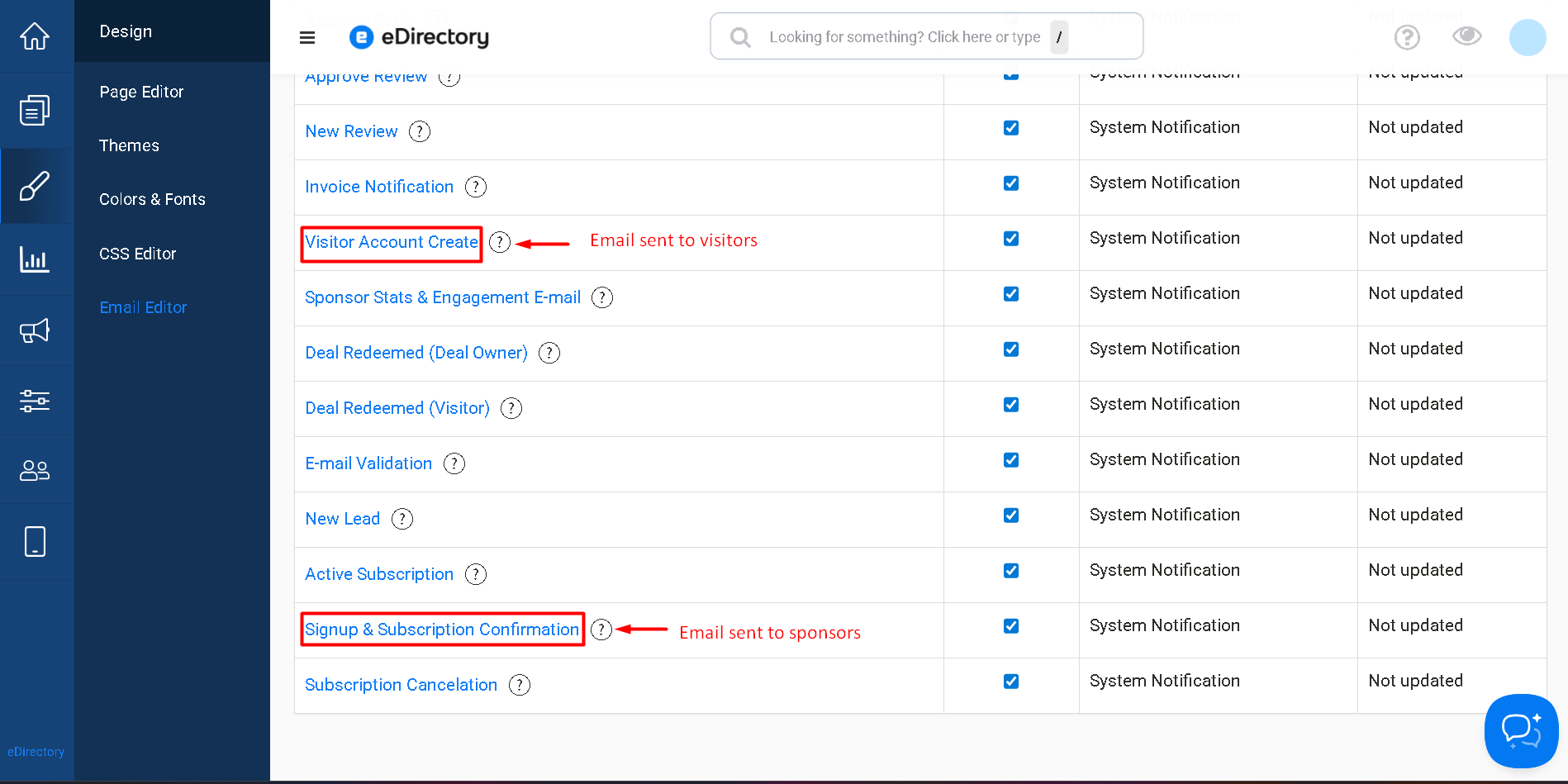
- Go to Design > Email Editor in the Site Manager interface.
- Look for the following emails:
- Visitor Account Create – this is the email sent to visitors for verification
- Signup & Subscription Confirmation– this is the email sent to sponsors for verification
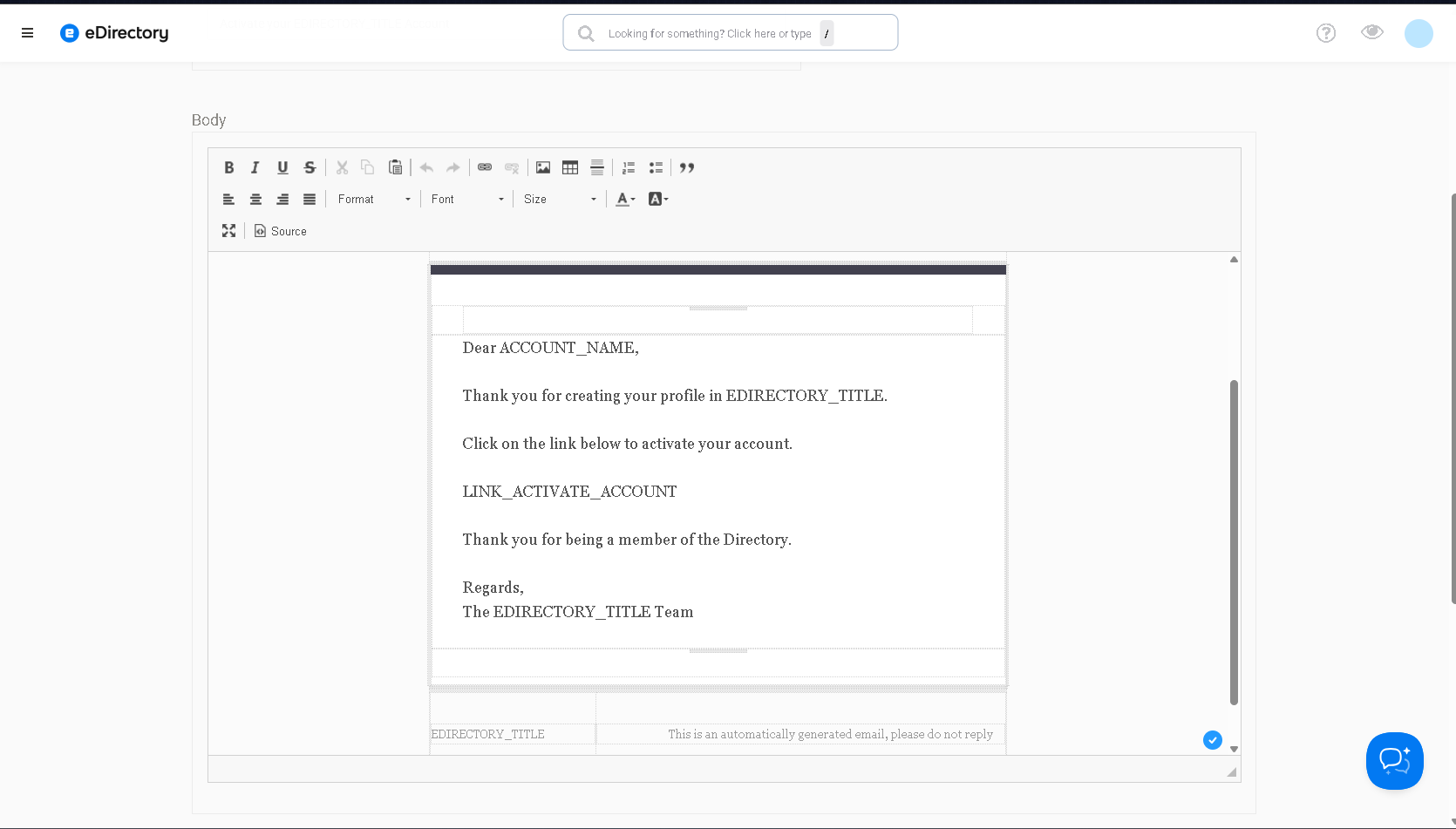
- You can edit the subject, and body of these emails to fit your site’s tone and branding.
Conclusion
Email verification is a simple, automatic process that helps confirm user email addresses. Users complete verification by clicking the link sent to their email, and the verification status is visible in the Site Manager interface for reference.
No manual approval or action from Site Managers is required, and unverified accounts can still access the platform.