
Google Reviews Integration Plugin
Introduction
The Google Reviews Integration plugin allows you to display Google reviews directly on your eDirectory listing detail pages.
Displaying Google reviews can help build trust, improve credibility, and provide visitors with social proof from Google.
The plugin uses the Google Places API (New) to find the business and retrieve its Google information. Once configured, the Google Reviews widget can display key information such as the business rating, review count, and up to 5 Google reviews.
This guide will walk you through creating the required Google API key, configuring the plugin, adding the widget to your listing template, understanding API costs, and troubleshooting common issues.
Before You Begin
Before configuring the Google Reviews Integration plugin, make sure you have:
- An eDirectory site manager account.
- A Google Cloud Platform (GCP) account.
- Billing enabled on your Google Cloud project.
- At least one listing with accurate business information.
Important Note: Google Places API (New) allows a maximum of 5 reviews to be returned for a place.
This means the eDirectory Google Reviews widget cannot display all reviews from a Google Business Profile.
This is a limitation imposed by Google's API and is not a limitation of the eDirectory widget.
What the Google Reviews Widget Displays
When enabled, the plugin displays up to 5 Google reviews on the listing detail page, including:
⭐ Average rating
👥 Total number of reviews
🔗 Link to the business page on Google Maps
🌍 Language and region support, based on your site’s locale
🔄 Sorting option for visitors:
- Most relevant
- Most recent
Step 1: Create a Google Places API Key
The first step is to create an API key in Google Cloud Platform.
1.1. Open the Google Cloud Platform API Console
- Go to the Google Cloud Platform API Console.
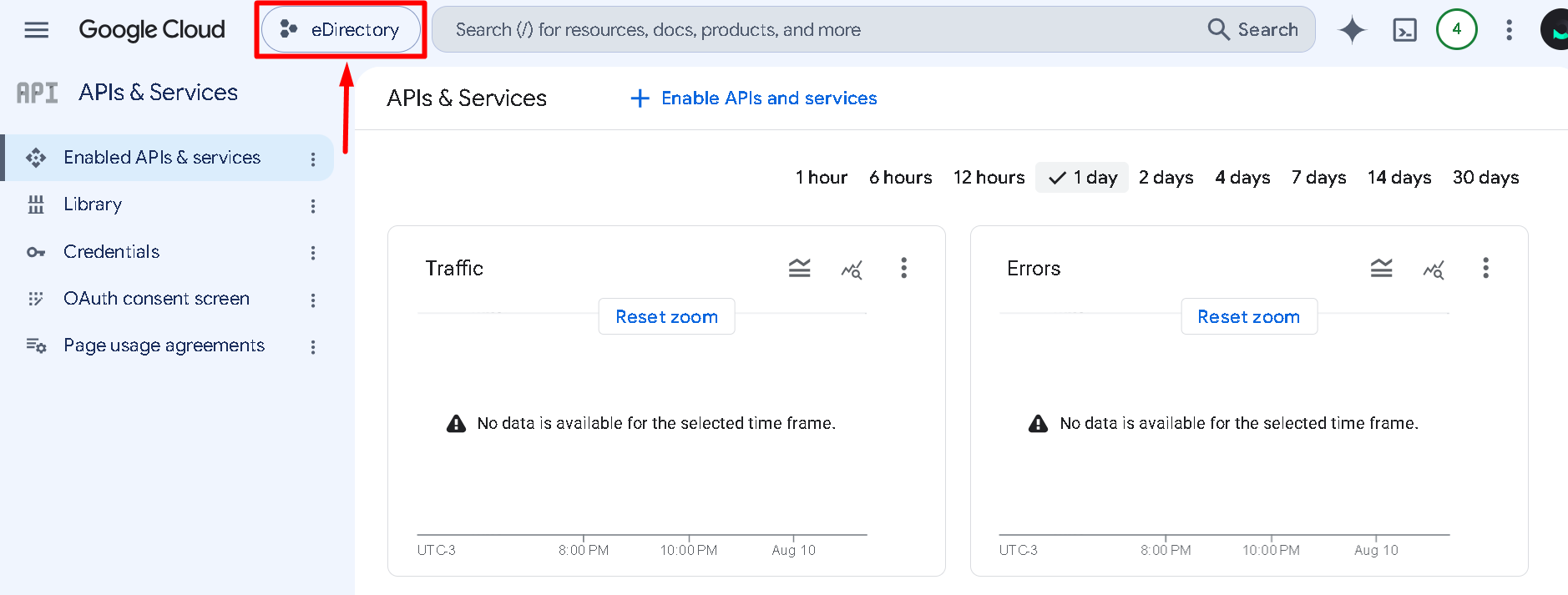
- Create a new project or select an existing project.
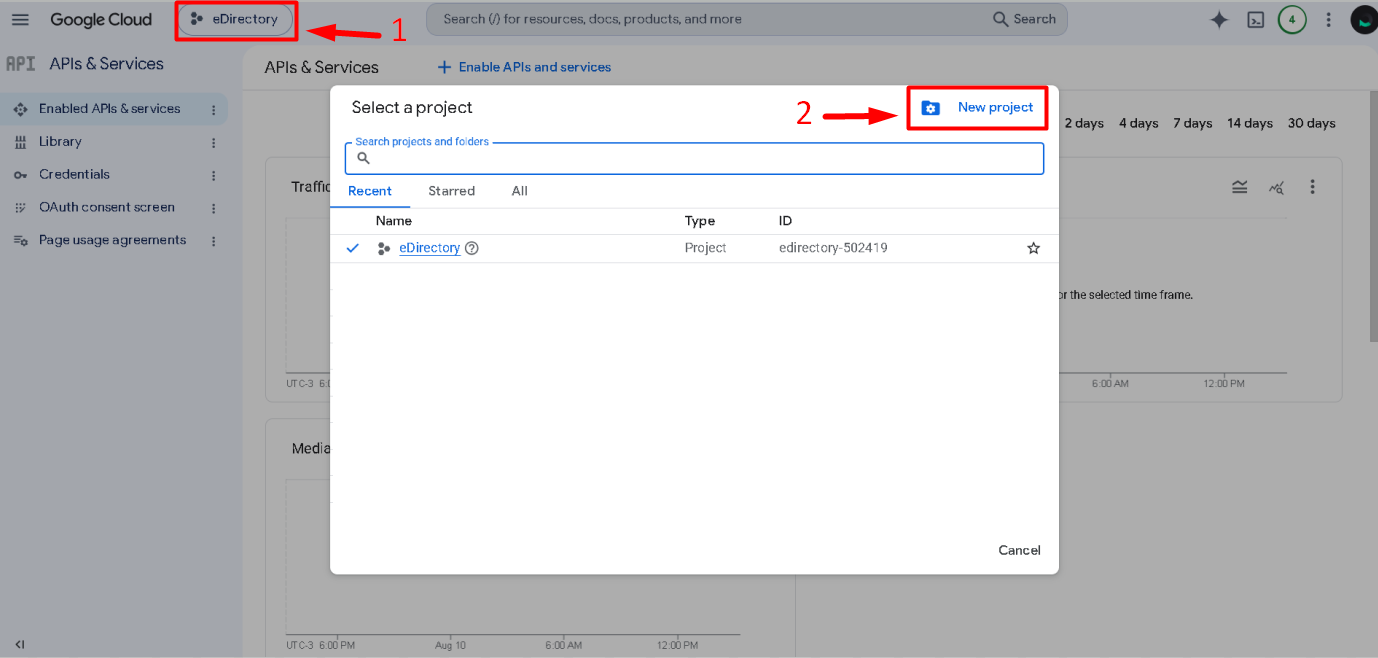
- If you already have a Google Cloud project for your website, make sure that project is selected before continuing.
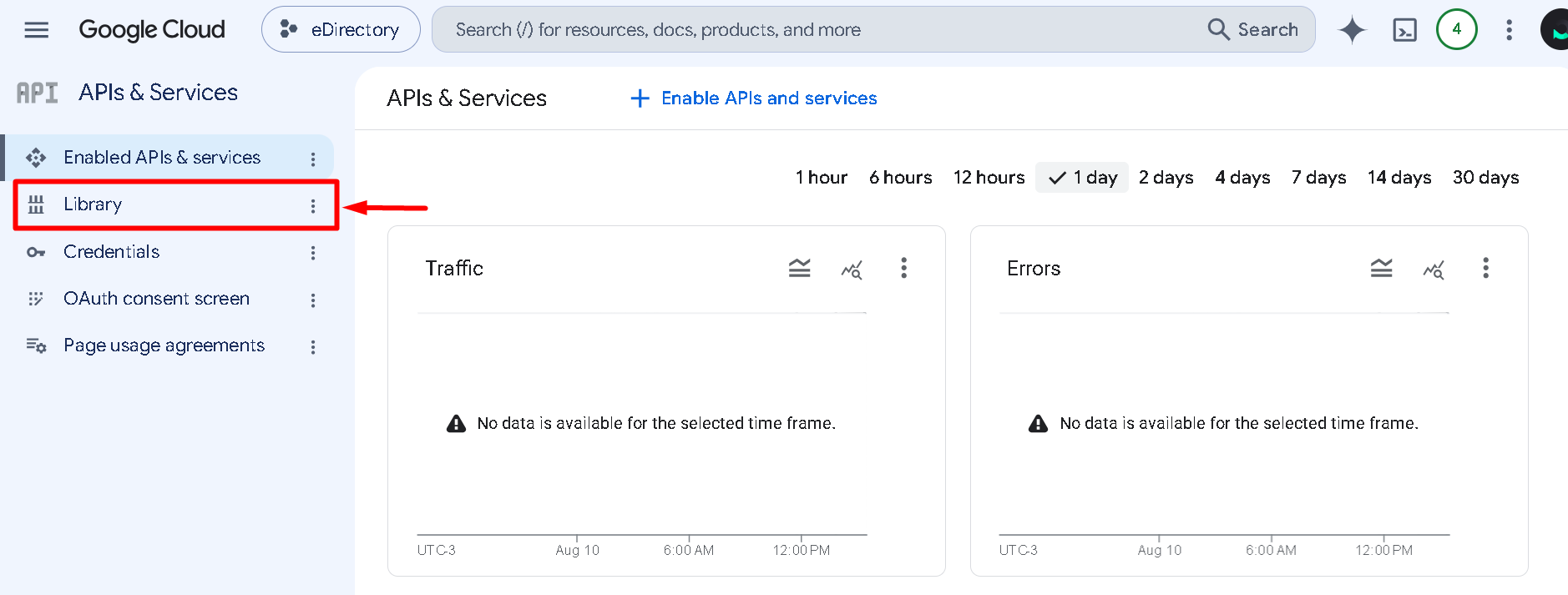
1.2. Open the API Library
- In the Google Cloud Platform console, navigate to Library
- Search for Places API (New)
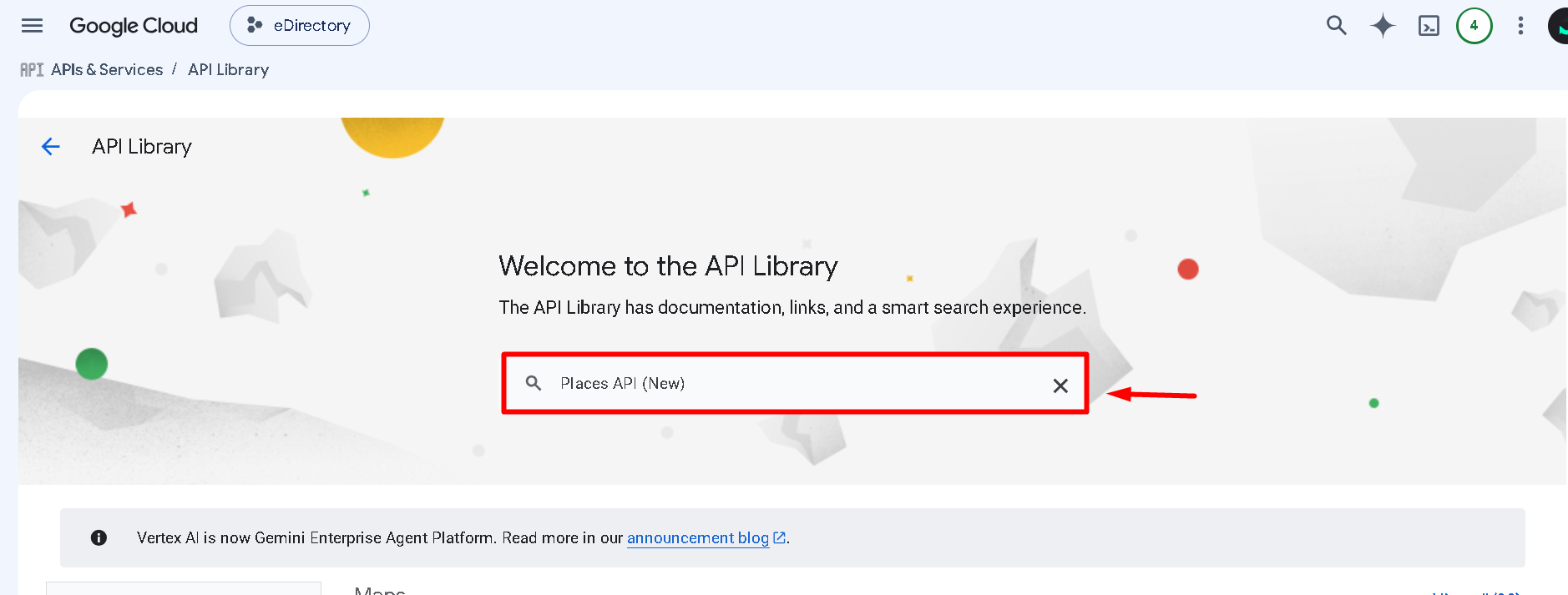
- Click Places API (New) to open its page.
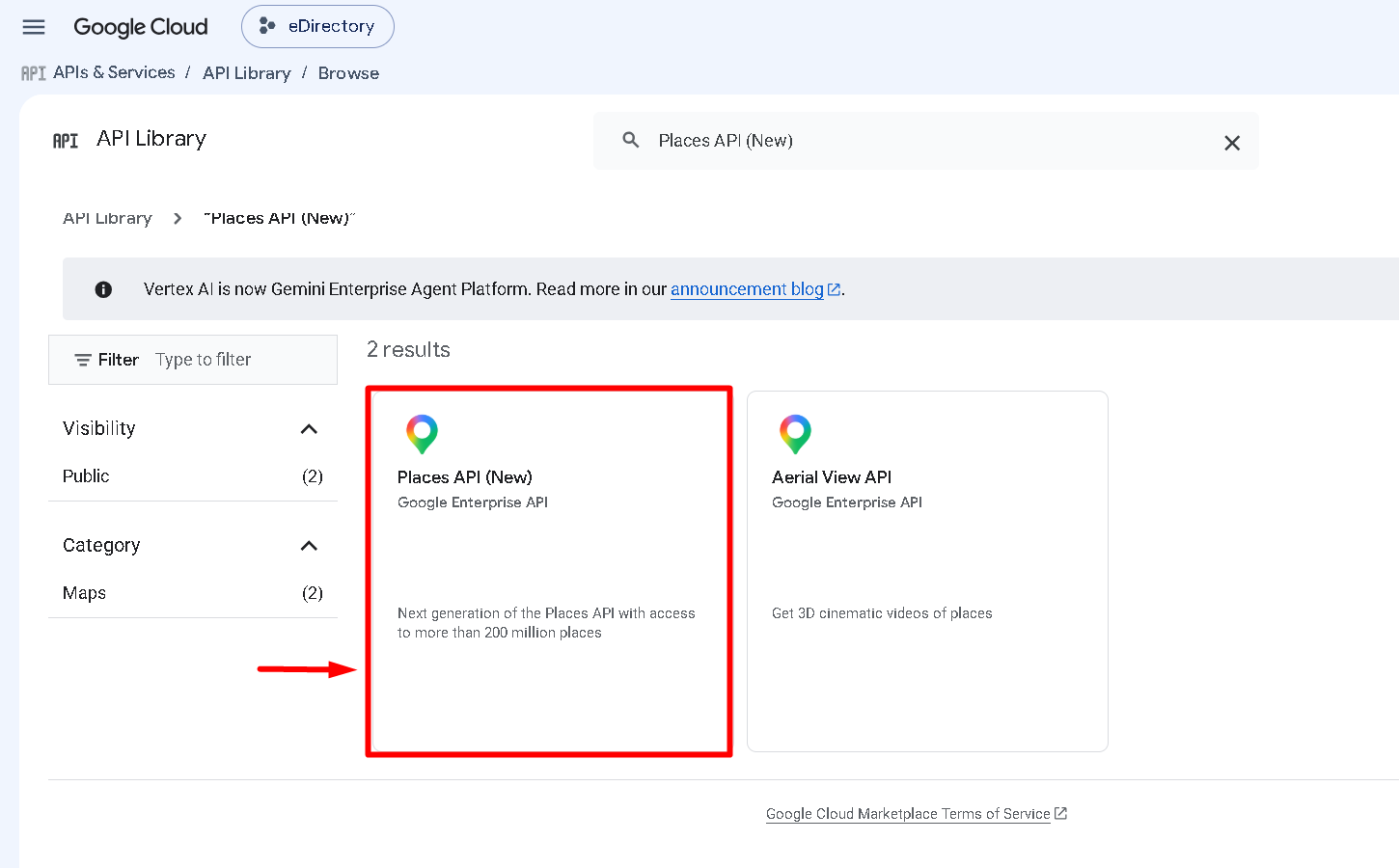
1.3. Enable Places API (New)
- Click Enable.
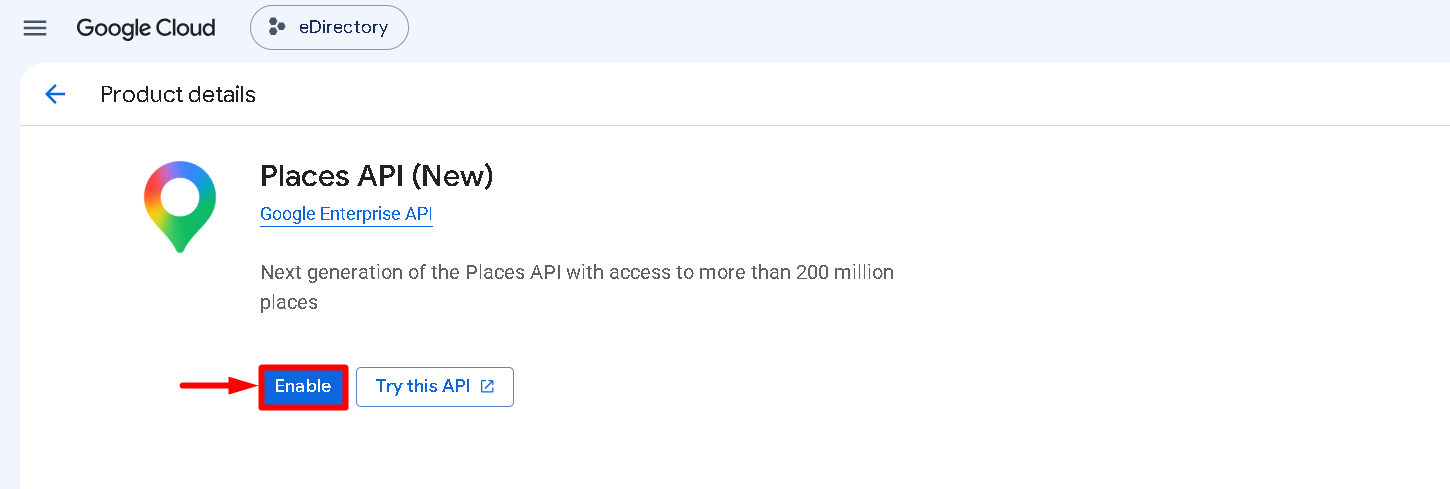
- If billing has not yet been configured for the selected Google Cloud project, Google will prompt you to link a billing account before the API can be enabled.
- Follow the instructions provided by Google to link an existing billing account or create a new billing account.
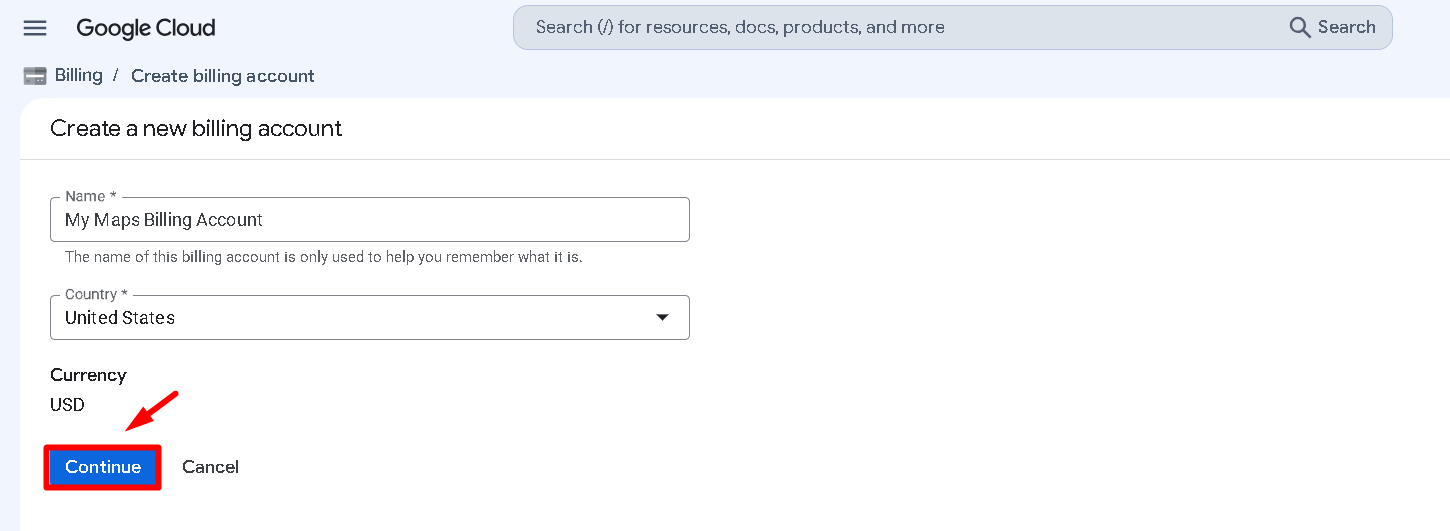
Important: Google requires a billing account to be associated with the project in order to use the Places API (New).
If your Google Cloud project already has billing configured, you can continue through the activation process without setting up billing again.
1.4. Create the API Key
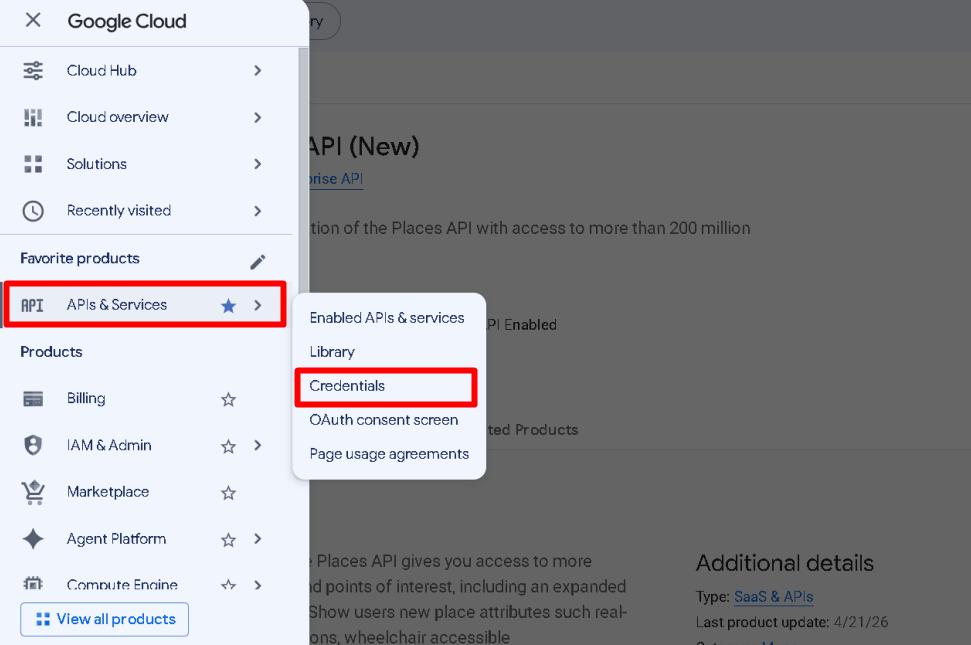
- After the Places API (New) has been enabled, click on the menu option.
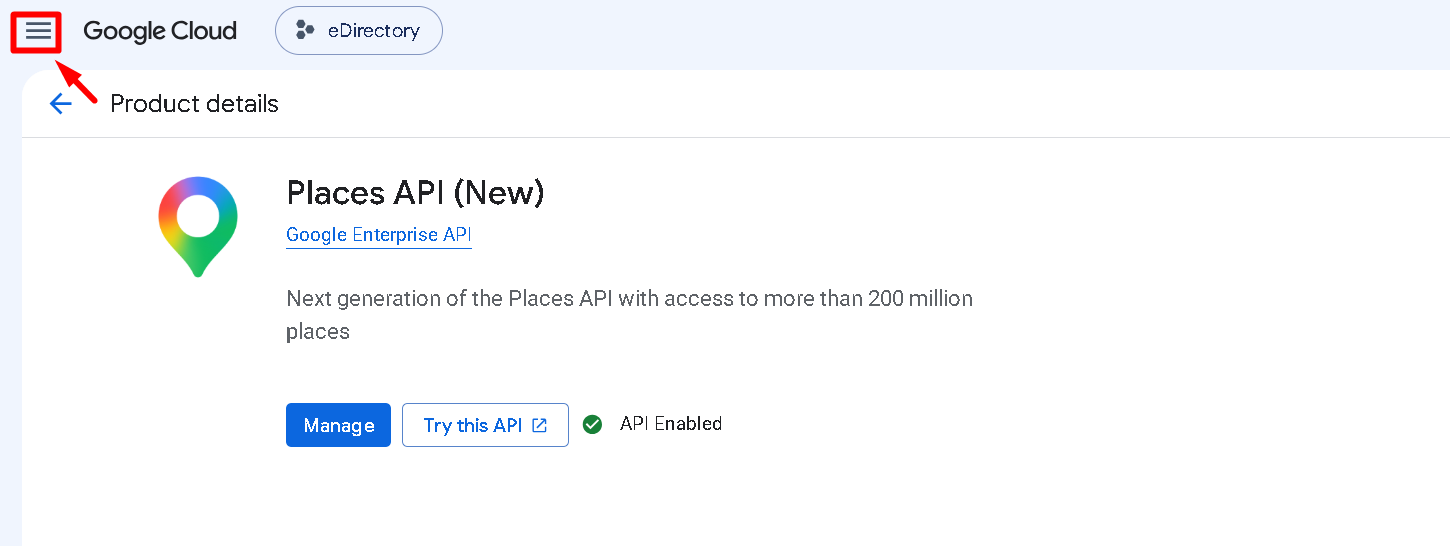
- Navigate to APIs & Services → Credentials
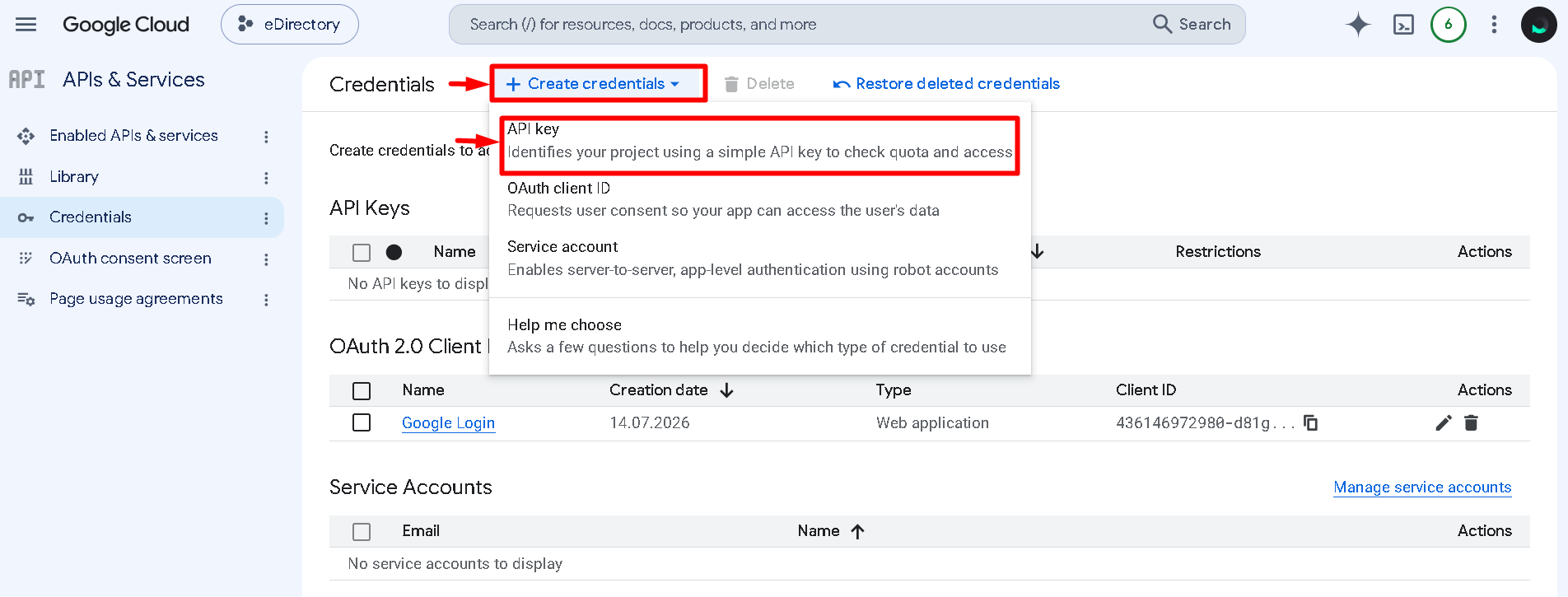
- Click Create Credentials → API Key
Step 2: Restrict the API Key
Restricting the API key is mandatory.
API restrictions help prevent unauthorized use of your key and reduce the risk of unexpected Google Cloud charges.
2.1. Configure the Application Restriction
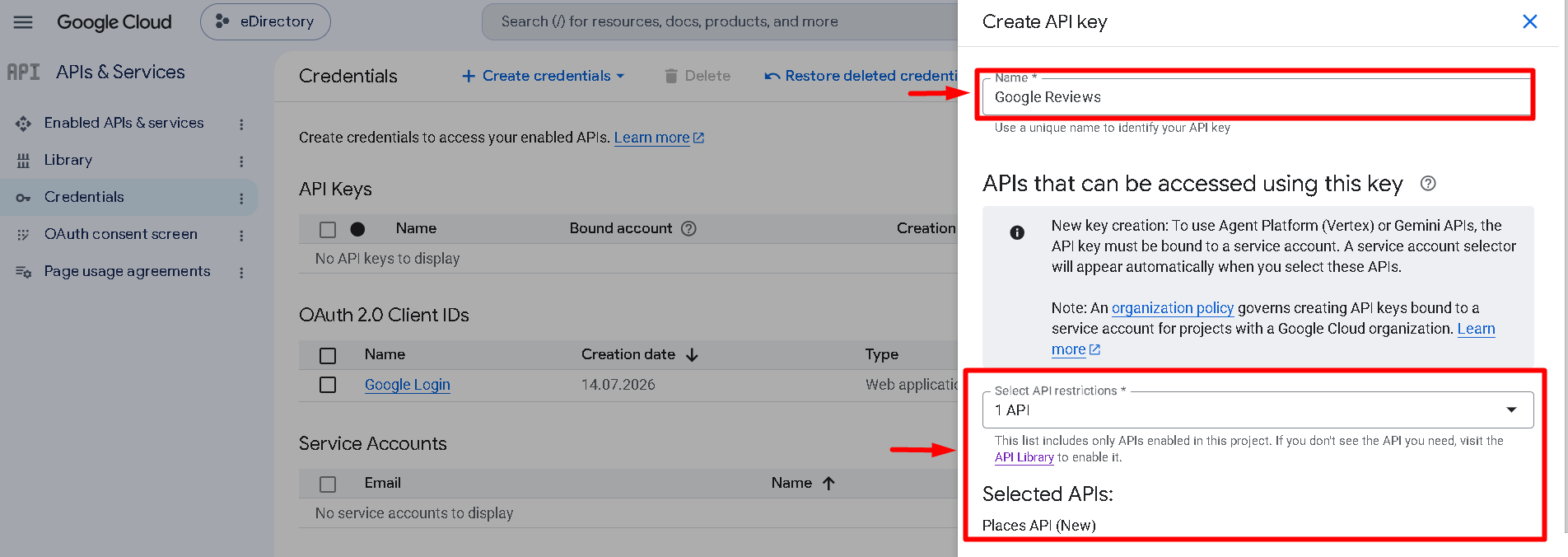
- Name: Give the key a name that makes it easy to identify. For example: Google Reviews
- Select API Restrictions: Select the API you enabled in Step 1.3: Places API (New)
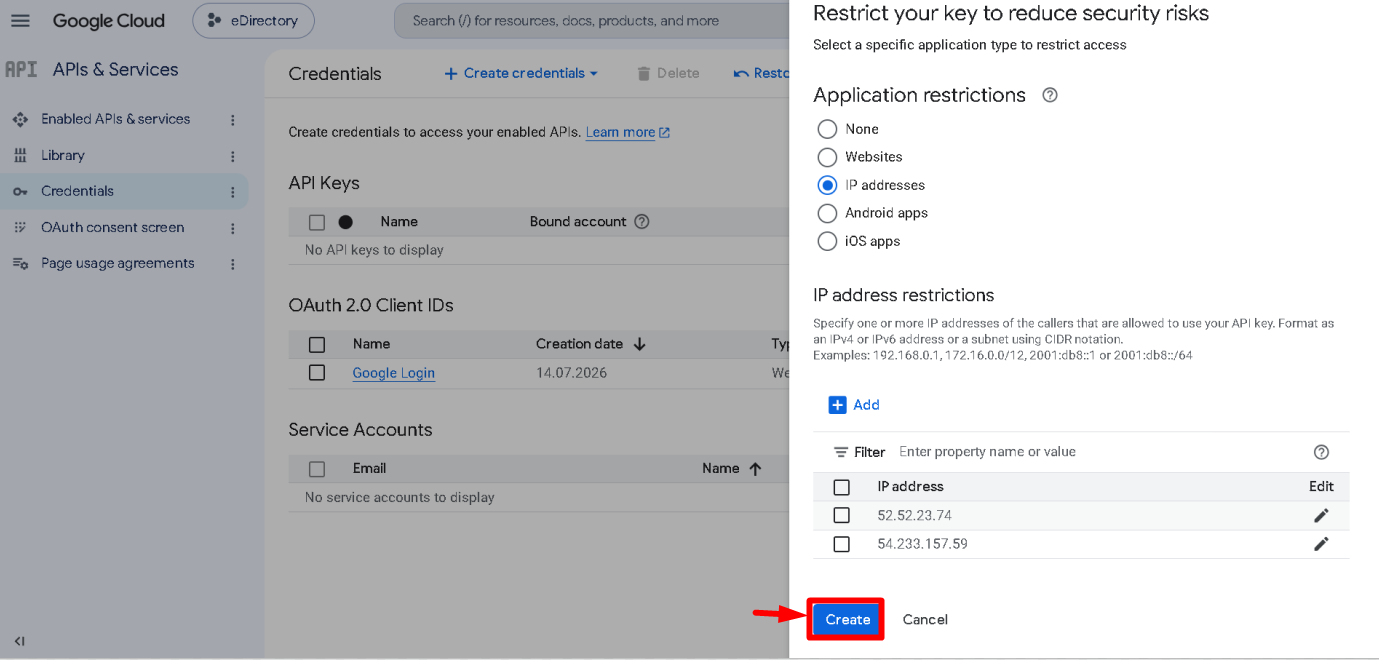
- Application restrictions: Under application restrictions, select: IP addresses (web servers, cron jobs, etc.)
- IP address restrictions: Add the IP address(es) of the server where your eDirectory website is hosted.
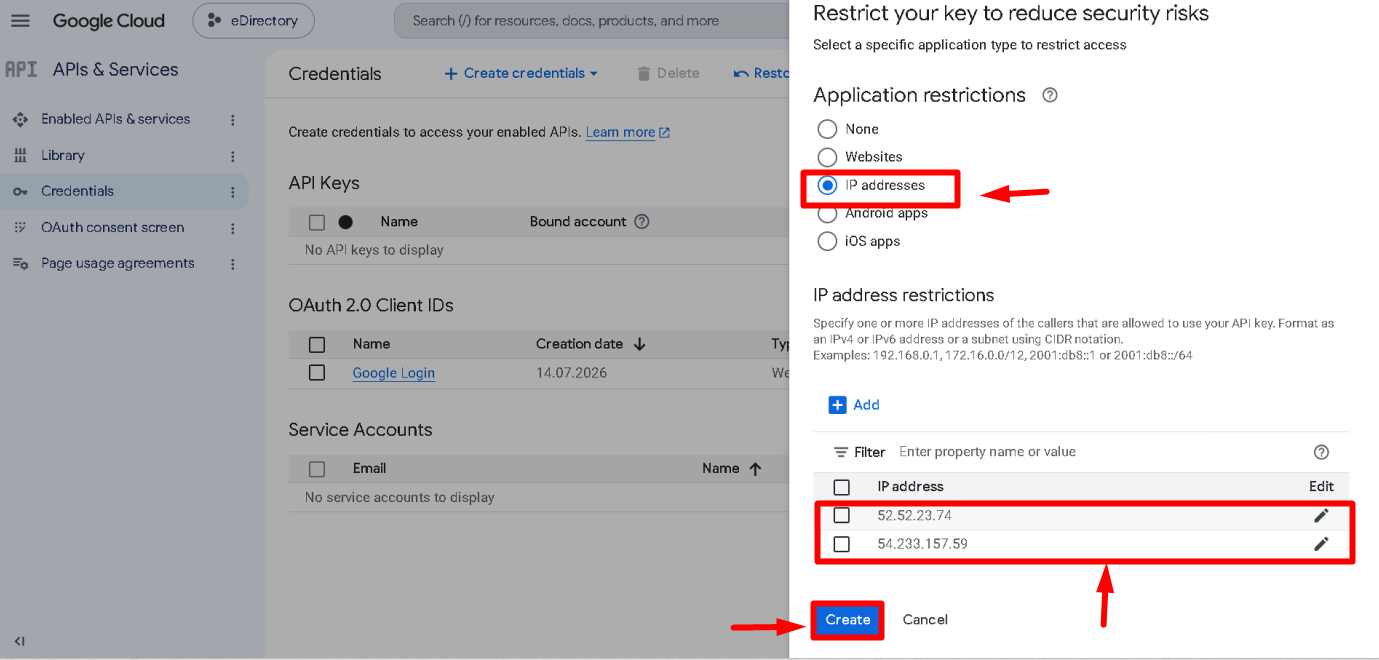
Important Note for Shared Hosting Users: If your website is hosted on one of our shared servers, please insert the following IP addresses exactly as listed:
- 52.52.23.74
- 54.233.157.59
Important Note for Self-Hosted or Dedicated Server Users: If your website is self-hosted or on a dedicated server and you are unsure of your server's IP address(es), please contact our support team at support@edirectory.com for assistance in identifying the correct IP addresses to add here.
2.2. Create the Key
- After configuring the restrictions, click Create
- The API key will then be displayed.
- Click the option to copy the API key.
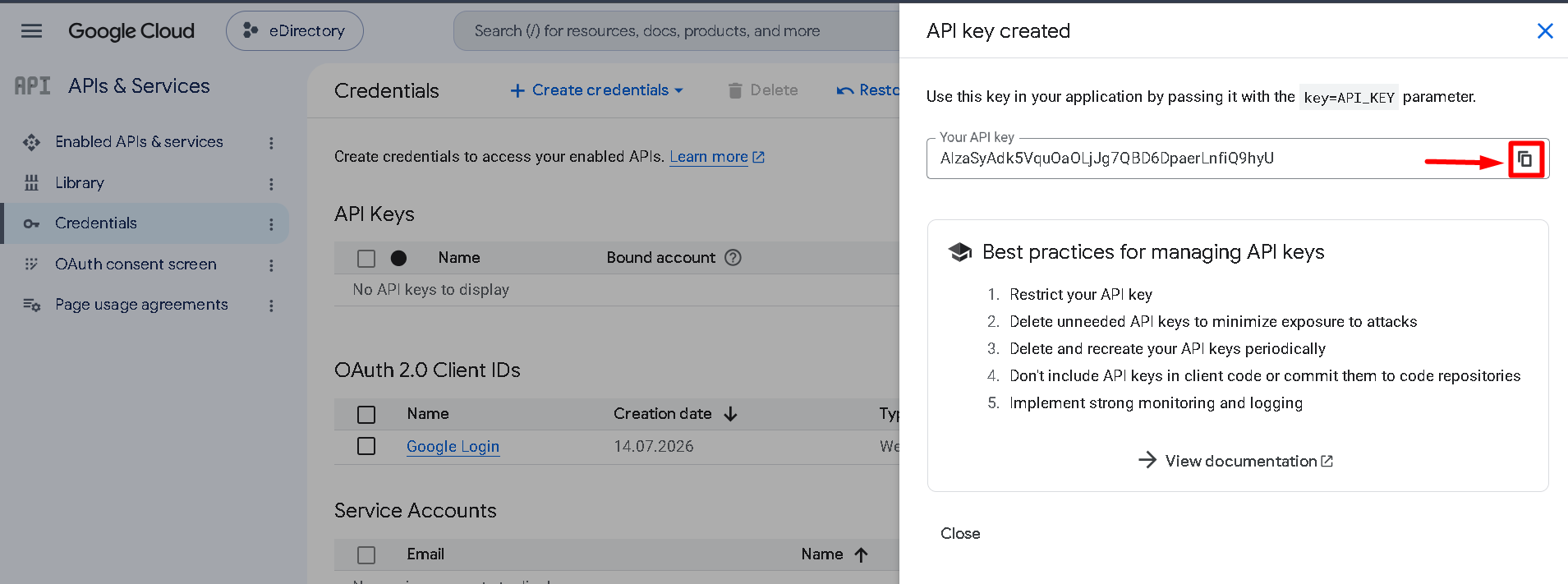
- Keep the copied key available because you will add it to your eDirectory site in the next step.
Step 3: Add the API Key to eDirectory
Now that the Google Places API key has been created and restricted, add it to your eDirectory website.
3.1. Open the Plugin Settings
- Log in to your eDirectory site manager.
- Navigate to Settings → General Settings → Plugins

- Locate the Google Reviews plugin settings.
- Paste the Google API key you copied earlier into the Google Reviews field.
- Click Save Changes.

Step 4: Add the Google Reviews Widget
After adding the API key, you need to add the Google Reviews widget to your listing detail page.
- Navigate to Content → Listings → Listing Templates
- Choose the listing template where you want Google reviews to appear and click Edit.

4.1. Add the Widget
- Click Add a Widget.
- Search forGoogle Reviews
- Add the Google Reviews widget to the desired location in your listing template.

- Click Save Changes.

The Google Reviews section will now be available on listing detail pages using that template.
Step 5: Verify the Integration
Visit a listing detail page where the Google Reviews widget was added.
Verify that:
- The Google Reviews section appears.
- The business rating is displayed.
- Available reviews are displayed.
- The Google Maps link works correctly.
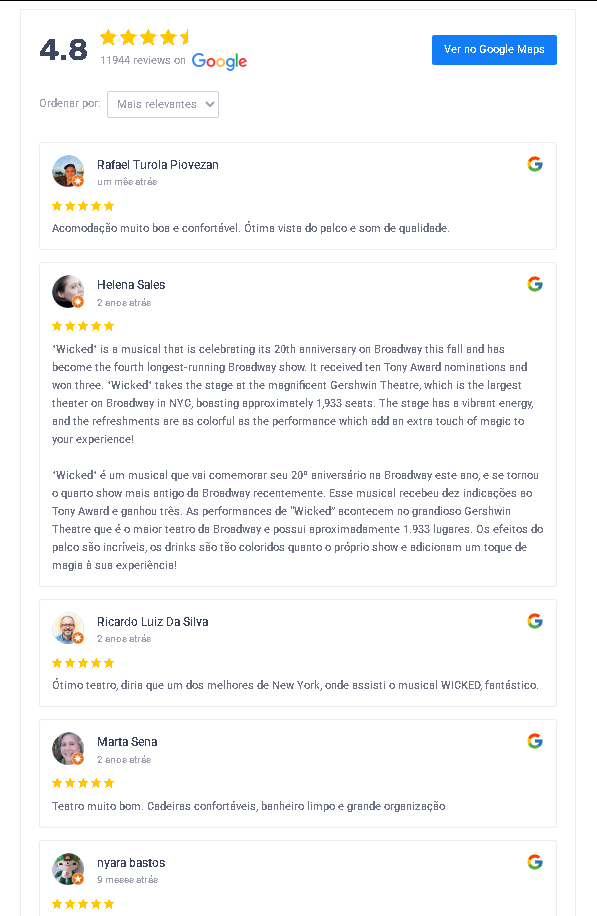
If the listing has a matching Google Business Profile and the API is configured correctly, the Google review information should load automatically.
Google API Costs: What You Need to Know
Google charges per API request, based on usage and requested data. With this plugin, the following calls usually occur:
A) Text Search (to find the Place ID)
- Endpoint:
places:searchText - Typical tier (SKU): Text Search Pro
- Used to locate the business based on name and address
B) Place Details (to fetch reviews and data)
-
Endpoint:
/v1/places/{placeId}When reviews are requested:
- Tier (SKU): Place Details Enterprise + Atmosphere
- This is the highest cost part of the integration
C) Fallback (without reviews)
If reviews cannot be retrieved:
- Tier (SKU): Place Details Enterprise
- Only rating and review count are fetched
📌 Practical summary
A listing page with reviews enabled typically triggers:
- 1 × Text Search Pro request
- 1 × Place Details Enterprise + Atmosphere request
Most of the cost comes from Place Details with reviews.
Where to check pricing
Google pricing varies by region and usage volume. For up-to-date pricing, consult the Google Maps Platform Pricing page and look for:
- Places API – Text Search Pro
- Places API – Place Details Enterprise
- Places API – Place Details Enterprise + Atmosphere
Best Practices to Reduce Costs
- 🔐 Always restrict your API key by IP
- 🏠 Ensure listings have complete and accurate addresses
- 📊 Monitor usage in GCP → Billing → Reports
- 🚨 Set up billing alerts and budgets in Google Cloud
Frequently Asked Questions
1) How does a listing get matched to a Google Business Profile?
The plugin searches for the business profile using a combination of:
- Listing title
- Address lines
- City / region / country
- ZIP / postal code
- Additional location context
Match quality depends primarily on how accurate and complete the listing data is.
✅ If the listing has a correct business name and full address, the likelihood of an incorrect match is low.
⚠️ If the listing data is incomplete or ambiguous (generic name, missing ZIP/city, multiple businesses with the same name), the chance of mismatch increases.
2) Can we show more than 5 reviews?
No. Google Places API returns a maximum of 5 reviews in its response. This limitation is defined by Google’s API behavior, not by our widget or UI.
3) How are reviews imported? Does the sponsor or sitemgr need to do anything manually?
There is no manual import process. Reviews are retrieved from Google on demand and rendered automatically in the listing detail page widget.
Operational overview:
- Sitemgr: Configures the Google API credentials once.
- Sponsor: Typically does nothing, assuming the listing data is accurate.
The widget loads the review data in the background (via AJAX) when the listing detail page is accessed.
4) Does the plugin affect Google ranking?
Not directly. Displaying Google reviews on a page is not a guaranteed ranking factor or SEO boost.
What it can help with:
- Improved trust and conversion (social proof)
- Potential indirect engagement signals
However, ranking impact is not predictable and should not be promised.
5) Is any information stored locally?
We do not store review content locally. We store only the place_id (the unique identifier of the Google Business Profile). This avoids repeatedly performing the discovery step, which:
- Reduces API usage
- Improves performance
- Improves matching consistency
6) How does Google charge for usage? Is there a risk of overage due to bots?
Google charges per API request (“billable event”), depending on which Places endpoint is used (e.g., search vs. details).
The plugin typically triggers:
- A one-time (or occasional) “find the place” request if no
place_idexists - A Place Details request each time the listing detail page loads and the widget fetches rating/review data
Google does not charge per review — it charges per API call.
Example estimate (Essentials tier)
- Place Details (Essentials): ~$5 per 1,000 requests (after free monthly allowance)
Example:
- 10,000 widget loads ≈ $50
- 100,000 widget loads ≈ $500
Actual costs vary by region and volume.
Bot spikes & overage risk
The widget loads in the background via AJAX.
Many bots do not execute JavaScript and therefore may not trigger API calls. However, this cannot be guaranteed — sophisticated bots can still generate requests.
Recommended protections:
- Restrict your API key (IP and/or referrer restrictions)
- Set quota limits on Places API
- Configure billing alerts and budgets in Google Cloud
- Monitor usage reports regularly
- Use WAF or bot protection if recurring bot spikes occur
7) Is Google charging “per review”?
No. Google charges per Place Details API request, which may include:
- Rating
- Review count
- Up to 5 reviews
The cost driver is:
The number of times the widget loads
(not the number of reviews a business has)
8) Why don’t some listings show reviews?
Possible reasons include:
- The business cannot be found (incomplete or incorrect title/address)
- The business has no public Google reviews
- API key restrictions or missing permissions
- Billing not enabled in Google Cloud
- API quotas or limits reached
9) How accurate is the profile matching?
Matching is based on:
- Listing title
- Address fields
- Location hierarchy
- ZIP/postal code
With complete and accurate listing information, the chance of a wrong match is low.
The biggest risks are:
- Incomplete addresses
- Missing ZIP/city
- Businesses with very similar names in the same area
Troubleshooting
My Google Reviews are not showing.
Verify that:
- The Google Places API (New) is enabled.
- Billing is enabled in Google Cloud.
- The API key was entered correctly in eDirectory.
- The API key is not incorrectly restricted.
- The correct server IP addresses have been added to the API key.
- Places API (New) is allowed under API restrictions.
- The Google Reviews widget was added to the listing template.
- The listing contains a complete and accurate business name and address.
- The business has publicly available Google reviews.
Some listings show reviews, but others do not.
This can happen when the plugin cannot confidently find the corresponding Google Business Profile.
Check the affected listing's:
- Business name
- Address
- City
- Region
- Country
- ZIP or postal code
Also verify that the business has public Google reviews.
I cannot display more than 5 reviews.
This is expected behavior.
Google Places API (New) returns a maximum of 5 reviews.
The eDirectory widget cannot increase this limit because it is imposed by Google's API.
Do I need to manually import the reviews?
No.
The reviews are retrieved automatically from Google when the widget requests the information.
The site manager only needs to configure the Google API credentials and add the widget to the listing template.
Does the plugin affect Google rankings?
Not directly.
Displaying Google reviews on your website is not a guaranteed Google ranking factor or SEO boost.
However, reviews can help improve visitor trust and potentially increase engagement and conversions.
Any impact on search rankings is indirect and cannot be guaranteed.
Are Google reviews stored on my website?
The review content itself is not stored locally.
The integration stores the place_id, which is the unique identifier associated with the Google Business Profile.
Keeping the place ID helps avoid repeatedly performing the initial business discovery process and can:
- Reduce API usage.
- Improve performance.
- Provide more consistent business matching.
Is Google charging for each review?
No.
Google charges based on API requests and the type of information requested.
For example, a Place Details request may include:
- Business rating
- Review count
- Up to 5 reviews
The main cost factor is the number of API requests, not the number of reviews the business has.
Conclusion
Congratulations!
You have successfully configured the Google Reviews Integration plugin on your eDirectory website.
The plugin provides an easy way to display trusted Google review information directly on your listing detail pages without requiring manual review imports.
For the best results, make sure your listings contain complete and accurate business information, properly restrict your Google API key, and regularly monitor your Google Cloud API usage.
Remember that Google limits the integration to a maximum of 5 reviews per business, and Google charges based on API requests rather than the number of reviews displayed.
If you need assistance configuring your Google API key, identifying the correct server IP address, or adding the Google Reviews widget to your listing template, please contact our support team at support@edirectory.com.