
How to Add a “Buy Tickets” Button to Events
Introduction
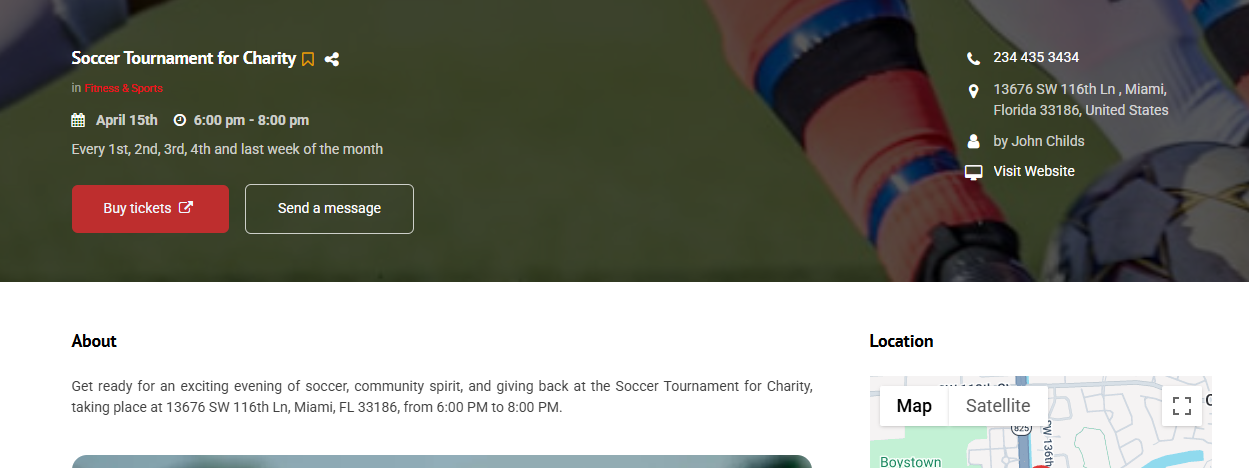
Events now include a Tickets URL field that allows you to add a call-to-action button linking users to an external page where they can purchase tickets or register. This feature is useful for directing users to third-party platforms or external booking systems.
Note: This feature is available for licenses running version 14.1 and above.
How It Works and How to Set It Up
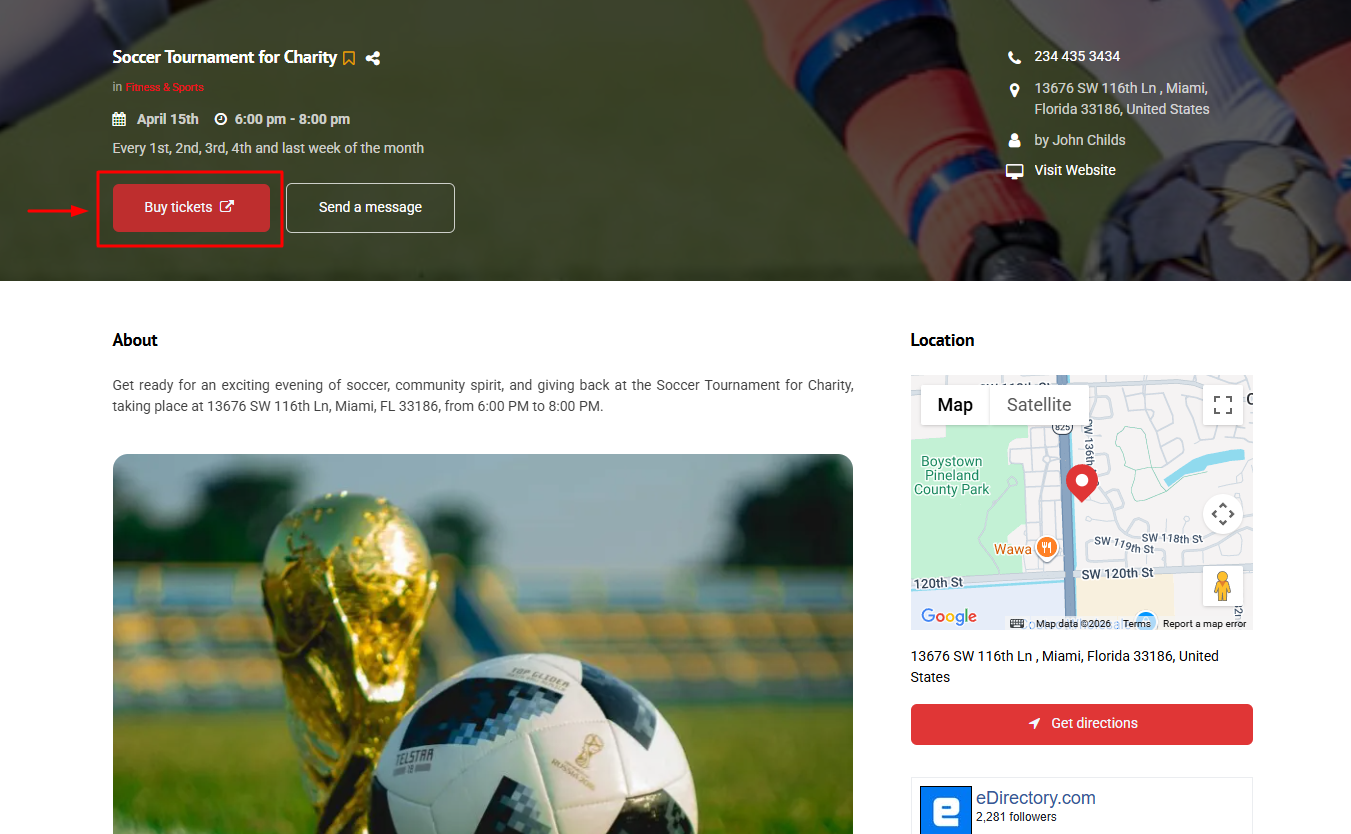
The Tickets URL field lets you associate an external link with an event. Once a valid URL is added, a “Buy Tickets” button will automatically appear on the event detail page.
When users click this button, they are redirected to the provided link.
To configure this, first ensure the feature is enabled for your product tiers.
Go to Settings → Products & Plans → Manage Products, select Events, then scroll down to the Tickets URL option and make sure it is checked.
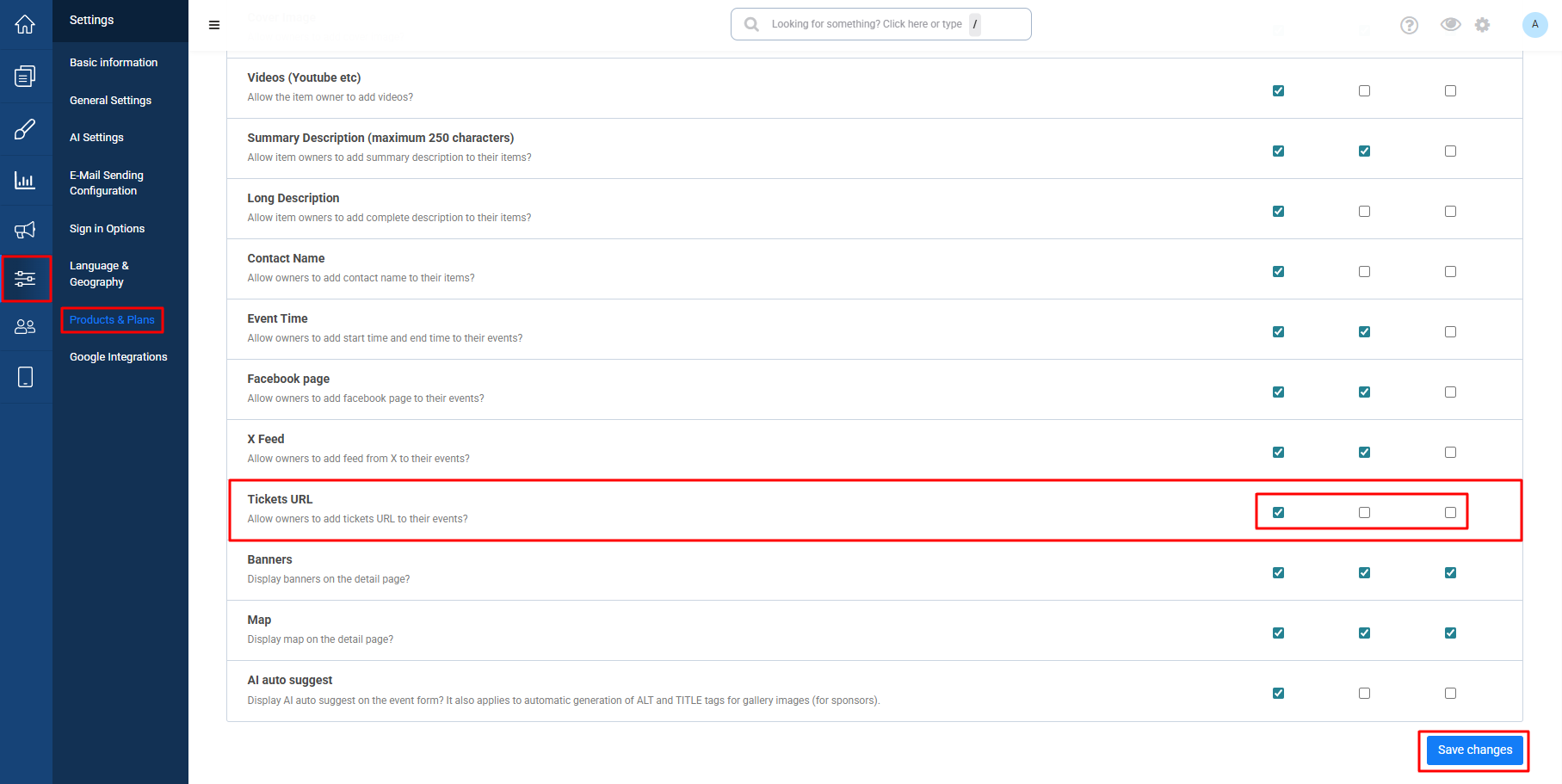
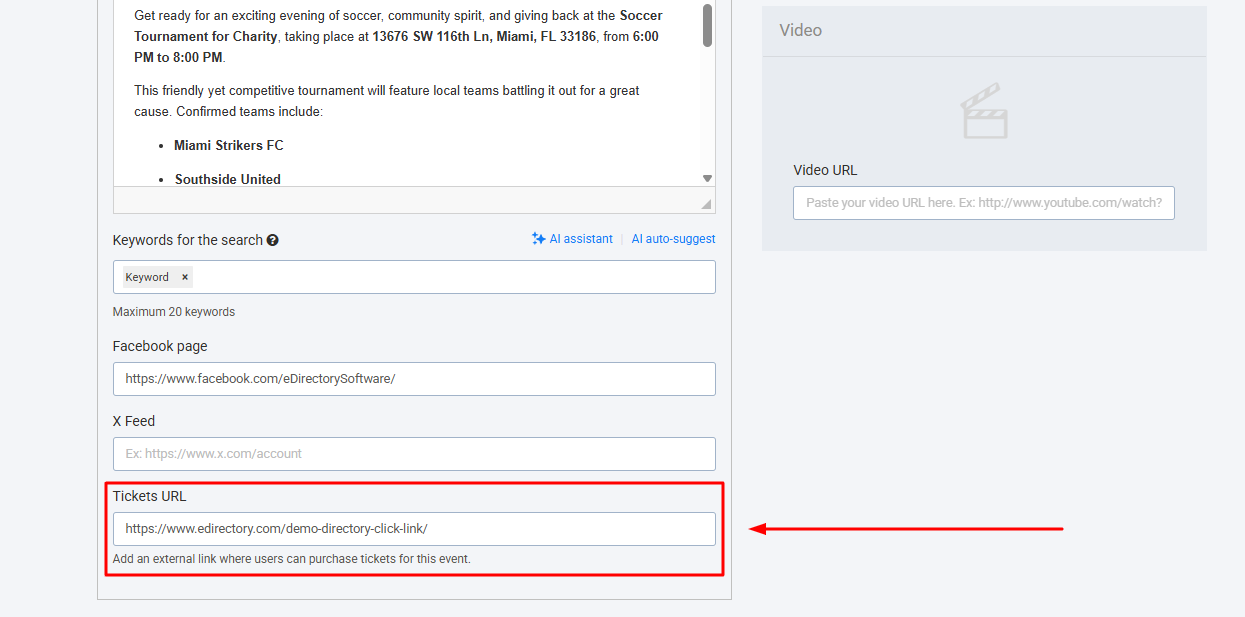
Once this feature is enabled for the specific Product tiers you desire, the 'Tickets URL' will be available within the Events Editor page.
- Access your Site Manager or Sponsor Area
- Navigate to Content → Events
- Create a new event or edit an existing one
- Locate the Tickets URL field
- Enter the full URL (including
https://) - Click Save Changes
After saving, the button will be displayed on the event detail page.
Conclusion
Adding a Tickets URL to your events provides a direct path for users to complete actions such as purchasing tickets or registering. This helps improve user experience while allowing you to integrate seamlessly with external platforms or ticketing services.
Note: This feature is available for licenses running version 14.1 and above.