
How to Enable Maintenance Mode in eDirectory
Introduction
Maintenance Mode allows you to temporarily block regular visitors from accessing your eDirectory website while you are working on updates, design changes, content adjustments, or configuration changes. When Maintenance Mode is enabled, visitors will see a maintenance page instead of the live website. However, users logged in as Site Manager can still access and navigate the website normally. This allows administrators to review changes while the public version of the site remains unavailable.
This article explains how to enable Maintenance Mode, disable it when your updates are complete, and customize the maintenance page shown to visitors.
Please review our guide video below, or follow the written steps provided beneath it.
When to Use Maintenance Mode
You may want to enable Maintenance Mode when:
- Updating your website design
- Editing important pages
- Adjusting site settings
- Preparing the website before launch
- Making content updates
- Testing new configurations
- Temporarily preventing public access to the site
Maintenance Mode is useful when you need time to work on the website without visitors seeing incomplete changes.
How Maintenance Mode Works
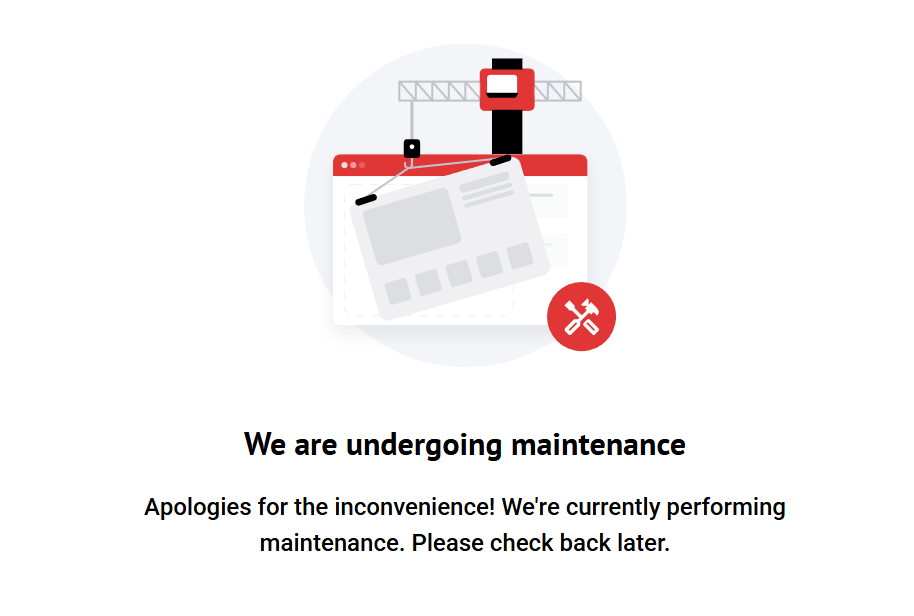
When Maintenance Mode is enabled, regular visitors will not be able to browse the public website.
Instead, they will see a maintenance page informing them that the website is currently unavailable or under maintenance.
Site Manager users can still access the website while logged in. This means administrators can continue reviewing the site, navigating pages, and making adjustments even while public access is blocked.
How to Enable Maintenance Mode
To enable Maintenance Mode:
- Log in to your Site Manager.
- Go to Settings.
- Click General Settings.
- Locate the option “Block users from accessing your site while you work on it”.
- Check the box to enable it.
- Save your changes.
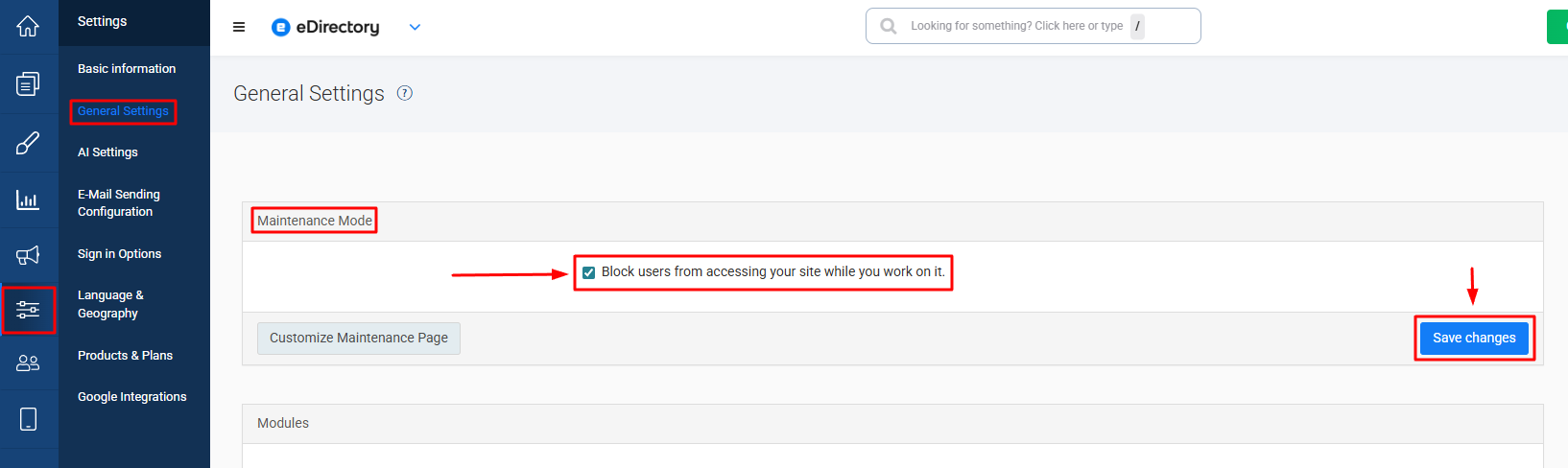
Once this option is enabled, public visitors will be redirected to the maintenance page.
How to View the Website While Maintenance Mode Is Enabled
If you are logged in as a Site Manager user, you can still access and navigate the website normally. This allows you to:
- Preview pages
- Review layout changes
- Test navigation
- Check widgets
- Confirm content updates
- Make sure everything looks correct before reopening the site
See here how to log in as the Site Manager: Getting Started #1 - How to Login as a Site Manager. If you are not logged in as Site Manager, you will see the maintenance page like any regular visitor.
Customizing the Maintenance Page
eDirectory also allows you to customize the maintenance page shown to visitors.
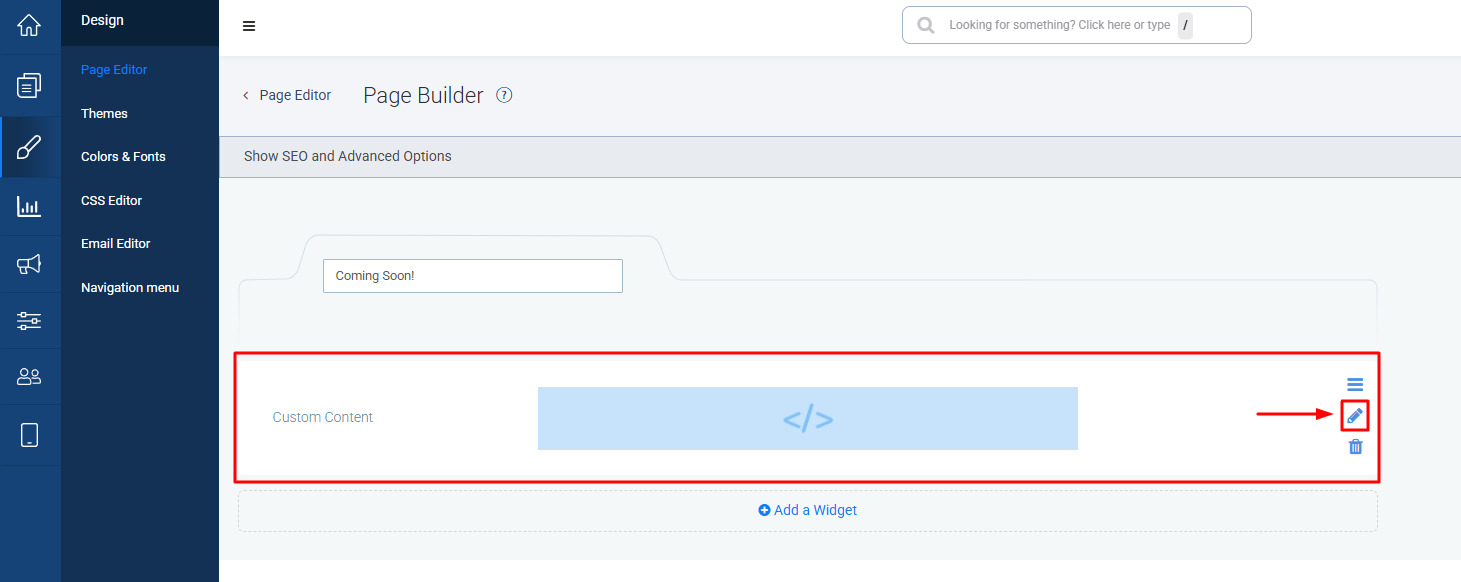
The maintenance page already includes a default layout with a Custom Content widget. This default screen can be edited so you can adjust the message, design, and content displayed while the website is unavailable.
To customize the maintenance page, use the shortcut button available near the Maintenance Mode option.
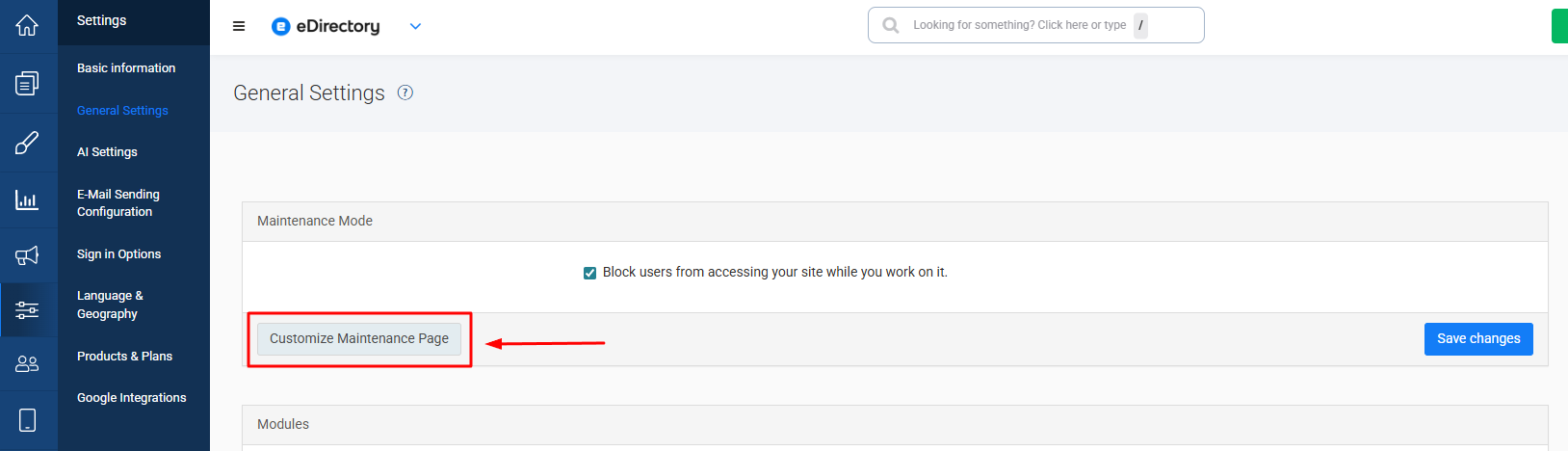
From there, you can edit the page and customize it according to your needs.
Conclusion
Maintenance Mode is a useful feature when you need to work on your eDirectory website without allowing public visitors to access it during the process.
By enabling the option “Block users from accessing your site while you work on it”, you can temporarily display a maintenance page to visitors while still allowing Site Manager users to access and review the website.
Once your updates are complete, simply disable Maintenance Mode in Settings > General Settings to make the website publicly available again.