
Creating Hidden Plans for Selected Customers
Introduction
There may be situations where you want to offer a special subscription plan to a specific customer without making it available to everyone visiting your website.
A common example is creating:
- Exclusive promotional plans
- Custom pricing for selected customers
- Temporary promotional offers
The easiest way to accomplish this in eDirectory is by creating the plan normally and displaying it on a hidden page that is not linked anywhere on your website.
Since visitors have no navigation path to this page—and search engines are instructed not to index it—only customers who receive the page's direct URL will be able to access the plan.
This guide will walk you through the complete process.
Step 1: Create the Subscription Plan
The first step is creating the subscription plan that will be offered to your selected customers.
1.1. Navigate to Manage Plans
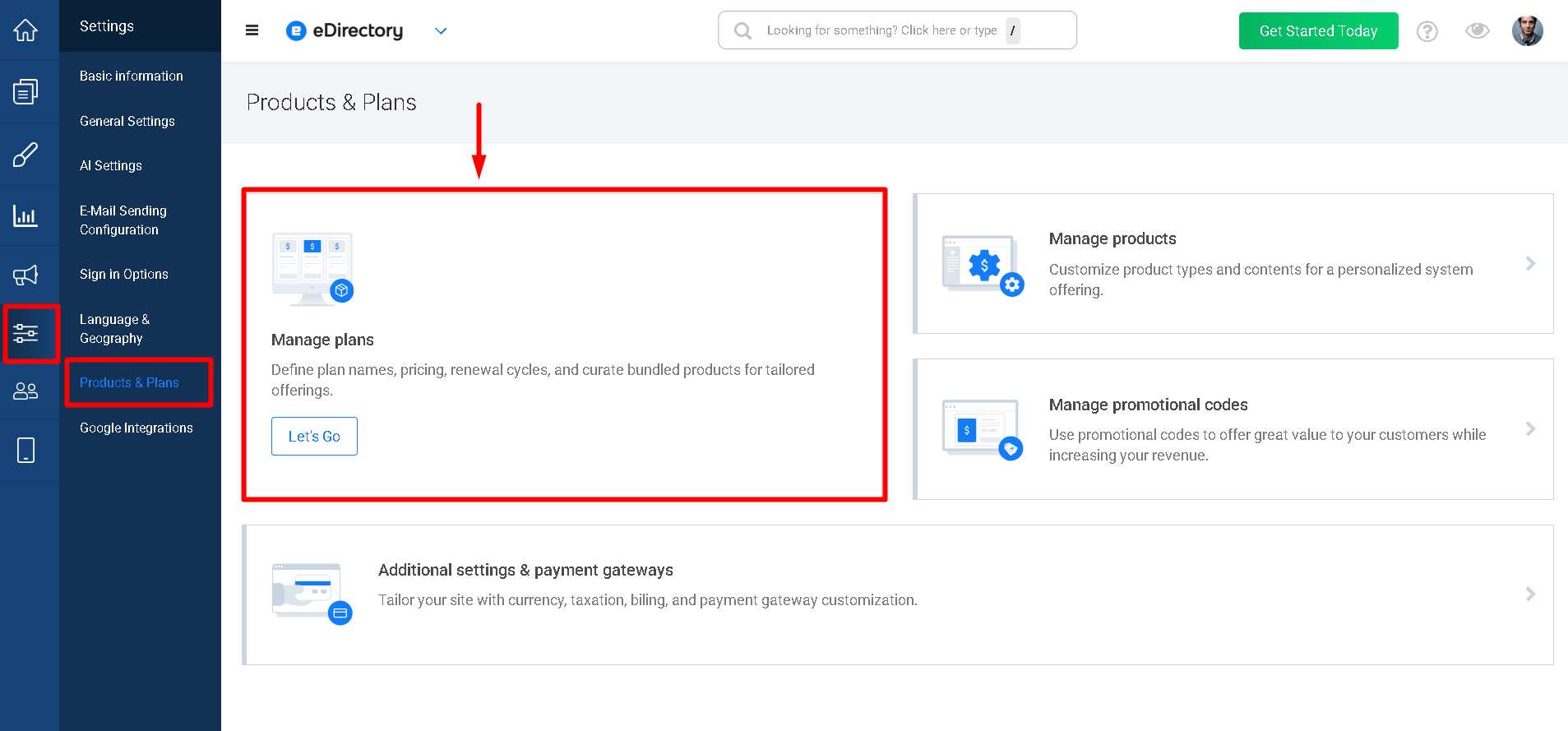
- From your Site Manager, navigate to Settings → Products & Plans → Manage Plans.
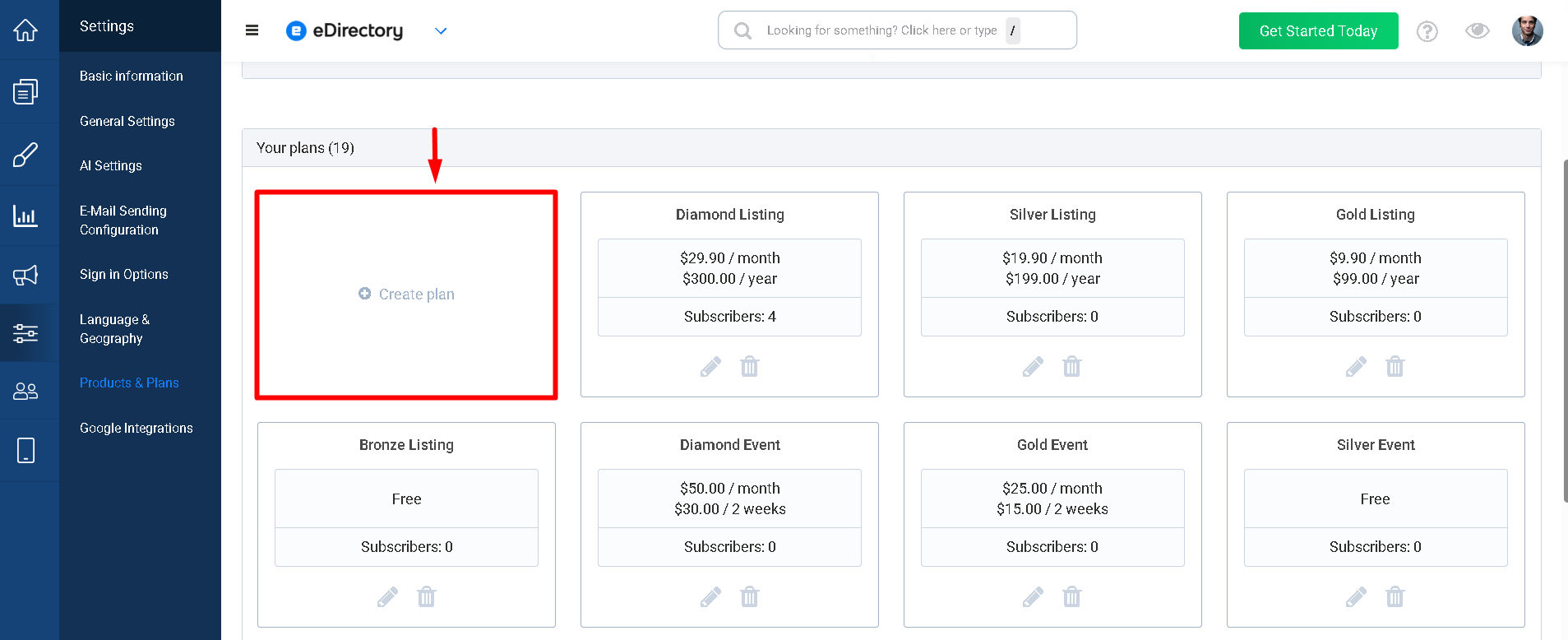
- Click Create Plan.
1.2. Configure the Plan
Create the plan as you normally would. Configure the desired information, including:
- Plan Name
- Price
- Billing Cycle
- Included Products
Depending on your needs, the plan may include:
- Listings
- Events
- Articles
- Classifieds
- Banner Ads
- Or any other products supported by your website.
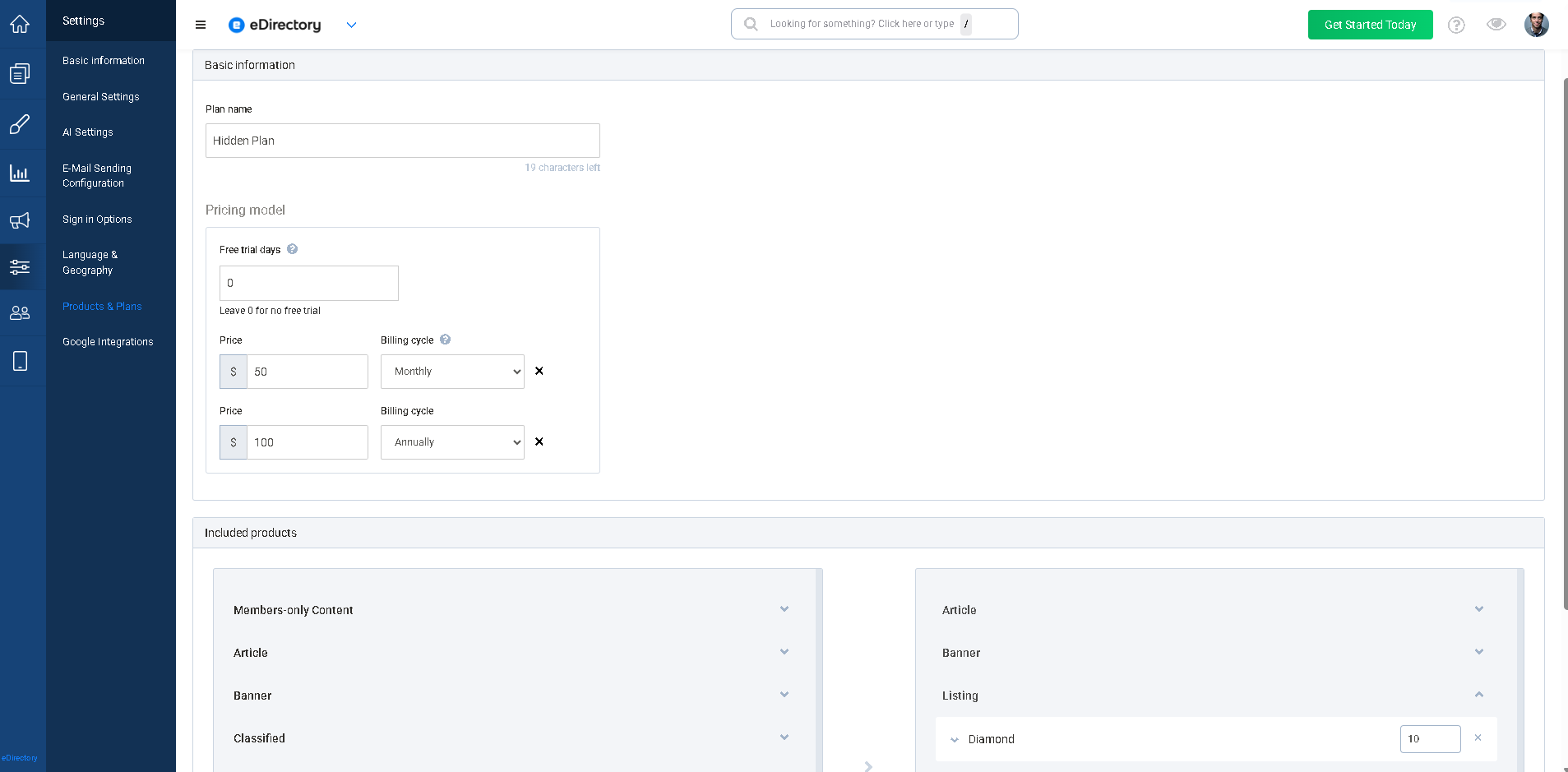
After completing the configuration, click Save Changes.
Note: If you need detailed instructions on creating Products and Plans, please refer to our article:
Step 2: Create a Hidden Page
Now you'll create a private page that will display only this special plan.
2.1. Open the Page Editor
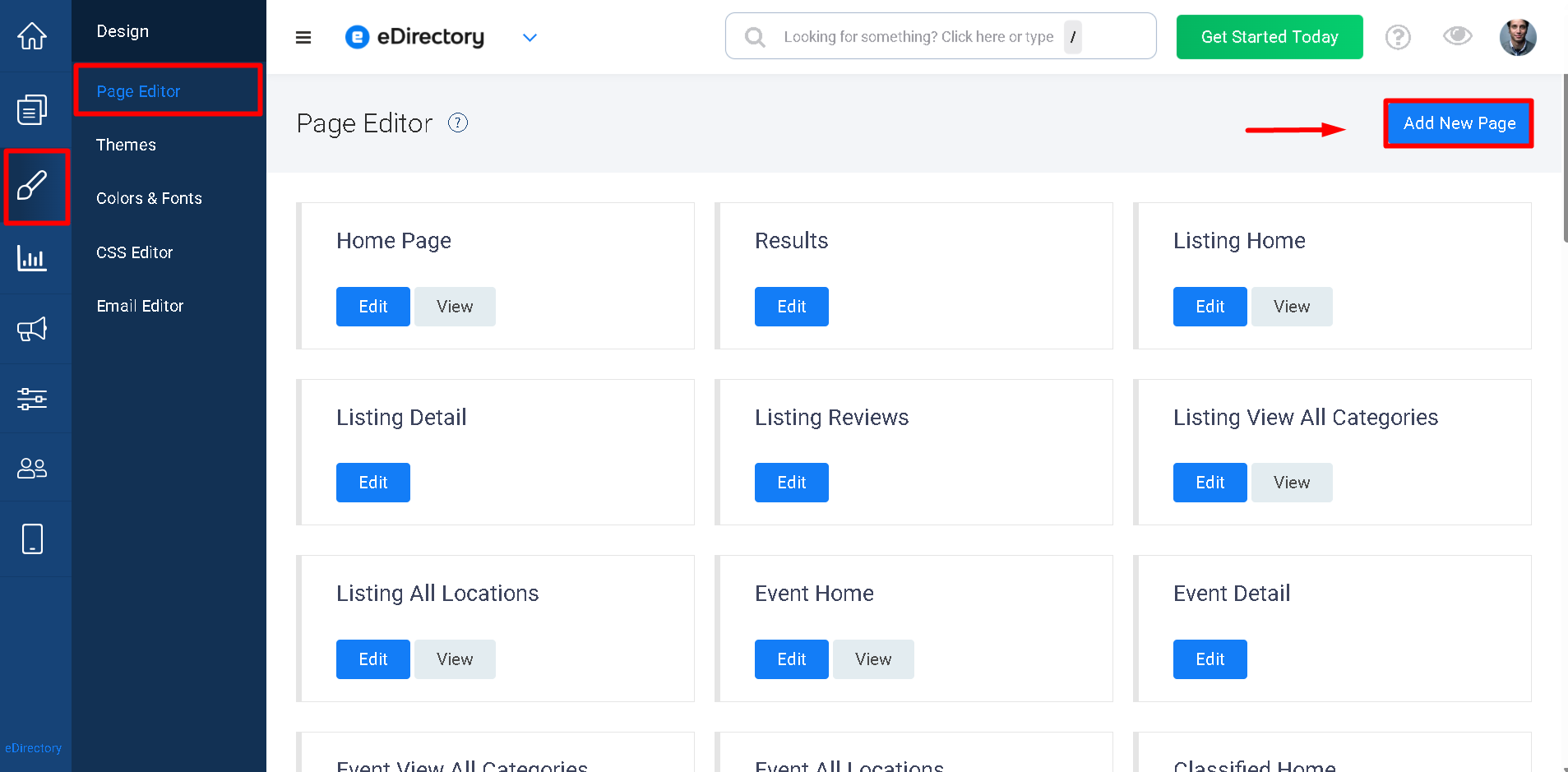
Navigate to Design → Page Editor. Click Add New Page.
2.2. Enter the Page Information
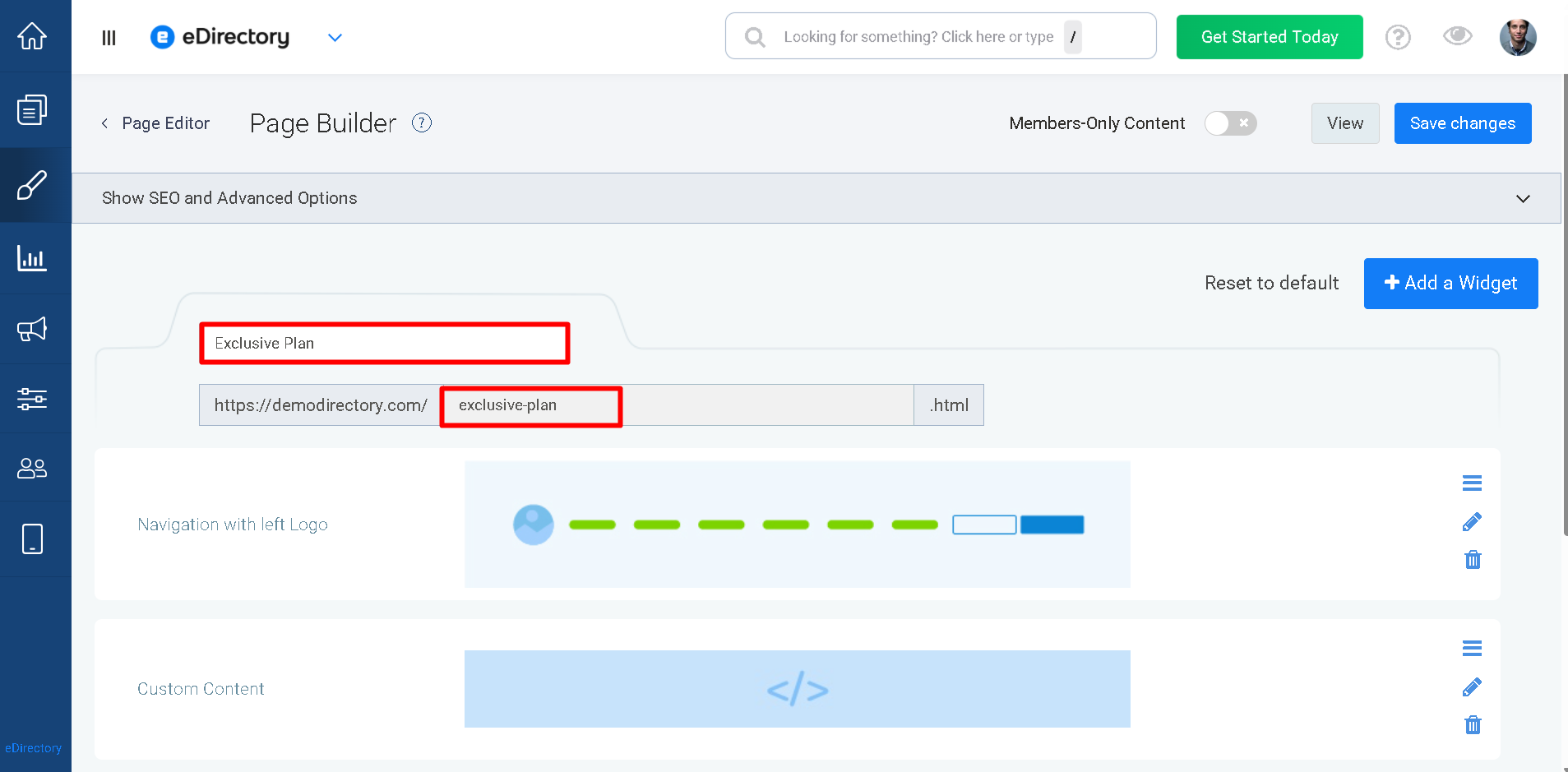
Enter a title for your page.
For example:
- VIP Membership
- Exclusive Plan
- Private Subscription
- Special Offer
The page title will automatically be used to generate the page URL.
For example:
https://yourwebsite.com/exclusive-plan.html
2.3. Prevent Search Engines from Indexing the Page
Since this page is intended to remain private, it should not appear in Google or other search engines.
- Click Show SEO and Advanced Options
- Locate the option: Sitemap: Allow this page to be indexed by search engines.
- Uncheck this option.
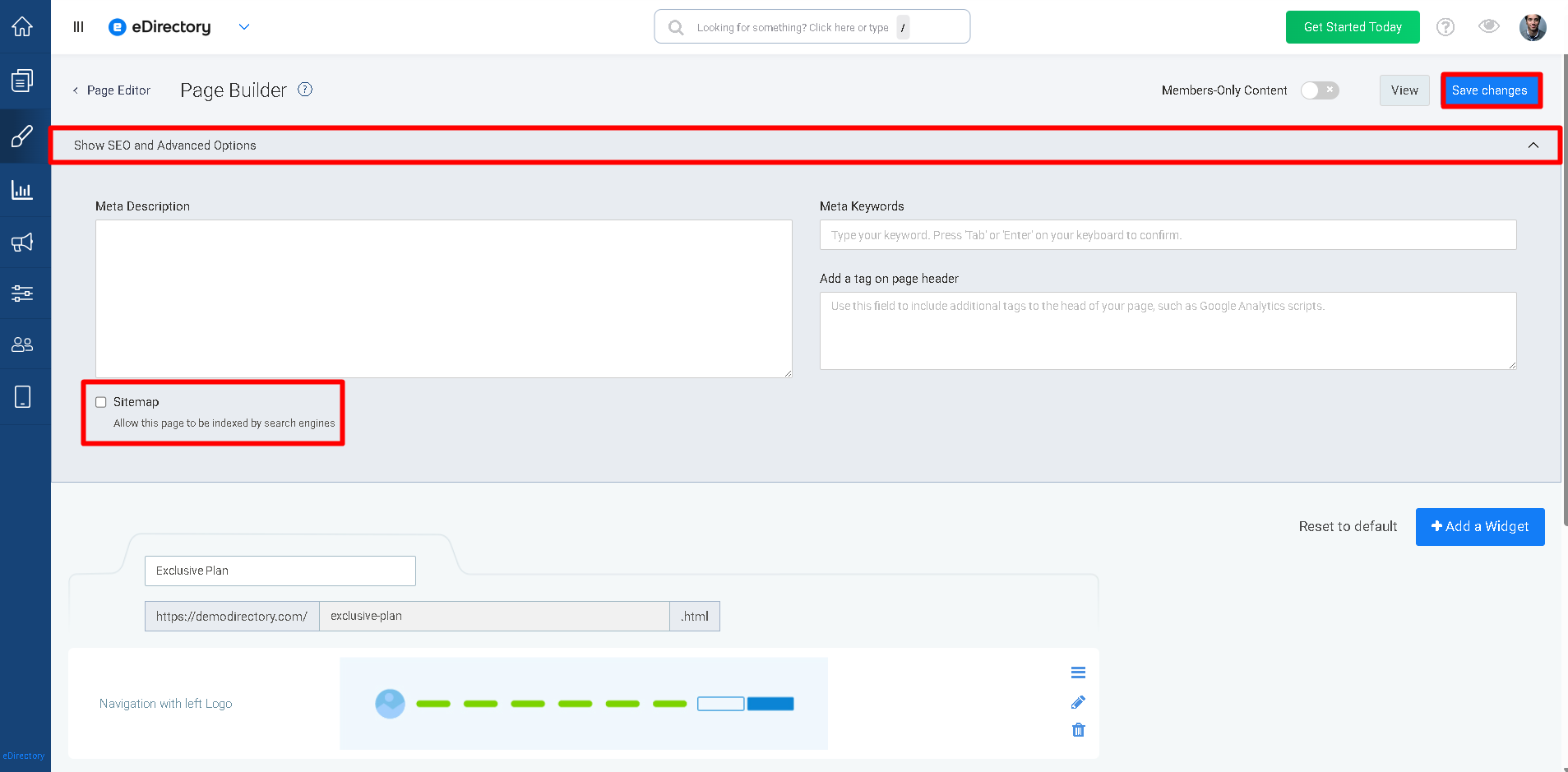
This instructs search engines not to include the page in your website's sitemap, reducing the chances of it appearing in search results.
Important: Although disabling sitemap indexing helps prevent search engines from discovering the page, anyone who has the direct URL will still be able to access it. This method is intended to make the page private and difficult to discover, not password protected.
Step 3: Add the Pricing & Plans Widget
Now you'll add the widget that displays your subscription plan.
3.1. Add a Widget
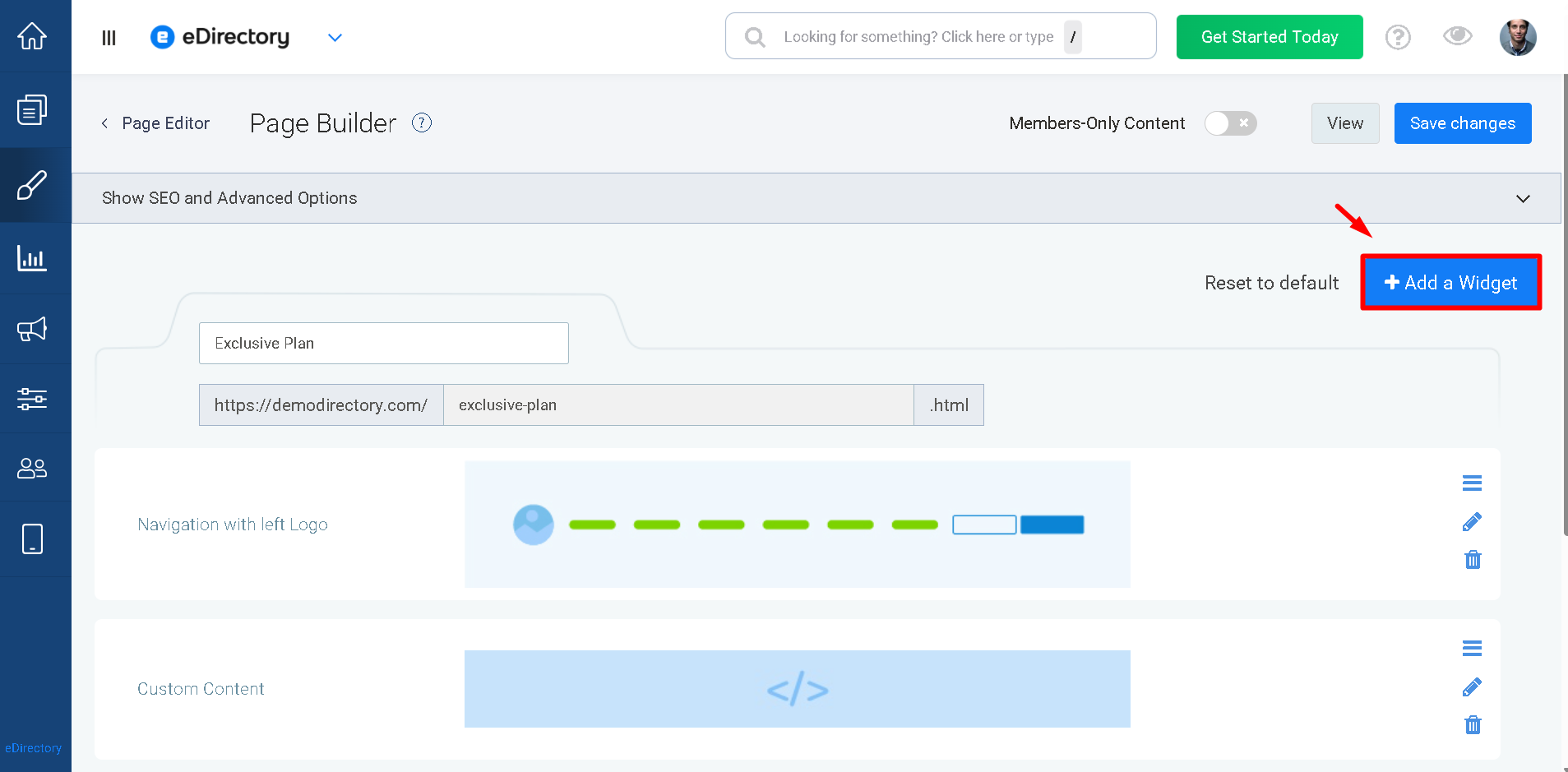
- Inside the Page Editor, click Add a Widget.
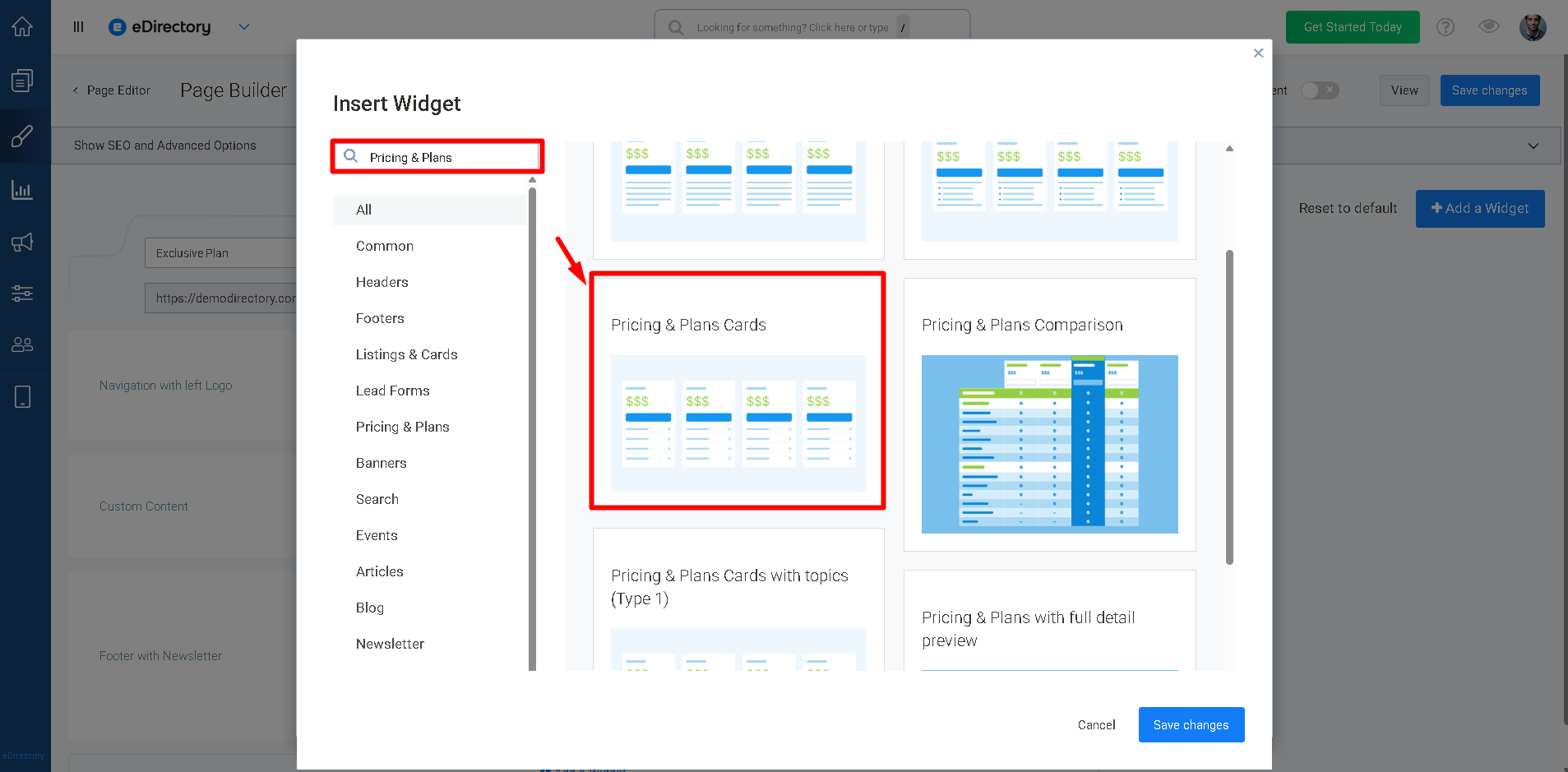
- Search for: Pricing & Plans Cards
- Click the widget to add it to your page.
3.2. Edit the Widget
- Hover over the widget and click the Pencil (Edit) icon.
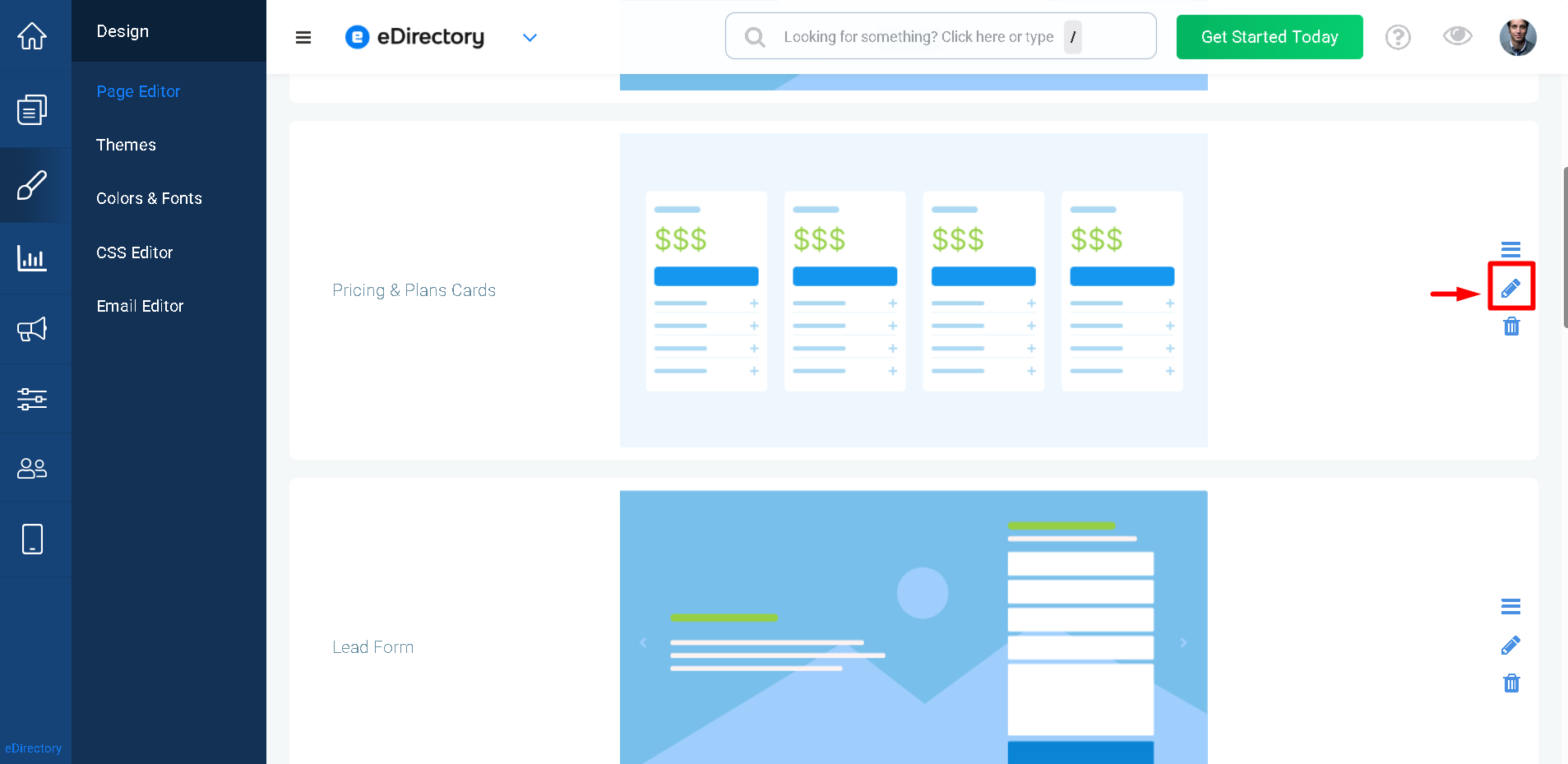
The widget configuration window will open.
3.3. Add Your Plan
- Click Add Plan.
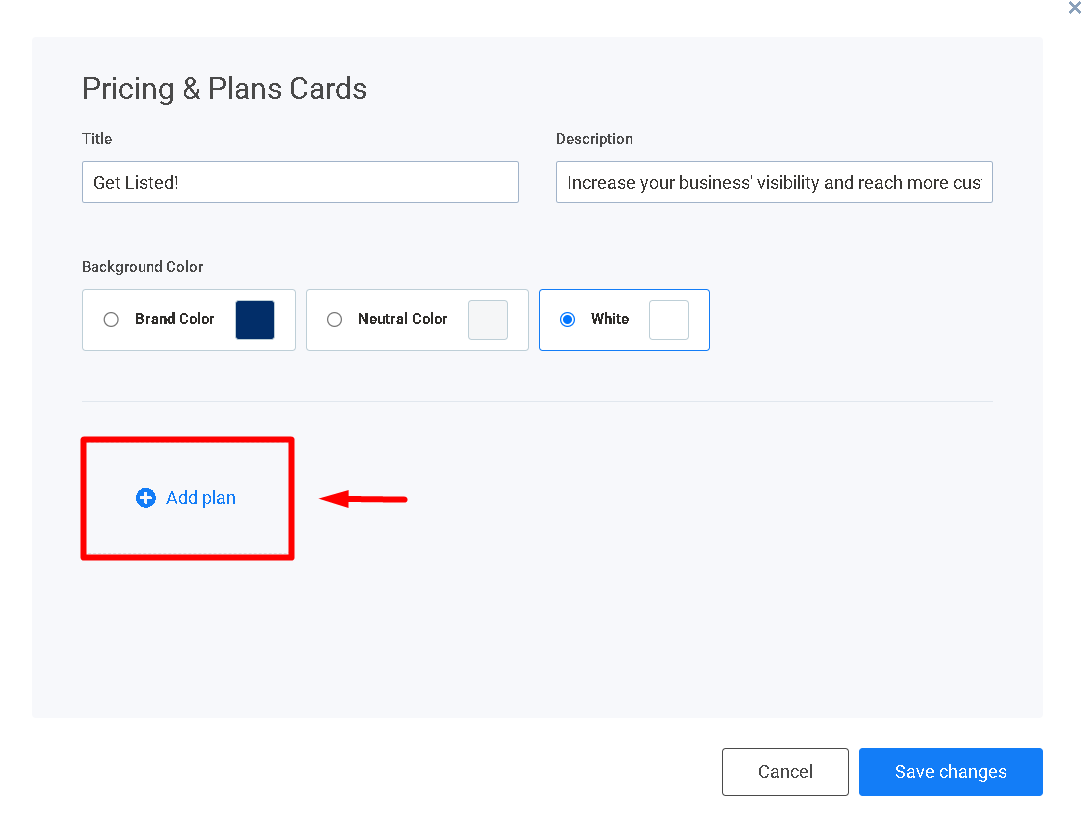
- A list of available plans will appear.
- Select the plan you created in Step 1.
- Click Add.
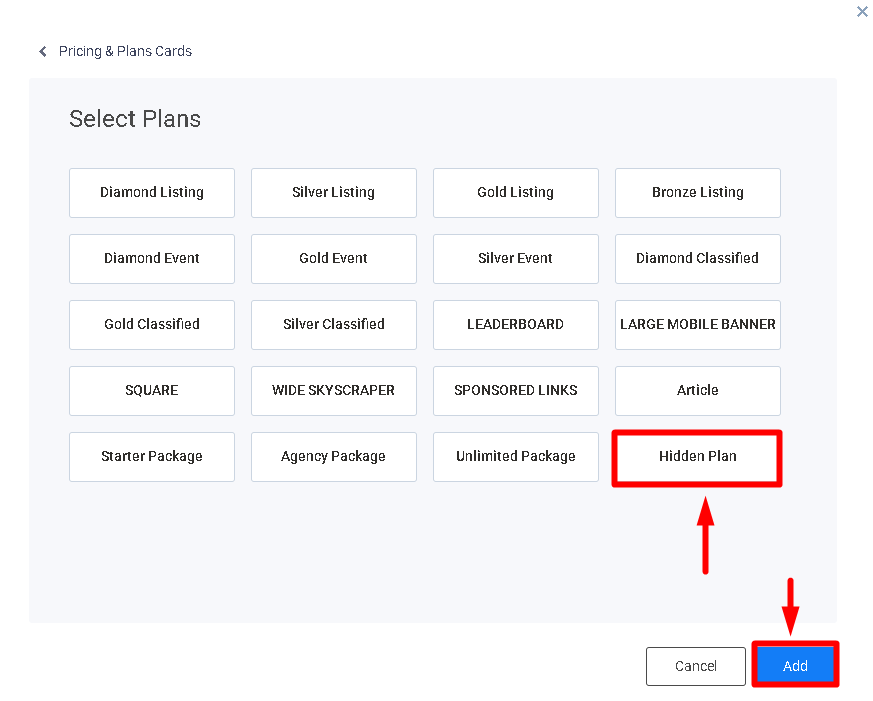
If desired, you can add multiple plans to this page by repeating the same process.
3.4. Save Your Changes
- Click Save Changes.
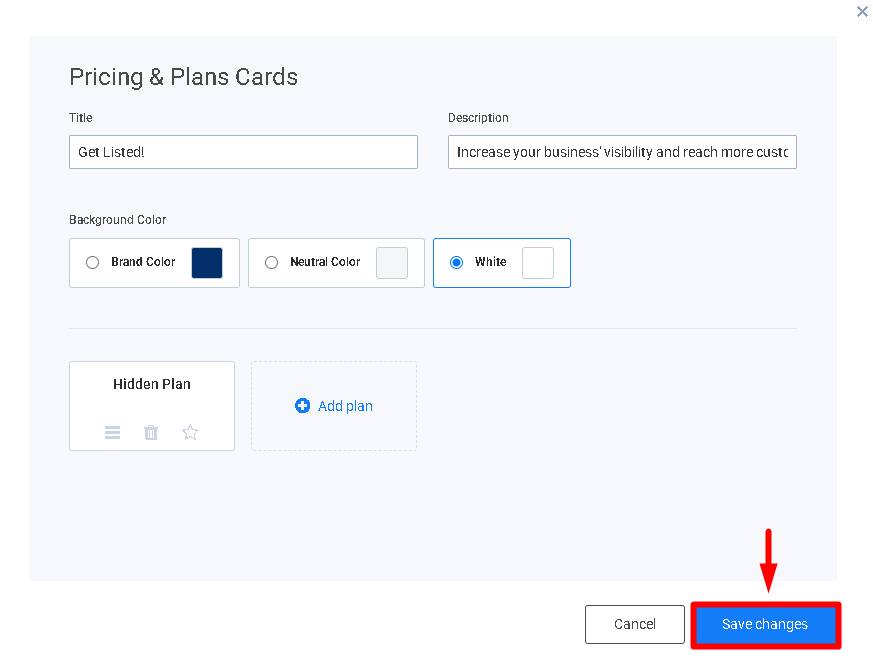
Your hidden plans page is now ready.
Step 4: Share the Hidden Page
Because this page has not been added to your website's navigation menu or linked from any other page, regular visitors will not be able to find it while browsing your website.
Additionally, since the page was excluded from your sitemap, search engines are much less likely to discover or index it.
To access the page:
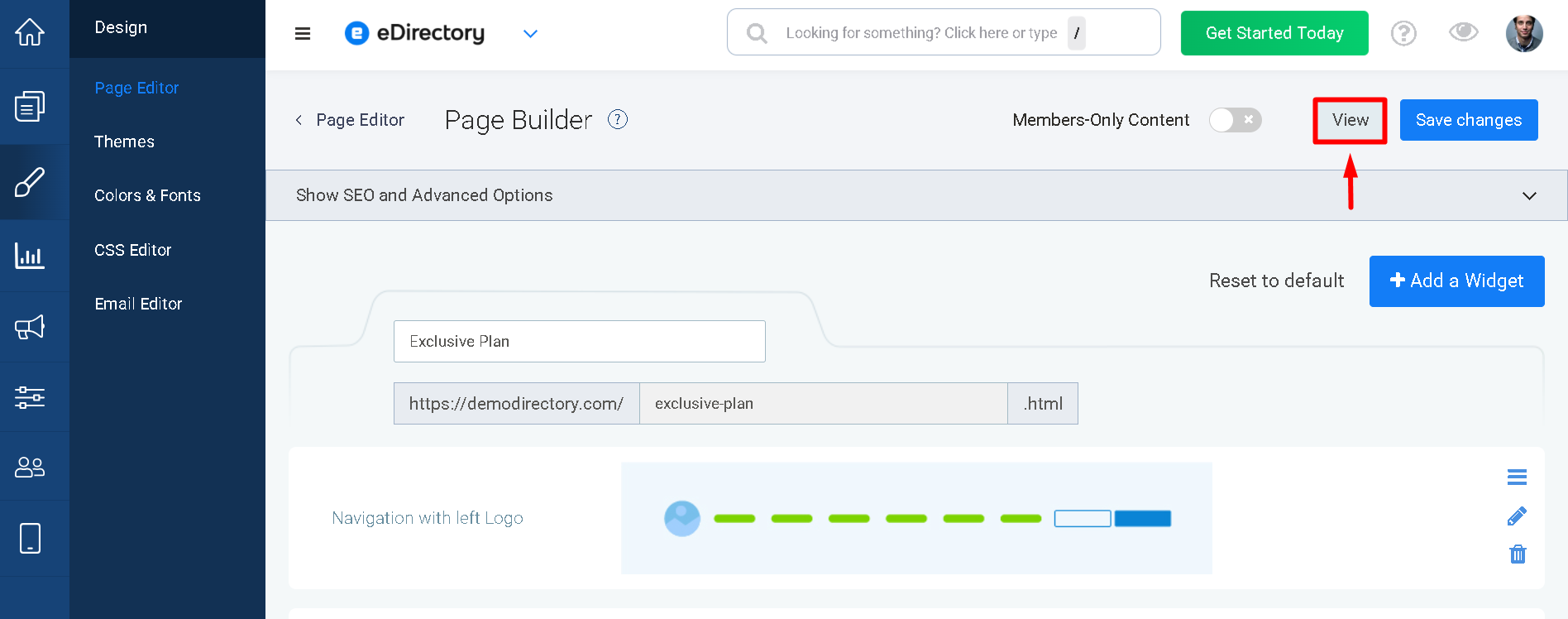
- From the Page Editor, click View.
- The page will open in your browser.
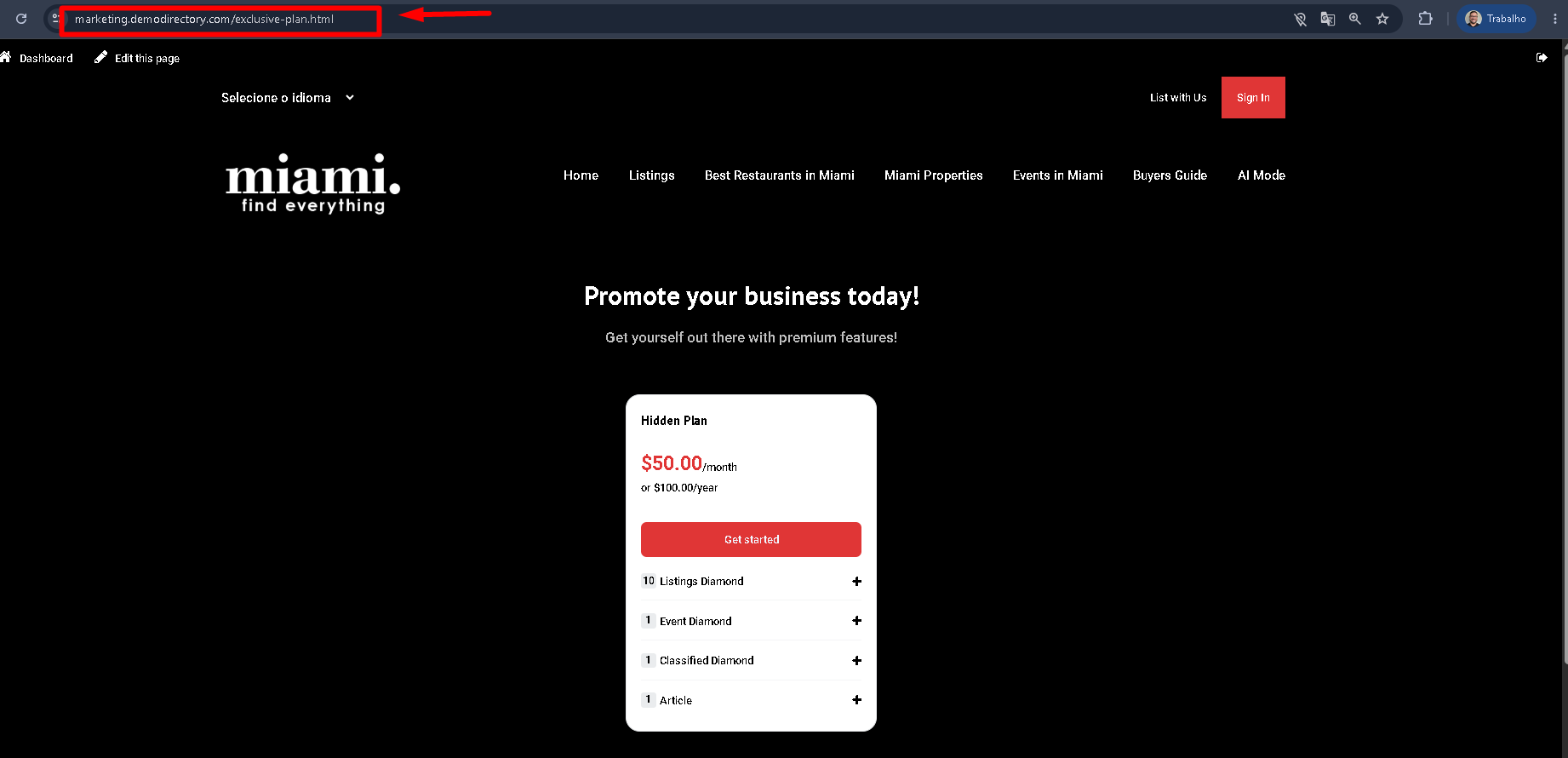
- Simply copy the URL from your browser's address bar and send it directly to the customer you want to invite.
Only customers who receive this link will be able to access the page and subscribe to the hidden plan.
Verifying the Hidden Page
After completing the configuration, verify the following:
- The page opens correctly using its direct URL.
- The desired plan is displayed.
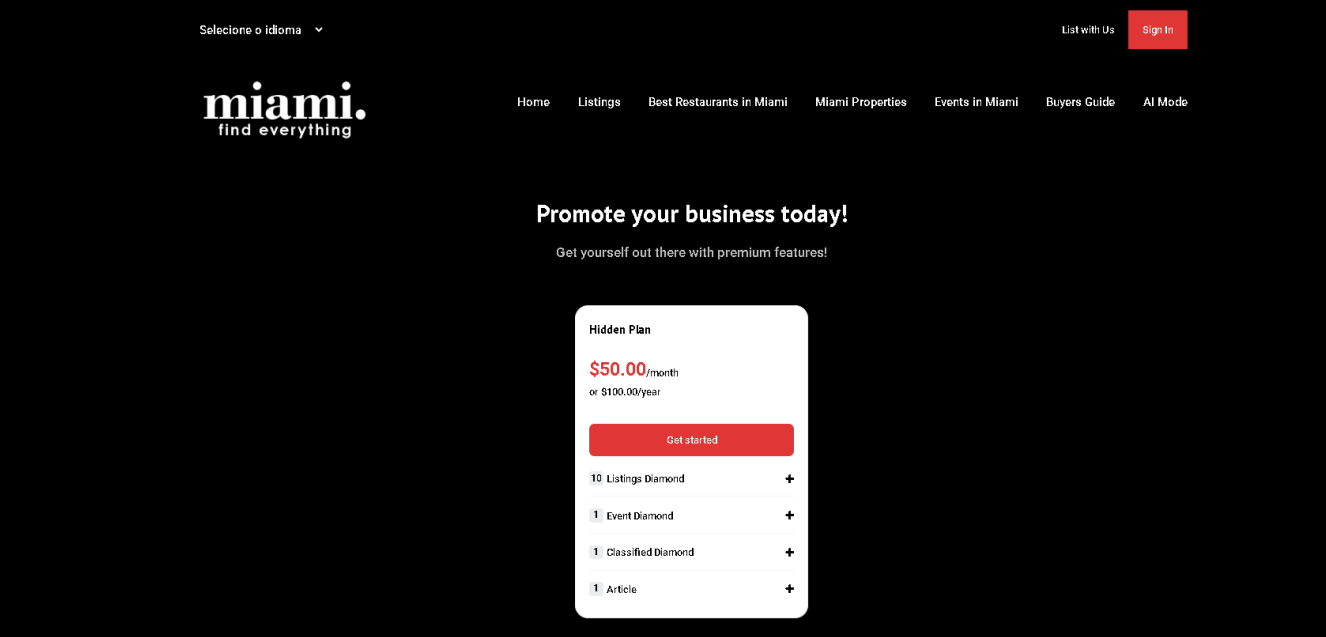
If all of the above are true, your hidden subscription page has been configured successfully.
Troubleshooting
My page appears in Google.
Verify that:
- Sitemap: Allow this page to be indexed by search engines is disabled.
- The page URL has not been shared publicly.
- The page is not linked from your website's navigation or other pages.
Visitors can still access the page.
This is expected behavior.
The page is hidden, not password protected.
Anyone who has the direct URL will be able to access it.
For this reason, only share the page link with the customers you want to offer the special plan to.
My plan doesn't appear on the page.
Verify that:
- The plan was created successfully.
- The plan was added to the Pricing & Plans Cards widget.
- You clicked Save Changes after editing the widget.
Conclusion
Congratulations!
You have successfully created a hidden subscription page for selected customers.
This approach is ideal for offering exclusive plans, custom pricing, promotional packages, or private membership options without making them publicly visible on your website.
By combining a hidden page with the Pricing & Plans Cards widget, you can easily share special offers with individual customers simply by sending them the page's direct URL.
If you need any assistance, please contact our support team at support@edirectory.com.