
Promotional Codes: How to Create, Configure, and Use Discounts
Introduction
Promotional Codes are a powerful way to offer discounts to users and encourage new subscriptions or reward existing customers. In eDirectory, promotional codes can be configured to provide either a percentage discount or a fixed monetary discount on subscription plans.
This article explains how Promotional Codes work, how to create them, how their duration interacts with the subscription billing cycle, and how to avoid common configuration mistakes.
Step 1: Access Promotional Codes
1.1.Log in to your eDirectory Site Manager.
1.2. Navigate to Settings > Products & Plans > Manage Promotional Codes
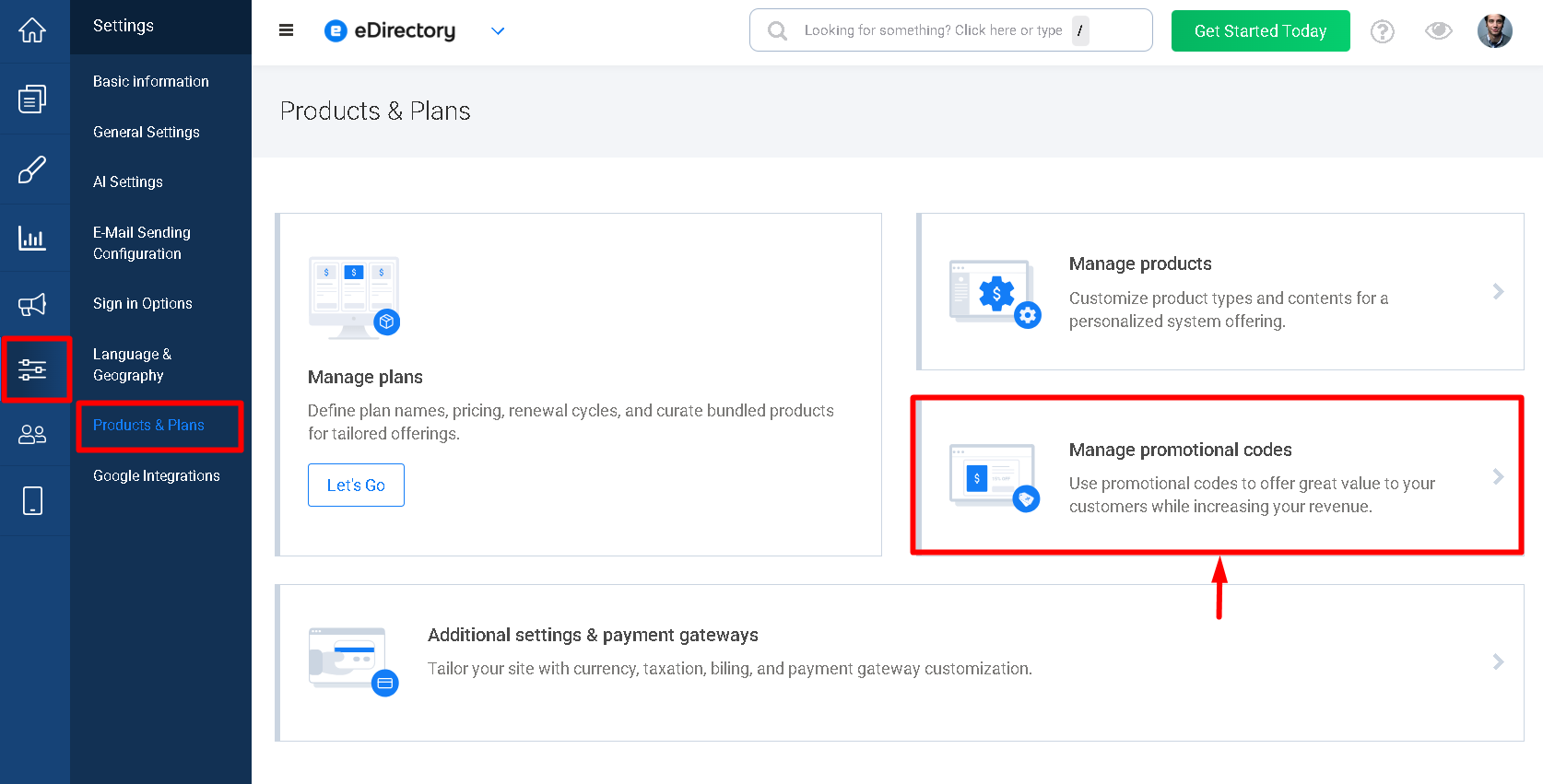
This is where you can create and manage the Promotional Codes available on your website.
Step 2: Add a Promotional Code
2.1. Click Add Promotional Code.
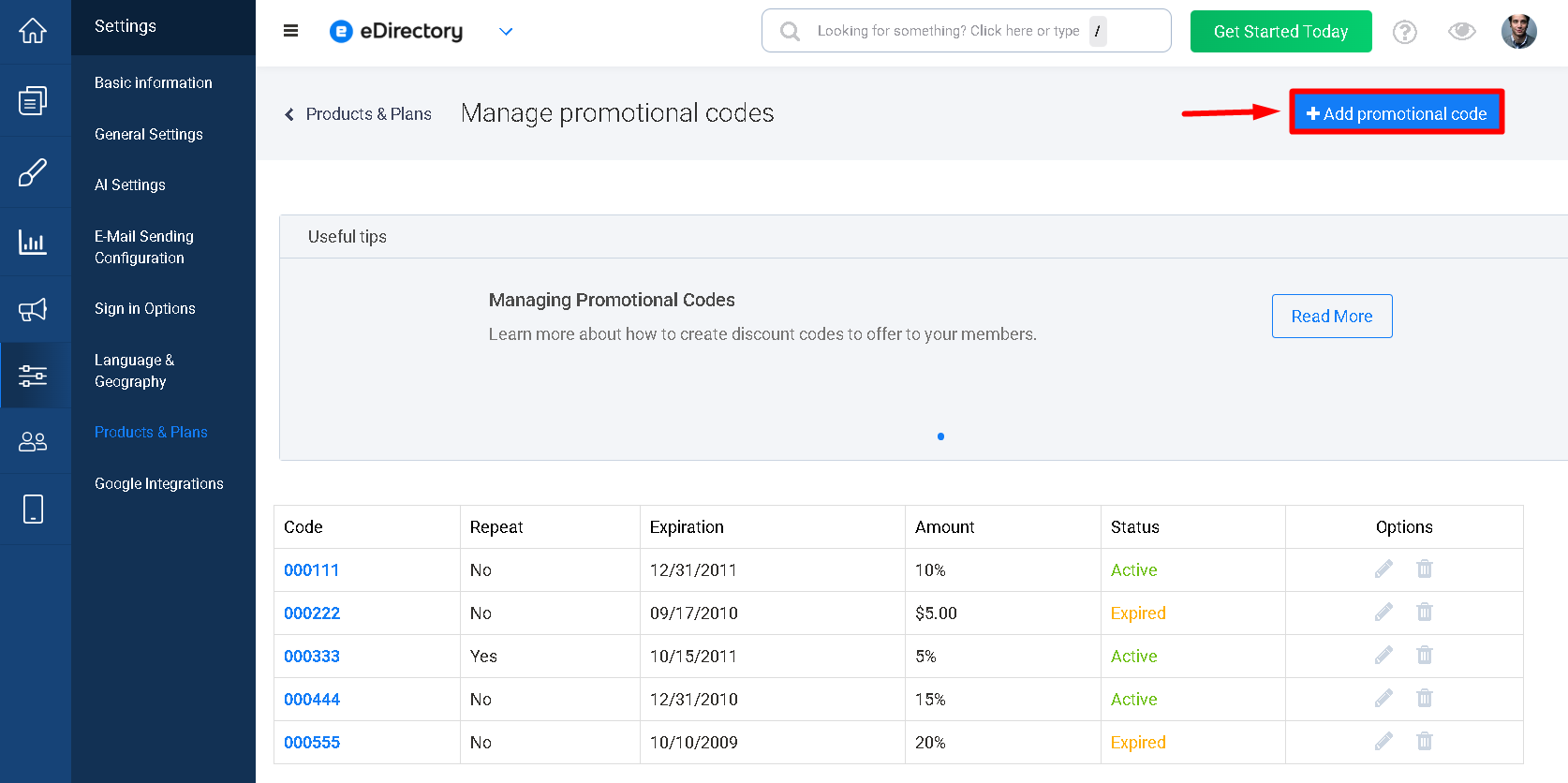
2.2. A window will open with the fields you need to configure.
The following steps explain each field in the same order it appears in the Promotional Code window.
Step 3: Configure Your Promotional Code
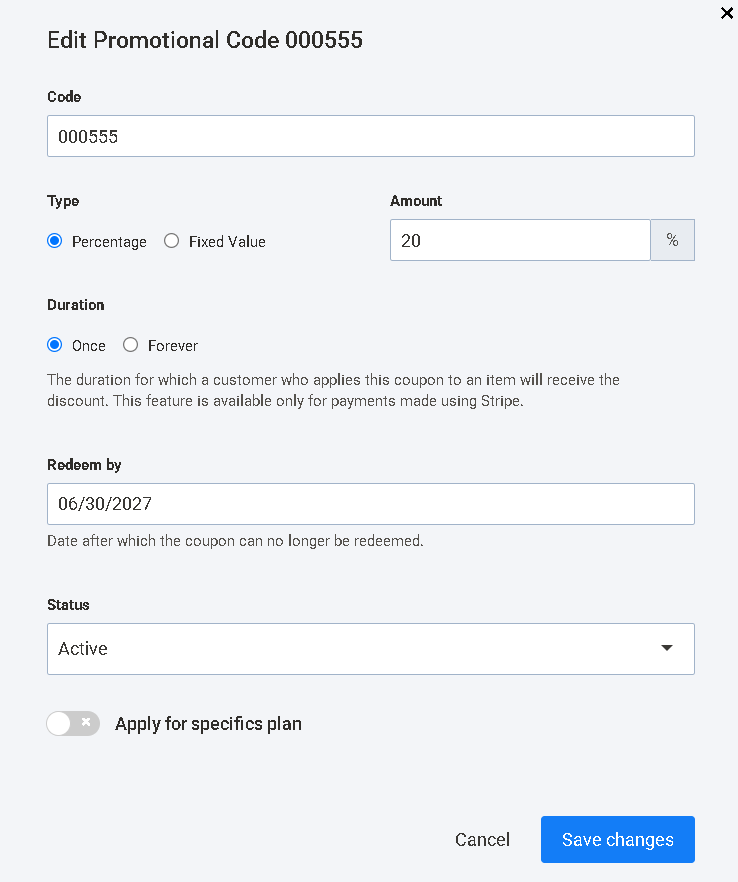
3.1. Enter the Code
In the Code field, enter the code that users will type during checkout.
You can create any unique code that is easy for your users to remember.
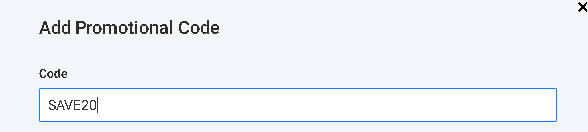
For example:
- WELCOME20
- SUMMER50
- SAVE20
For example, if you create the code SAVE20, users can enter SAVE20 during checkout to receive the discount you configured.
3.2. Choose the Discount Type
Under Type, choose how you want to give the discount.

There are two options:
- Percentage – gives the user a percentage off the subscription price.
- Fixed Value – takes a specific amount off the subscription price.
For example:
Percentage: 20% off a $50 subscription = $40
Fixed Value: $10 off a $50 subscription = $40
3.3. Enter the Amount
In the Amount field, enter the value of the discount.
The value depends on the type you selected.
If you selected Percentage, enter the percentage without the % symbol.
For example:
20 = 20% off

If you selected Fixed Value, enter the amount you want to discount.
For example:
10 = $10 off

3.4. Choose the Duration
The Duration field determines how long the user can receive the discount after redeeming the code.
There are two options:
- Once
- Forever
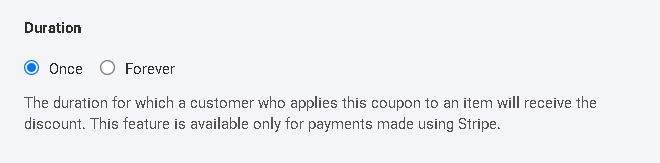
Once
Choose Once if you want the user to receive the discount only one time.
For example, if you create a 50% discount with Once and the user has a monthly subscription:
- First month → 50% discount
- Second month → regular price
- Third month → regular price
| Billing Period | Regular Price | Discount | Price |
|---|---|---|---|
| Month 1 | $30 | 50% | $15 |
| Month 2 | $30 | None | $30 |
| Month 3 | $30 | None | $30 |
The user cannot use the same Promotional Code again for the following month.
This remains true even if the Redeem by date is still in the future.
Forever
Choose Forever if you want the Promotional Code to continue being available to the user for subsequent purchases while the code remains valid.
For example, if you create a 50% discount with Forever and a user has a monthly subscription, the user can continue applying the 50% discount on subsequent monthly purchases manually.
- First month → 50% discount
- Second month → 50% discount
- Third month → 50% discount
- And so on...
| Billing Period | Regular Price | Discount | Price |
|---|---|---|---|
| Month 1 | $30 | 50% | $15 |
| Month 2 | $30 | 50% | $15 |
| Month 3 | $30 | 50% | $15 |
| Month 4 | $30 | 50% | $15 |
The discount continues to apply while the Promotional Code remains valid.
However, there is an important detail regarding Auto Bill: the Forever option can only be used for subsequent purchases when Auto Bill is disabled. You can check this setting under Settings > Products & Plans > Additional Settings & Payment Gateways.
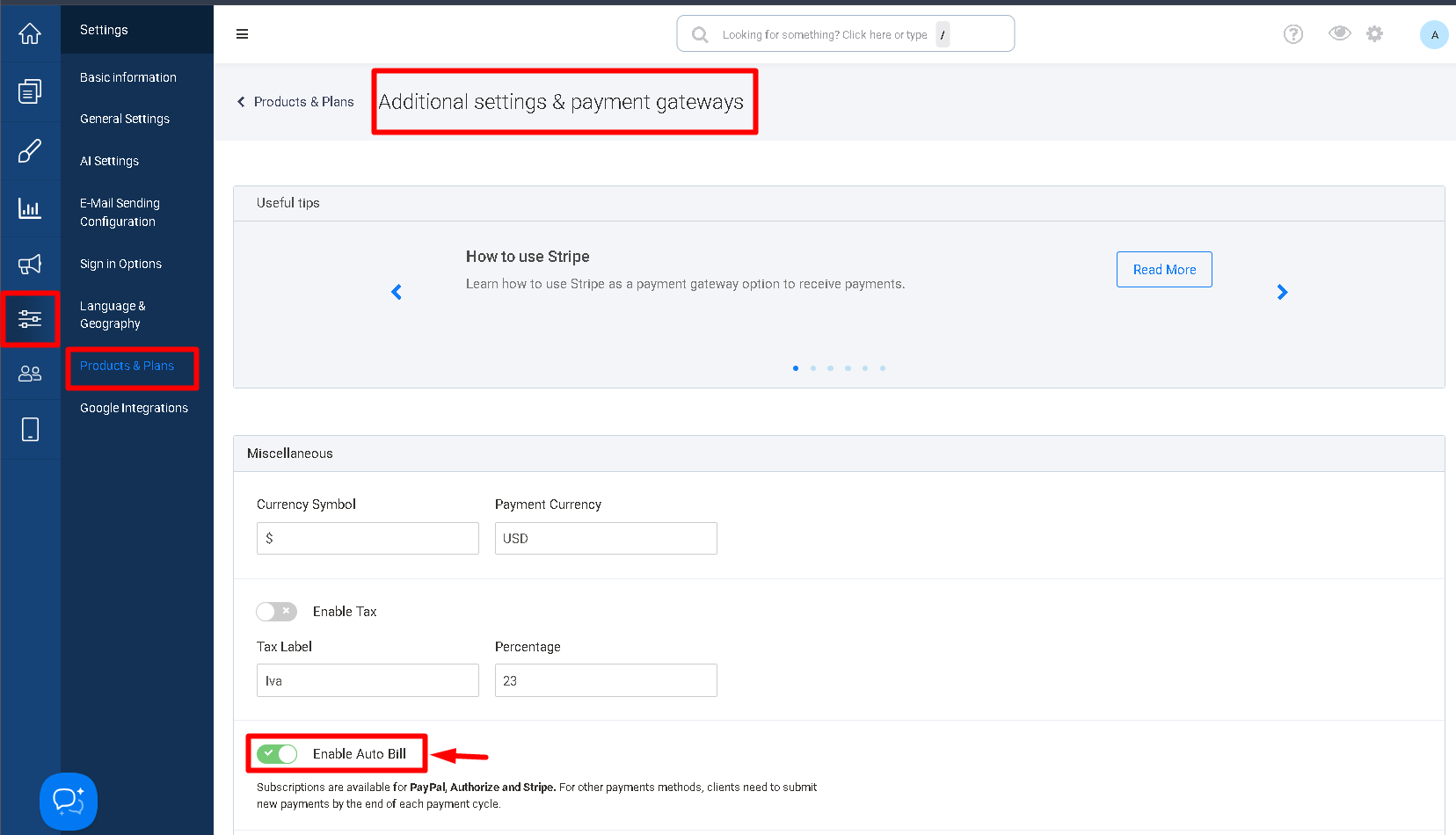
When Auto Bill is disabled, the user has the opportunity to make each monthly purchase manually. They can then apply the Promotional Code again to the next purchase, as long as the code is still valid.
When Auto Bill is enabled, future subscription payments are charged automatically. Because the user does not return to the checkout to make another purchase and enter the Promotional Code, the code will only be applied to the first purchase.
Important: Forever does not mean that the discount will last forever. The Promotional Code will stop being valid when its Redeem by date is reached and to continue having the discount in the next months, the user will have to apply the code every month.
3.5. Set the Redeem By Date
The Redeem by field determines the last date when a user can redeem the Promotional Code.
For example, if you set:
Redeem by: 06/30/2027
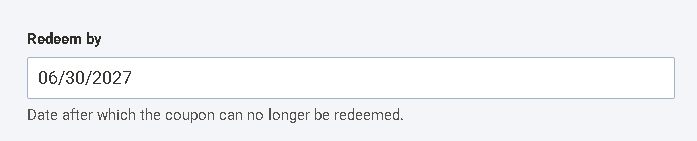
Users can redeem the code until that date.
After the date passes, the code can no longer be redeemed.
The Redeem By Date Does Not Determine the Free or Discount Period
This is one of the most important things to understand about Promotional Codes.
The Redeem by date is simply the expiration date of the Promotional Code. It does not determine how long an individual user will receive the discount.
For example, imagine that you create a Promotional Code today and set:
- Duration: Forever
- Redeem by: Six months from today
This does not mean that every user who receives the code will get six months of discount.
A user who redeems the code today could potentially use it during the available period, while another user who receives and redeems the same code two months from now will have a shorter amount of time before the code expires.
The Promotional Code does not calculate the expiration period based on the date each individual user subscribed. It uses the single Redeem by date configured for the code.
For this reason, Promotional Codes should not be used when your intention is to provide every user with a specific amount of free or discounted time, such as:
- 3 months free
- 6 months free
- 10 months free
- 1 year free
When Should I Use a Free Trial?
If your intention is to give each user a specific trial period, we recommend using the Free Trial feature available through the Stripe integration.
For example, if you configure a 6-month free trial, eDirectory/Stripe uses the date when each user starts their subscription to determine when their individual trial period ends.
This means:
- User A subscribes today → their 6-month trial starts today.
- User B subscribes two months later → their 6-month trial starts two months later.
- Each user receives the full 6-month period.
- After the trial period ends, the user is automatically charged according to the subscription.
This is different from a Promotional Code because the Promotional Code has one fixed Redeem by date, rather than calculating a separate trial period for each user based on their subscription date.
Recommendation: Use Promotional Codes when you want to offer a discount that is available until a specific date. Use the Stripe Free Trial feature when you want every user to receive a specific amount of free time, such as 3 months, 6 months, 10 months, or 1 year. Find the instructions below for the step-by-step instructions about the Stripe free trial setup.
3.6. Apply the Code to Specific Plans
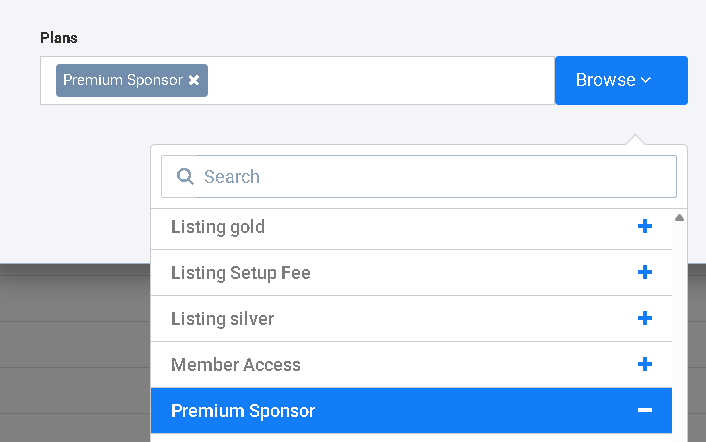
The Apply for specifics plan option allows you to control which subscription plans can use the Promotional Code.
If this option is disabled, the Promotional Code can be used with the available subscription plans.

If you enable it, you can select the specific plans where the Promotional Code should be available.
For example, you could create a code that works only with your Premium plan and not with your Basic plan.
Step 4: Save the Promotional Code
After configuring all the fields, click Save changes.
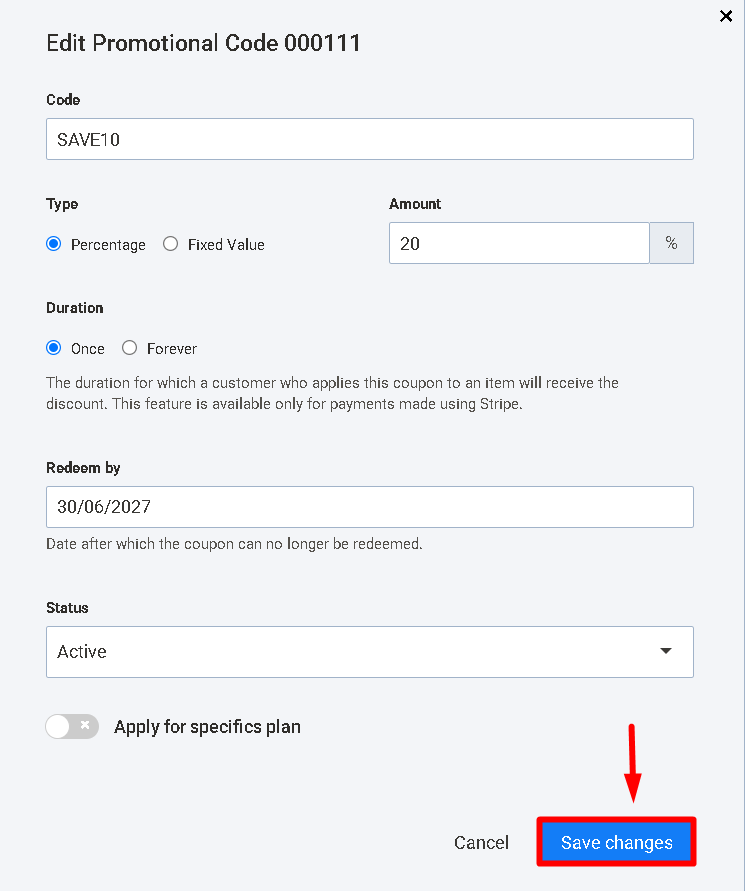
Your Promotional Code is now configured according to the options you selected.
You can then provide the code to your users so they can enter it during checkout.
Step 5: How the Promotional Code Works at Checkout
When a user subscribes to an eligible plan, they can enter the Promotional Code during checkout.
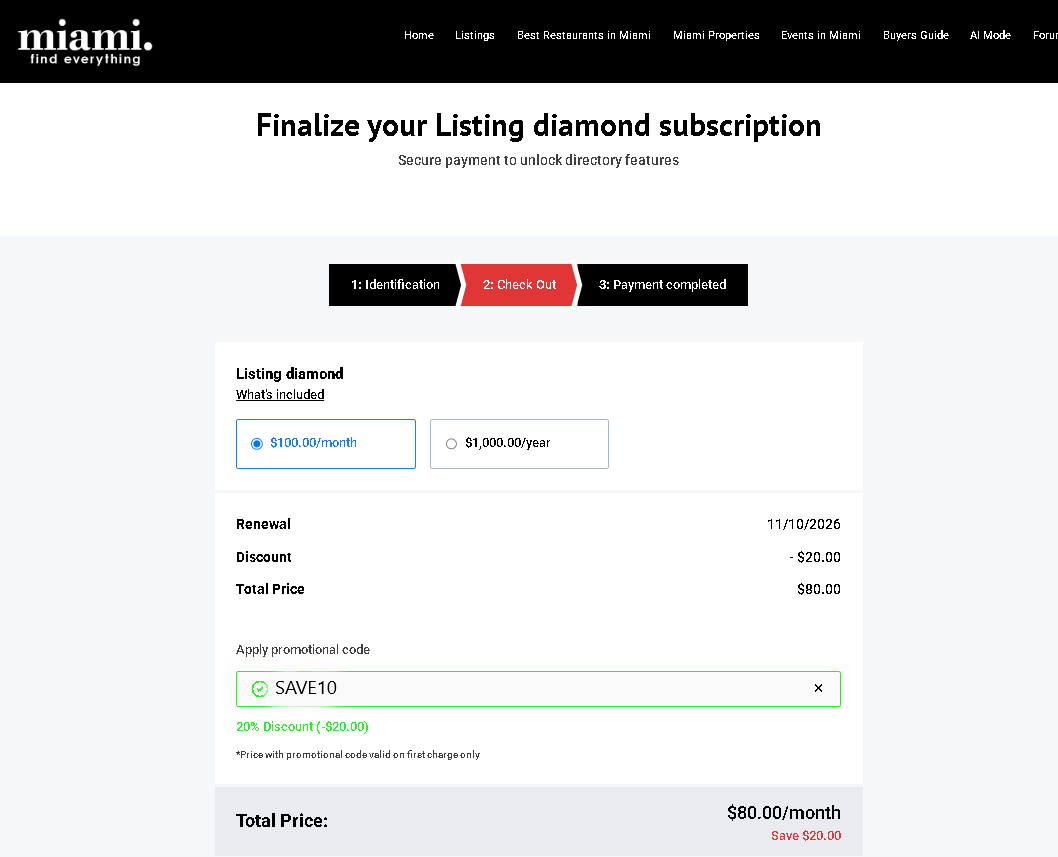
The system checks the Promotional Code and applies the discount if it is valid.
For the code to work, the following conditions must be met:
- The code must be Active.
- The Redeem by date must not have passed.
- The selected plan must be eligible for the code.
- The user must not have already used the code if Duration is set to Once.
- The code must be entered correctly.
Learn more about the steps needed for the user to reach the checkout page and apply the promotional code from this article: How to Add a Listing as a Sponsor
Practical Examples
Here are some simple examples to help you understand how the settings work together.
Example 1: 20% Off the First Month
You want to give new users 20% off their first month.
Configure the Promotional Code as follows:
- Code: WELCOME20
- Type: Percentage
- Amount: 20
- Duration: Once
- Redeem by: 06/30/2027
- Status: Active
- Apply for specific plans: Disabled
- Billing cycle: Monthly
The user redeems the code before June 30, 2027.
They receive:
First month: 20% off
Second month: Regular price
Third month: Regular price
The date June 30, 2027, only determines how long the code is available for redemption.
Example 2: Promotional Code vs. Free Trial
Suppose you want to offer 6 months free to every new subscriber.
It may seem logical to create a Promotional Code with:
- Type: Percentage
- Amount: 100%
- Duration: Forever
- Redeem by: Six months from today
However, this will not provide the result you expect.
The Redeem by date is shared by everyone who uses the code. It does not move forward based on the date each user subscribes.
For example:
- User A uses the code today → they can use it while the code remains valid.
- User B uses the code two months from now → they have only the remaining time until the Redeem by date.
- User C uses the code five months from now → they have even less time before the code expires.
Therefore, the Promotional Code does not guarantee that every user receives six months free.
The Recommended Solution
If the goal is 6 months free for every new subscriber, use the Stripe Free Trial feature instead.
The Free Trial calculates the trial period based on the date each user subscribes. This ensures that every user receives the complete configured trial period before automatic billing begins.
The same principle applies if you want to offer:
3 months free, 6 months free, 10 months free, 1 year free, or any other fixed trial period.
Promotional Code = discount available until a specific date.
Free Trial = a specific free period for each individual subscriber.
For a promotion where users should receive a specific free period, such as six months, we recommend using the Free Trial feature available through the Stripe integration. Find the knowlegde base article below:
Promotional Code Settings at a Glance
| Setting | What it means |
|---|---|
| Code | The code users enter during checkout |
| Percentage | Gives a percentage discount |
| Fixed Value | Takes a specific amount off |
| Amount | The value of the discount |
| Once | The discount is applied to the user's first purchase only |
| Forever | The discount can continue to be applied to subsequent manual purchases while the code remains valid |
| Redeem by | The date after which the Promotional Code can no longer be redeemed |
| Apply for specific plans | Limits the code to selected subscription plans |
| Auto Bill enabled | Future subscription payments are charged automatically, so the Promotional Code is not entered again |
| Auto Bill disabled | Users can make subsequent purchases manually and apply a valid Promotional Code again |
| Stripe Free Trial | Provides each subscriber with a specific free period based on their own subscription date |
Troubleshooting
The user expected a specific number of months free
If the user expected to receive 3 months, 6 months, 10 months, or 1 year free, check whether a Promotional Code was used instead of a Stripe Free Trial.
The Redeem by date only determines how long the Promotional Code is available for users to redeem. It does not determine how long an individual user receives the discount.
For a fixed free period, we recommend using the Free Trial feature available through the Stripe integration. The trial period is calculated from the date each user subscribes, ensuring that each user receives the complete configured trial period.
Knowledge Base: How to Activate Stripe in my eDirectory
The discount was applied only to the first purchase
First, check the Duration setting.
If it is set to Once, the discount is expected to apply only to the first purchase.
If it is set to Forever, also check whether Auto Bill is enabled.
When Auto Bill is enabled, future subscription payments are charged automatically. Since the user does not return to checkout to enter the Promotional Code again, the code will only be applied to the first purchase.
If Auto Bill is disabled, users can make subsequent purchases manually and apply the Promotional Code again, as long as the code is still valid.
You can check this setting under: Settings > Products & Plans > Additional Settings & Payment Gateways
The user expected the discount to continue every month
Check the following settings:
- Duration
- Redeem by
- Auto Bill
For the discount to be applied to subsequent manual purchases:
- Duration must be set to Forever.
- The Promotional Code must still be valid and within its Redeem by date.
- Auto Bill must be disabled, so the user can make the next purchase manually and enter the code again.
If Auto Bill is enabled, the subscription is charged automatically and the user does not have an opportunity to enter the Promotional Code again.
Important: Forever does not automatically mean that the discount will be applied to every automatic subscription renewal. It allows the code to continue being used for subsequent purchases while it remains valid.
The Promotional Code cannot be redeemed
Check the following:
- The Promotional Code is set to Active.
- The Redeem by date has not passed.
- The user entered the code correctly.
- The selected subscription plan is eligible for the Promotional Code.
- The user has not already used the code if Duration is set to Once.
- If using Forever, make sure the user is making a new purchase where the code can be entered again.
The code does not work with a particular plan
Check the Apply for specific plans setting.
If this option is enabled, the Promotional Code will only be available for the subscription plans selected in the configuration.
If the user's plan is not included, the code will not apply to that subscription.
The user subscribed after the Promotional Code was created but did not receive the expected free period
Remember that the Promotional Code does not calculate a separate expiration date for each user.
For example, if the code has a Redeem by date six months from today, a user who redeems it today and another user who redeems it two months from now do not necessarily have the same amount of time available to use the code.
The Promotional Code always uses the same Redeem by date configured by the Site Manager.
If every user should receive the same fixed free period starting from their own subscription date, use the Stripe Free Trial feature instead.
Knowledge Base: How to Activate Stripe in my eDirectory
Conclusion
Promotional Codes are designed to provide discounts on subscription purchases, while the Stripe Free Trial feature is designed to provide users with a specific free period based on their individual subscription date.
To avoid confusion, remember:
Redeem by = The last date the Promotional Code can be redeemed.
Once = The discount is applied only once to the user.
Forever = The discount can continue to be used on subsequent manual purchases while the code remains valid.
Auto Bill enabled = Future subscription payments are charged automatically, so the user cannot enter the Promotional Code again for those payments.
Free Trial = A specific free period calculated from each user's subscription date.
Most importantly, do not use the Redeem by date to create a 3-month, 6-month, 10-month, or 1-year free period. The Promotional Code does not calculate the free period based on when each user subscribes.
If your goal is to give every new user the same fixed amount of free time, such as 6 months free, we recommend using the Free Trial feature available through the Stripe integration. This feature calculates the trial period from the user's subscription date and automatically begins billing when the trial ends.
Knowledge Base: How to Activate Stripe in my eDirectory