
How to Manage FAQs Using the New FAQ Widgets and Page Editor (eDirectory v14.3)
Introduction
Starting with eDirectory v14.3, FAQ management has been redesigned to give site managers more flexibility and make it easier to organize frequently asked questions.
One important change is that public FAQs and Sponsor FAQs are now managed separately:
- Public FAQs: Questions and answers displayed to regular website visitors. These are managed through the FAQ widgets in the Page Editor.
- Sponsor FAQs: Questions and answers intended for sponsors (listing owners). These are managed under Settings → Sponsor FAQ.
The public FAQ section has also been redesigned, with three widget options: FAQ with Search, FAQ, and FAQ - Side by Side.
This article explains how to manage each type of FAQ, how to add FAQ widgets to your website pages, and what to expect after upgrading to eDirectory v14.3.
1. How to Manage Public FAQs (Website Visitors)
Public FAQs are the questions and answers that visitors can access on your website. Starting with eDirectory v14.3, these questions are managed directly through the FAQ widget on the main FAQ page.
1.1. Access the Main FAQ Page
To manage the questions and answers displayed to website visitors:
- Log in to your Site Manager account.
- Navigate to Design → Page Editor.
- Open the FAQ page.
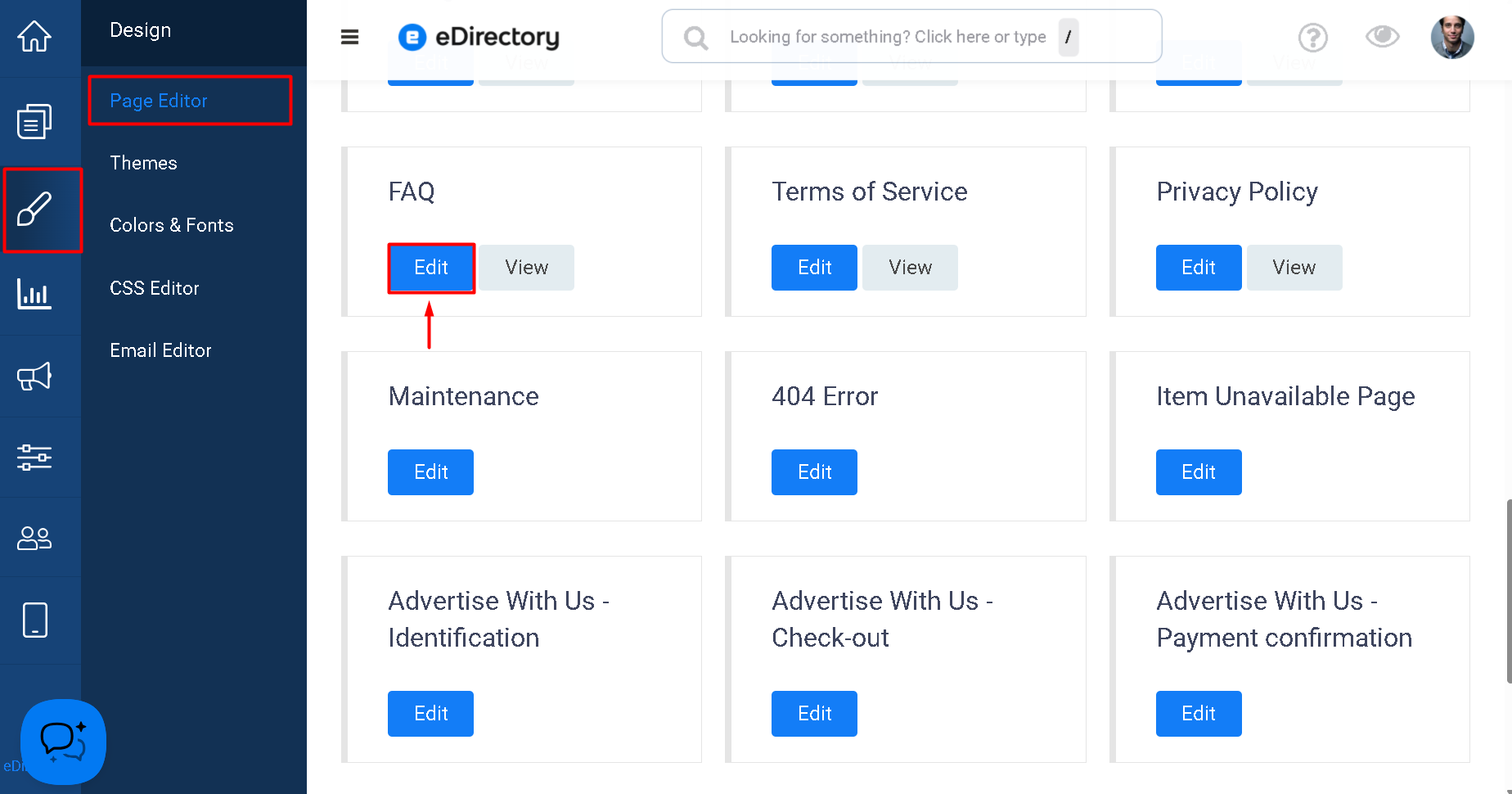
- Locate the FAQ widget displayed on the page.
- Click Edit on the widget to access its settings and manage its questions and answers.
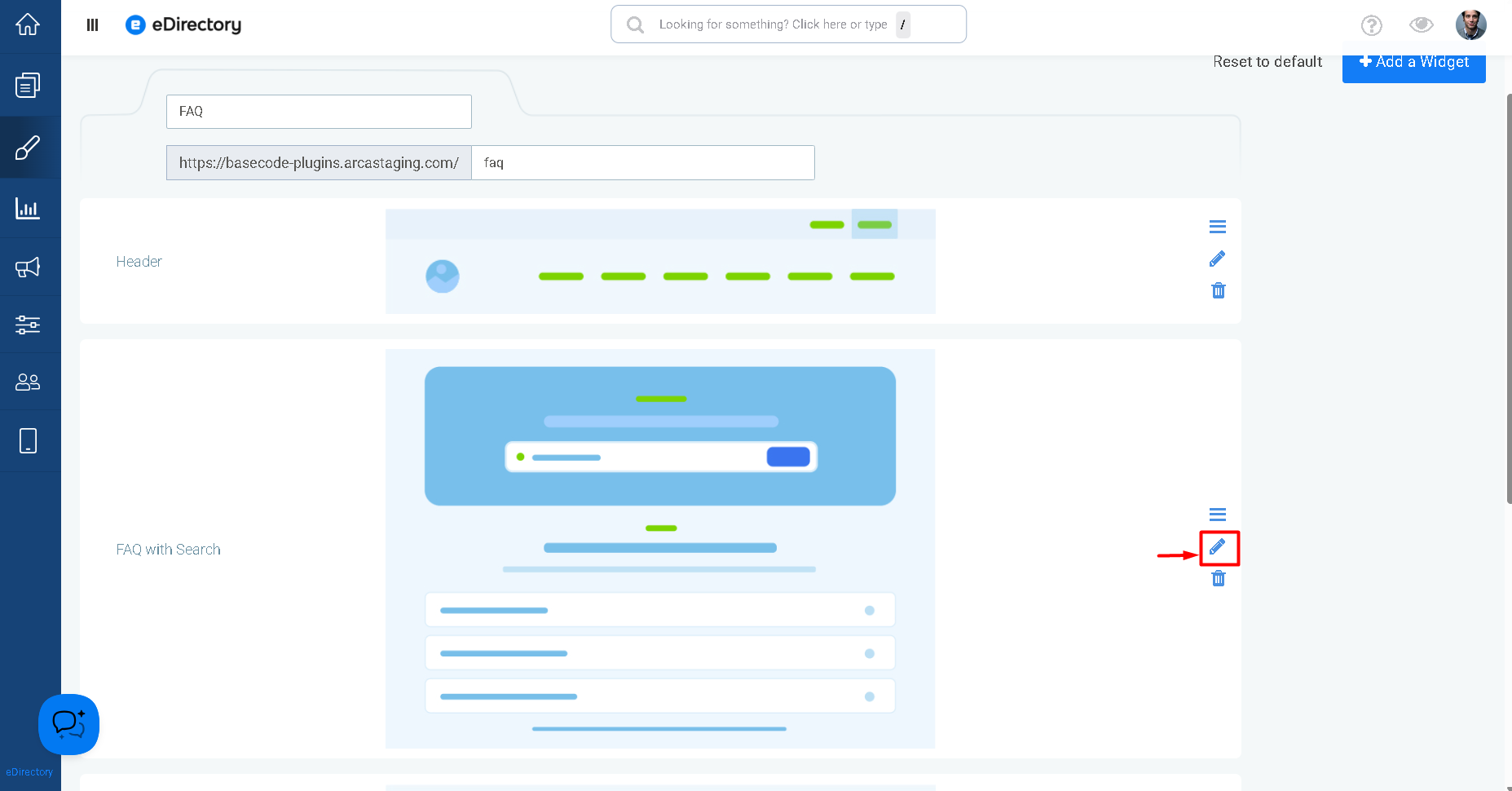
1.2. Add or Edit Public Questions and Answers
Once you open the FAQ widget for editing:
- Access the questions and answers configured for the widget.
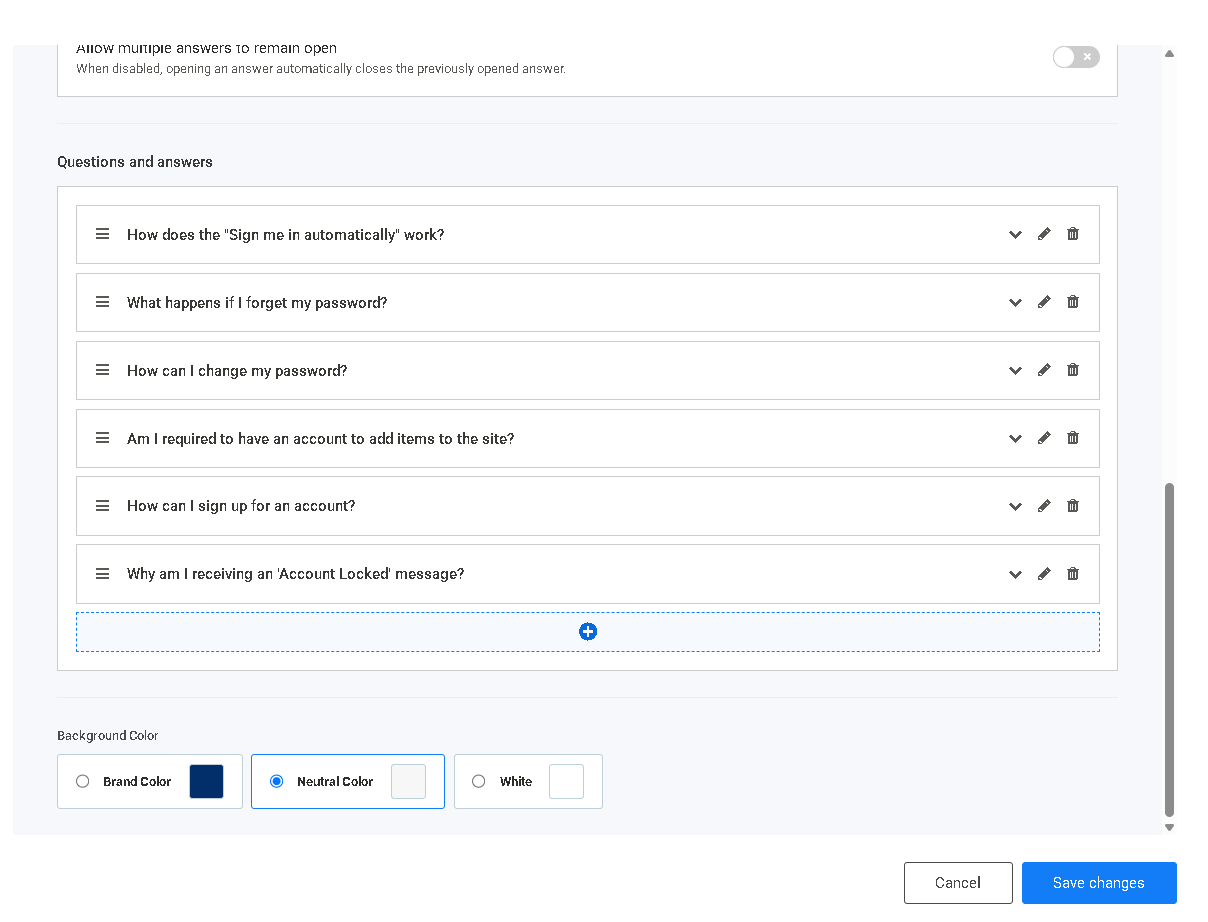
- Add a new question and its corresponding answer, or edit an existing entry.
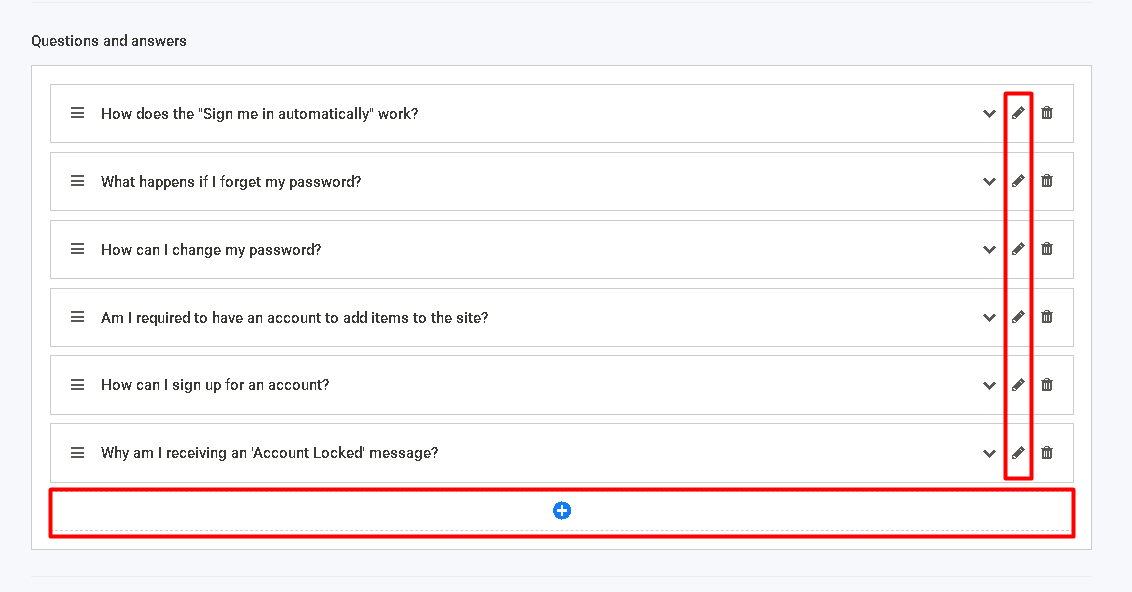
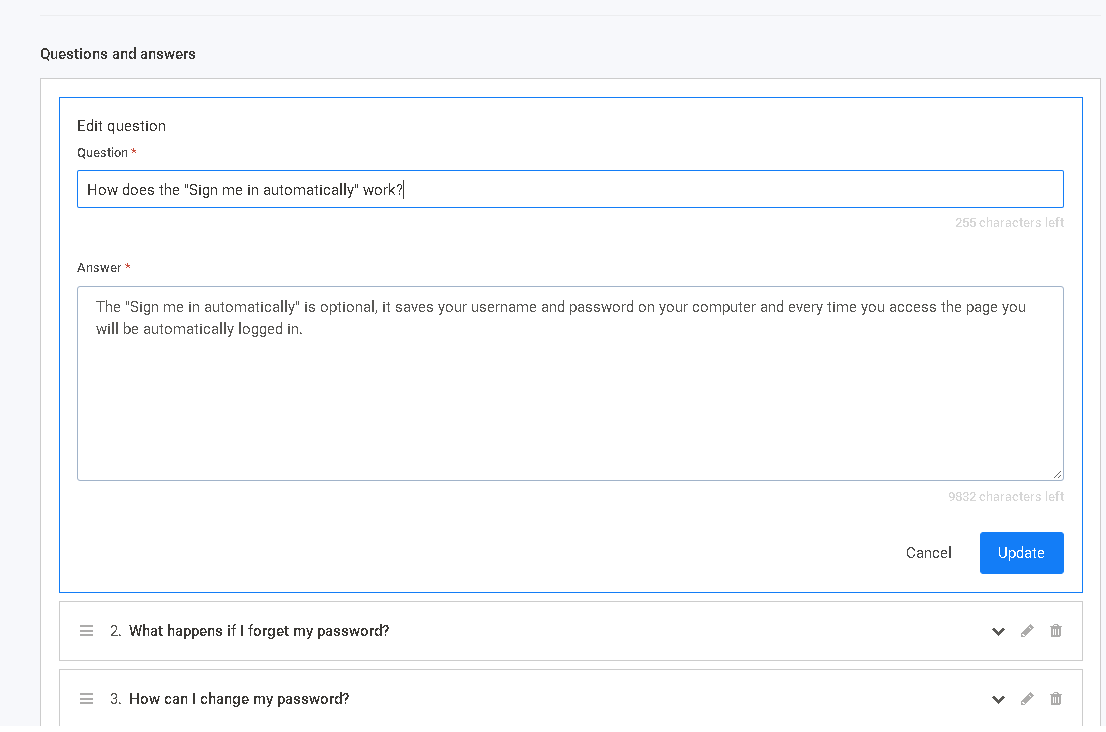
- Repeat the process for the other questions you want to include.
- Save your changes at the bottom of the widget.
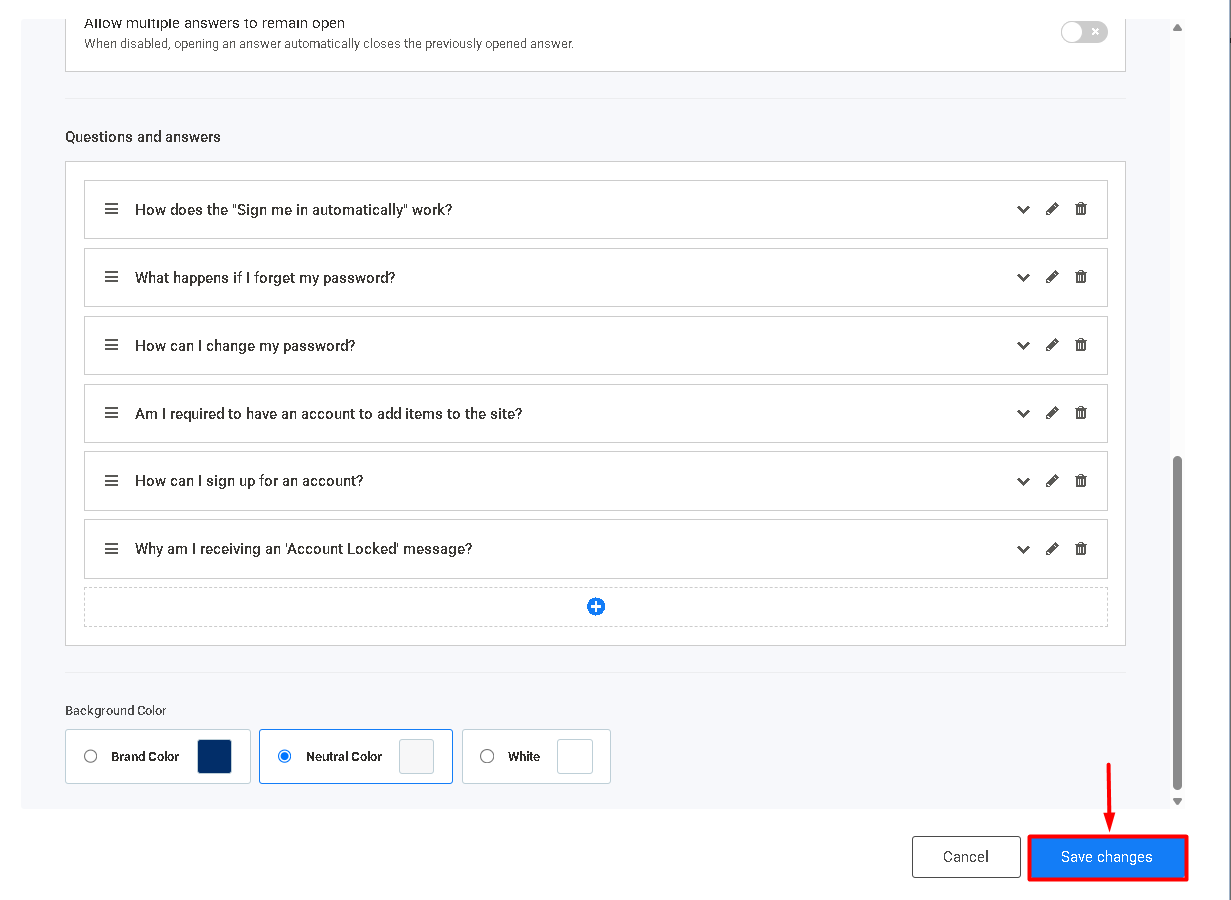
The questions and answers configured in this widget will be displayed on the public FAQ page, where website visitors can browse the available information.
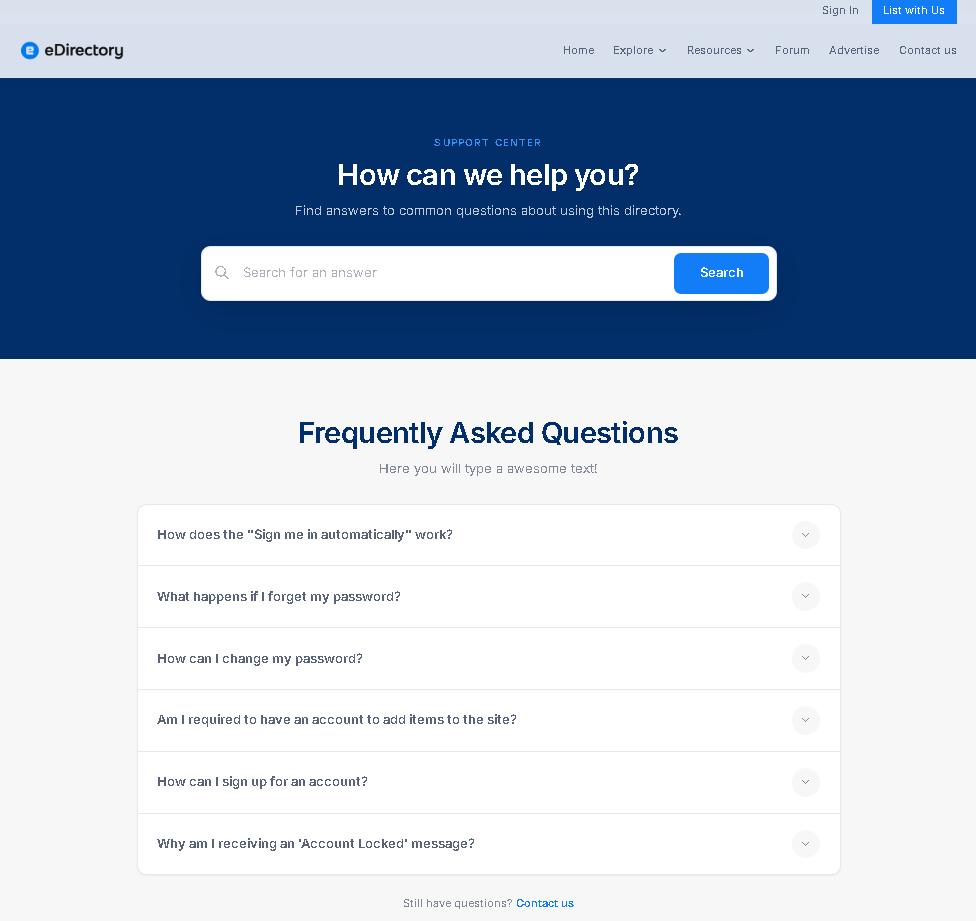
Important: The main FAQ page uses the FAQ with Search widget, which allows visitors to search for specific questions. This widget is available exclusively on the main FAQ page.
2. How to Manage Sponsor FAQs (Listing Owners)
Sponsor FAQs are different from public FAQs. They contain information intended for sponsors, such as listing owners who access the sponsor area of your website.
These questions are not managed through the public FAQ page or its widgets. Instead, they have their own dedicated section in the Site Manager.
To manage Sponsor FAQs:
- Log in to your Site Manager account.
- Navigate to Settings → Sponsor FAQ.
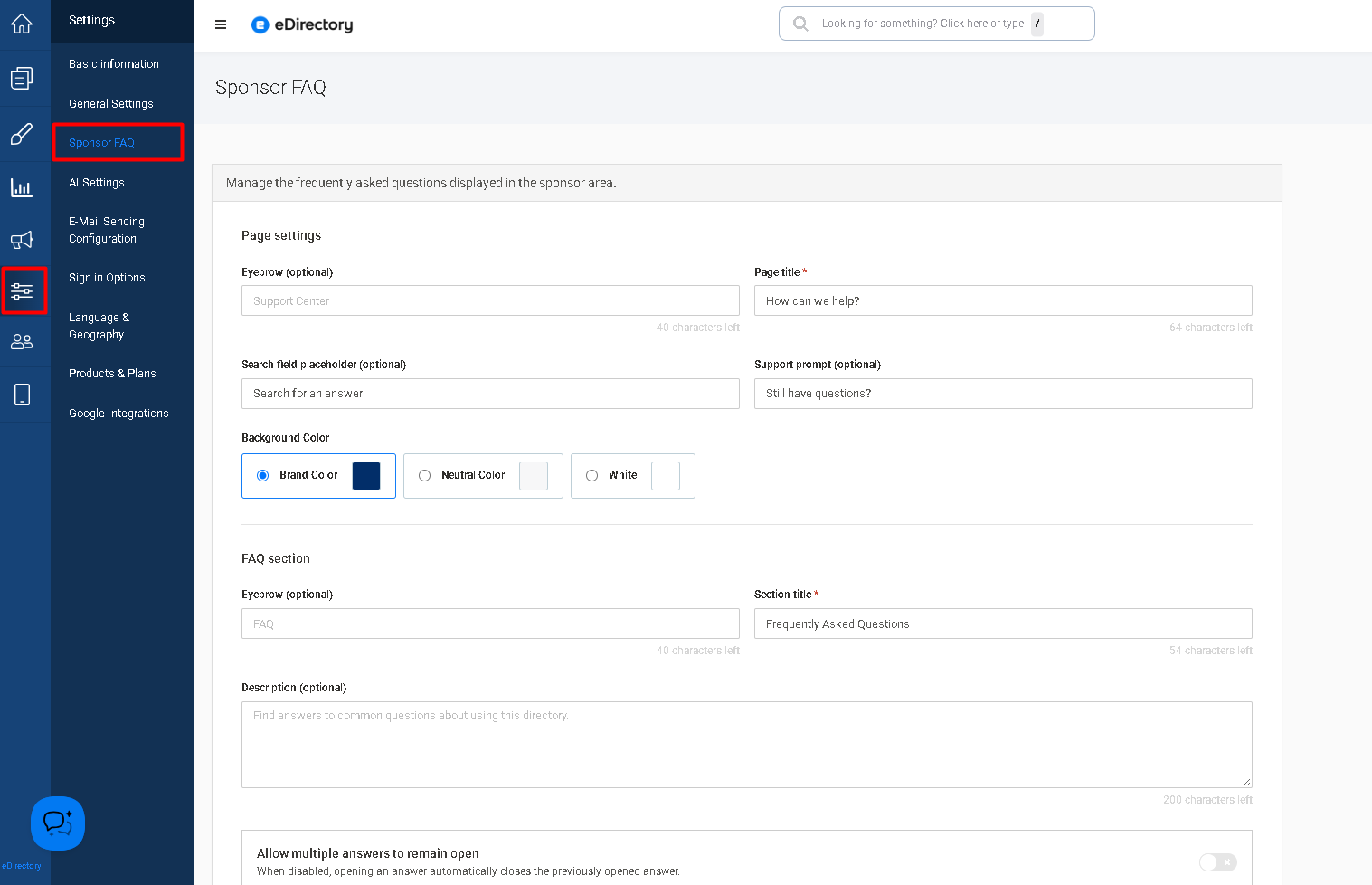
- Access the questions and answers configured for the sponsor area.
- Add new questions and their corresponding answers, or edit existing entries as needed.
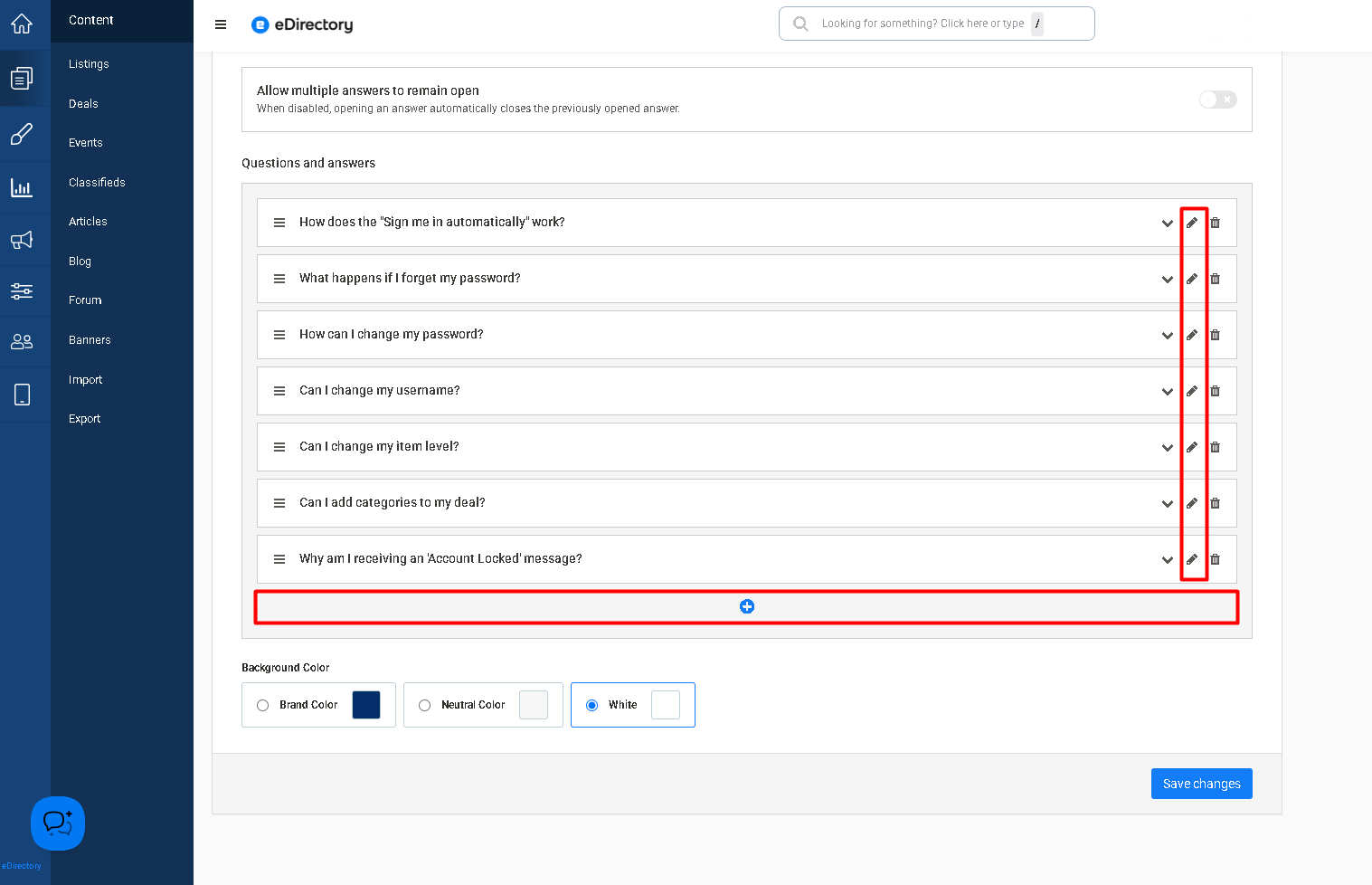
- Save your changes.
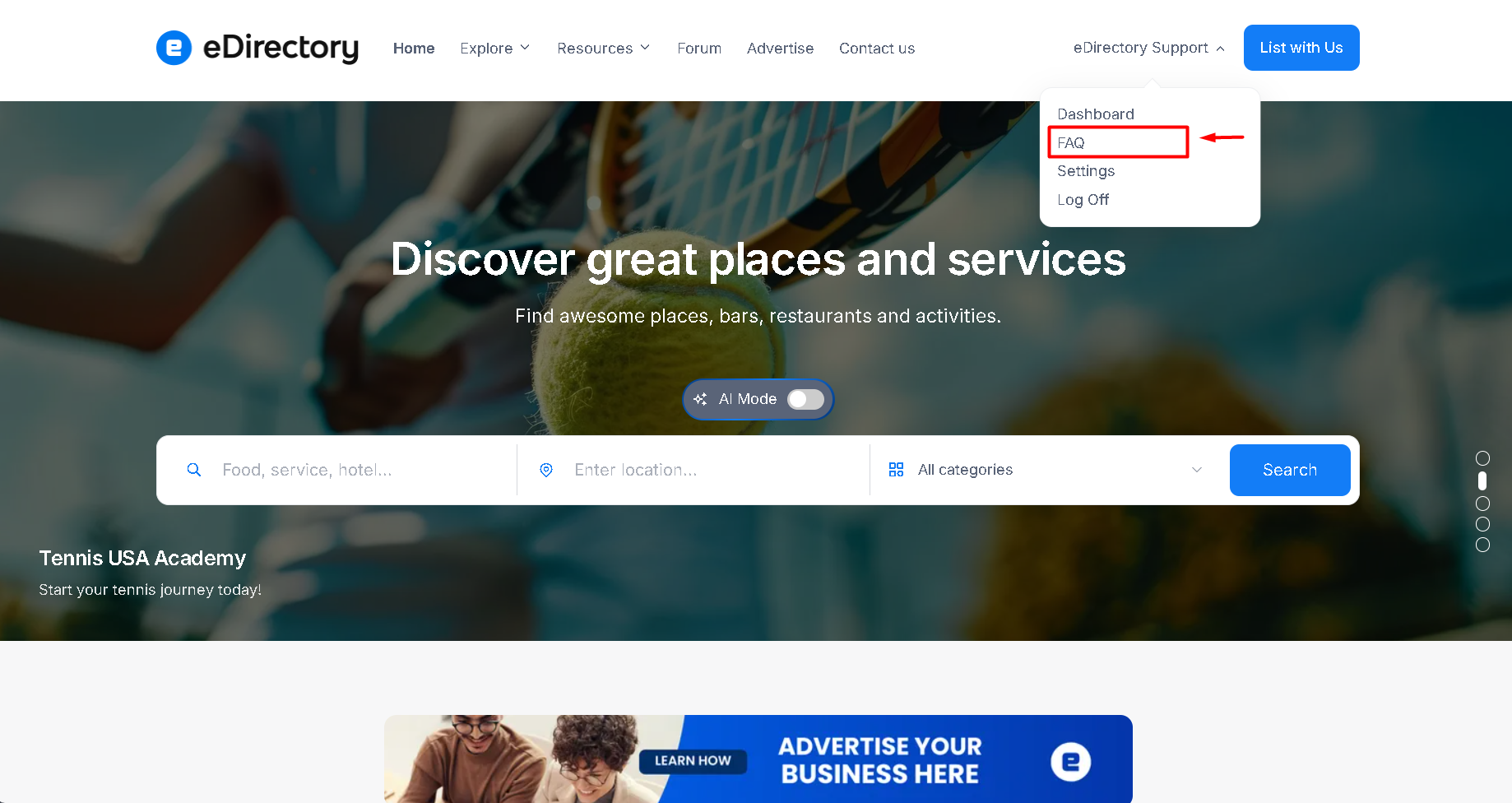
The questions configured in this section are intended for the sponsor area and remain separate from the FAQs displayed to regular website visitors. To see the FAQs in the sponsor area, log into your sponsor account, click on your account profile and select FAQ.
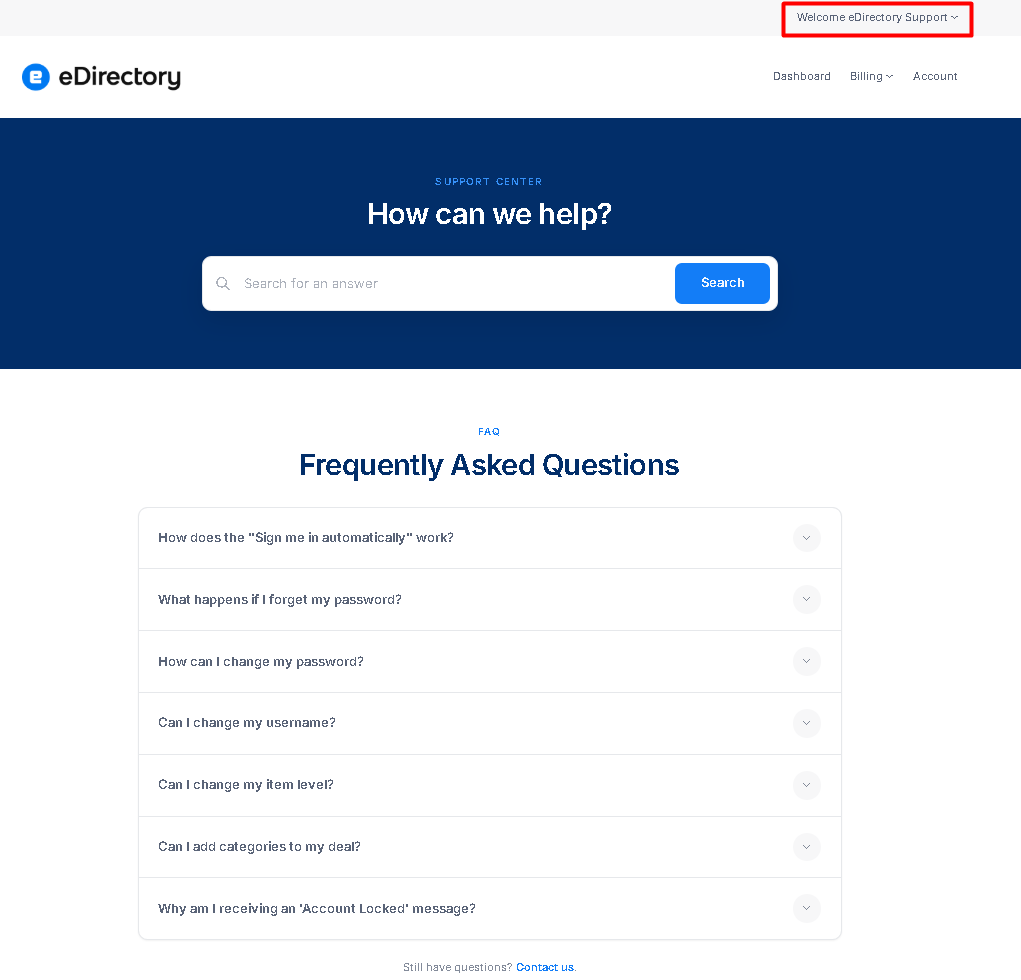
Important: If you want to add or update questions for listing owners, always use Settings → Sponsor FAQ. Changes made to the public FAQ widgets do not replace or update the Sponsor FAQs.
3. Understanding the Available FAQ Widgets
In addition to the main FAQ page, eDirectory v14.3 provides two reusable FAQ widgets that can be added to other website pages.
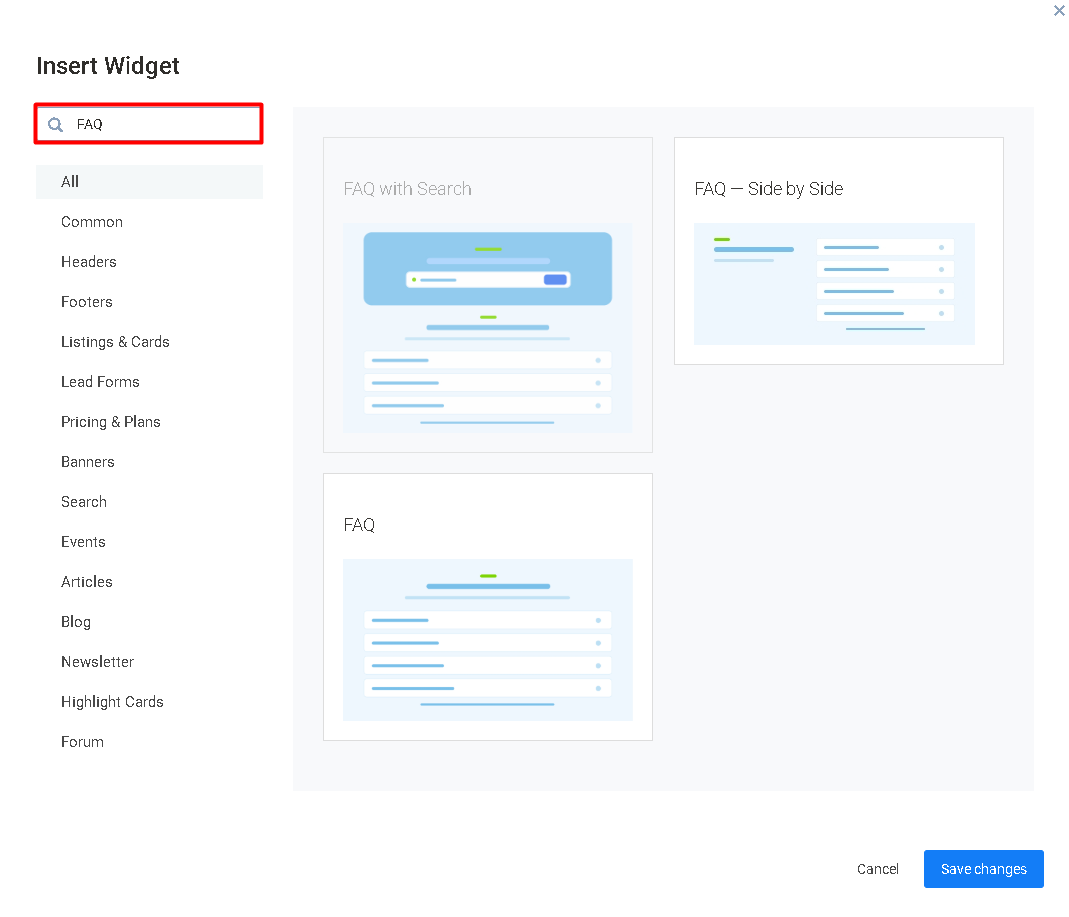
You can access all three widgets in the Page Editor. Simply navigate to Design → Page Editor, click Add widget
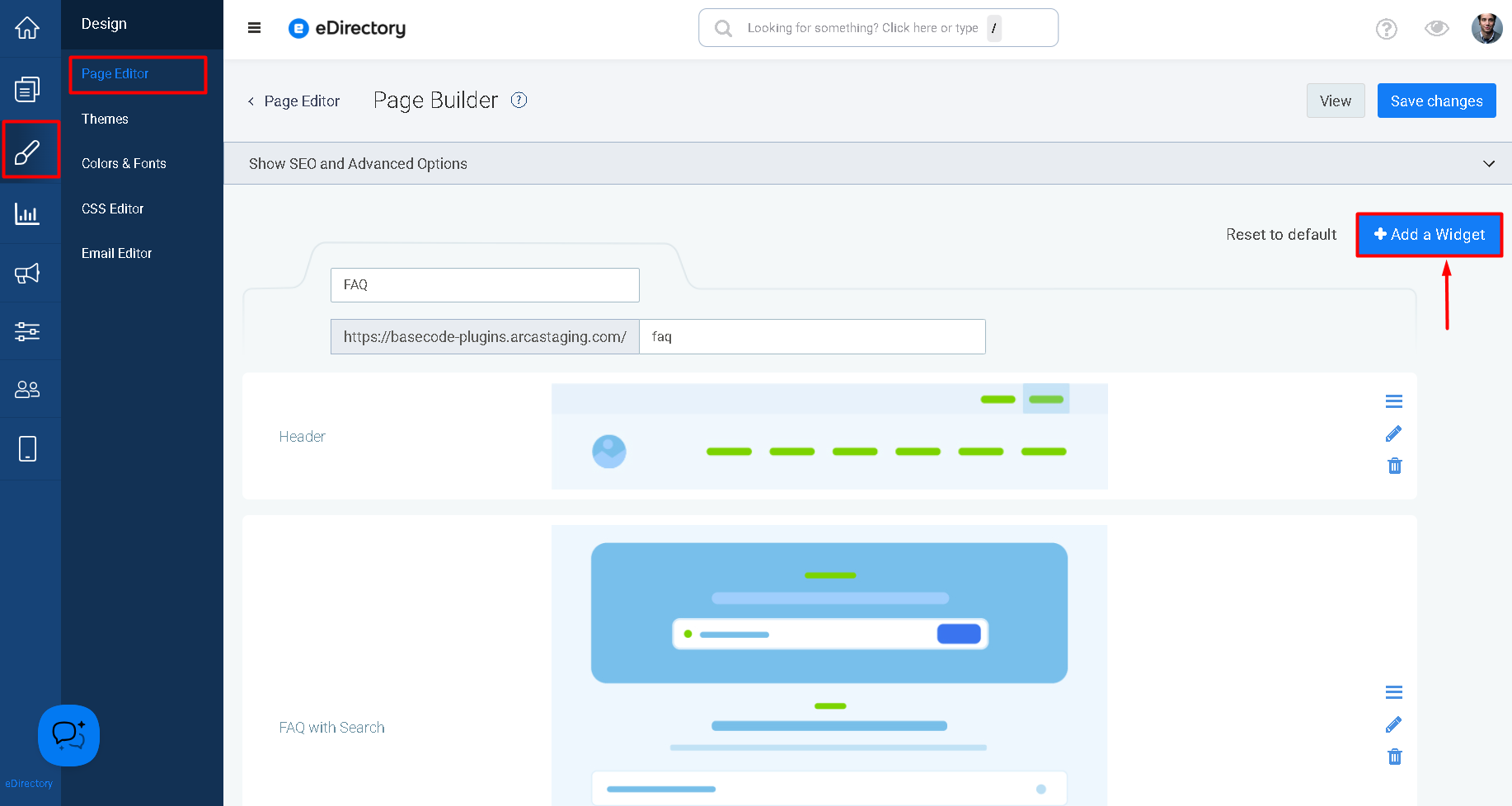
and search for FAQ to see the available options.
3.1. FAQ with Search
The FAQ with Search widget is designed exclusively for the main FAQ page.
It allows visitors to search through the available questions and find relevant answers more easily.
This widget supports:
- A customizable title at the top of the section.
- An optional description below the title.
- An optional title for the list of questions.
- A search field for visitors to find specific questions.
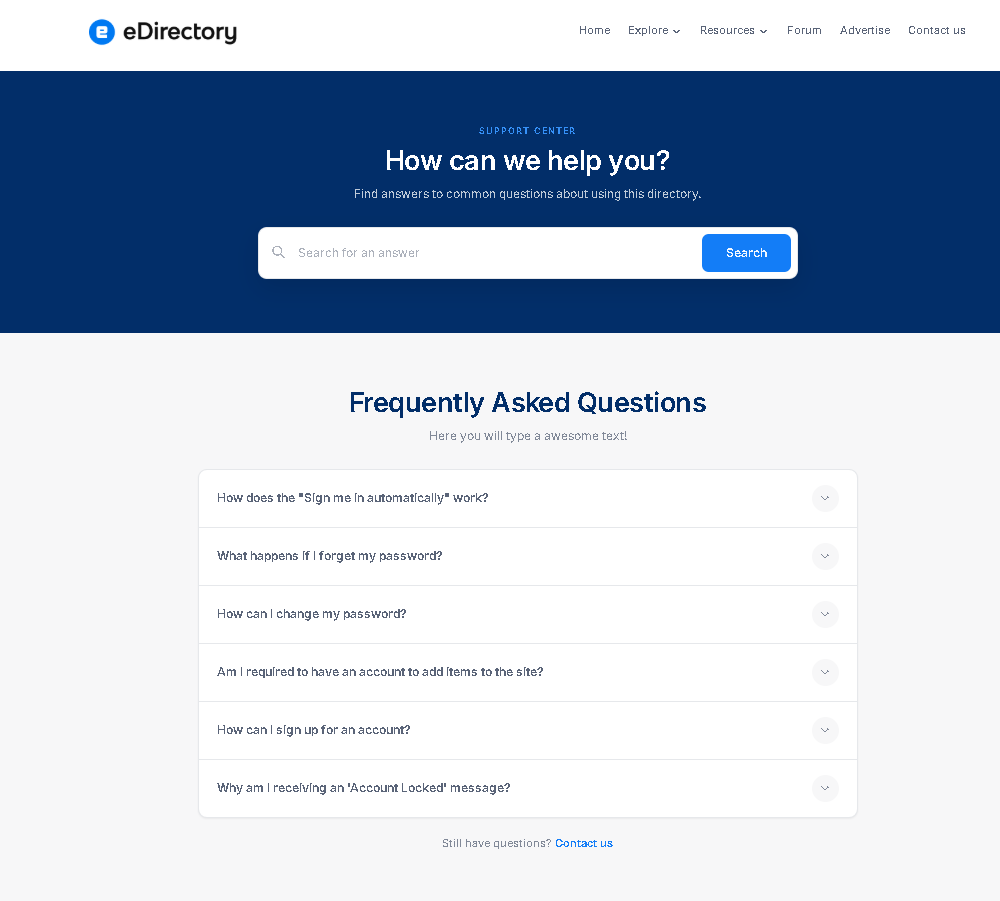
Use this widget when you want to provide a dedicated FAQ page where visitors can search for answers.
3.2. FAQ
The standard FAQ widget allows you to display a group of frequently asked questions on any website page.
Unlike the FAQ with Search widget, this version does not include a search field.
Its main features include:
- Up to 50 questions per widget.
- The ability to add multiple FAQ widgets to the same page.
- Independent questions and answers for each widget.
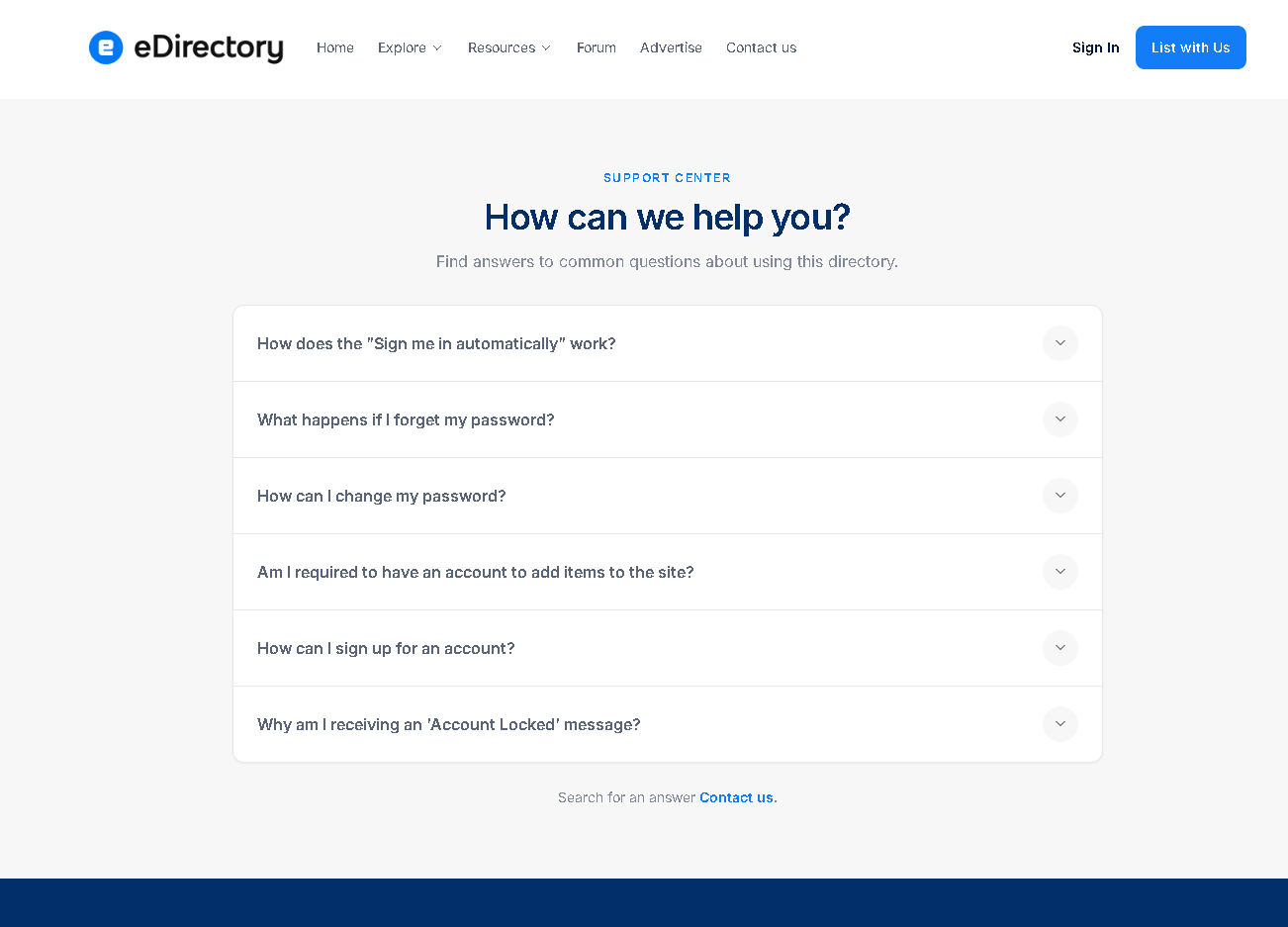
For example, you can add an FAQ widget to a specific page to answer questions related to that page's content.
3.3. FAQ - Side by Side
The FAQ - Side by Side widget provides the same functionality as the standard FAQ widget but uses a different layout.
It displays the introductory text on one side and the questions on the other, creating a side-by-side presentation.
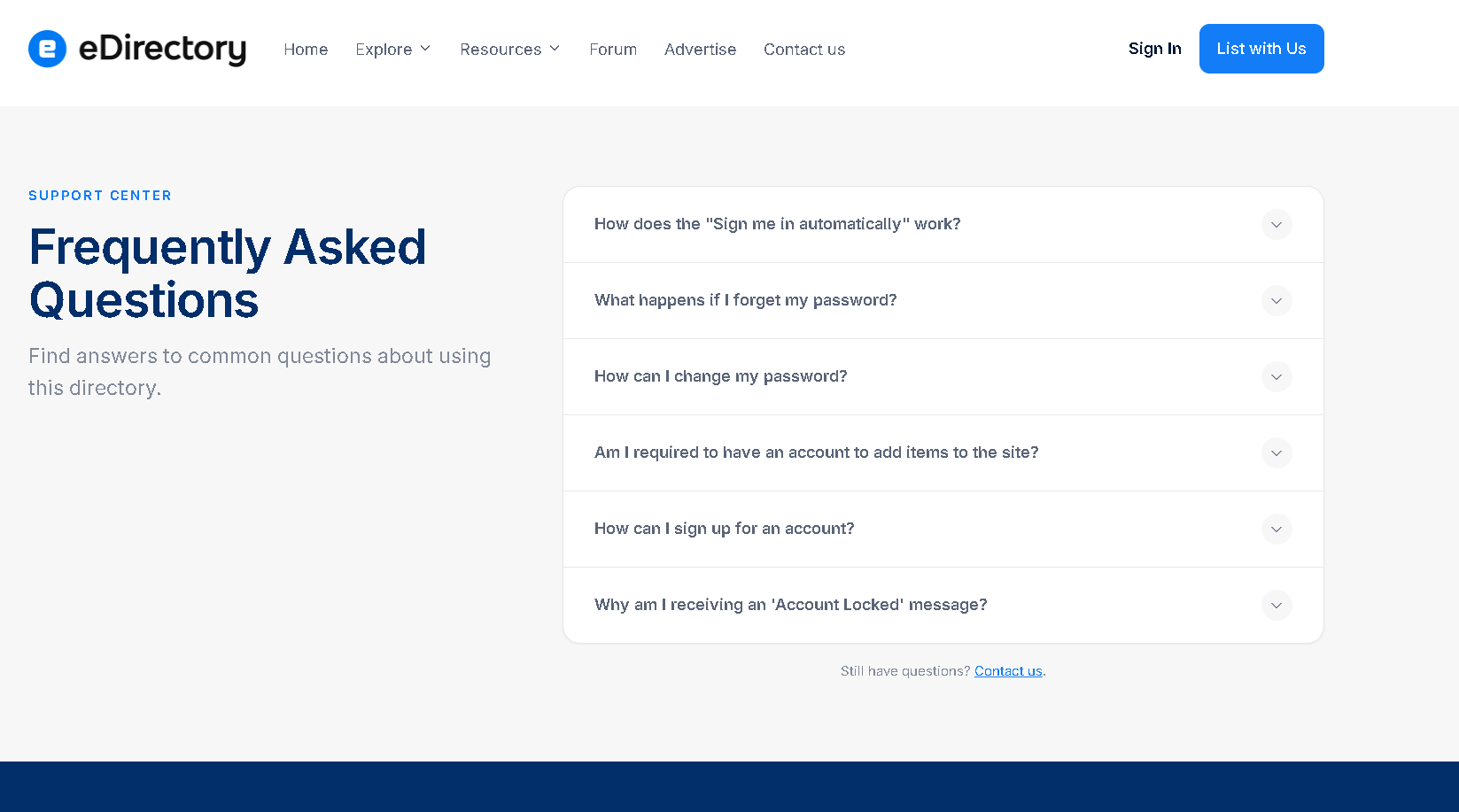
Like the standard FAQ widget, it supports up to 50 questions, rich-text answers, and can be added to pages other than the main FAQ page.
4. How to Add an FAQ Widget to Another Website Page
If you want to display a separate group of frequently asked questions on a page other than the main FAQ page, you can add either the FAQ or FAQ - Side by Side widget.
Follow these steps:
- Log in to your Site Manager account.
- Navigate to Design → Page Editor.
- Open the page where you want to display the questions and answers.
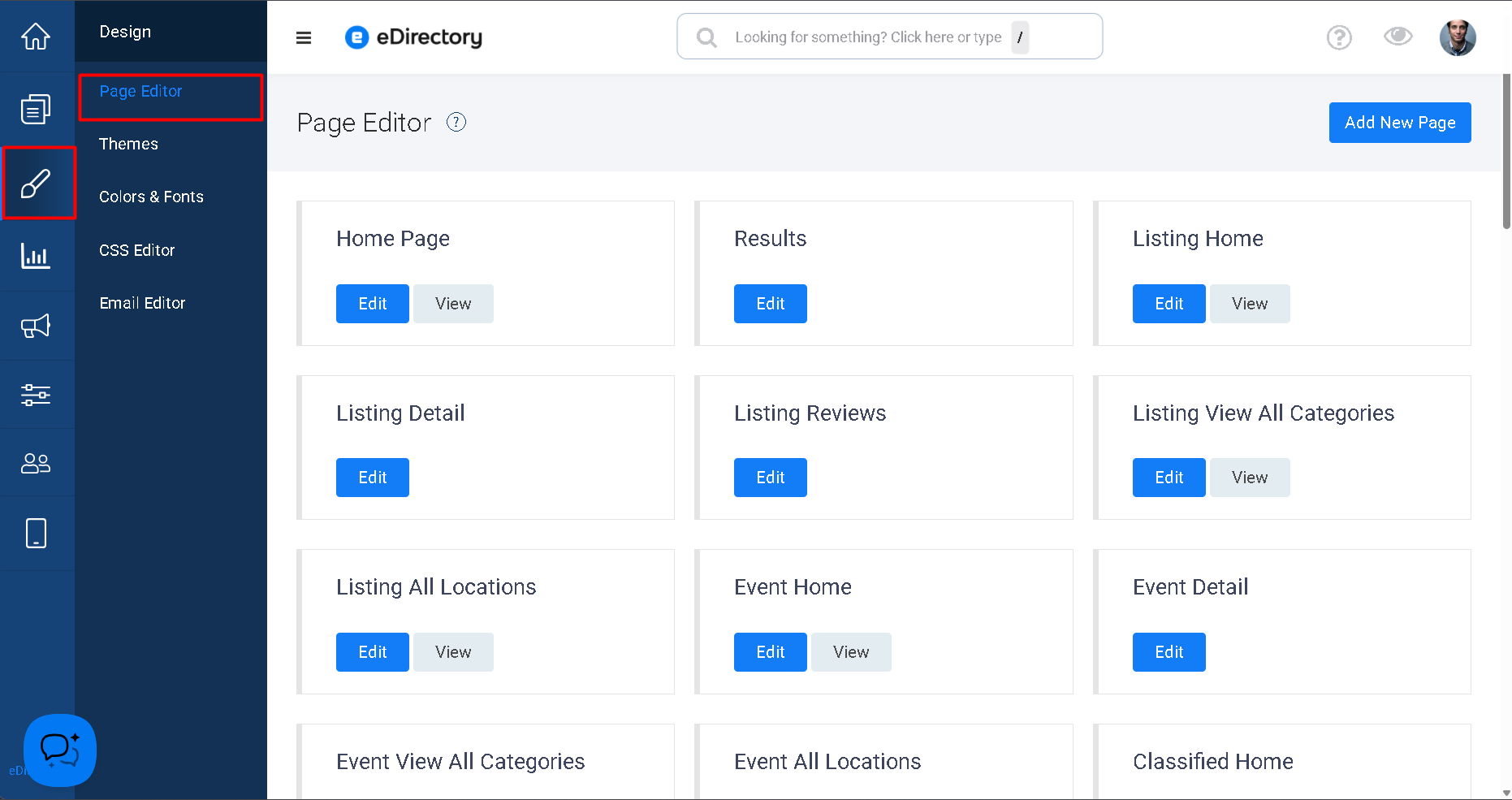
- Click Add a widget.
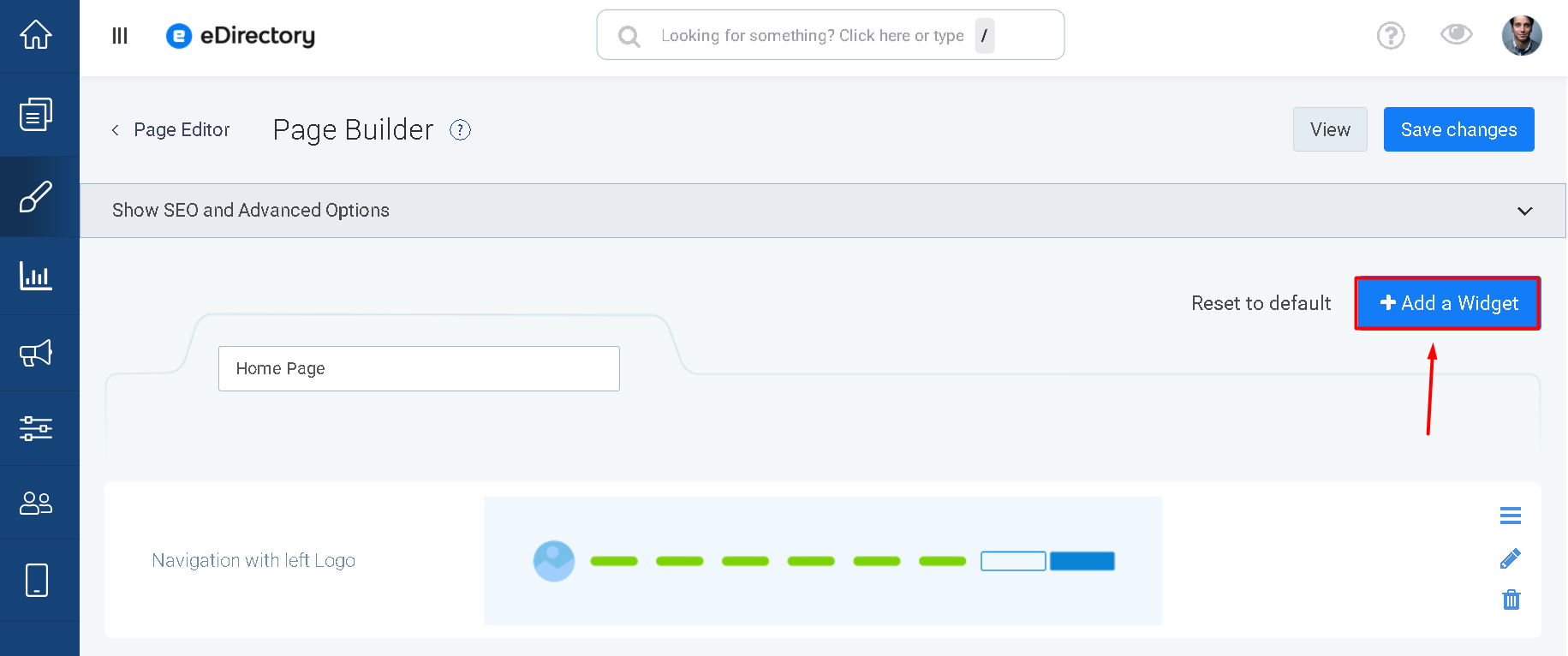
- Search for FAQ to find the available widgets.
- Select either FAQ or FAQ - Side by Side.
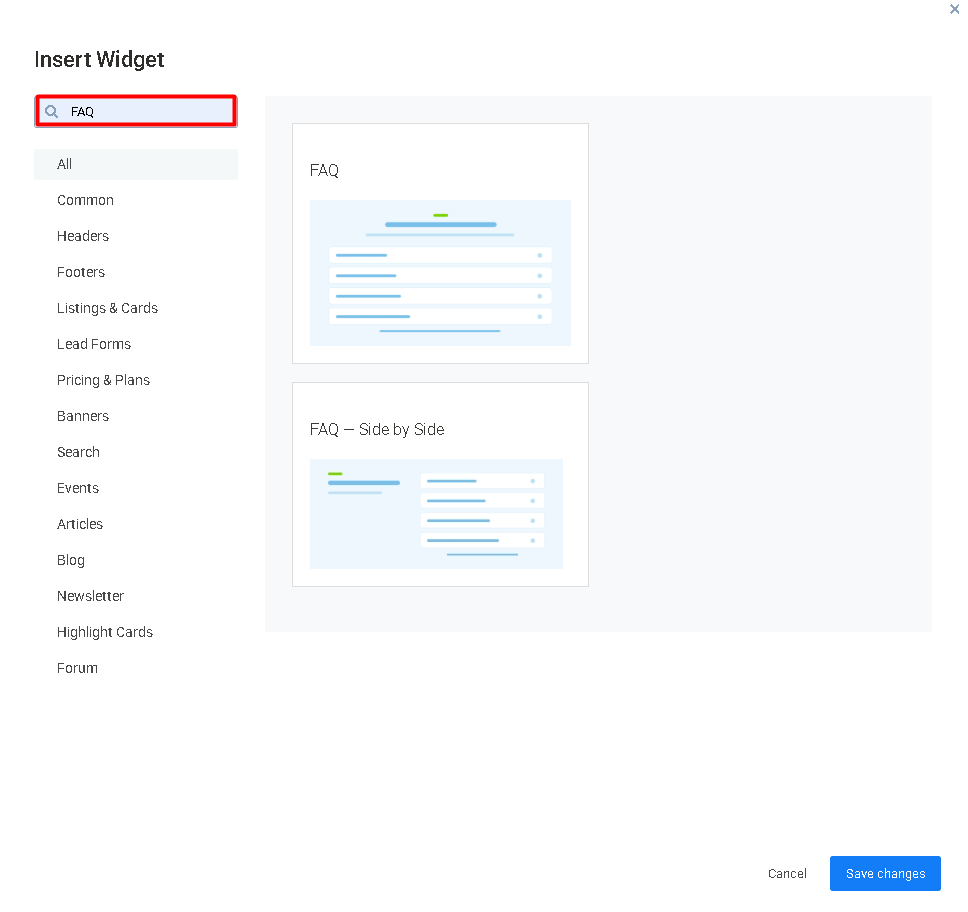
- Add the widget to the page.
- Click Edit on the widget to configure its content.
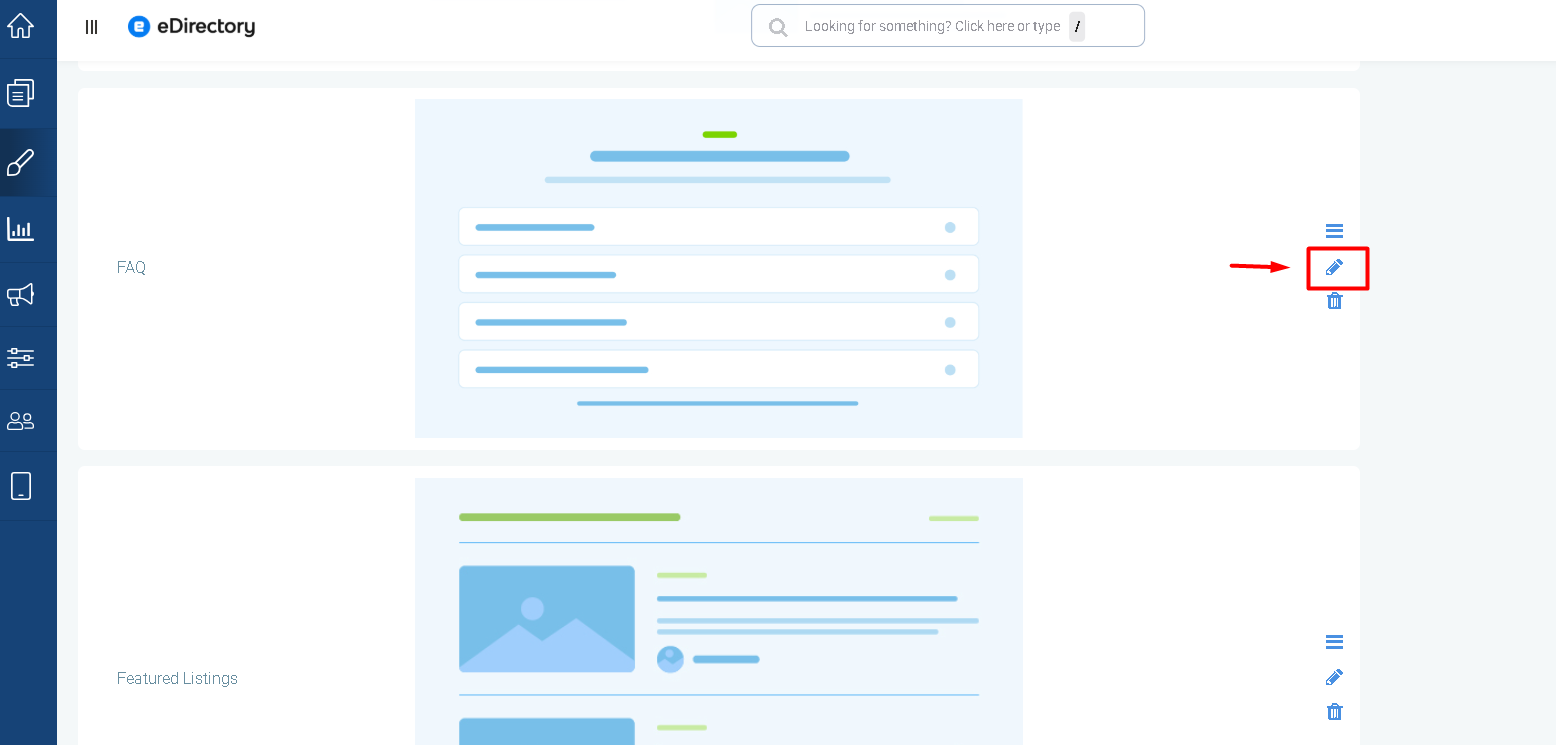
- Add the questions and answers you want to display.
- Save your changes.
You can add multiple FAQ widgets to the same page. Each widget maintains its own set of questions and answers, with a maximum of 50 questions per widget.
Note: The FAQ with Search widget is available exclusively on the main FAQ page. For other pages, use the standard FAQ or FAQ - Side by Side widget.
5. What Happens to Existing FAQs After Upgrading?
When upgrading to eDirectory v14.3, existing FAQ questions are migrated according to where they were configured.
Here is what happens to your existing content:
- Questions configured only for the public website: These are moved to the FAQ widget on the main FAQ page.
- Questions configured only for the sponsor area: These remain in the sponsor area and are managed under Settings → Sponsor FAQ.
- Questions configured for both areas: These are copied to the public FAQ page and also remain available in the sponsor area.
As part of this change, the FAQ item is removed from the Content menu. Public FAQ content is now managed through the Page Editor, while Sponsor FAQs are managed through Settings.
6. Important Information About FAQ Display and SEO
Keep the following details in mind when working with the new FAQ widgets:
- Widgets without questions: An FAQ widget that has no questions configured will not be displayed on the public website.
- Structured data (schema.org): The FAQ Page structured data markup is generated only on the main FAQ page.
- FAQs on other pages: If you add a standard FAQ or FAQ - Side by Side widget to the homepage or another website page, its content will be visible to visitors, but it will not generate FAQPage structured data.
- FAQ search: When a visitor uses the search feature on the main FAQ page, the FAQ Page structured data is not included in that page response.
- Sponsor FAQs: Questions managed under Settings → Sponsor FAQ remain separate from the public FAQ widgets.
Conclusion
The redesigned FAQ management experience in eDirectory v14.3 separates public FAQs from Sponsor FAQs, making it easier to organize information for different audiences.
To manage questions and answers for regular website visitors, use the FAQ widgets through Design → Page Editor. To manage questions intended for listing owners, go to Settings → Sponsor FAQ.
With the new FAQ widgets, you can also display relevant questions and answers on different website pages, choosing the layout that best fits your content.