
Understanding Listing Features in eDirectory
In eDirectory, the Site Manager has full control over which features each Listing Level includes. Because you can customize levels and features to match your business model, it’s common for users to ask, “What does this feature do?”
That’s why we’ve created this instructional article—to help you understand exactly how each listing feature works so you can confidently structure your products, educate your clients, and successfully sell listing packages on your eDirectory site.
When you navigate to Settings > Products & Plans > Manage Products, you will find your listing levels (1st, 2nd, 3rd, and so on, up to 10 possible levels).

You can enable any number of levels, name them however you prefer, and activate different features for each one.
Below is a complete guide to all available listing features and what each feature does.
Listing Features Explained
Members-Only Content

Allows you to restrict the listing’s content so it is visible only to logged-in and subscribed members. This is useful for creating exclusive or premium information.

For step-by-step guidance on using this feature, see our article: Configuring Members-Only Access in eDirectory
Detail Page

Enables a full listing detail page, including long descriptions, images, social links, maps, and more.

If disabled, when a user clicks on it, only summary information appears and the listing page does not open.

Categories

Determines how many categories a listing owner can assign their listing to.

This affects visibility since listings appear under every category selected.
Deals

This feature determines how many deals a listing owner is allowed to add to the site. The number you set here represents the maximum number of deals that can be added and associated with one single listing within that listing level.
For example, if the Diamond listing level is entitled to add up to 10 deals, then any user with a Diamond listing can create and attach up to 10 deals to that specific listing.
To learn more about how users can add deals, please check out this article: How to Add a Deal as a Sponsor
Reviews

Allows visitors to leave reviews on the listing.

When disabled, the review section does not appear.


Allows listing owners to enter their email information in their listing form.

When this option is enabled and the listing owners enter their email address, a “Send a Message” button appears on the listing detail page, allowing visitors to fill out a contact form that sends their message directly to the listing owner’s email inbox.

To learn more about the "Send a message" button, refer to this article: Understanding Leads in eDirectory
URL

Allows listing owners to add their website link, enabling the option "Visit Website" and driving traffic to their external site.

Phone

Lets listing owners display a primary phone number.

Additional Phone

Allows an extra phone number, such as a mobile number or secondary office line.

Imagery

Controls how many photo gallery images the listing owner can upload in the Photo Gallery section of their listing form. More images typically enhance visibility and professionalism.


Cover Image

Enables the user to add a large banner image in their listing form and display it at the top of the listing detail page.


Logo Image

Allows listing owners to upload a business logo.


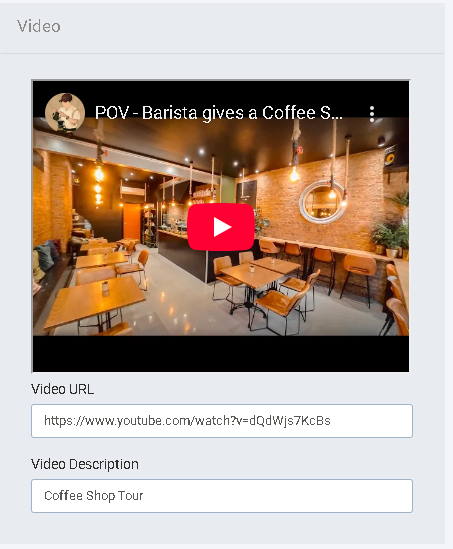
Videos (YouTube, Vimeo, etc.)

Enables video embeds so listing owners can showcase promotional videos or tours.

Additional Uploads (PDF, DOC, TXT, JPG, GIF, PNG)

Allows listing owners to upload extra files, such as menus, brochures, price lists, or documents.


Summary Description (max 250 characters)

A short summary shown in listing thumbnails and in the listing detail page. This field helps listings stand out in condensed views.

Listing Thumbnail

Listing detail page

Long Description

The full, detailed description displayed on the listing’s detail page. Ideal for complete business information or storytelling.


Hours

Allows listing owners to enter business operating hours, which appear neatly in the listing.


Reference

Enables an optional location reference, commonly used for notes like “In front of the mall” or “Building B, Suite 300.”

Listing Badges

Allows adding custom badges (e.g., “Featured,” “Verified,” “Top Rated”). Badges can highlight premium listings.


To learn more about how to set up badges in your eDirectory website, please check out this article: Setting Up Awards & Badges for Listings
Social Networking

Lets listing owners add social media links (Instagram, LinkedIn, X, Facebook, and Tik Tok).


Facebook Feed
Displays a live embed of the listing owner’s Facebook feed directly on the listing detail page.

X Feed (formerly Twitter)

Displays a live embed of their X/Twitter feed on the listing.
Classifieds

This feature determines how many classified ads can be associated with a single listing, not how many classifieds the user can create on the site overall.
For example, if the Diamond listing level allows up to 10 classifieds, then a user with a Diamond listing can link up to 10 of their existing classifieds to that one listing.

To control how many classifieds a user is allowed to create on the site, you must set this limit under Settings > Produts & Plans > Manage Products > Create a new plan or edit an existing one. By creating or editing a product plan for classifieds, you can define exactly how many ads the user is permitted to add.
To learn more about how to set up classified plans in your eDirectory website, please check out this article: Products & Plans in Version 13.5+
Features

Allows owners to add a custom list of features, such as amenities, services offered, or product highlights. Often used in real estate, hotels, gyms, etc.


Banners

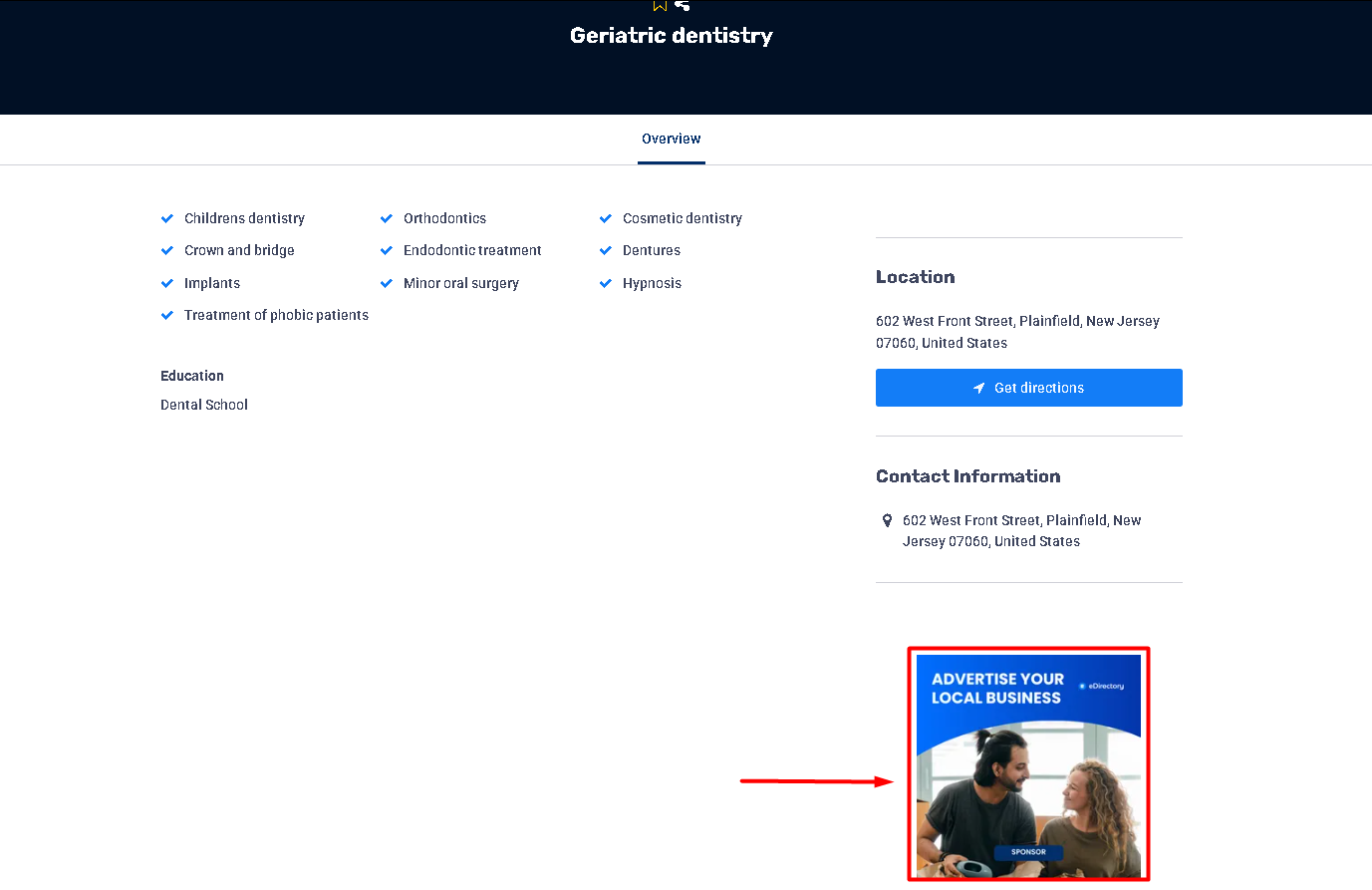
This feature controls whether existing banners from your site’s banner system can be displayed on the listing’s detail page. It does not give the listing owner the ability to upload or manage their own banners.
When this feature is enabled for a listing level, the listing detail page will show random banners already active on the site, which may include advertisements from other sponsors or advertisers. Because the banners displayed are not tied to the listing owner, this feature is often used strategically.
Recommendation:
Enable banners on lower-tier listing levels to encourage visibility of ads and motivate users to upgrade to higher-tier listings, which typically do not display third-party banners.
To learn more about how to set up banners plans in your eDirectory website, please check out this article: Products & Plans in Version 13.5+
Map

Displays a Google Map with the listing’s pin location on the detail page.

Important: for the map feature to function, your site must be connected to the Google Maps API. Without this integration, Google Maps will not be displayed in the listing form. You can find step-by-step instructions on how to set up this integration here: How to Activate Google Maps on eDirectory
AI Auto Suggest

Allows the listing form to display AI-powered suggestions while the owner fills out their listing—helping with writing descriptions, choosing categories, and optimizing content.

Important: for the AI Auto Suggest feature to function, your site must be connected to the ChatGPT API. Without this integration, AI-powered suggestions will not appear in the listing form. You can find step-by-step instructions on how to set up this integration here: How to Integrate ChatGPT with eDirectory
Disclaimer
The Events and Classifieds tabs function very similarly to Listings. The features available in these sections follow the same logic and configuration structure as the Listing features explained above.

The Banners tab displays all banner types available on your site. From this section, you can enable or disable specific banner formats depending on which options you want to offer your users for purchase on your website.

The Articles tab, however, works differently. Articles do not have multiple levels or configurable features. This is intentional—articles are designed simply for users to publish written content, so all article features come enabled by default. For this reason, there are no levels to configure under Articles.

If you have the Members-Only setting enabled on your site, you will see an option within the Article tab to restrict articles to members only. When this option is enabled, visitors must subscribe and log in to your site to access the full article content.

For more details on how the members-only feature works and how to set it up, see this article: Configuring Members-Only Access in eDirectory
Conclusion
Understanding how each listing feature works empowers you to build stronger, more attractive listing packages and confidently guide your clients when choosing the best level for their needs. eDirectory gives you complete flexibility to customize up to ten listing levels, each with its own combination of features, so you can create plans that match your business model and provide real value to your customers.
By knowing exactly what every feature does, you can set clear expectations, highlight premium upgrades, and ultimately enhance the overall experience for both listing owners and site visitors. Use this guide as a reference whenever you configure your products and plans or when educating clients about the benefits of each listing level.
If you need help customizing your listing levels or have questions about how these features can best support your directory’s goals, feel free to reach out to our support team anytime.