
How Your AI-Powered Search Summary Works in eDirectory 14.0
Introduction
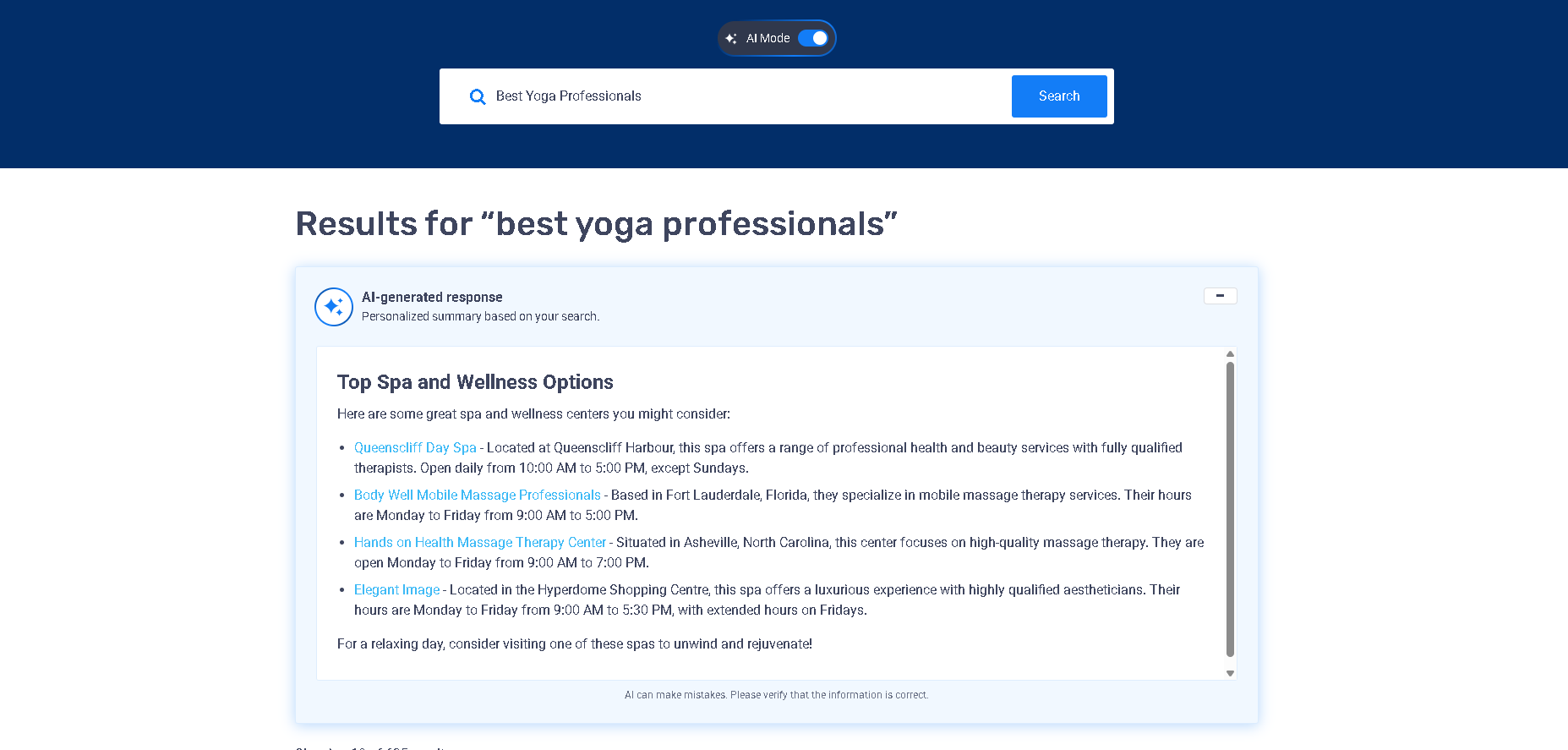
Starting with the eDirectory 14.0 release, your site now includes a powerful and user-friendly feature called AI-powered summary on search pages.
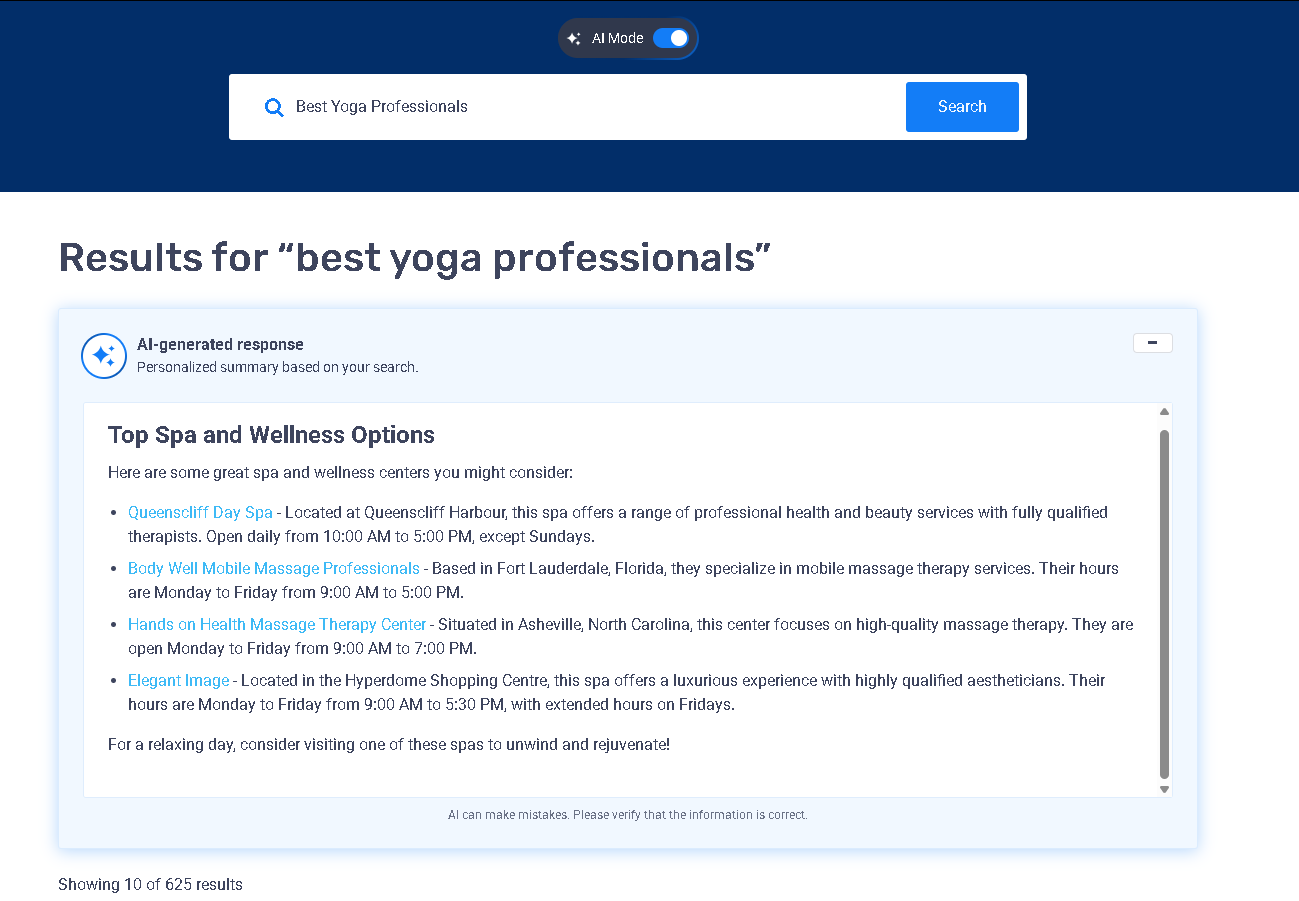
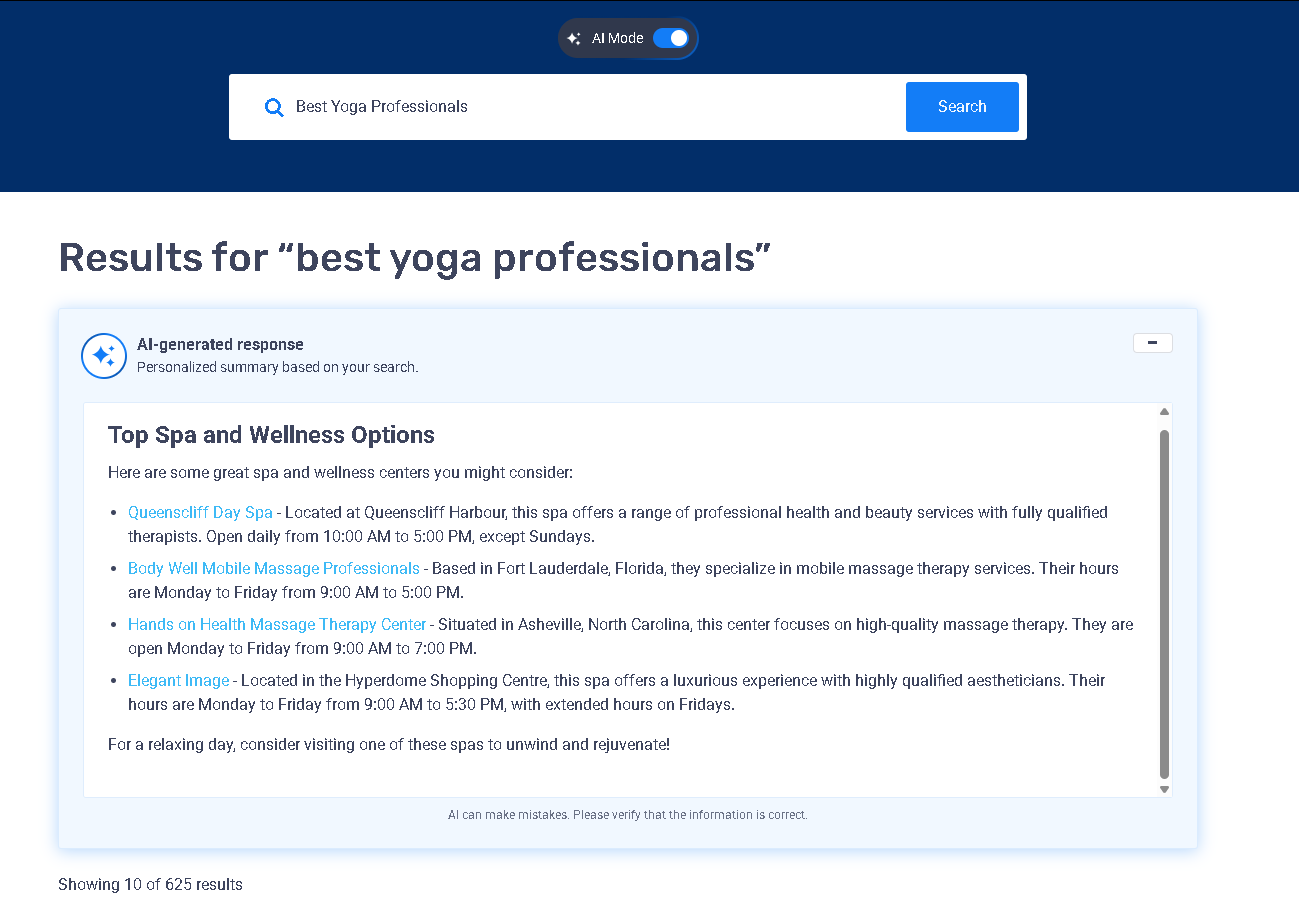
This feature automatically displays a short, AI-generated summary at the top of search results pages (such as Listings, Events, or other modules, depending on your site setup). Its goal is simple: help visitors quickly understand what the search results contain before scrolling through the list.
In this article, you’ll learn:
- What the AI-powered search summary does
- How it behaves
- Where and how you can control its behavior
What Is the AI-Powered Summary on Search Pages?
The AI-powered summary is a block of text generated by Artificial Intelligence that appears above the list of search results.
It helps users by:
- Giving a quick overview of what was found
- Highlighting relevant listings
- Adding helpful local or neighborhood context when available
Important to know:
- ❌ It does not change the order of your search results
- ❌ It does not affect search logic or rankings
- ✅ It only adds an informative HTML text block above the results
What Information Does the AI Summary Use?
The AI-powered summary generates its responses based on information stored in your listings. Currently, the AI uses the following fields when analyzing search results:
- Listing Title
- Summary Description
- Description
- Keywords for Search
- Categories
- Address and Location
The following listing fields are not currently used by the AI-powered summary:
- SEO Keywords
- SEO Description
- Custom Fields
If you're enriching your listings to improve AI-generated summaries, we recommend focusing on the supported fields listed above, as they have the greatest impact on the information presented to your visitors.
Prerequisites
Before the AI-powered summary can appear on your site, make sure both requirements below are met:
1. Enable the AI-Powered Summary Feature
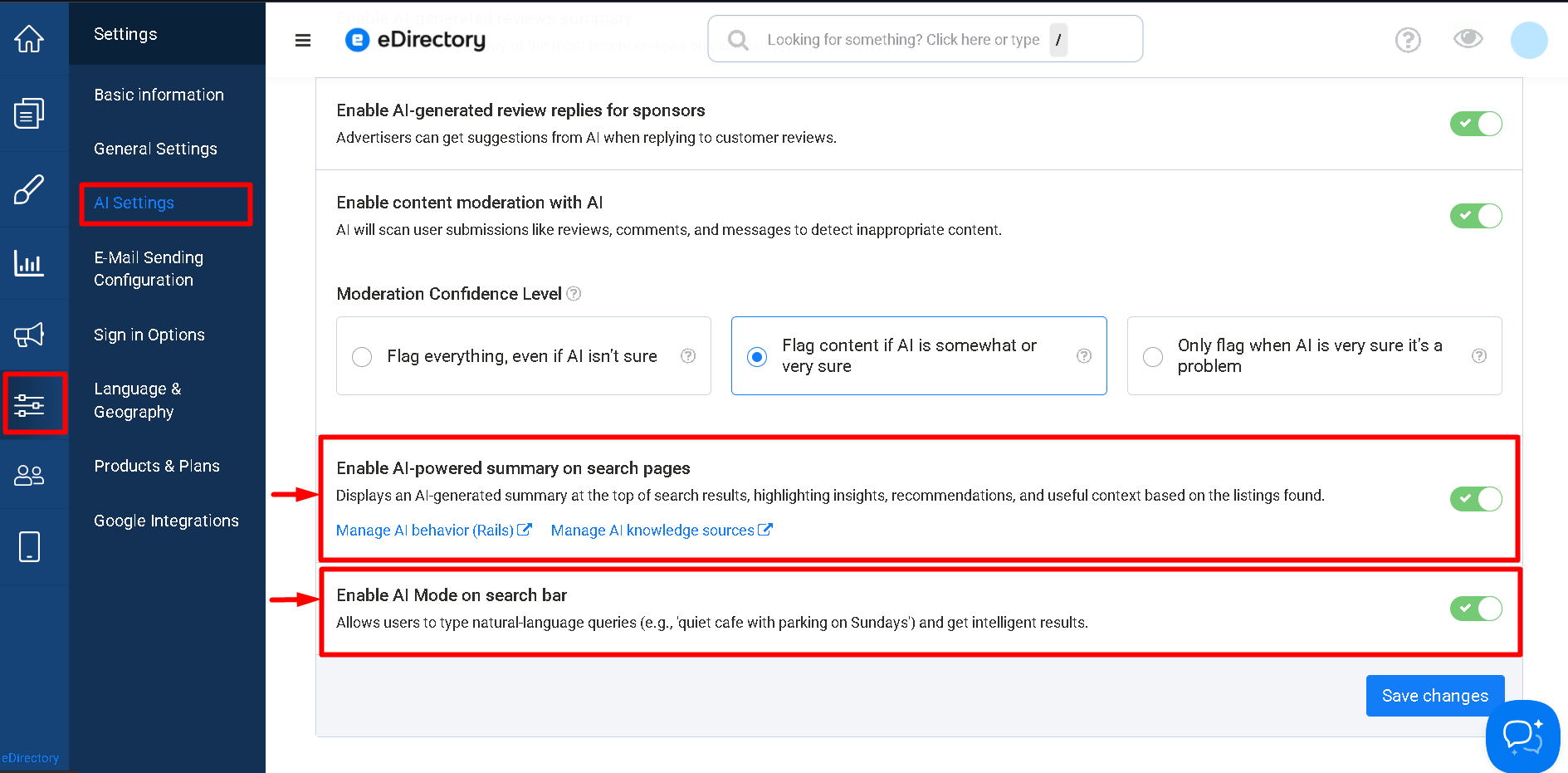
In your Site Manager area, navigate to Settings → AI Settings → AI Integrations:
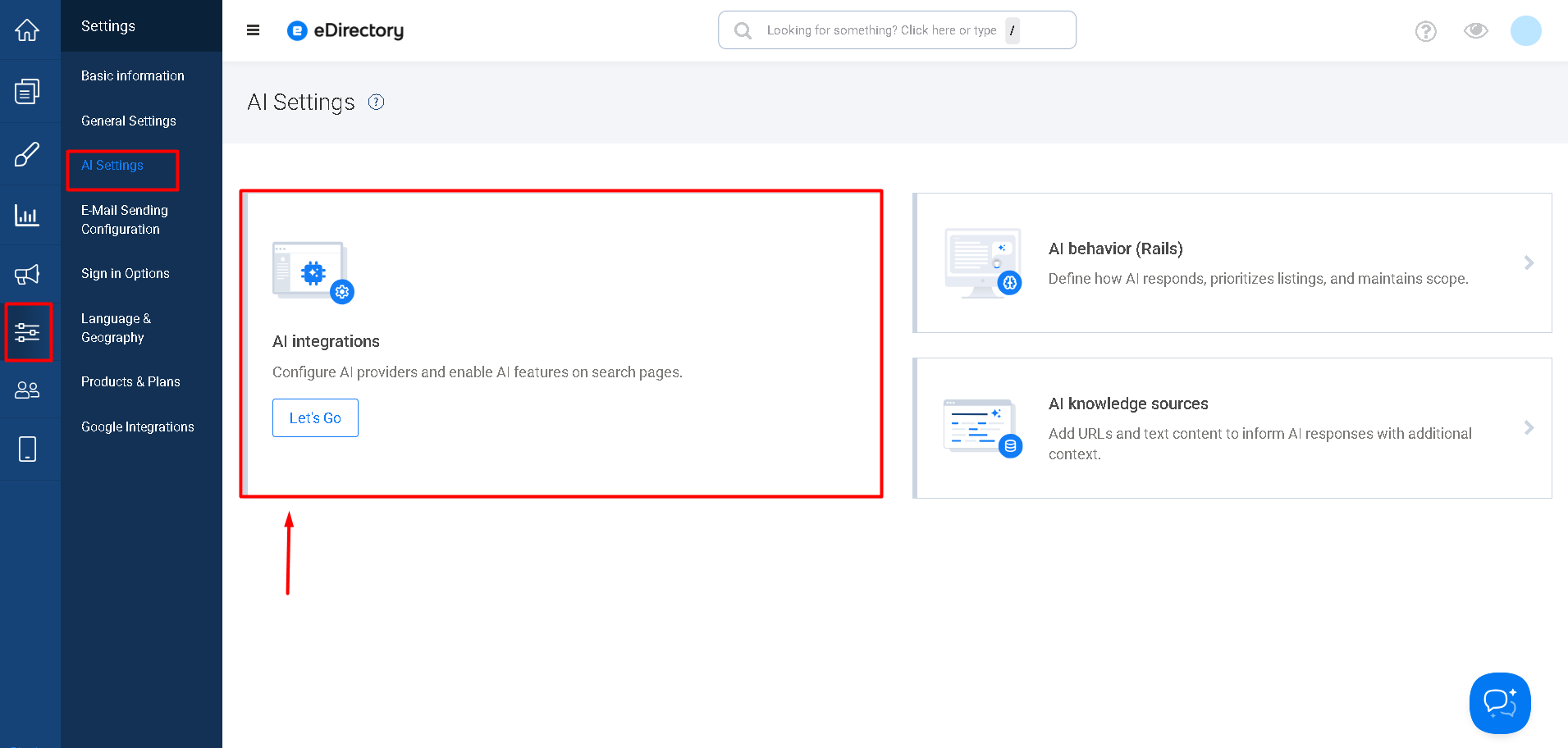
In AI Integrations, make sure the following option is enabled:
- AI-powered summary on search pages
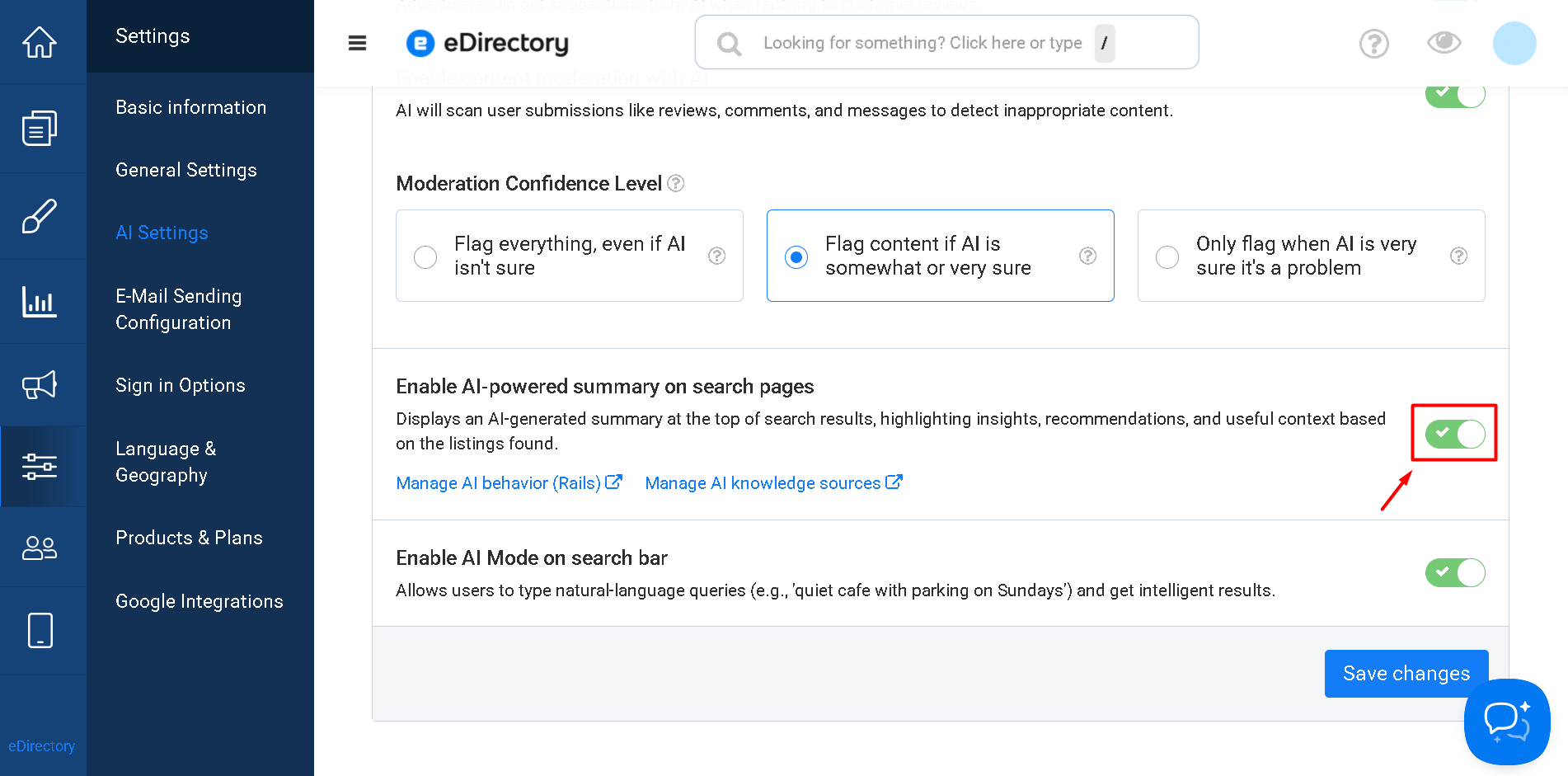
If this option is disabled, the summary will not be displayed on search result pages.
2. Integrate ChatGPT with Your Site
The AI-powered summary feature depends on an active ChatGPT integration. Ensure that:
- A valid OpenAI API key is configured
- An OpenAI model is selected in AI Integrations
If ChatGPT is not yet integrated, please follow the instructions in the article How to Integrate Chat GPT with eDirectory 14.0 before enabling the AI-powered summary.
How Listing Updates Are Reflected in AI Summaries
When you update a listing, there is no need to manually rebuild the AI knowledge base or perform any reindexing.
After saving the listing, the search index is updated automatically. New or updated information becomes available to the AI-powered summary during subsequent searches.
In some cases, if the exact same search was recently performed, the previous AI summary may be temporarily served from cache. Cached search summaries typically expire within approximately one hour.
Performing a different search or searching within a different context will usually display the updated information immediately.
Where to Configure the AI Behavior
To control how the AI behaves:
- Go to Settings → AI Settings → AI behavior (Rails)
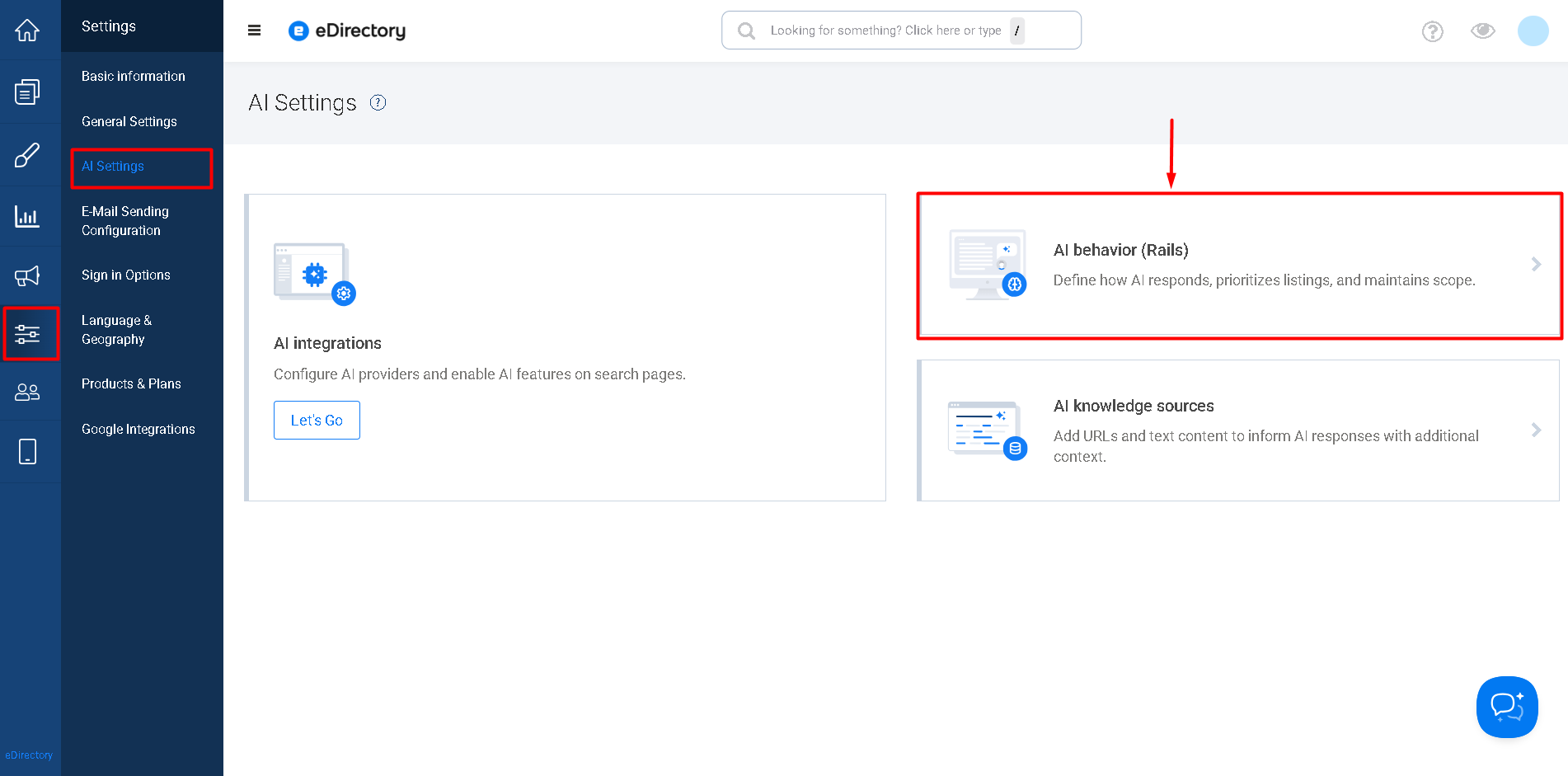
- You will see four main configuration sections:
- Scope & Safety
- Prioritization
- Tone & Style
- AI behavior (Rails) (advanced prompt and guardrails)
Each section controls a different aspect of the AI summary.
Scope & Safety – How Many Listings the AI Can Mention

What this does
This section limits how many individual listings the AI can mention by name in one summary.
Main field: Max listings to reference
Example:
If you set this value to 4:
- The AI can mention up to four listings by name
- It still considers all search results, but only highlights up to four directly
How to configure
- In AI behavior (Rails), find Scope & Safety
- Set Max listings to reference (value between 1 and 10)
- Click Save changes
Best practices
- ✅ 3 to 5 listings usually offer the best balance
- Use smaller numbers if:
- Your pages are very dense
- Your layout is more compact (especially on mobile)
Prioritization – How the AI Chooses What to Highlight

This section controls which listings the AI prefers when many results are similar.
1. Prioritize Showcase Listings
Prioritize showcase listings when relevance is similar
When enabled: if two listings are equally relevant, the AI will prefer the one marked as showcase.
This helps align AI behavior with your business strategy.
How to configure
- Go to Prioritization
- Toggle Prioritize showcase listings when relevance is similar
- Click Save changes
Use this if:
- You want to give more visibility to premium advertisers
- You want AI summaries to reflect your monetization strategy
2. Tie-breaker Rule
The Tie-breaker rule tells the AI how to choose between listings when relevance is very similar and showcase alone isn’t enough.
Common options include:
- Showcase first
- Higher rating first
- Closer distance first
- More reviews first
How it works in practice
When multiple listings are similar, the AI prefers the one that best matches the selected rule.
How to configure
- In Prioritization, find Tie-breaker rule
- Select your preferred option
- Click Save changes
Tips
- Use Higher rating first if reviews are your main quality signal
- Use Closer distance first for local or neighborhood-focused directories
- Use More reviews first when popularity matters most
Tone & Style – How the AI Talks to Users
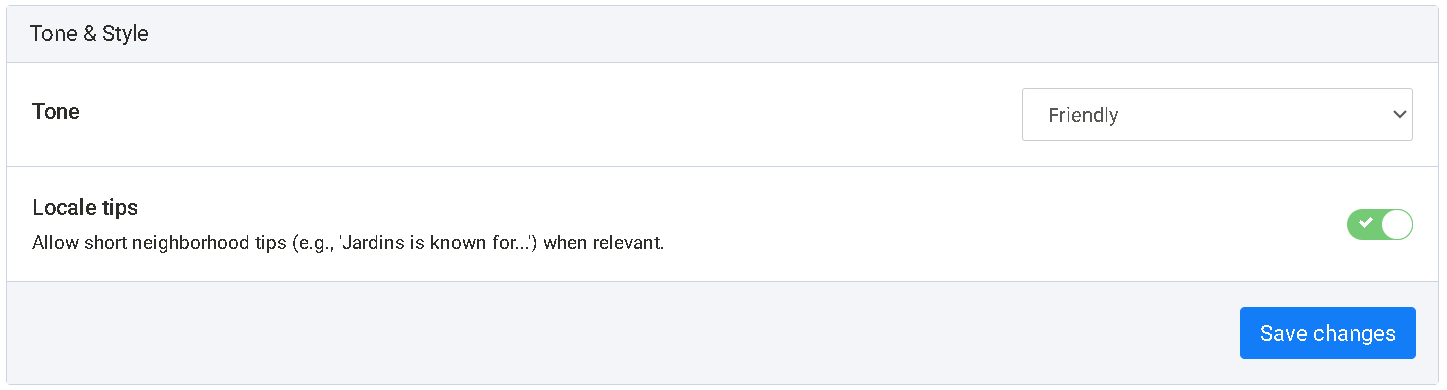
This section controls the voice of the AI and whether it can add small local insights.
1. Tone
Defines the overall writing style of the summary.
Common options include:
- Friendly – warm, approachable, casual
- Professional – neutral, clear, business-focused
- Fun – relaxed, expressive, more personality
How to configure
- Go to Tone & Style
- Select a Tone
- Click Save changes
2. Locale Tips
Locale tips allow the AI to include short neighborhood or regional insights, such as:
- “This area is known for great restaurants and walkable streets.”
- “A popular neighborhood with many casual dining options.”
These tips are based on:
- Listings data
- AI knowledge sources (RAG)
How to configure
- In Tone & Style, find Locale tips
- Toggle the option:
- On: AI may include short local tips
- Off: AI will not add this extra context
- Click Save changes
AI behavior (Rails) – Advanced Prompt and Guardrails
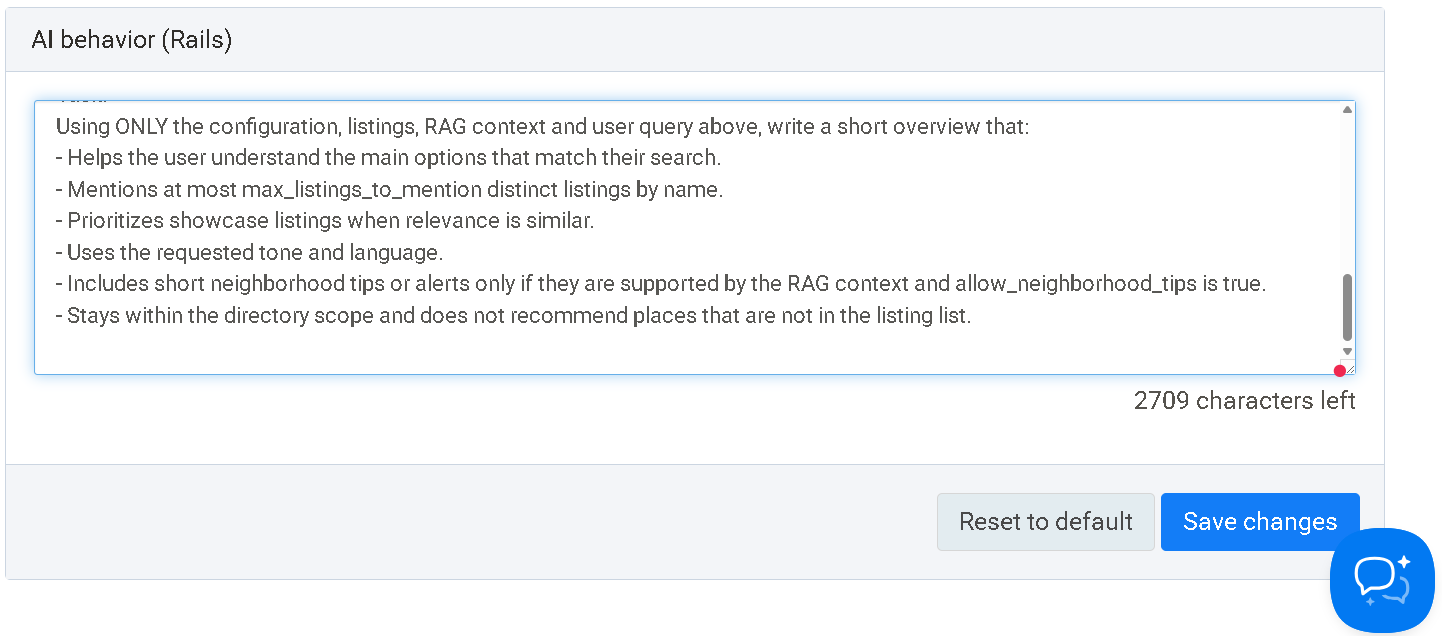
⚠️ Recommended for advanced users only
This section contains the internal prompt template that guides how the AI builds the summary.
You will see:
- A large text field with:
- Configuration variables (directory name, language, tone, limits, etc.)
- Search context and listings data
- Instructions (tasks) for generating the summary
Available buttons:
- Reset to default – Restores the original, recommended prompt
- Save changes – Saves your custom version
Important recommendations
- Always save a copy of the original text before editing
- Make small, incremental changes
- Test changes on real searches
- Incorrect edits can cause unexpected AI behavior
AI Summary vs. AI Mode in the Search Bar
In Settings → AI Settings → AI integrations, you’ll see two separate options:
-
Enable AI-powered summary on search pages
→ Controls the summary shown above search results
-
Enable AI Mode on search bar
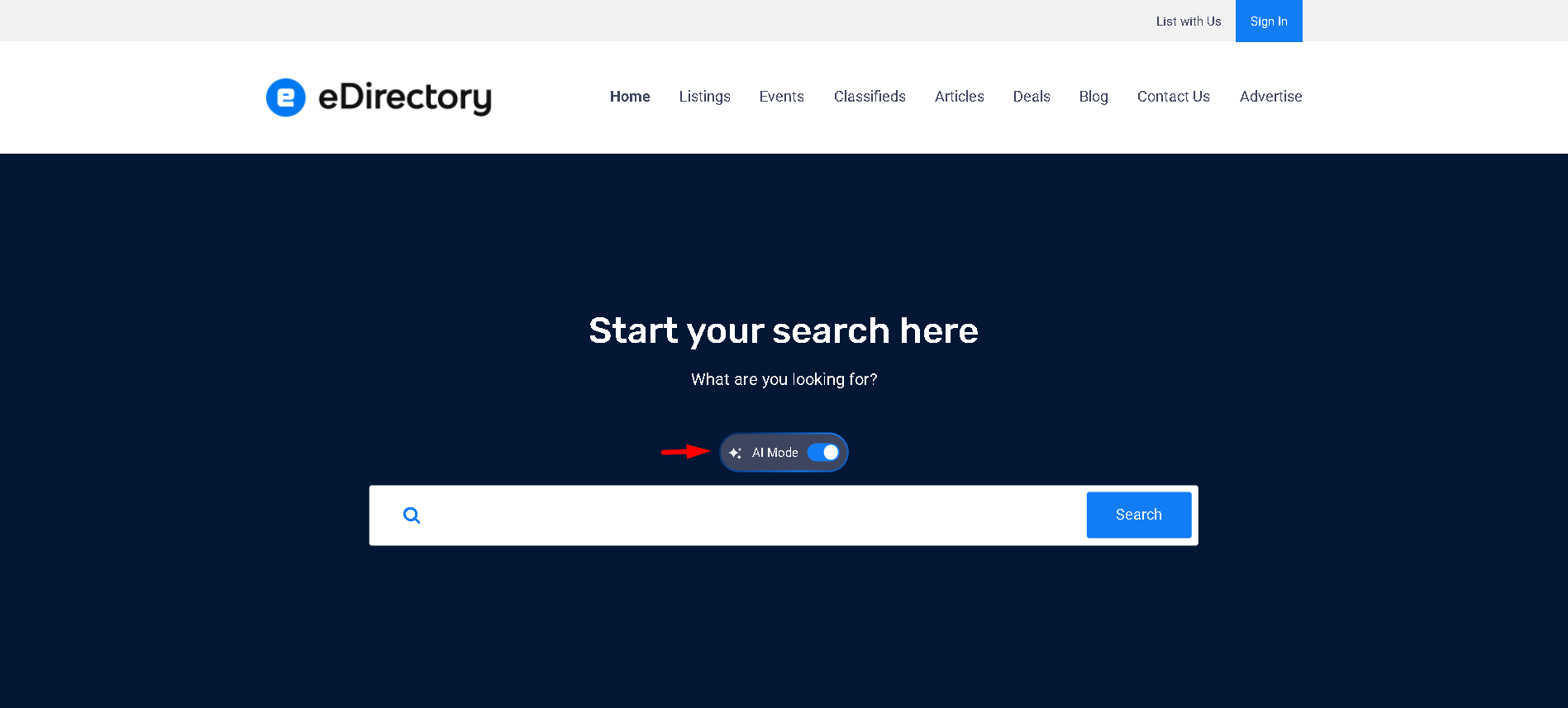
→ Allows users to search using natural language (e.g., “quiet cafés with parking on Sundays”)
Key difference
- AI Mode affects how results are found
- AI Summary affects how results are explained
They work together, but each can be enabled independently.
Conclusion
The behavior of your AI-powered search summary is fully customizable and controlled by four main areas:
- Scope & Safety – how many listings can be mentioned
- Prioritization – how the AI chooses what to highlight
- Tone & Style – how the AI speaks and whether it adds local tips
- AI behavior (Rails) – advanced rules and guardrails for expert users
By adjusting these settings, you can align the AI summary with:
- Your business strategy
- Your audience profile
- The level of context and guidance you want to offer your visitors
When configured thoughtfully, the AI-powered summary becomes a powerful tool to improve user experience and highlight what matters most in your directory.