
Why Can't I Change a Listing Level Directly from the Site Manager Anymore?
If you've upgraded your site to version 13.5 or newer, you may have noticed that changing a Listing Product (Level) directly from the Site Manager no longer works the same way it did in previous versions.
This change is intentional and is related to how subscriptions are managed in the newer versions of eDirectory.
How It Worked Before (Version 13.4 and Earlier)
In versions 13.4 and below, subscriptions were tied directly to individual content items.
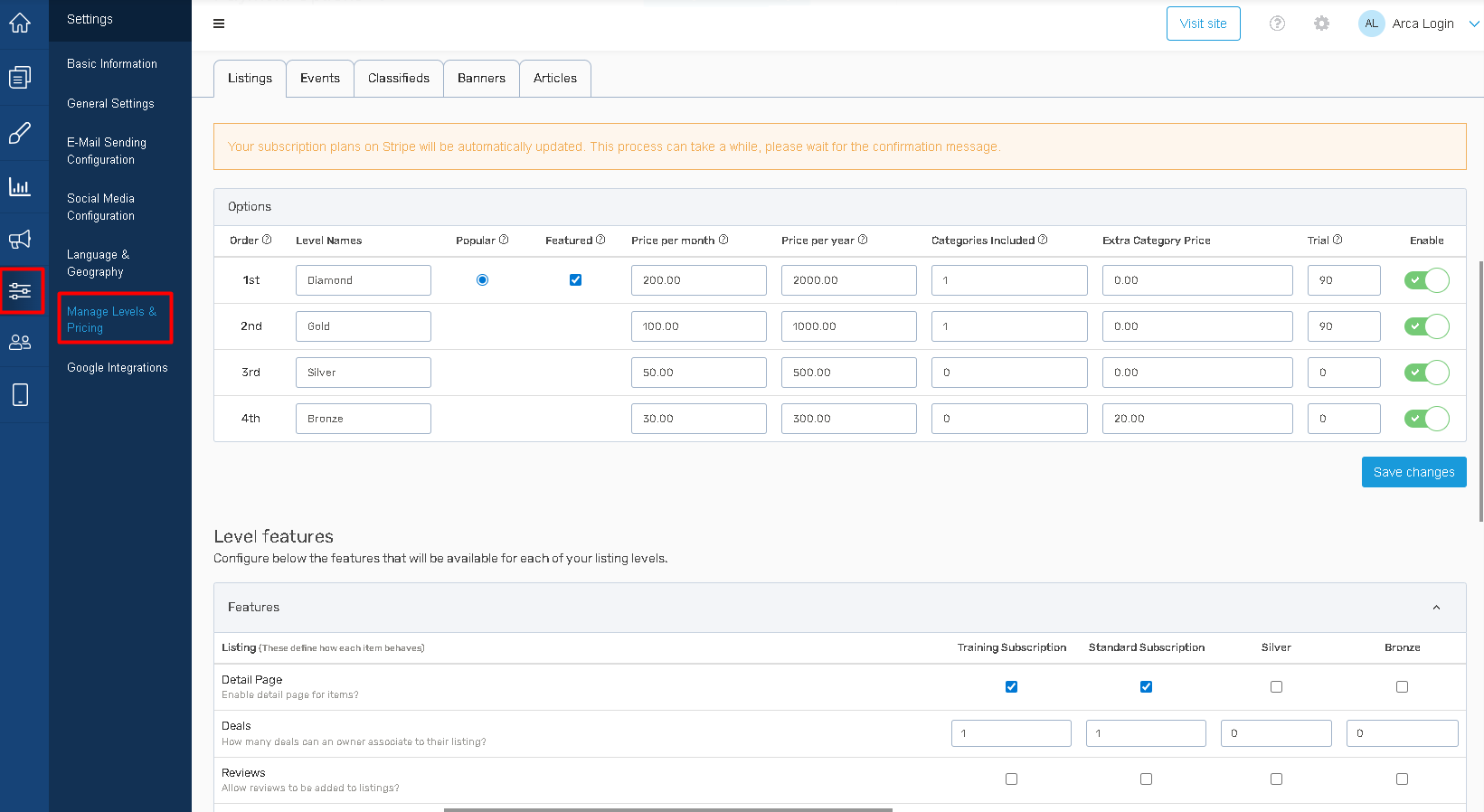
For example, a user would:
- Subscribe to a Listing
- Subscribe to an Event
- Subscribe to a Classified
Each subscription was associated with a specific piece of content. In the example below, we can see the listing options. Each time the user needed to add a listing, they needed to subcribe again.
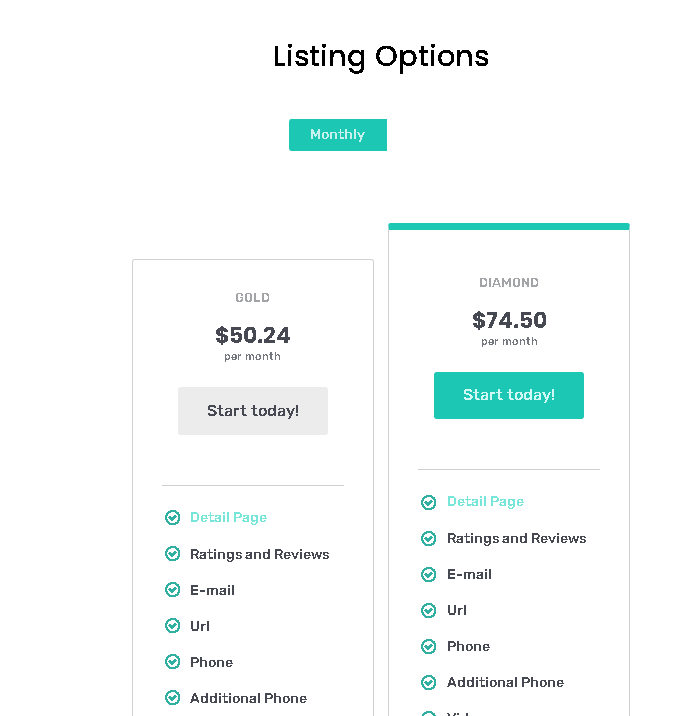
Because of this, Site Managers could simply change the Listing Level (for example, from Gold to Diamond), and the system could trigger the corresponding payment or upgrade process.
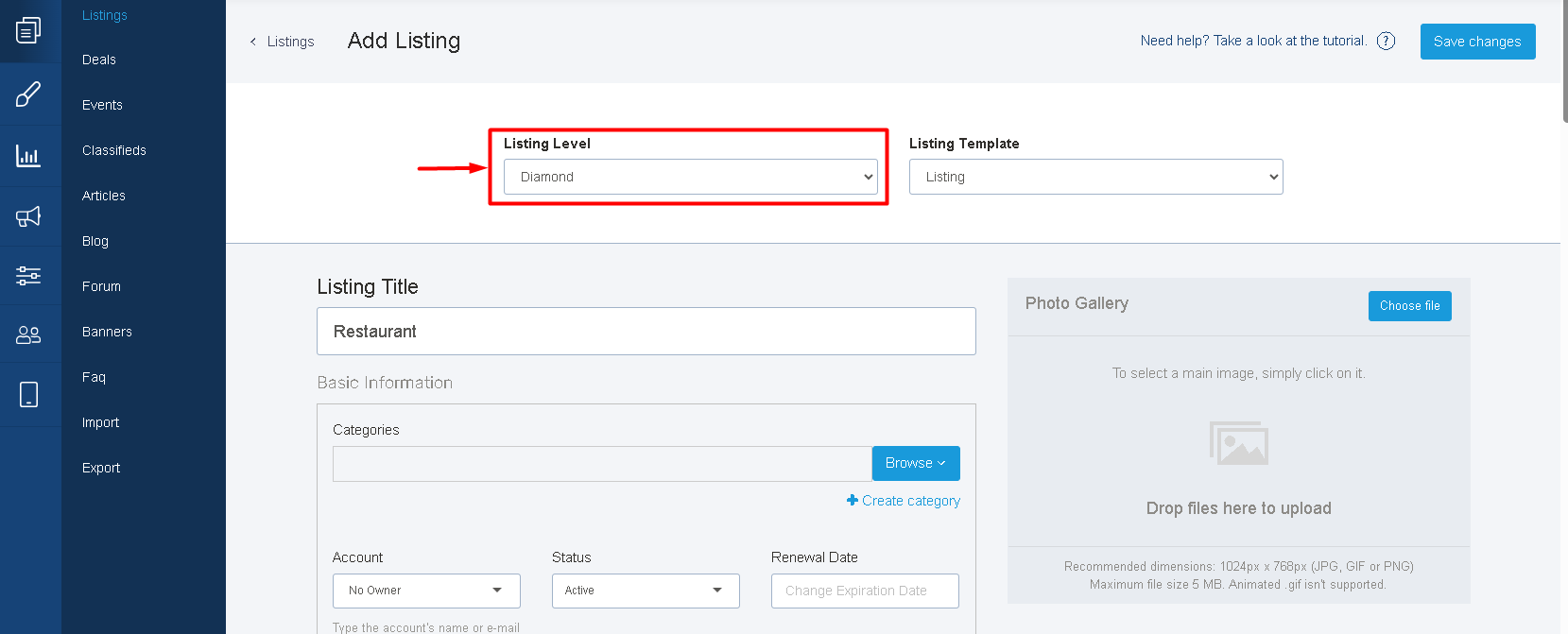
This model was simple because each subscription only affected one content item.
How It Works Now (Version 13.5 and Above)
Starting with version 13.5, the subscription system was redesigned to be more flexible.
The old Manage Levels & Pricing area was replaced by Products & Plans, which can be found under: Settings → Products & Plans
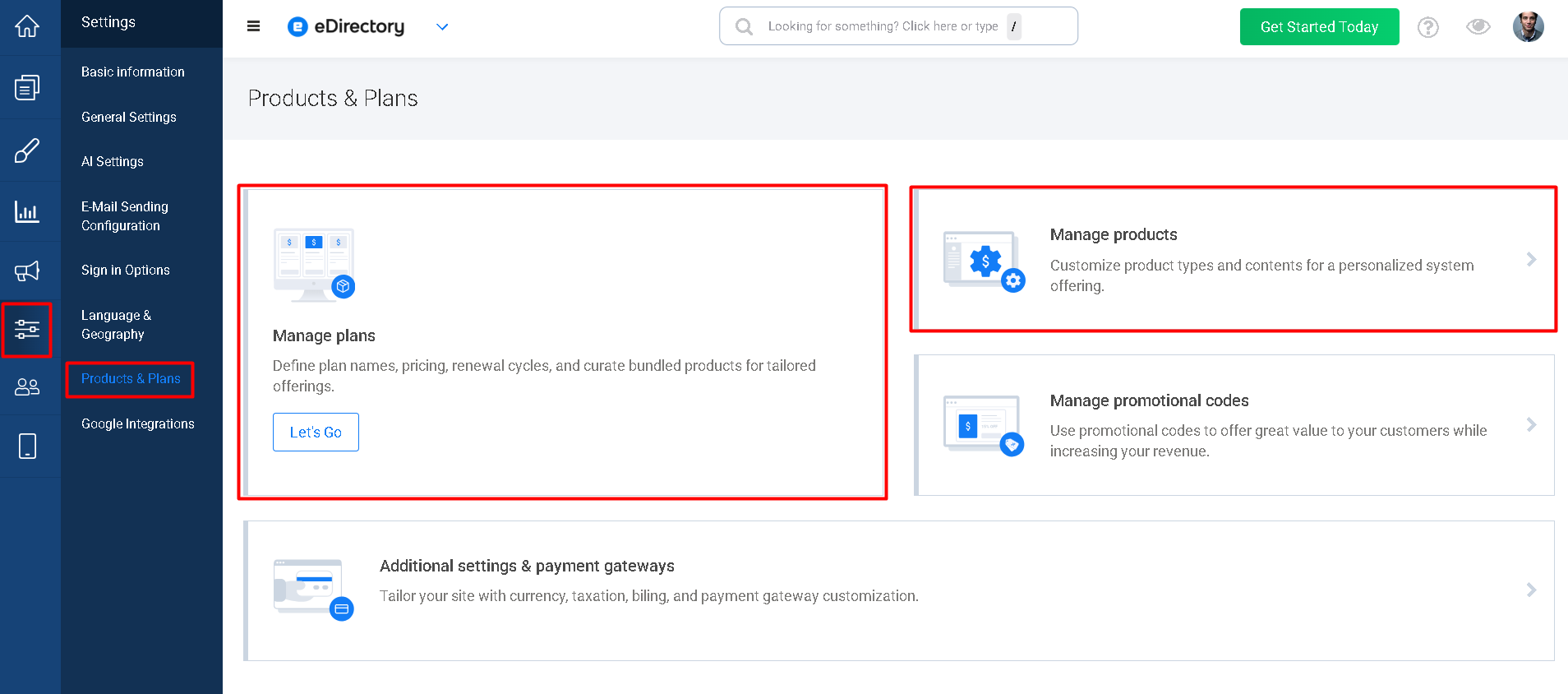
This area is divided into two sections:
Products
The Products section is where you define your content levels and features.
For example, you might create the following Listing Products:
- Diamond
- Gold
- Silver
- Bronze
For each product, you can configure which features are available, such as:
- Email address
- Phone number
- Number of images
- Videos
- Additional custom fields
- Other available features
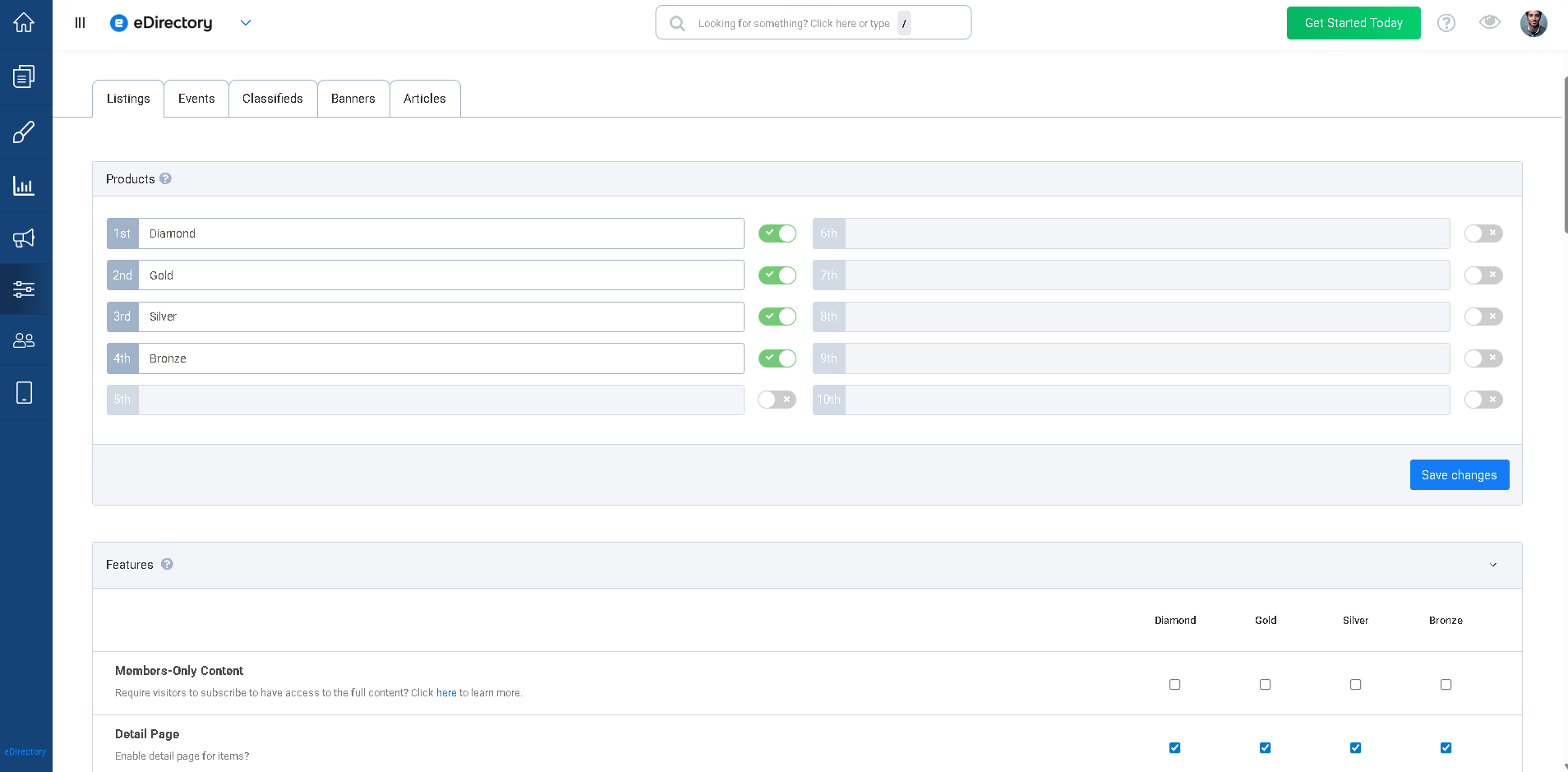
The Products section only determines what features each level includes.
Plans
The Plans section is where you create the actual subscriptions customers purchase.
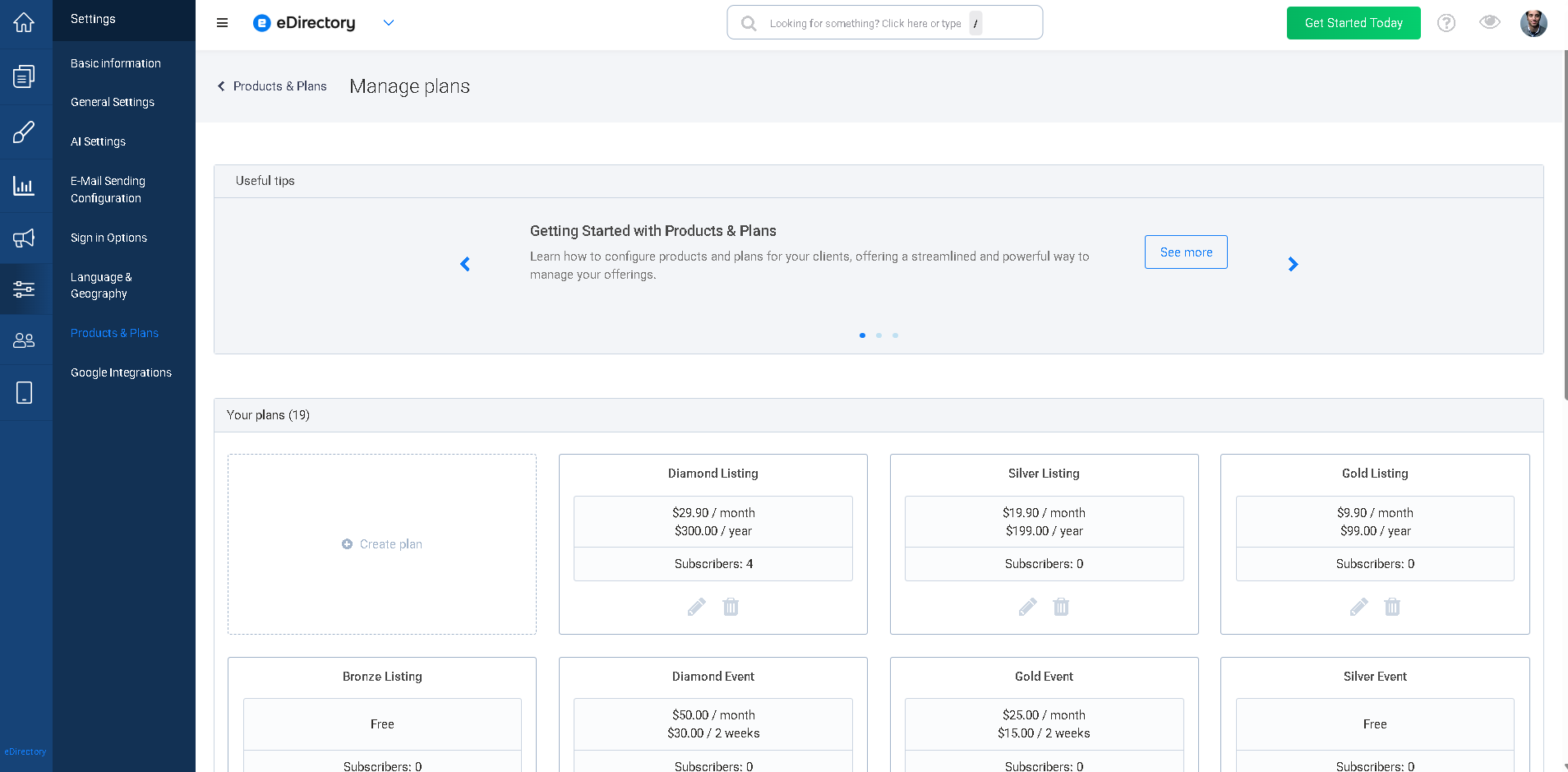
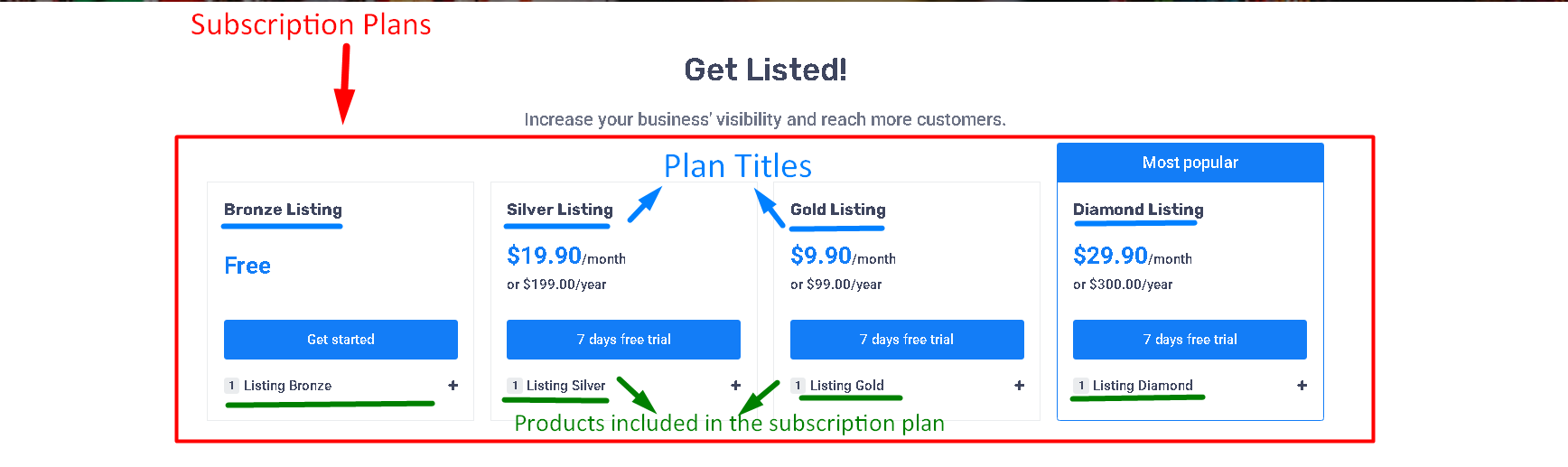
A Plan includes:
- Plan title
- Pricing
- Billing cycle
- Products included in the subscription
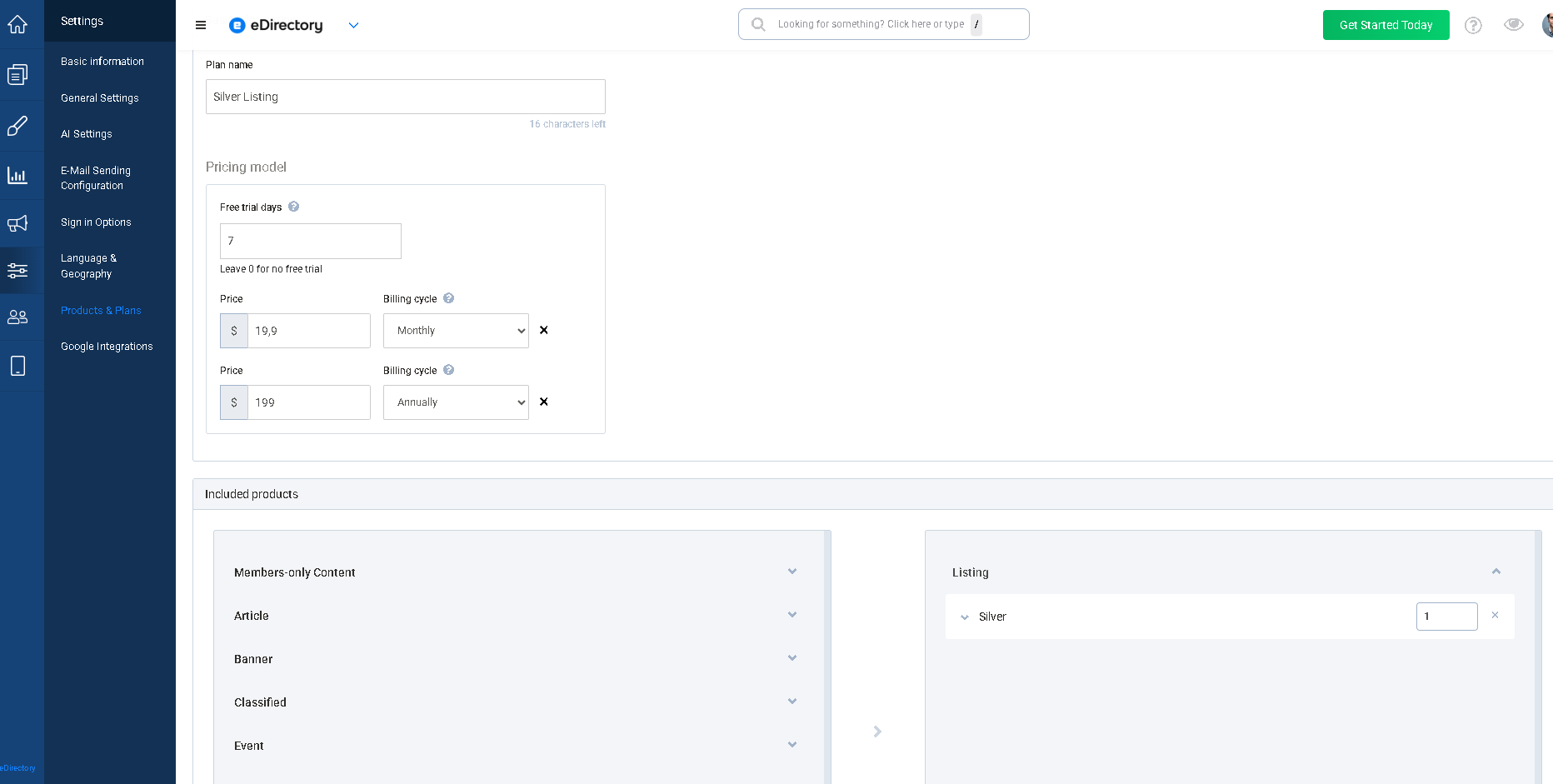
Think of Products as the building blocks and Plans as the subscription packages customers buy.
Example
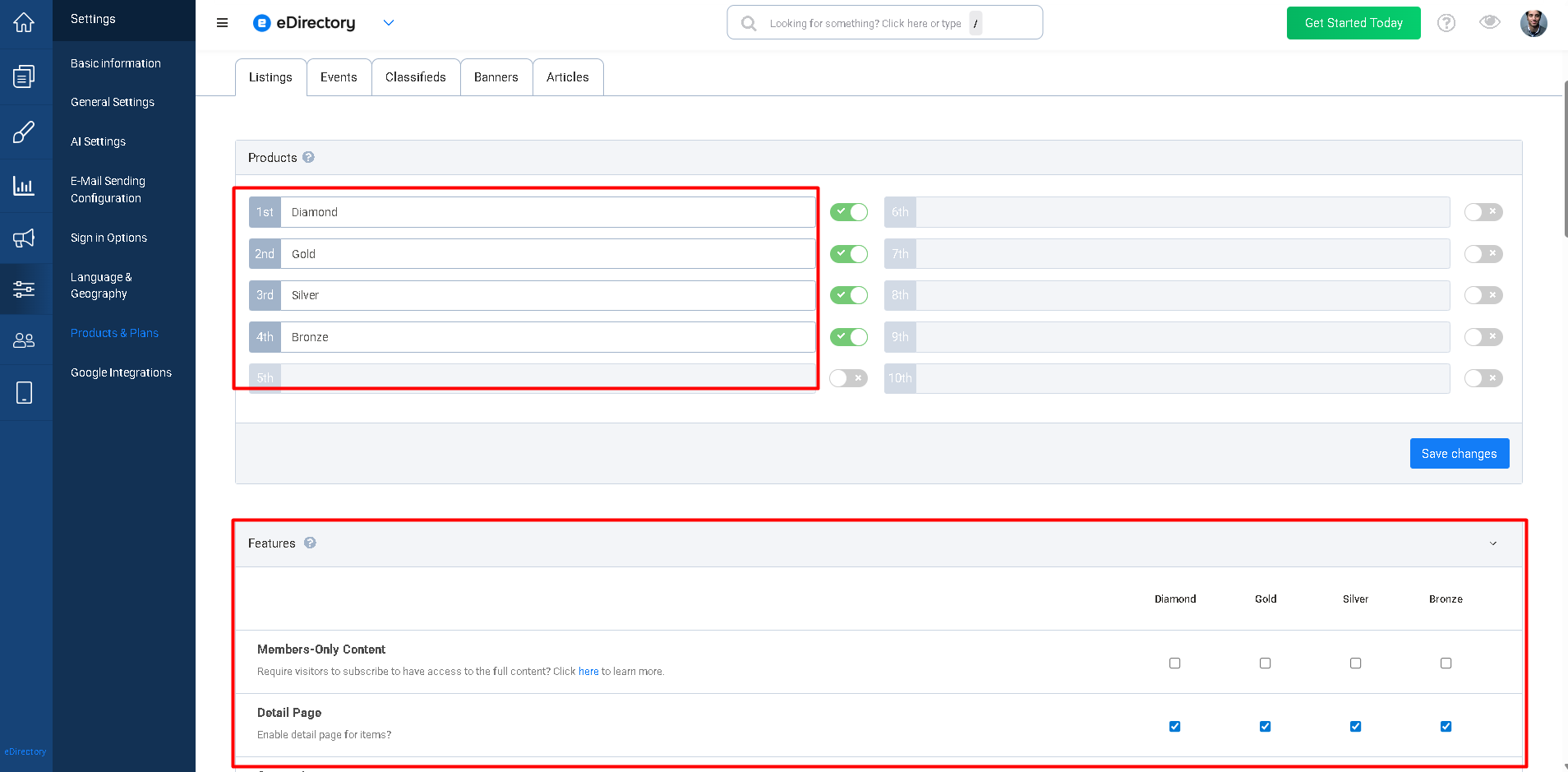
Let's assume your site has four Listing Products under Settings → Products & Plans → Manage Products :
- Diamond
- Gold
- Silver
- Bronze
Each product has different features available.
Now under Settings → Products & Plans → Manage Plan, you create a Gold Plan.
Inside the Gold Plan, you configure:
- Plan title: Gold Membership
- Price: $99/month
- Billing cycle: Monthly
Below that, you'll see two boxes:
- Available Products: This box displays all products you've created in the Products section.
- Included Products: This box displays the products that will be included when someone subscribes to this plan.
For example, the Gold Plan may include:
- Gold Listing
- Gold Event
- Gold Classified
You can add these products by clicking the + button.
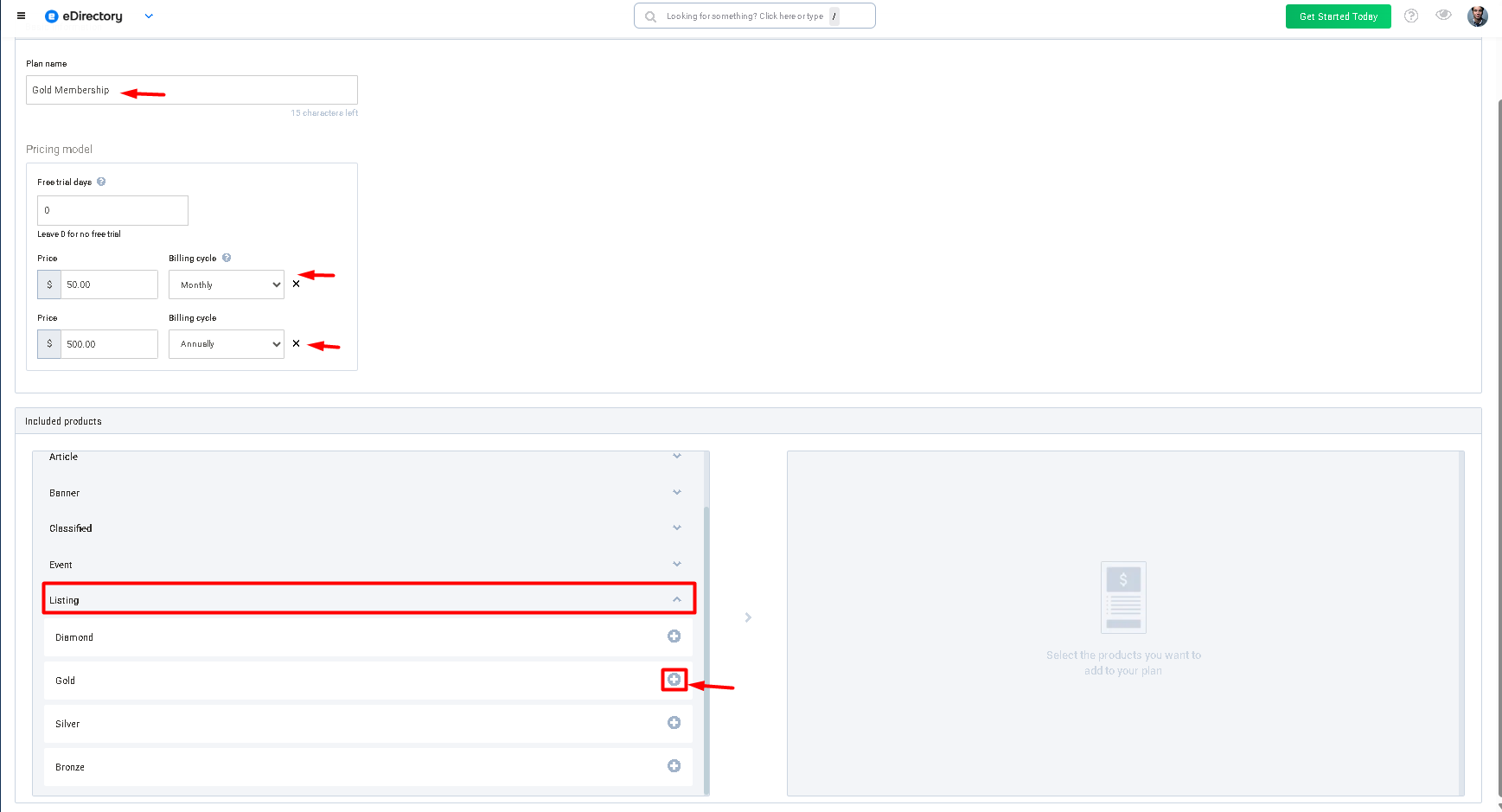
After adding the products, you can also specify how many of each content type the subscriber can create.
For example:
- 5 Listings
- 5 Events
- 5 Classifieds
When a customer purchases this plan, they receive all of these products under a single subscription.
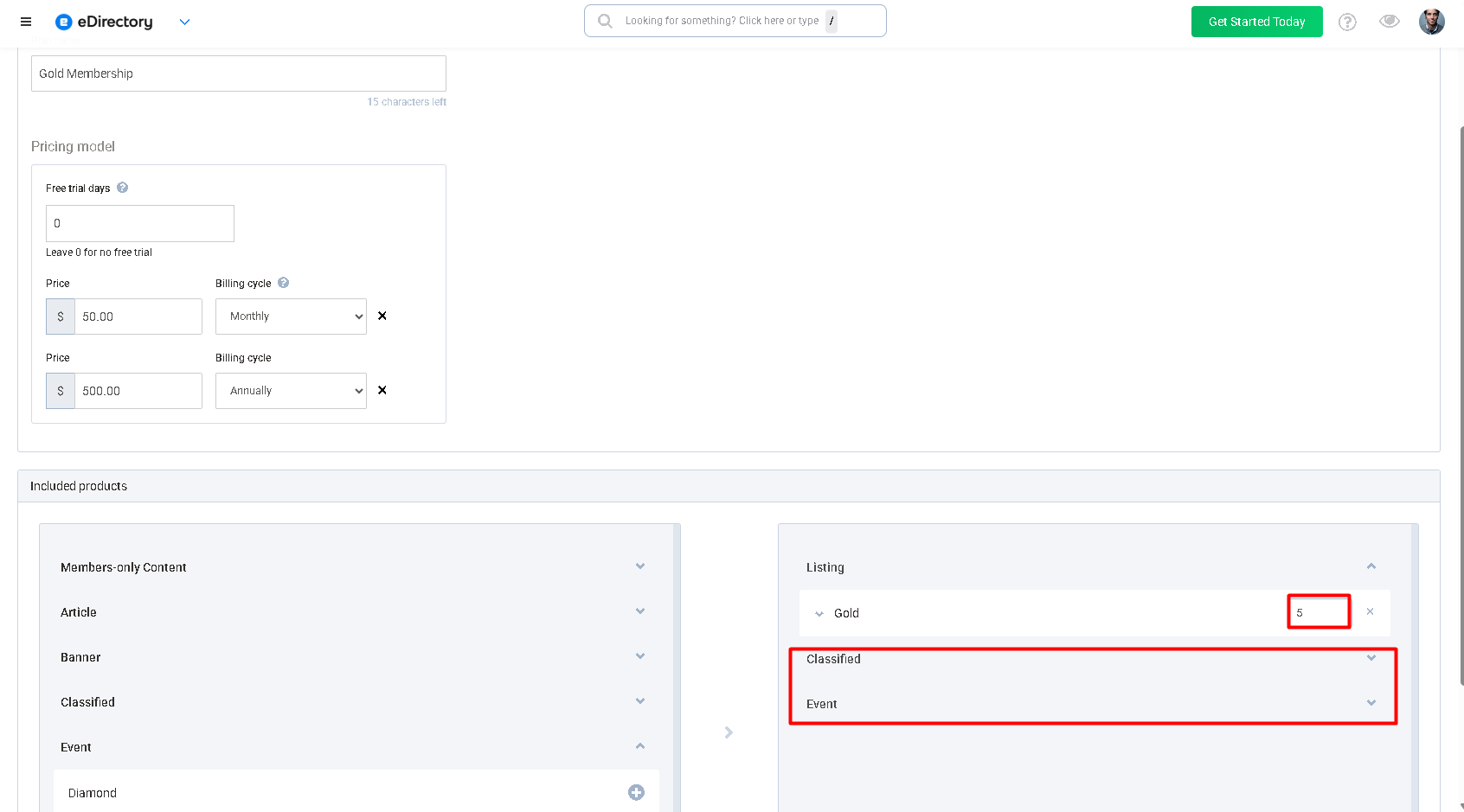
Unlike older versions, they no longer need to purchase separate subscriptions for each content type.
Why Can't I Change a Listing from Gold to Diamond in the Site Manager?
This is the most common question after upgrading.
The reason is that listings are now connected to subscriptions.
For example, suppose a user purchases the Gold Plan.
That subscription includes:
- Gold Listing
- Gold Event
- Gold Classified
In the newer subscription model, a customer's content is linked directly to their subscription plan. For example, if a customer is subscribed to a Gold Plan, that subscription determines which products and features they are entitled to receive.
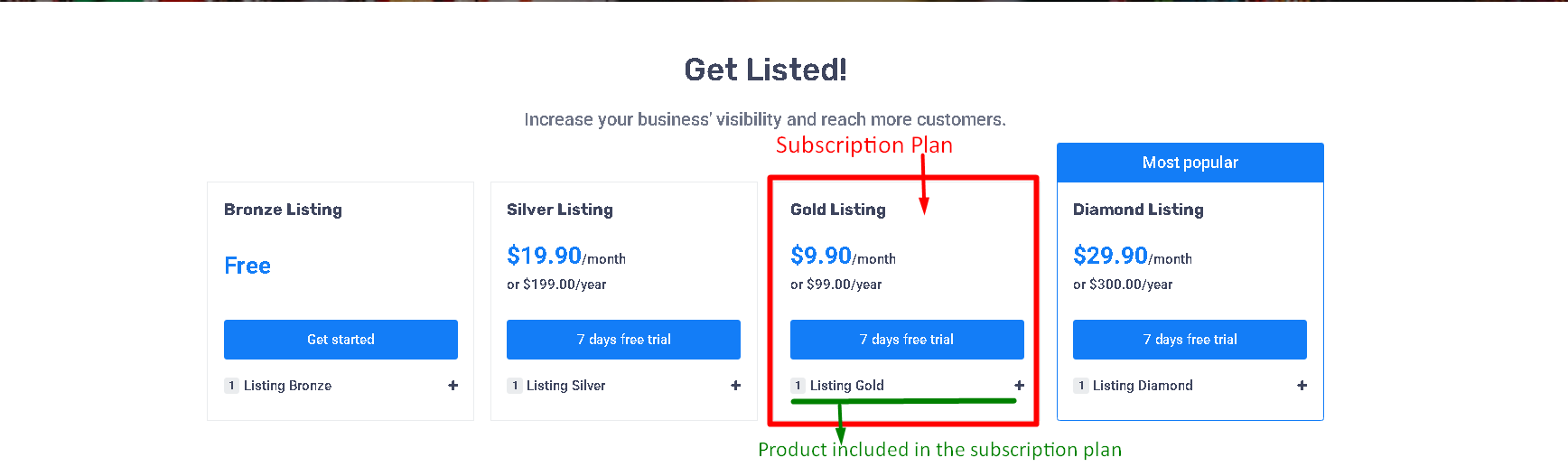
If a Site Manager were able to manually change a listing from Gold to Diamond, they would only be changing the level of that specific listing, not the customer's subscription as a whole. As a result, the customer could end up with a Diamond Listing while still being subscribed to and paying for a Gold Plan.
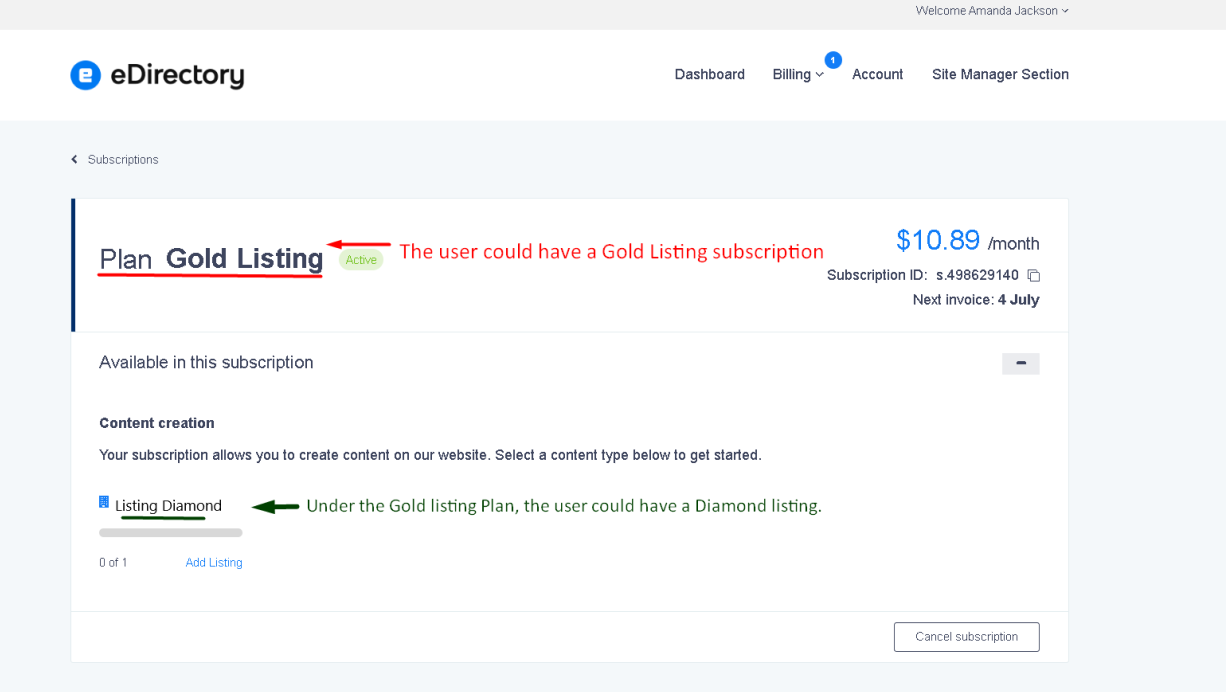
This would create a mismatch between the subscription and the products assigned to the customer's content.
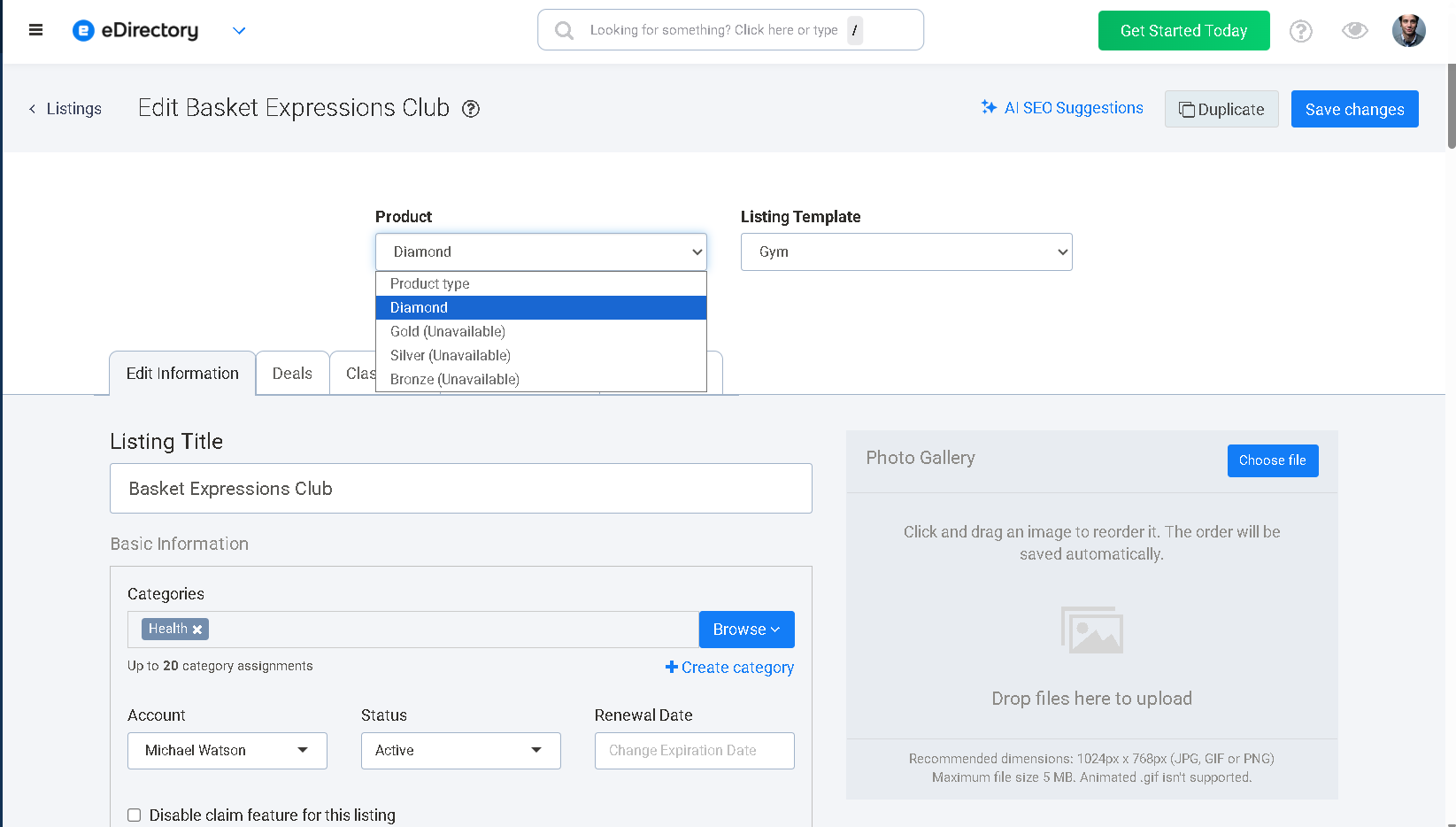
To prevent this type of conflict, the system no longer allows direct level changes for content tied to active subscriptions under the site manager area and gives the user the "Unavailable" message.
How Do I Upgrade a User to a Different Level?
Instead of changing the Listing Level directly, the process now involves changing the customer's subscription.
Example: Upgrading from Gold to Diamond
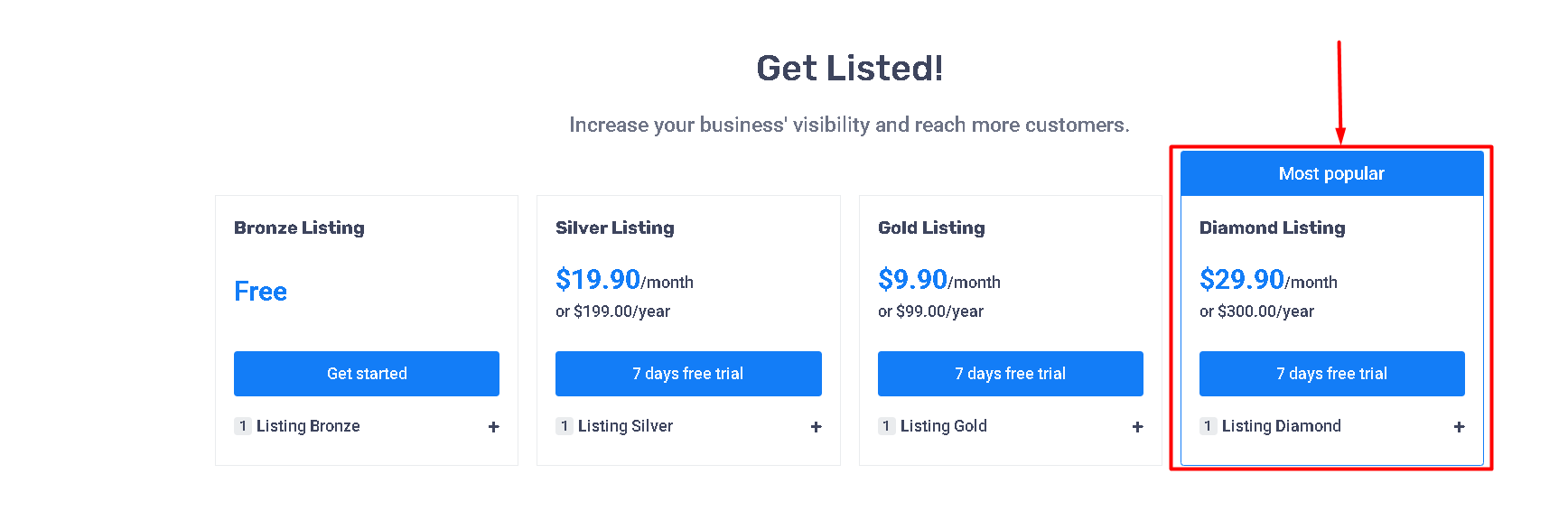
- Ensure you have a Diamond Plan configured.
- Have the customer subscribe to the Diamond Plan.
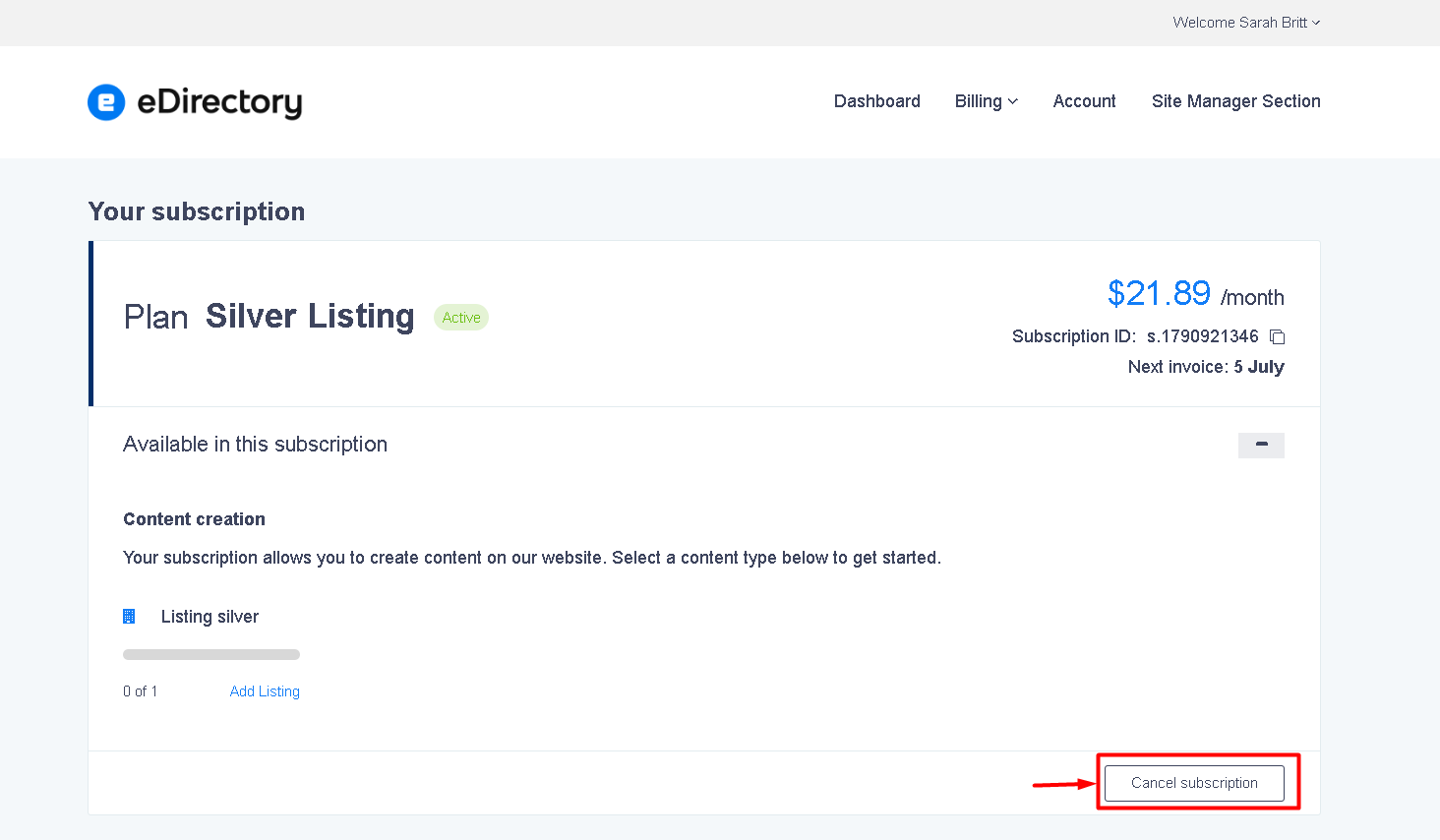
- After the new subscription has been activated, verify the type of the previous subscription. If the previous subscription was a paid subscription, cancel it to avoid duplicate billing. If the previous subscription was a free subscription, no cancellation is required.
- Go to Activity> Revenue Reports, locate the record associated with the customer's old plan, and delete it.

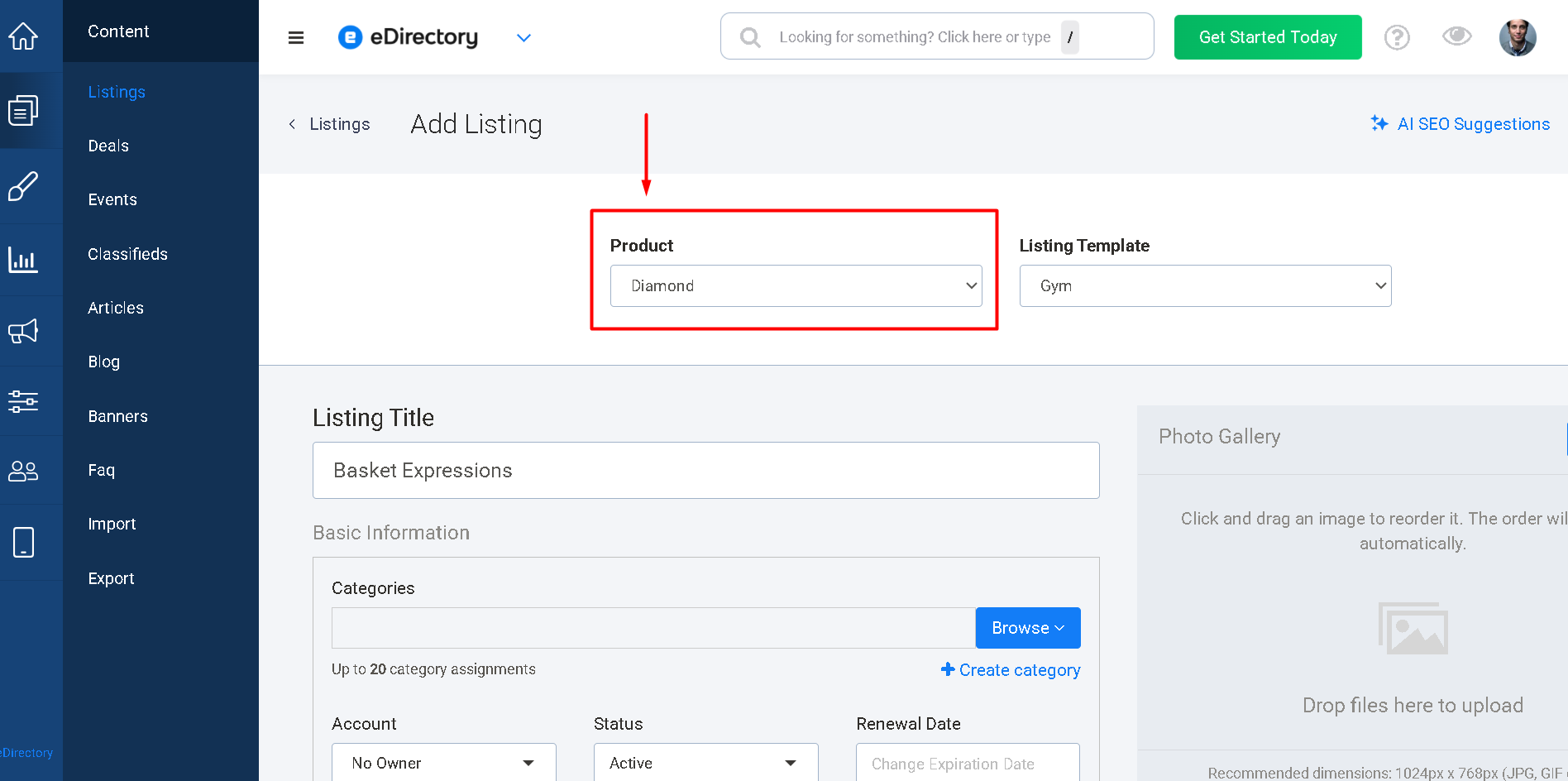
- In the Admin Dashboard, navigate to Content > Listings and edit the customer's listing. In the Listing Form, change the product to match the product included in the new plan, which in this example is Diamond Listing.
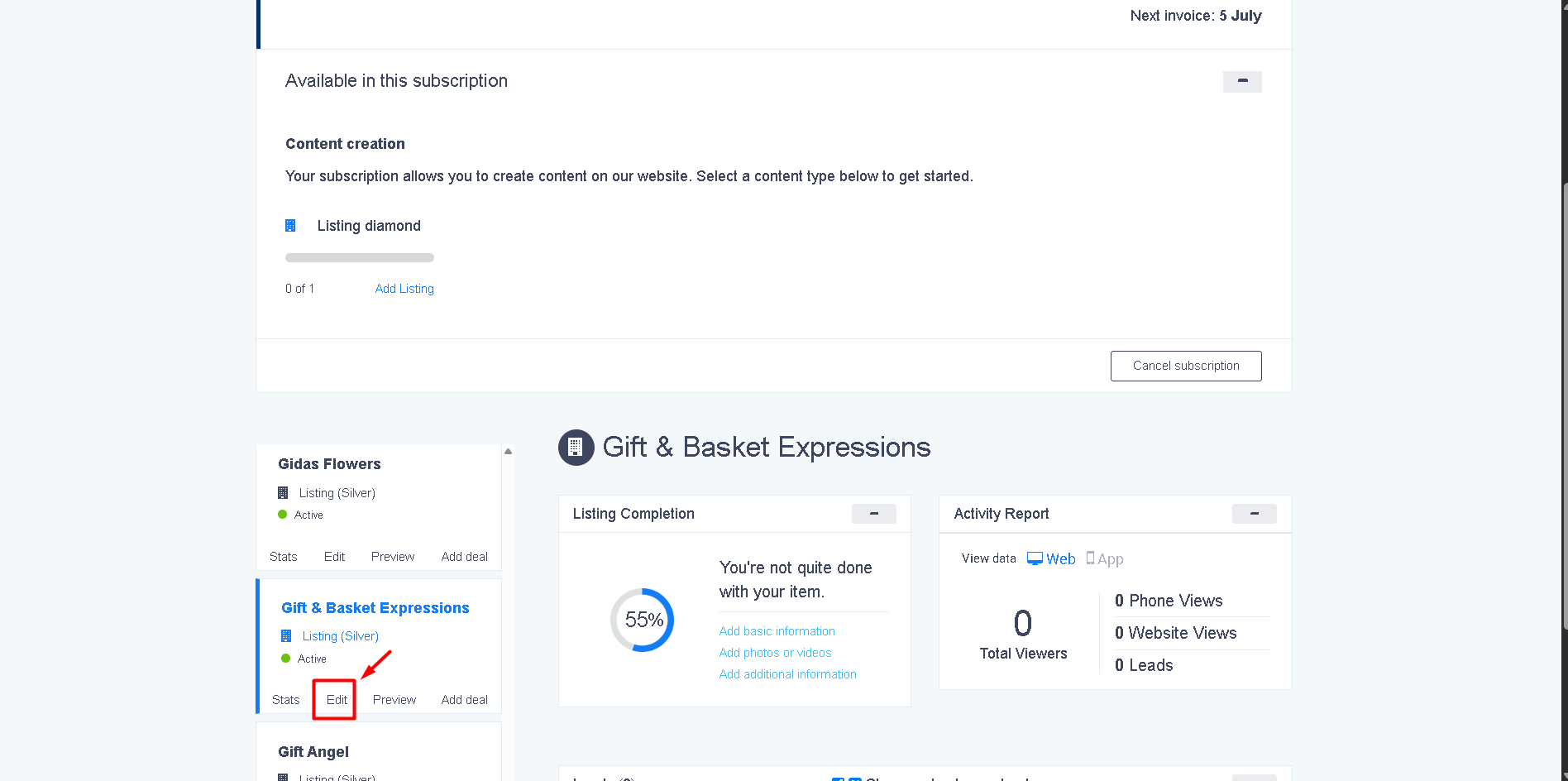
- Log in to the customer's account and access the listing in question.
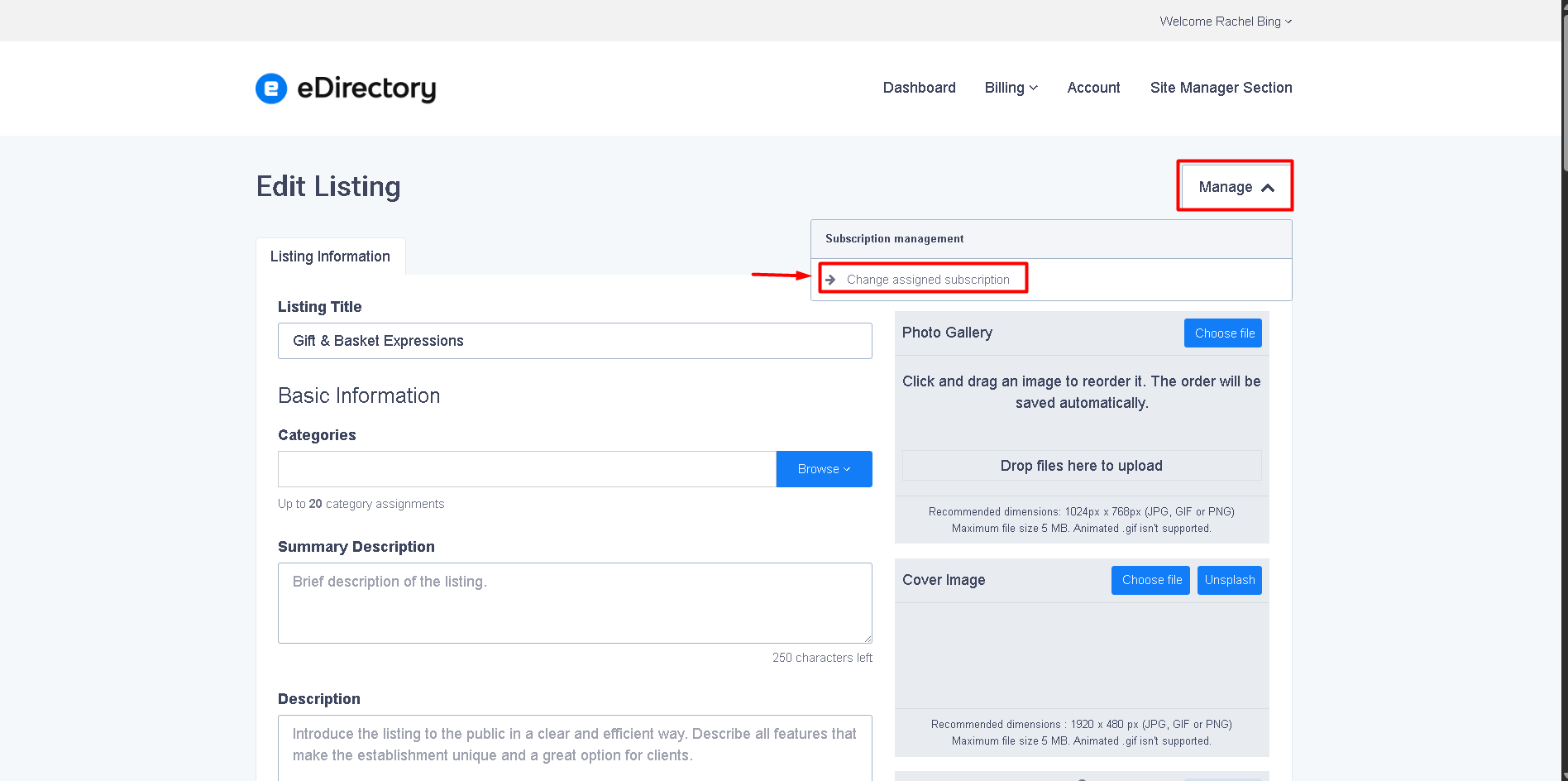
- Move the user's listing to the new subscription.
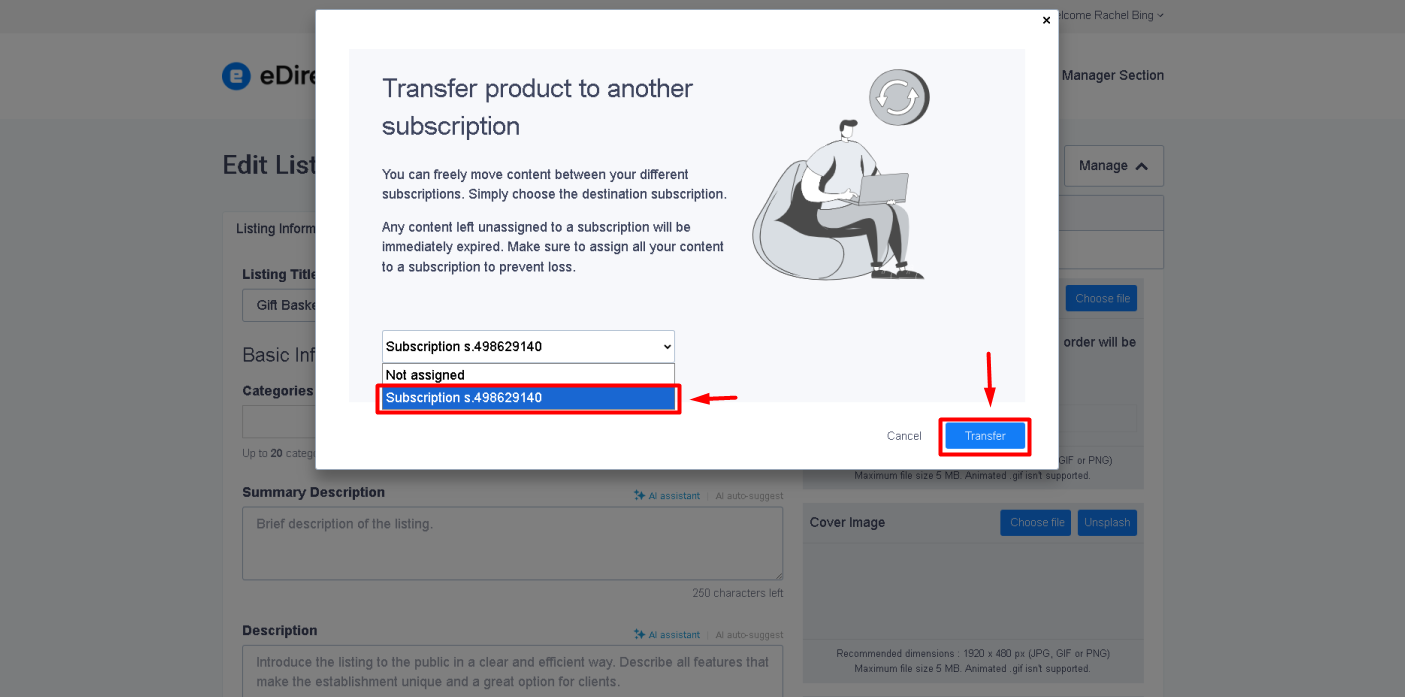
- After the listing has been successfully transferred to the correct subscription, a confirmation message will be displayed.
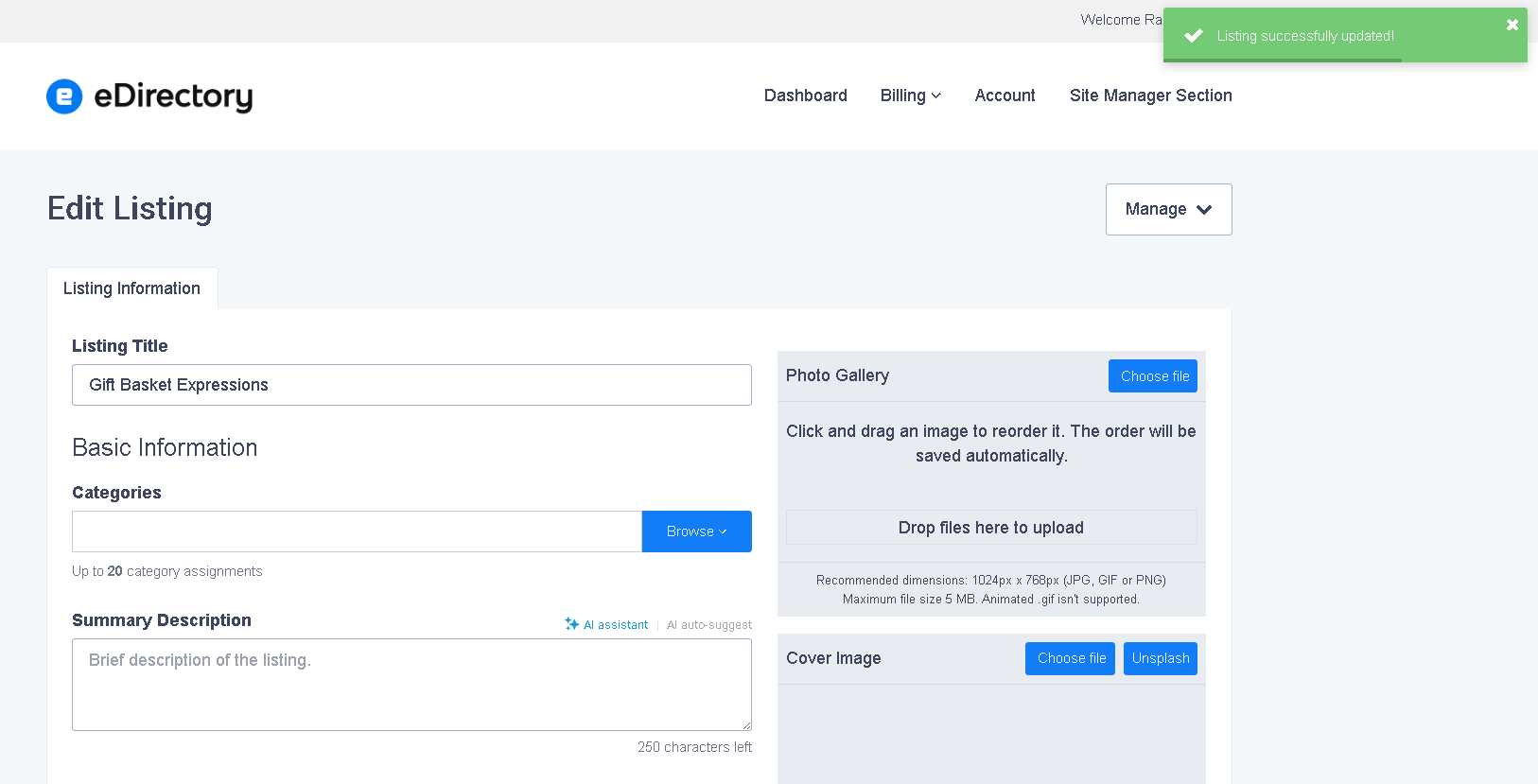
This ensures that:
- The subscription matches the content level.
- Billing remains accurate.
- Features are assigned correctly.
- The site data remains consistent.
Need Step-by-Step Instructions?
We have created a detailed guide that walks through the entire process of moving content between subscriptions and canceling the old subscription.
Please refer to the following article: How can Sponsors upgrade a plan in your eDirectory website
Conclusion
The subscription system introduced in version 13.5 provides greater flexibility by allowing a single subscription to include multiple products and content types. While this changes the way upgrades and level changes are managed compared to previous versions, it also creates a more powerful and scalable membership structure for your users.
Because content is now tied to subscriptions rather than managed independently, listing levels can no longer be changed directly from the Site Manager when the content is associated with an active subscription. Instead, upgrades and downgrades are handled through the subscription itself, ensuring that billing, product access, and content assignments remain synchronized.
If you need to move a user from one level to another, simply have them subscribe to the appropriate plan, move their content to the new subscription, and cancel the old subscription. Following this process helps maintain data integrity and prevents conflicts between subscriptions and content levels.