
How to configure Qdrant in eDirectory 14.0
Introduction
In eDirectory version 14.0, AI-powered features such as the AI-powered summary on search pages rely on a vector database to enrich results with contextual knowledge. For this purpose, eDirectory uses Qdrant, a vector database responsible for storing and retrieving the content defined in AI Knowledge Sources.
This article explains what Qdrant is, why it is required, and how to properly configure the Qdrant integration in eDirectory so that AI summaries can retrieve relevant contextual information during searches.
Important Notes (Required Setup)
For this feature to work correctly, first you need to:
- Integrate your site with ChatGPT
Please refer to the article How to Integrate Chat GPT with eDirectory 14.0 for detailed instructions.
⚠️ Without a valid ChatGPT integration, AI-powered features will not function, even if Qdrant is configured correctly.
Overview: What Is Qdrant and Why It Is Used
Qdrant is the vector database used by eDirectory to store and search the content defined as AI Knowledge Sources.
In simple terms:
- The URLs and raw texts you register as AI Knowledge Sources are:
- Converted into vectors
- Stored in Qdrant
- When a user performs a search:
- eDirectory queries Qdrant to retrieve the most relevant content fragments
- These fragments are sent together with the listings to the AI
- The AI generates an enriched summary based on both listings and contextual knowledge
This is what allows the AI to “remember” and reuse your curated knowledge. For this entire flow to work, a valid connection to Qdrant must be configured.
What You Need Before Configuring Qdrant
Before configuring Qdrant in eDirectory, you must have a Qdrant Instance
This can be either:
- Qdrant Cloud (official SaaS solution), or
- A self-hosted Qdrant instance (Docker, bare metal, etc.)
⚠️ Self-hosted Qdrant is not provided by eDirectory, but can be used if you have the required infrastructure and technical expertise.
Required Credentials
You will need:
-
Host (HTTP endpoint)
The base URL of your Qdrant instance.
-
API Key
An authentication key with read and write permissions for the collection used by eDirectory.
🔐 Security note:
Treat the API key as a secret. Do not share it through insecure channels or include it in public documentation or screenshots.
Step-by-Step: Configuring Qdrant
Step 1: How to Get Your Qdrant Host and API Key
In order to set up Qdrant:
- Go to https://cloud.qdrant.io
- Create a Qdrant Cloud account

- Create a new Cluster
- In your Qdrant dashboard, click on "Clusters"
- Name your cluster
- Select a cloud provider and location
- Click on "Create Free Cluster"

- After the cluster is ready:
- Copy the generated API key.
- Copy the Cluster Endpoint → this is your Qdrant Host

💡 Tip:
- Keep the API Key secure
- Do not share it publicly or commit it to code repositories
Step 2: Configure Qdrant in eDirectory
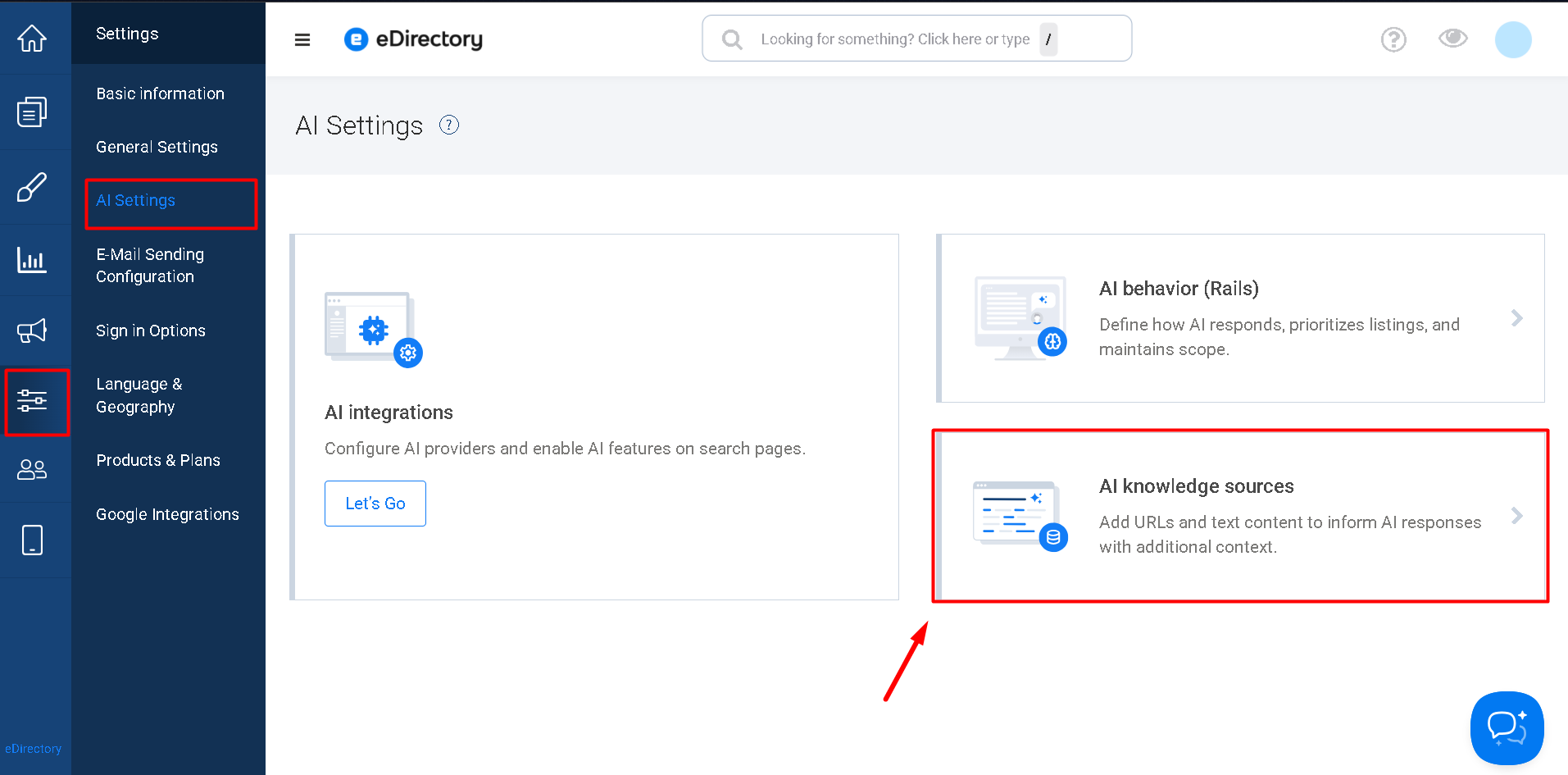
- Navigate to Configuration → AI Settings → AI knowledge sources
- In the Qdrant integration panel, fill in:
- Host → your Qdrant Host URL
- API Key → your Qdrant API Key

- Save your changes
After saving, eDirectory will:
- Store the credentials securely
- Use them whenever:
- AI Knowledge Sources are added, edited, or removed
- A search needs to retrieve contextual content for the AI summary
How to Verify That the Configuration Is Working
There is no dedicated “Test connection” button. The recommended way to validate the configuration is through a practical test:
- After saving the Qdrant host and API key, stay on the AI knowledge sources page.
- Click Add knowledge source.
- Add either:
- A simple public URL, or
- A Raw text source with a basic title and content.
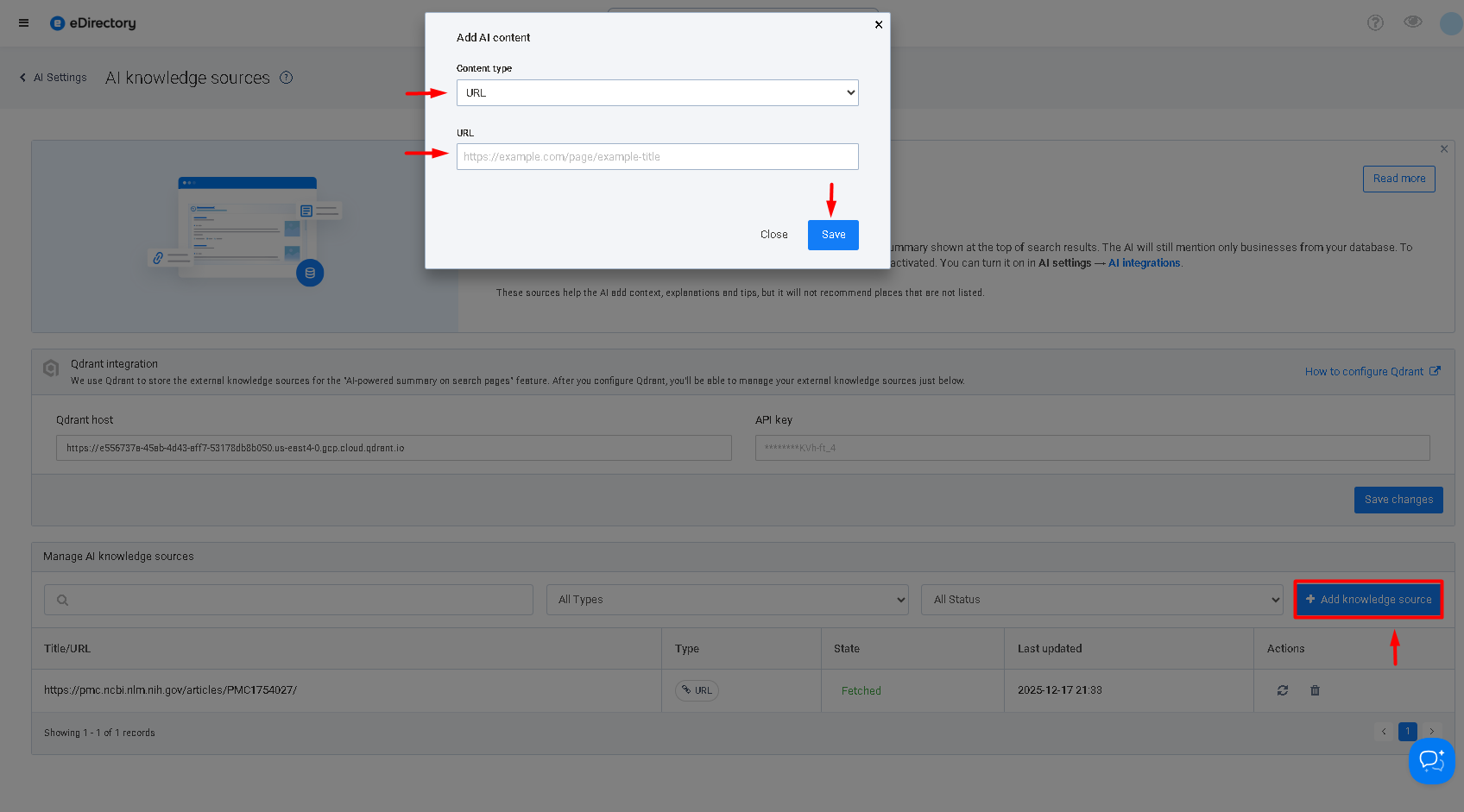
- Save the source.
Validation
- Check the State column in the sources table.
- If the configuration is correct, the state should change to Fetched after a short time.

If the State Shows “Error”
Review the following:
- The Qdrant host URL (no extra spaces, correct protocol, no invalid trailing slashes)
- The API key validity and expiration
- Firewall or network rules allowing the eDirectory server to access the Qdrant host
After fixing the issue, use Refresh / Reindex on the source to retry.
Best Practices for Self-Hosted Qdrant (Advanced users)
If you use a self-hosted Qdrant instance, consider the following best practices:
Separate Environments
- Use different Qdrant instances and credentials for:
- Development
- Staging
- Production
- Avoid pointing test environments to production data.
Monitoring
- For large volumes of sources or frequent updates:
- Monitor CPU, RAM, and storage usage
- Scale your infrastructure or cloud plan as needed
Security
- Restrict Qdrant access to trusted IPs or hosts (such as the eDirectory server)
- Store API keys securely (protected configs or environment variables, depending on your stack)
Relationship Between Qdrant, AI Knowledge Sources, and AI Summary
- Qdrant
- Stores and indexes AI Knowledge Sources
- Performs semantic searches during user queries
- AI Knowledge Sources
- The eDirectory interface to manage URLs and raw texts
- Allows monitoring status (Fetched / Error), editing, reindexing, and deletion
- AI-powered summary on search pages
- Uses:
- The listings returned by the search
- Relevant contextual content retrieved from Qdrant
- Generates enriched summaries that help users make decisions
- Never recommends businesses outside the directory
- Uses:
📌 Additional reference:
For more details on how AI Knowledge Sources work and what the AI is allowed to learn, see the article: AI Knowledge Sources: What Your AI Is Allowed to Learn in eDirectory 14.0
Conclusion
Correctly configuring Qdrant is a mandatory step to enable and use AI Knowledge Sources and to allow the AI-powered summary to include meaningful contextual information such as tips, explanations, and guidance.
Once you have:
- Defined the Qdrant host and API key
- Confirmed that sources are being processed with a Fetched status
You establish a solid foundation for an AI “supporting brain” that enhances search results—fully aligned with the content and rules of your directory.